
Ultimate Ears BOOM 2
Ultimate Ears BOOM 2 Portable Bluetooth Speaker User Manual
Brand: Ultimate Ears | Model: BOOM 2 (984-000551)
1. Introduction
The Ultimate Ears BOOM 2 is a 360-degree wireless speaker engineered to blast loud, insanely great sound with deep, powerful bass in every direction. It is designed to be waterproof (IPX7 rated, up to 30 minutes and a depth of 1 meter) and shockproof, making it highly durable for various environments. The PartyUp feature allows you to wirelessly connect up to 50 Ultimate Ears speakers, and it supports Siri + Google Now voice integration for hands-free control.

Image: Front view of the Ultimate Ears BOOM 2 speaker, highlighting its cylindrical design and prominent volume controls.
2. Setup
2.1. Unboxing and Initial Charge
Upon unboxing, ensure all components are present: the Ultimate Ears BOOM 2 speaker, a charging cable, and a wall plug. Before first use, fully charge the speaker. The charging port is located at the bottom of the speaker, protected by a weather door.

Image: Bottom view of the BOOM 2, showing the charging port and the integrated D-ring for portability.
2.2. Powering On and Bluetooth Pairing
To power on the speaker, press the power button located on the top. The power button will illuminate. To pair with a Bluetooth device:
- Press and hold the Bluetooth button on the speaker until you hear an audible tone and the Bluetooth indicator light flashes rapidly.
- On your mobile device (smartphone, tablet, etc.), navigate to the Bluetooth settings.
- Select "UE BOOM 2" from the list of available devices.
- Once connected, the speaker will confirm with an audible tone, and the Bluetooth indicator light will turn solid.
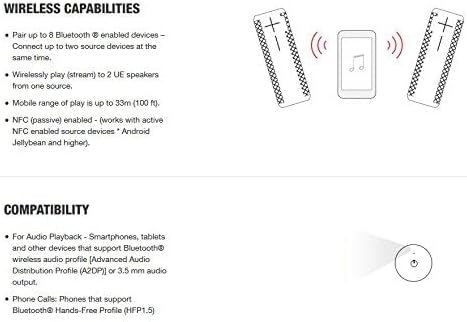
Image: Top view of the BOOM 2, showing the circular power button and the smaller Bluetooth pairing button.
2.3. NFC Pairing (Near Field Communication)
For devices supporting NFC, simply tap your NFC-enabled device to the top of the BOOM 2 speaker to initiate pairing. Ensure NFC is enabled on your device.

Image: Diagram showing how to pair devices via Bluetooth and NFC, and the ability to connect multiple speakers.
3. Operating Instructions
3.1. Volume Control
Adjust the volume directly on the speaker using the large '+' and '-' buttons located on the side. You can also control the volume from your connected Bluetooth device.
Image: The large '+' and '-' symbols on the side of the speaker indicate the volume controls.
3.2. Playback Control
To play or pause music, pick up the speaker and give it a firm tap on the top. This "tap control" feature allows for quick playback management without reaching for your device.
3.3. Voice Assistant Integration
The BOOM 2 supports Siri and Google Now voice integration. Once connected to your smartphone, you can activate your device's voice assistant directly through the speaker by pressing the Bluetooth button.
3.4. PartyUp Feature
The PartyUp feature allows you to wirelessly connect up to 50 Ultimate Ears speakers for an expanded audio experience. This feature requires the Ultimate Ears app, available for iOS and Android devices. Follow the in-app instructions to enable PartyUp mode.
For a visual demonstration of the UE BOOM 2's features, including its waterproof and shockproof design, please watch the official product video below:
Video: Official product video demonstrating the waterproof and shockproof capabilities of the UE BOOM 2 speaker.
4. Maintenance
4.1. Cleaning
The Ultimate Ears BOOM 2 is IPX7 rated waterproof, allowing it to be submerged in water up to 1 meter for 30 minutes. This means you can safely rinse it with water and mild soap to clean off dirt, mud, or sand. Ensure the weather door covering the charging port is securely closed before cleaning.
4.2. Battery Care
To maximize battery lifespan, avoid fully discharging the speaker frequently. Charge the speaker regularly, especially if it will be stored for an extended period. The speaker has a battery life of up to 15 hours on a full charge.
5. Troubleshooting
5.1. No Power
- Ensure the speaker is fully charged. Connect it to the power adapter and charging cable.
- Press and hold the power button for a few seconds to ensure it's not just in standby mode.
5.2. Pairing Issues
- Make sure the speaker is in Bluetooth pairing mode (flashing blue light).
- Ensure your device's Bluetooth is enabled and within the 10-meter (33 ft) range.
- Forget "UE BOOM 2" from your device's Bluetooth settings and attempt to re-pair.
- Try restarting both the speaker and your Bluetooth device.
5.3. Poor Sound Quality or No Sound
- Check the volume levels on both the speaker and your connected device.
- Ensure there are no obstructions between the speaker and your device that could interfere with the Bluetooth signal.
- Move the speaker closer to your device.
- If using the PartyUp feature, ensure all speakers are properly connected and within range of each other.
5.4. Speaker Not Responding
If the speaker becomes unresponsive, perform a soft reset by holding down the power button and the volume down (-) button simultaneously for about 10 seconds until the speaker restarts.
6. Specifications
| Feature | Detail |
|---|---|
| Brand | Ultimate Ears |
| Model Name | BOOM 2 |
| Model Number | 984-000551 |
| Connectivity Technology | Bluetooth, Wireless, NFC |
| Wireless Range | Up to 10 meters (33 feet) |
| Water Resistance Level | IPX7 (Waterproof up to 1 meter for 30 minutes) |
| Shockproof | Yes |
| Battery Life | Up to 15 hours |
| Power Source | Battery Powered |
| Dimensions (D x W x H) | 2.5" x 2.5" x 7" |
| Item Weight | 1.2 Pounds |
| Material | Plastic, Rubber |
| Included Components | Speaker, Charging Cable, Wall Plug |
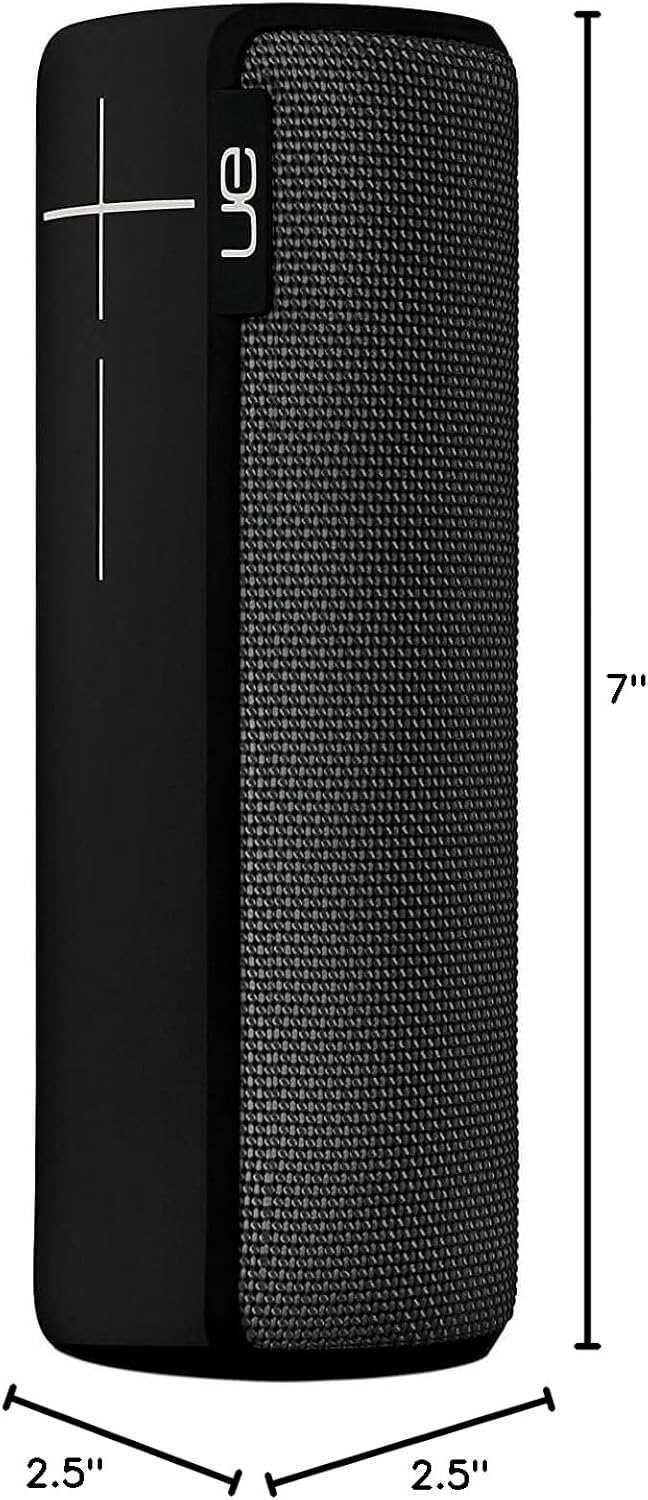
Image: Visual representation of the BOOM 2 speaker's dimensions.
7. Warranty and Support
The Ultimate Ears BOOM 2 comes with a limited warranty. For detailed warranty information, product support, or to access the latest firmware and software updates, please visit the official Ultimate Ears website or contact their customer service.
Official Ultimate Ears Store: Ultimate Ears Store on Amazon
Related documentsBOOM 2


Ask a question about this manual
Ask about setup, troubleshooting, compatibility, parts, safety, or missing instructions. Manuals+ will review the question and use this page’s manual context to help answer it.