
1. Introduction
This manual provides detailed instructions for the setup, operation, and maintenance of your Zmodo Mini WiFi 720p HD Wireless Indoor Home Video Security Camera. Please read this manual thoroughly before using the device to ensure proper functionality and safety. This camera is designed for indoor surveillance, offering 720p HD video, two-way audio, and remote access capabilities.
2. Product Overview
Familiarize yourself with the components of your Zmodo Mini WiFi Camera.

Image 2.1: Zmodo Mini WiFi Camera mounted on a wall, showing its compact design and lens. This image illustrates the camera's appearance and typical indoor placement.

Image 2.2: Zmodo Mini WiFi Camera held in a person's hand, demonstrating its small and portable size. This helps visualize the camera's dimensions.
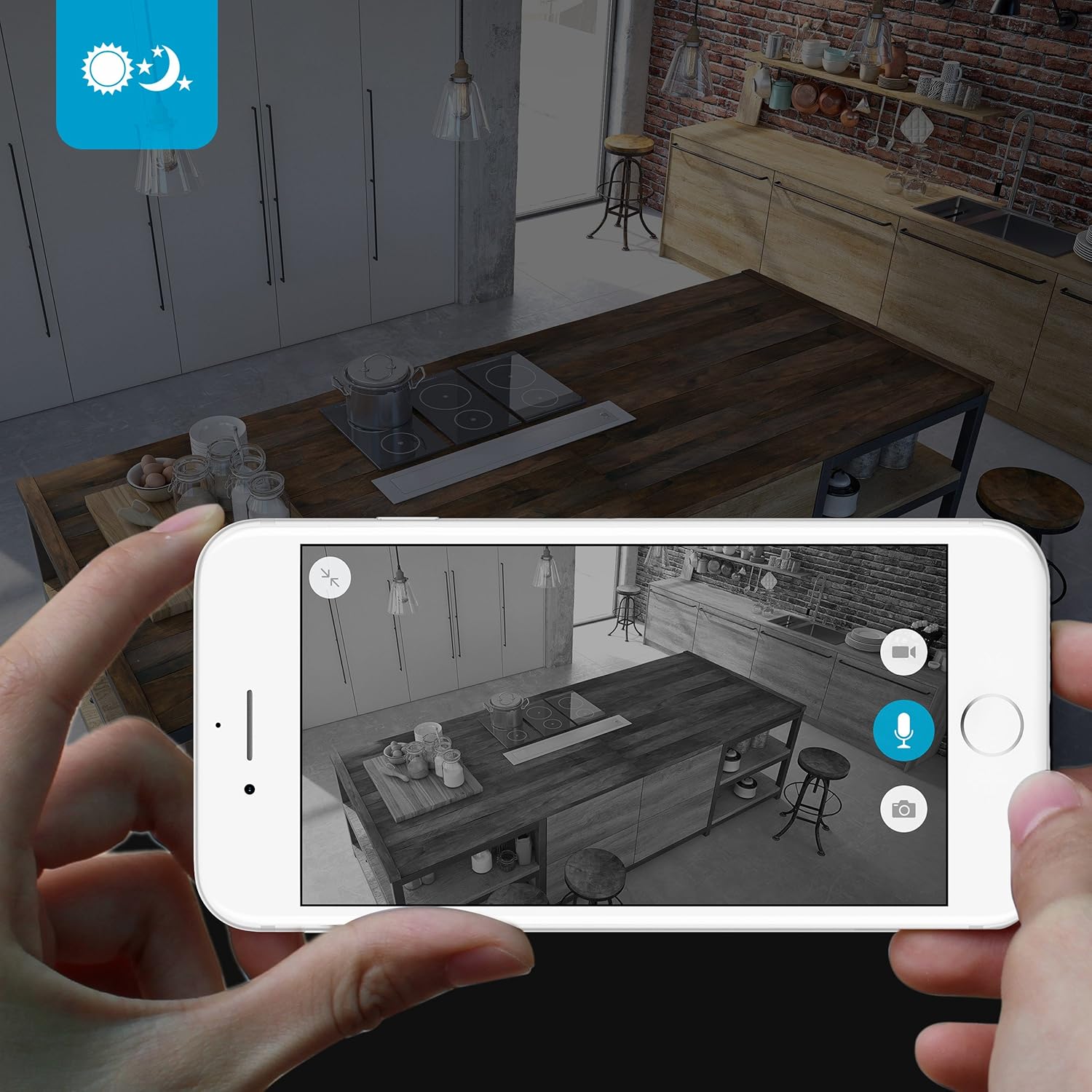
Image 2.3: Zmodo Mini WiFi Camera displayed with its power adapter and a quick guide. This shows the main items included in the product package.
2.1 Package Contents
- Zmodo Mini WiFi Camera
- Power Adapter
- Quick Start Guide
3. Setup Instructions
3.1 App Download
To control and view your camera, download the MeShare app. Search for "MeShare" in the Apple App Store (for iOS 6 and up) or Google Play Store (for Android 2.3 and up).
3.2 Powering On
- Connect the power adapter to the camera's power input port.
- Plug the power adapter into a standard electrical outlet.
- Wait for the camera's indicator light to show a specific status (refer to the app for light status meanings during setup).
3.3 Network Connection (SmartLink)
The camera uses 2.4GHz Wi-Fi for connectivity. It is not compatible with 5GHz networks.
- Open the MeShare app and create an account or log in.
- Follow the in-app instructions to add a new device.
- Select the SmartLink setup option. The app will guide you through connecting the camera to your home Wi-Fi network.
- Ensure your mobile device is connected to the 2.4GHz Wi-Fi network you intend to connect the camera to during setup.
4. Operating Instructions
4.1 Live View and Remote Access
Access your camera's live 720p HD video feed from anywhere using the MeShare app on your Android, iPhone, or iPad device. You can also access it via a web browser at user.meshare.com/user/login.

Image 4.1: A laptop, tablet, and smartphone simultaneously displaying live video feeds from Zmodo cameras. This illustrates the multi-device remote access capability.
4.2 Two-Way Audio
The camera features two-way audio, allowing you to listen to the environment around the camera and speak through its built-in speaker using the MeShare app.
4.3 Motion Detection
The camera is equipped with a motion sensor that can detect movement. You can configure motion alerts within the MeShare app to receive notifications when motion is detected.

Image 4.2: A smartphone screen showing a Zmodo alert for motion detected, with video clips available for review. This demonstrates the motion alert feature.
4.4 Night Vision
The camera provides clear surveillance even in low-light conditions with its night vision capabilities, offering a range of up to 30 feet. It automatically switches between color day mode and black & white night mode using infrared light.

Image 4.3: A smartphone screen showing a black and white night vision view from the Zmodo camera in a kitchen setting. This illustrates the camera's low-light performance.
4.5 Wide Angle View
The camera features a 115° wide-angle lens, allowing for a broad view of your indoor space.

Image 4.4: A smartphone screen showing a wide-angle view from the Zmodo camera in a bedroom, capturing a broad area. This highlights the 115-degree field of view.
5. Maintenance
5.1 Cleaning the Camera
- Ensure the camera is powered off before cleaning.
- Use a soft, dry cloth to gently wipe the camera body.
- For the lens, use a lens cleaning cloth specifically designed for optics to avoid scratches.
- Do not use liquid cleaners or aerosol sprays directly on the camera.
5.2 Environmental Considerations
- This camera is designed for indoor use only.
- Avoid placing the camera in direct sunlight or near heat sources.
- Keep the camera away from moisture and extreme temperatures.
6. Troubleshooting
6.1 Common Issues and Solutions
- Camera not connecting to Wi-Fi: Ensure your Wi-Fi network is 2.4GHz. Verify your Wi-Fi password. Try restarting your router and the camera.
- Poor video quality: Check your internet connection speed. Ensure the camera lens is clean and free from obstructions.
- No audio or distorted audio: Verify microphone and speaker settings in the MeShare app. Ensure there are no physical obstructions blocking the microphone or speaker.
- Motion alerts not working: Check motion detection settings in the MeShare app. Ensure notifications are enabled for the app on your mobile device.
- Camera offline: Check if the camera is powered on. Verify your Wi-Fi network is active and stable. Try restarting the camera.
7. Specifications
| Feature | Description |
|---|---|
| Model Number | WAUBMAKGCUVDD |
| Video Capture Resolution | 720p HD |
| Connectivity Technology | Wireless (Wi-Fi 2.4GHz) |
| Two-Way Audio | Yes |
| Wide Angle | 115° |
| Night Vision Range | Up to 30 Feet (Infrared) |
| Motion Sensor | Yes (Motion Only Alert Type) |
| Power Source | AC/DC (5 Volts, 5 Watts) |
| Indoor/Outdoor Usage | Indoor |
| Dimensions (L x W x H) | 7 x 2.1 x 4.5 inches |
| Item Weight | 12 ounces |
| Compatible Devices | Video Monitor (Android, iPhone, iPad) |
8. Warranty and Support
For warranty information or technical support, please refer to the official Zmodo website or contact Zmodo customer service directly. Keep your purchase receipt for warranty claims.
For further assistance, visit the Zmodo Store on Amazon.


