
1. Introduction
This manual provides detailed instructions for the installation, operation, and maintenance of your THINKWARE X500D Dashcam with Rear View Camera. The X500D is designed to provide comprehensive front and rear surveillance of your vehicle, capturing Full HD 1080p video with a Sony Exmor image sensor for the front camera and a Full HD 1080p rear camera.
Key features include advanced driver assistance systems (ADAS) such as lane departure, front collision, red light, and speed camera alerts, as well as a built-in GPS tracker for recording time, speed, and location data. For optimal performance and longevity, please read this manual thoroughly before using the device.
2. Safety Information
- Installation: Ensure the dash cam is installed in a location that does not obstruct the driver's view or interfere with vehicle safety features (e.g., airbags).
- Power Source: Use only the provided cigarette power cable or an official THINKWARE hardwiring cable for power. Using unauthorized power sources may damage the device and void the warranty.
- Operating Temperature: The device is designed to operate within a specific temperature range. Avoid exposing the dash cam to extreme temperatures (e.g., direct sunlight for extended periods in hot climates) to prevent damage.
- MicroSD Card: Use only genuine THINKWARE microSD cards or high-endurance cards from reputable brands. Frequent formatting of the microSD card is recommended to maintain optimal recording performance.
- Cleaning: Clean the lens and screen with a soft, dry cloth. Do not use harsh chemicals or abrasive materials.
- Firmware Updates: Regularly check for and install firmware updates to ensure optimal performance and access to new features.
- Disclaimer: This device is pre-loaded with firmware and GPS data specific for use within the US only. Proper device operation cannot be guaranteed outside of the US.
3. Package Contents
Verify that all items are present in your package:
- Main Dash Cam Unit (THINKWARE X500D)
- Rear View Camera
- Mount with Extra 3M Adhesive Tape
- Cigarette Power Cable
- Adhesive Cable Clips
- THINKWARE 32GB MicroSD Card with SD Card Adapter
- Quick Start Guide/Warranty Information
- Rear View Camera Cable

Image: The THINKWARE X500D Dashcam main unit, rear camera, 32GB MicroSD card, and SD card adapter, representing the typical package contents.
4. Product Overview
4.1. Front Dash Cam Unit (X500D)

Image: Front view of the THINKWARE X500D Dashcam, showing the main lens and the "FHD Recorder" label.

Image: Rear view of the THINKWARE X500D Dashcam, displaying the LCD screen with live view and control buttons on the left side.
The main unit features a Full HD 1080p camera with a Sony Exmor image sensor, a 2.7-inch LCD touchscreen for live view and settings, and various control buttons. It also includes a built-in GPS module and G-sensor for incident detection.
4.2. Rear View Camera

Image: The compact THINKWARE rear view camera, designed for discreet installation on the rear window.
The rear view camera provides Full HD 1080p recording for the rear of your vehicle, connecting to the main dash cam unit via the provided cable.
4.3. MicroSD Card

Image: A THINKWARE branded 32GB MicroSD card alongside its larger SD card adapter.
The included 32GB MicroSD card is specifically designed for THINKWARE Dash Cams, featuring SPOR (Sudden Power Off Recovery) technology to protect recorded data.
5. Setup and Installation
5.1. Inserting the MicroSD Card
- Ensure the dash cam is powered off.
- Locate the microSD card slot on the side of the main unit.
- Insert the 32GB MicroSD card into the slot until it clicks into place. Ensure the card is inserted with the correct orientation.
5.2. Mounting the Front Dash Cam
- Clean the windshield area where the dash cam will be mounted. Ensure it is free of dust and grease.
- Attach the mount to the dash cam unit.
- Remove the protective film from the 3M adhesive tape on the mount.
- Firmly press the mount onto the windshield, ideally behind the rearview mirror, ensuring it does not obstruct your view. Hold for at least 30 seconds.
- Adjust the camera angle to ensure the road ahead is clearly visible and centered in the frame.

Image: The THINKWARE X500D Dashcam mounted on a car's windshield, viewed from inside the vehicle, showing the screen and controls.
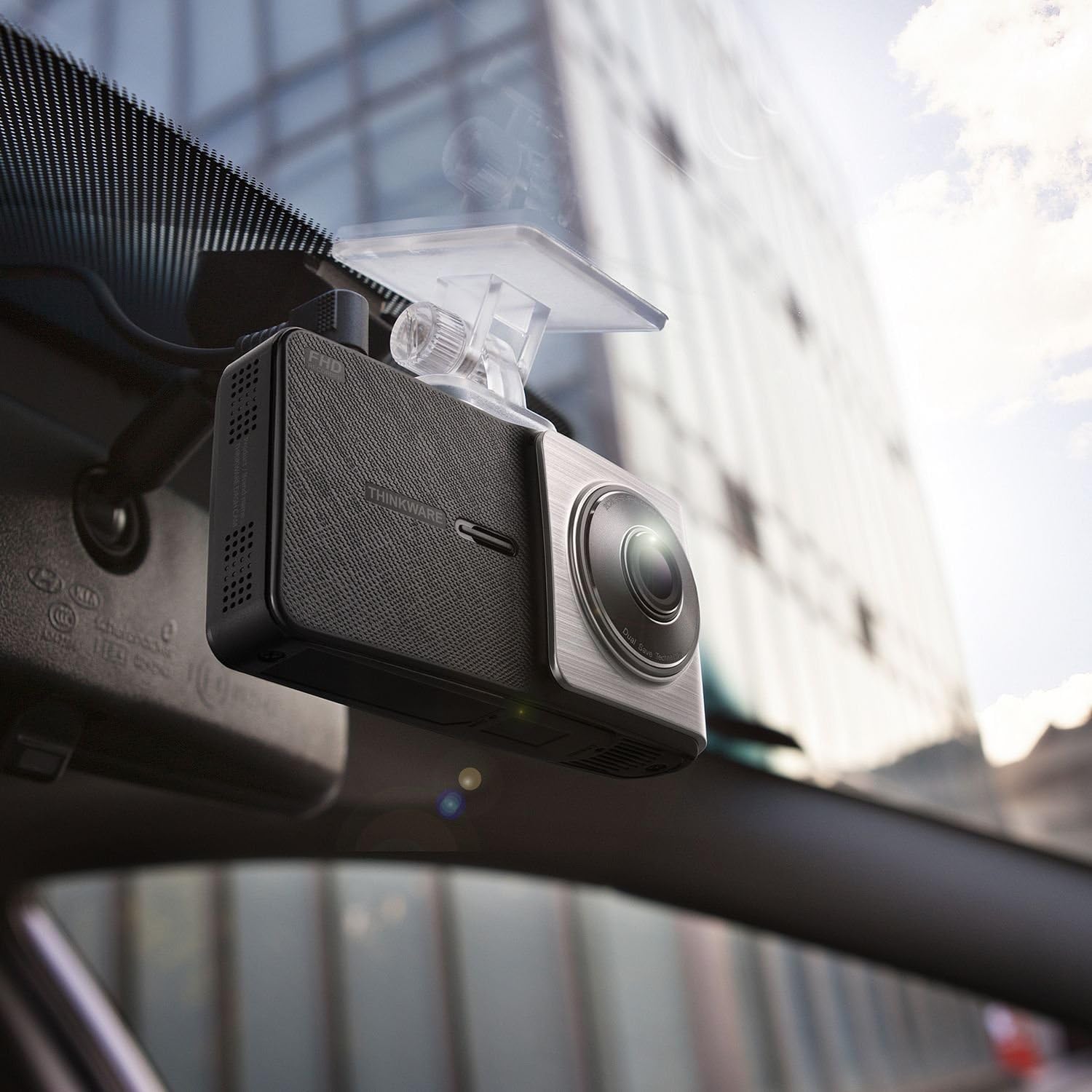
Image: An angled view of the THINKWARE X500D Dashcam installed on a car's windshield, showing its compact design and how it blends with the interior.
5.3. Mounting the Rear View Camera
- Clean the rear windshield area where the rear camera will be mounted.
- Remove the protective film from the adhesive tape on the rear camera mount.
- Firmly press the rear camera onto the rear windshield, ensuring it captures a clear view of the road behind.
- Connect the rear camera cable to the rear camera and route it neatly along the vehicle's headliner and pillars to the main dash cam unit. Use the provided adhesive cable clips to secure the cable.
- Connect the other end of the rear camera cable to the designated port on the main dash cam unit.
5.4. Connecting Power
- Connect the cigarette power cable to the power port on the main dash cam unit.
- Plug the other end of the cigarette power cable into your vehicle's 12V power outlet (cigarette lighter socket).
- Upon starting your vehicle, the dash cam will power on automatically and begin recording.
- Optional: For Parking Surveillance mode, a separate hardwiring cable (sold separately) is required. Refer to the hardwiring kit's instructions for installation.
6. Operating Instructions
6.1. Recording Modes
- Continuous Recording: The dash cam automatically records continuously when the vehicle's ignition is on. Videos are saved in 1-minute segments.
- Incident Recording: In the event of an impact or sudden braking, the built-in G-sensor triggers incident recording. These files are saved separately and are protected from being overwritten by continuous recording.
- Manual Recording: Press the manual recording button on the device to initiate a manual recording of an event.
- Parking Surveillance Mode: If the dash cam is hardwired, it can record events while the vehicle is parked. This mode includes motion detection and impact detection.
6.2. GPS Functionality
The built-in GPS module records your vehicle's speed, location, and time data, which can be viewed during video playback using the THINKWARE PC Viewer software.
6.3. Advanced Driver Assistance Systems (ADAS)
The X500D includes ADAS features to enhance driving safety:
- Lane Departure Warning System (LDWS): Alerts you if your vehicle drifts out of its lane.
- Front Collision Warning System (FCWS): Alerts you to potential collisions with the vehicle ahead.
- Red Light Camera Alert: Notifies you of upcoming red light cameras.
- Speed Camera Alert: Notifies you of upcoming speed cameras.
These features can be configured or toggled on/off via the dash cam's settings menu.
6.4. Using the LCD Screen and Buttons
The 2.7-inch LCD screen allows for live view, video playback, and access to settings. Navigate through menus using the physical buttons located on the side of the device.
- Home Button: Returns to the main menu.
- Record Button: Initiates manual recording.
- Menu/Settings Button: Accesses device settings.
- Up/Down Buttons: Navigate through menu options.
- OK Button: Confirms selections.
7. Maintenance
7.1. MicroSD Card Management
Regularly format the microSD card (at least once a month) to prevent recording errors and ensure optimal performance. This can be done through the dash cam's settings menu or using the THINKWARE PC Viewer software.
Note: Formatting the card will delete all recorded files. Back up important videos before formatting.
7.2. Cleaning the Device
Use a soft, dry, lint-free cloth to clean the dash cam's lens and LCD screen. Do not use liquid cleaners or abrasive materials, as they may damage the device.
7.3. Firmware Updates
THINKWARE periodically releases firmware updates to improve performance, add features, or fix bugs. Visit the official THINKWARE website to download the latest firmware for your X500D model. Follow the instructions provided with the firmware update package carefully.
8. Troubleshooting
| Problem | Possible Cause | Solution |
|---|---|---|
| Dash cam does not power on. | No power supply; faulty cable; vehicle's power outlet issue. | Check power cable connection. Ensure vehicle's power outlet is working. Try a different power source if available. |
| Recording stops or freezes. | MicroSD card error; card full; incompatible card. | Format the microSD card. Replace the microSD card if the issue persists. Ensure you are using a high-endurance card. |
| Video quality is poor. | Dirty lens; protective film still on lens; incorrect settings. | Clean the lens. Remove any protective film. Check video resolution settings in the menu. |
| GPS signal not acquired. | Obstructed view of sky; device location. | Ensure the dash cam has a clear view of the sky. Move the vehicle to an open area. GPS acquisition may take a few minutes on first use or after a long period of inactivity. |
| ADAS alerts are inaccurate or not working. | Incorrect calibration; environmental factors (weather, lighting). | Ensure the dash cam is properly calibrated and mounted centrally. ADAS performance can be affected by severe weather or poor lighting conditions. |
9. Specifications
| Feature | Detail |
|---|---|
| Model Name | X500D |
| Item Model Number | TW-X500D |
| Video Capture Resolution | 1080p (Full HD) Front & Rear |
| Image Sensor | Sony Exmor (Front) |
| Display Type | LCD |
| Special Feature | Built-In GPS |
| Connectivity Technology | USB |
| Control Method | Touch (via LCD) |
| Item Weight | 1.6 ounces (approx. 45 grams) |
| Product Dimensions | 4.1 x 1.1 x 2.2 inches (approx. 10.4 x 2.8 x 5.6 cm) |
| Included Components | Main Dash Cam Unit, Mount, Cigarette Power Cable, Adhesive Cable Clips, 32GB MicroSD Card with SD Adapter, Quick Start Guide/Warranty, Rear View Camera, Rear View Camera Cable |
10. Warranty and Support
10.1. Manufacturer's Warranty
The THINKWARE X500D Dashcam comes with a One-year Manufacturer's Limited Warranty. This warranty covers units sold at authorized retailers only. Please note that microSD cards typically have a shorter warranty period, often 6 months.
For specific warranty terms and conditions, please refer to the Quick Start Guide/Warranty information included in your package or visit the official THINKWARE website.
10.2. Customer Support
For technical assistance, troubleshooting, or warranty claims, please contact THINKWARE customer support. Contact information can typically be found on the official THINKWARE website or in your product's documentation.
When contacting support, please have your product model number (TW-X500D) and proof of purchase readily available.