
UNIC UC40
UNIC UC40 Mini Portable Multimedia Projector
Instruction Manual
1. Introduction
Thank you for purchasing the UNIC UC40 Mini Portable Multimedia Projector. This compact and versatile projector is designed to transform your viewing experience, allowing you to enjoy movies, presentations, and games on a large screen. Its multiple connectivity options make it compatible with a wide range of devices, offering convenience and portability.
Key Features:
- Native Resolution: 320 x 240 pixels
- Screen Size: 20 to 60 inches (optimal viewing in dark environments)
- Connectivity: HDMI, USB, VGA, AV, SD Card
- Audio Output: 3.5mm jack for external speakers
- Portable and lightweight design
2. Safety Precautions
Please read all safety instructions carefully before using the projector. Failure to follow these instructions may result in fire, electric shock, or other injuries.
- Do not block the ventilation openings. Ensure adequate airflow around the projector to prevent overheating.
- Do not look directly into the projector lens when the lamp is on. The bright light can cause eye damage.
- Keep the projector away from water or any liquids. Do not operate in wet environments.
- Use only the power adapter supplied with the projector.
- Do not attempt to disassemble or repair the projector yourself. Refer all servicing to qualified personnel.
- Place the projector on a stable, level surface to prevent it from falling.
3. Package Contents
Verify that all items listed below are included in your package. If any items are missing or damaged, please contact your retailer.
- UNIC UC40 Mini Portable Multimedia Projector
- Remote Control
- Power Adapter
- AV Cable
- User Manual (this document)

Figure 3.1: Package Contents - UNIC UC40 Projector, remote, power adapter, and AV cable.
4. Product Overview
Familiarize yourself with the various parts and connections of your UNIC UC40 projector.

Figure 4.1: Top View of UNIC UC40 Projector with control panel.
Control Panel & Ports:
- Lens: Projects the image.
- Focus Ring: Adjusts image sharpness.
- Keystone Correction: Adjusts image distortion (if available, not explicitly listed but common).
- Control Buttons: Power, Menu, Input, Navigation (Up/Down/Left/Right), Enter/OK, Exit/Return.
- USB Port: Connect USB drives for media playback.
- SD Card Slot: Insert SD cards for media playback.
- HDMI Port: Connect HDMI-enabled devices (laptops, gaming consoles, Blu-ray players).
- VGA Port: Connect computers via VGA cable.
- AV Port: Connect devices using the included AV cable (DVD players, set-top boxes).
- 3.5mm Audio Out: Connect external speakers or headphones.
- DC IN: Power input port.
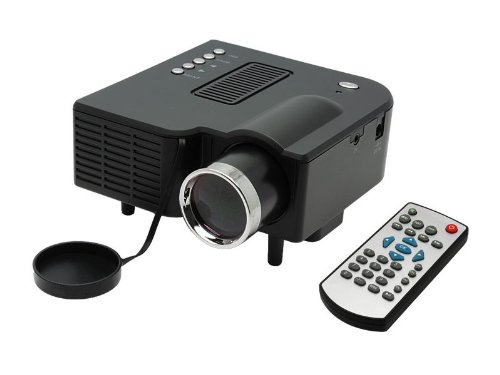
Figure 4.2: UNIC UC40 Projector and Remote Control.
5. Setup
5.1 Power Connection
- Connect the power adapter to the "DC IN" port on the projector.
- Plug the other end of the power adapter into a wall outlet.
- The power indicator light on the projector will illuminate.
5.2 Placement
For optimal viewing, place the projector on a stable, flat surface. The ideal projection distance for a clear image is between 1.2 to 3.8 meters (approximately 4 to 12.5 feet), yielding a screen size of 20 to 60 inches. A darker room environment is highly recommended for the best picture quality due to the projector's lumen output.
5.3 Focus Adjustment
- Turn on the projector.
- Rotate the focus ring on the front of the projector until the projected image appears clear and sharp.
5.4 Connecting Devices
The UNIC UC40 supports multiple input sources:
- HDMI: Connect laptops, gaming consoles, Blu-ray players, or other HDMI-enabled devices using an HDMI cable.
- VGA: Connect desktop computers or older laptops using a VGA cable.
- AV: Use the included AV cable to connect DVD players, VCD players, or set-top boxes.
- USB: Insert a USB flash drive or external hard drive (up to 2TB, ensure sufficient power) into the USB port for direct media playback.
- SD Card: Insert an SD card into the SD card slot for direct media playback.
Note: For connecting a CPU, use the VGA port. For better sound, connect external speakers or a home theater system via the 3.5mm audio out port.
6. Operating Instructions
6.1 Power On/Off
- Power On: Press the Power button on the projector or remote control.
- Power Off: Press the Power button again. The projector will shut down.
6.2 Menu Navigation
Use the navigation buttons (Up, Down, Left, Right) on the projector or remote to move through menu options. Press Enter/OK to confirm a selection. Press ESC/Return to go back to the previous menu or exit.
6.3 Input Source Selection
After connecting your device, press the Input button on the projector or remote control. A menu will appear allowing you to select the desired input source (HDMI, VGA, AV, USB, SD).
6.4 Media Playback (USB/SD)
When a USB drive or SD card is inserted, the projector will typically prompt you to select the media type (Movie, Music, Photo, Text). Navigate to your desired file and press Enter/OK to play.
6.5 Audio Output
The projector has a built-in speaker. For a more immersive audio experience, connect external speakers or a home theater system to the 3.5mm audio out port on the projector.
7. Maintenance
- Lens Cleaning: Use a soft, lint-free cloth specifically designed for optical lenses to gently wipe the projector lens. Do not use abrasive cleaners or excessive force.
- Ventilation: Regularly check that the ventilation openings are clear of dust and debris. Do not place the projector on soft surfaces that might block airflow.
- Storage: When not in use for extended periods, store the projector in a cool, dry place, away from direct sunlight and extreme temperatures. Use the original packaging or a protective case.
- Power Cord: Inspect the power cord regularly for any damage. If damaged, replace it with an approved cord.
8. Troubleshooting
If you encounter issues with your projector, refer to the following common problems and solutions:
| Problem | Possible Cause / Solution |
|---|---|
| No image projected |
|
| Image is blurry or out of focus |
|
| No sound |
|
| Image quality is poor/pixelated |
|
| Projector overheats |
|
9. Specifications
| Feature | Detail |
|---|---|
| Brand | UNIC |
| Model | UC40 |
| Native Resolution | 320 x 240 pixels |
| Display Technology | LCD |
| Screen Size (Recommended) | 20 - 60 inches |
| Connectivity | HDMI, USB, VGA, AV, SD Card |
| Audio Output | 3.5mm Audio Jack |
| Power Consumption | 24 Watts |
| Item Weight | 750 g |
| Dimensions (Approx.) | 25.6 x 16.6 x 14.2 cm (Package Dimensions) |
10. Warranty and Support
The UNIC UC40 Mini Portable Multimedia Projector comes with a standard manufacturer's warranty. Please refer to your purchase documentation for specific warranty terms and conditions. For technical support, service, or warranty claims, please contact your original retailer or the manufacturer's customer service department.
Keep your proof of purchase for warranty validation.
Related documentsUC40

Ask a question about this manual
Ask about setup, troubleshooting, compatibility, parts, safety, or missing instructions. Manuals+ will review the question and use this page’s manual context to help answer it.