
Hiditec GMO010002
Hiditec GX12 Gaming Mouse
User Manual
Model: GMO010002
1. Introduction
The Hiditec GX12 Gaming Mouse is designed for an optimal gaming experience, featuring a comfortable ergonomic design, vibrant RGB lighting, and a high-precision optical sensor. This manual provides detailed instructions for setting up, operating, maintaining, and troubleshooting your GX12 mouse to ensure peak performance.

Figure 1: Front view of the Hiditec GX12 Gaming Mouse showcasing its dynamic RGB lighting.
2. Package Contents
- Hiditec GX12 Gaming Mouse
- User Manual (this document)

Figure 2: The retail packaging for the Hiditec GX12 Gaming Mouse, highlighting key features.
3. Setup
3.1 Connecting the Mouse
- Locate an available USB port on your computer or compatible gaming console (e.g., XBOX ONE, PS4).
- Insert the USB connector of the GX12 mouse firmly into the USB port.
- The mouse will automatically be recognized by your operating system (Windows, Mac, etc.) and the RGB lighting will illuminate.
3.2 Software Installation (Optional)
To unlock the full customization capabilities of your GX12 mouse, including macro programming and button remapping, it is recommended to install the official Hiditec software.
- Visit the official Hiditec website (hiditec.com/en/downloads).
- Navigate to the "Gaming Mice" category and select "GX12".
- Download the "Software GX12 V1.0" (a .zip file).
- Extract the contents of the .zip file and run the executable (.exe) installer.
- Follow the on-screen instructions to complete the software installation.
Note: The software is primarily designed for Windows operating systems. Functionality on macOS may be limited to basic plug-and-play.
4. Operating Instructions
4.1 Button Functions
The GX12 mouse features 5 programmable buttons and a scroll wheel for versatile control.
| Button | Default Function | Description |
|---|---|---|
| Left Click | Primary Click | Standard selection and activation. |
| Right Click | Secondary Click | Context menu or alternative action. |
| Scroll Wheel | Scroll / Middle Click | Scrolls content vertically. Pressing acts as middle click. |
| DPI Button | DPI Cycle | Cycles through 4 preset DPI levels (1000/1300/1600/2400). |
| Side Buttons (2) | Forward / Backward | Navigates forward/backward in web browsers or file explorers. Programmable via software. |

Figure 3: Side view of the GX12 mouse, illustrating the ergonomic design and side button placement.
4.2 Adjusting DPI (Sensitivity)
The GX12 mouse allows for on-the-fly DPI adjustment. Press the dedicated DPI button (usually located behind the scroll wheel) to cycle through the available sensitivity settings: 1000, 1300, 1600, and 2400 DPI. Each change will typically be indicated by a subtle shift in the RGB lighting pattern or color.
4.3 Customizing with Software
The Hiditec GX12 software provides advanced customization options:
- Button Assignment: Remap any of the 5 buttons to perform specific actions, keyboard shortcuts, or macros.
- Macro Editor: Create complex sequences of commands (macros) and assign them to buttons for quick execution in games or applications.
- DPI Settings: Fine-tune DPI levels and create custom profiles.
- Lighting Effects: While the mouse automatically cycles through six colors, the software may offer additional control over lighting modes or brightness.
5. Features Overview
- Professional Gaming Mouse: Designed by Hiditec, a leading Spanish manufacturer of gaming peripherals, offering a configurable experience.
- High-Precision Optical Sensor: Equipped with a 2400 DPI optical sensor, adjustable across four levels for precise and responsive tracking.
- Omron Technology Buttons: Features Omron switches for superior durability, rated for over 10 million clicks, ensuring long-lasting performance and fast response times.
- Ergonomic Design: The comfortable design perfectly adapts to your hand, allowing for agile movement during extended gaming sessions.
- Dynamic RGB Lighting: Automatically cycles through six vibrant colors, providing an immersive aesthetic without manual configuration.
- Programmable Buttons: Five buttons, including the scroll wheel, can be customized via the dedicated software to suit your gaming and productivity needs.
- Low-Friction Base Pads: Durable base pads ensure smooth gliding and precise mouse movements.
- Wide Compatibility: Compatible with PC, laptops, and various digital video devices including XBOX ONE and PS4 via USB connection.

Figure 4: Another view of the GX12 mouse, emphasizing its ergonomic contours and integrated lighting.
6. Maintenance
Proper maintenance will extend the lifespan of your Hiditec GX12 Gaming Mouse.
- Cleaning: Use a soft, dry cloth to wipe down the mouse surface. For stubborn dirt, slightly dampen the cloth with water or a mild electronics cleaner. Avoid harsh chemicals or abrasive materials.
- Sensor Cleaning: Occasionally, dust or debris may accumulate around the optical sensor on the underside of the mouse. Use a cotton swab or compressed air to gently clean the sensor area.
- Cable Care: Avoid sharp bends or excessive pulling on the USB cable to prevent damage.
- Storage: When not in use for extended periods, store the mouse in a clean, dry environment away from direct sunlight and extreme temperatures.
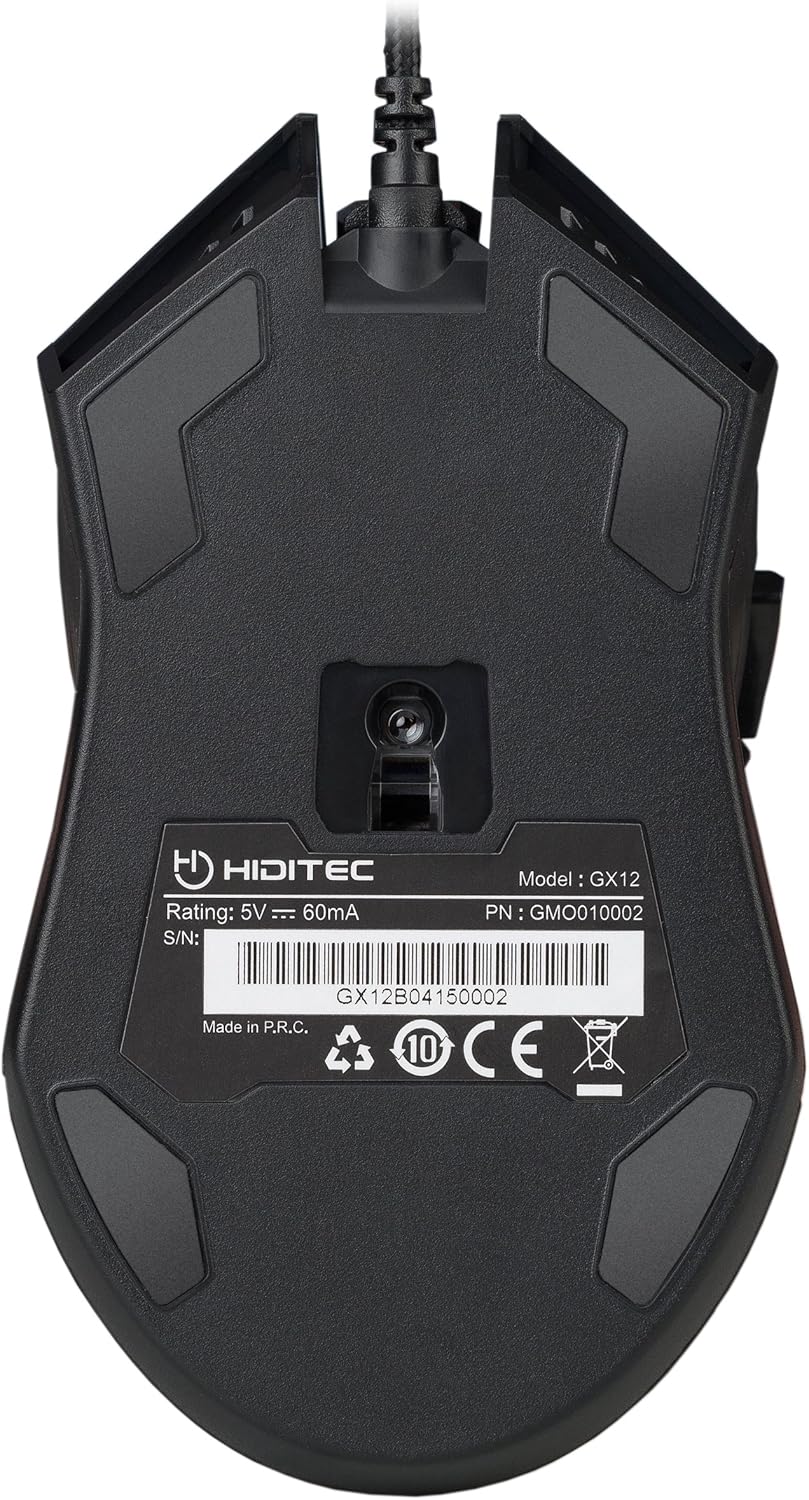
Figure 5: The underside of the GX12 mouse, showing the optical sensor and product information.
7. Troubleshooting
If you encounter issues with your GX12 mouse, refer to the following common problems and solutions:
| Problem | Possible Cause | Solution |
|---|---|---|
| Mouse not responding | Loose USB connection, faulty USB port, driver issue. |
|
| Inaccurate tracking / Cursor erratic | Dirty optical sensor, unsuitable surface, software settings. |
|
| RGB lighting not working | Power issue, software conflict. |
|
| Buttons not responding | Software conflict, physical damage. |
|
8. Specifications
| Feature | Detail |
|---|---|
| Brand | Hiditec |
| Model Name | GX12 |
| Item Model Number | GMO010002 |
| Connectivity Technology | USB (Wired) |
| Movement Detection Technology | Optical |
| DPI Levels | 1000 / 1300 / 1600 / 2400 DPI |
| Number of Buttons | 5 |
| Button Durability | Omron switches, 10 Million Clicks |
| Hand Orientation | Right-Handed |
| Product Dimensions | 12.43 x 7.19 x 4.13 cm (approx. 13 cm x 7 cm) |
| Item Weight | 130 g |
| Power Source | Corded Electric (USB) |
| Compatible Devices | PC, Laptops, XBOX ONE, PS4 |
| Operating System Compatibility | Windows, Mac (basic functionality) |
9. Warranty and Support
9.1 Warranty Information
Hiditec provides a two-year warranty on the GX12 Gaming Mouse from the date of purchase. This warranty covers manufacturing defects and ensures the product meets its specified performance. Please retain your proof of purchase for warranty claims.
9.2 Customer Support
For any questions, technical assistance, or warranty claims, please contact Hiditec customer support. You can reach our specialized team through the Amazon messaging system or by visiting our official website for contact details. Our team is ready to assist you with any product-related inquiries.
Related documentsGMO010002

Ask a question about this manual
Ask about setup, troubleshooting, compatibility, parts, safety, or missing instructions. Manuals+ will review the question and use this page’s manual context to help answer it.