
Introduction
Thank you for purchasing the Madison FREESOUND-VR40R Vintage Portable Radio. This device combines a classic retro design with modern audio technology, offering versatile listening options. This manual provides detailed instructions on how to set up, operate, and maintain your radio to ensure optimal performance and longevity.
The FREESOUND-VR40R is a portable, USB-rechargeable radio designed for those who appreciate a vintage aesthetic combined with modern audio technologies. It features an analog dial tuner, Bluetooth, USB, AUX, and FM connectivity, bass enhancement, and a convenient dual metal handle for portability.
Safety Instructions
Please read these safety instructions carefully before using the device and keep them for future reference. Incorrect use may result in electric shock, fire, or other hazards.
- Do not expose the device to rain or moisture to prevent fire or electric shock.
- Do not expose the device to direct sunlight or extreme temperatures.
- Do not open the casing. There are no user-serviceable parts inside. Refer all servicing to qualified personnel.
- Use only the specified power adapter/charging cable.
- Keep the device away from strong magnetic fields.
- Clean the device only with a dry, soft cloth. Do not use liquid cleaners.
- Ensure proper ventilation around the device. Do not block any ventilation openings.
Product Overview
Familiarize yourself with the components and features of your Madison FREESOUND-VR40R radio.

Figure 1: Front View. Shows the analog dial tuner, speaker grille, Madison logo, and control knobs for volume and source selection.
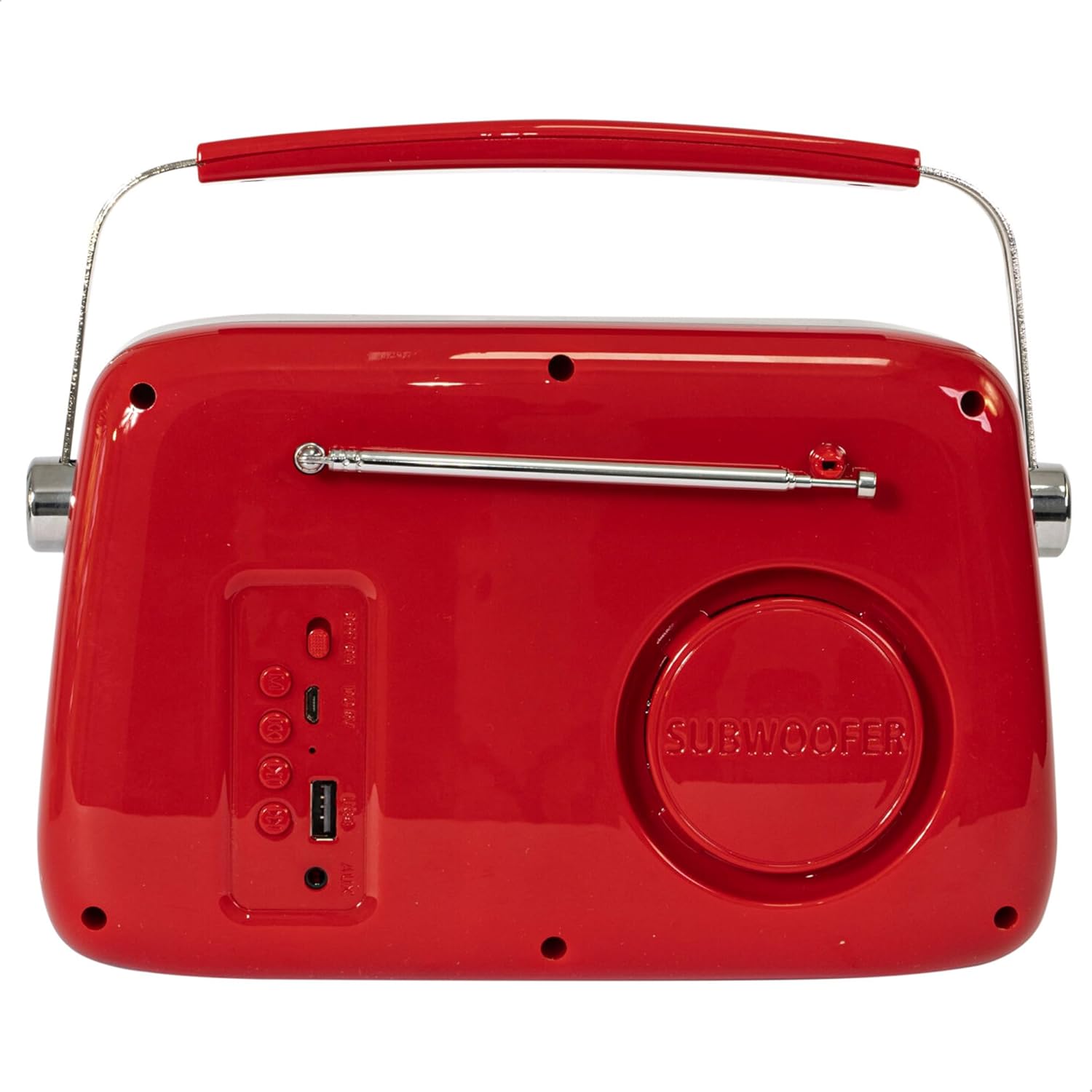
Figure 2: Rear View. Displays the subwoofer, USB port, AUX input, and power/mode buttons.
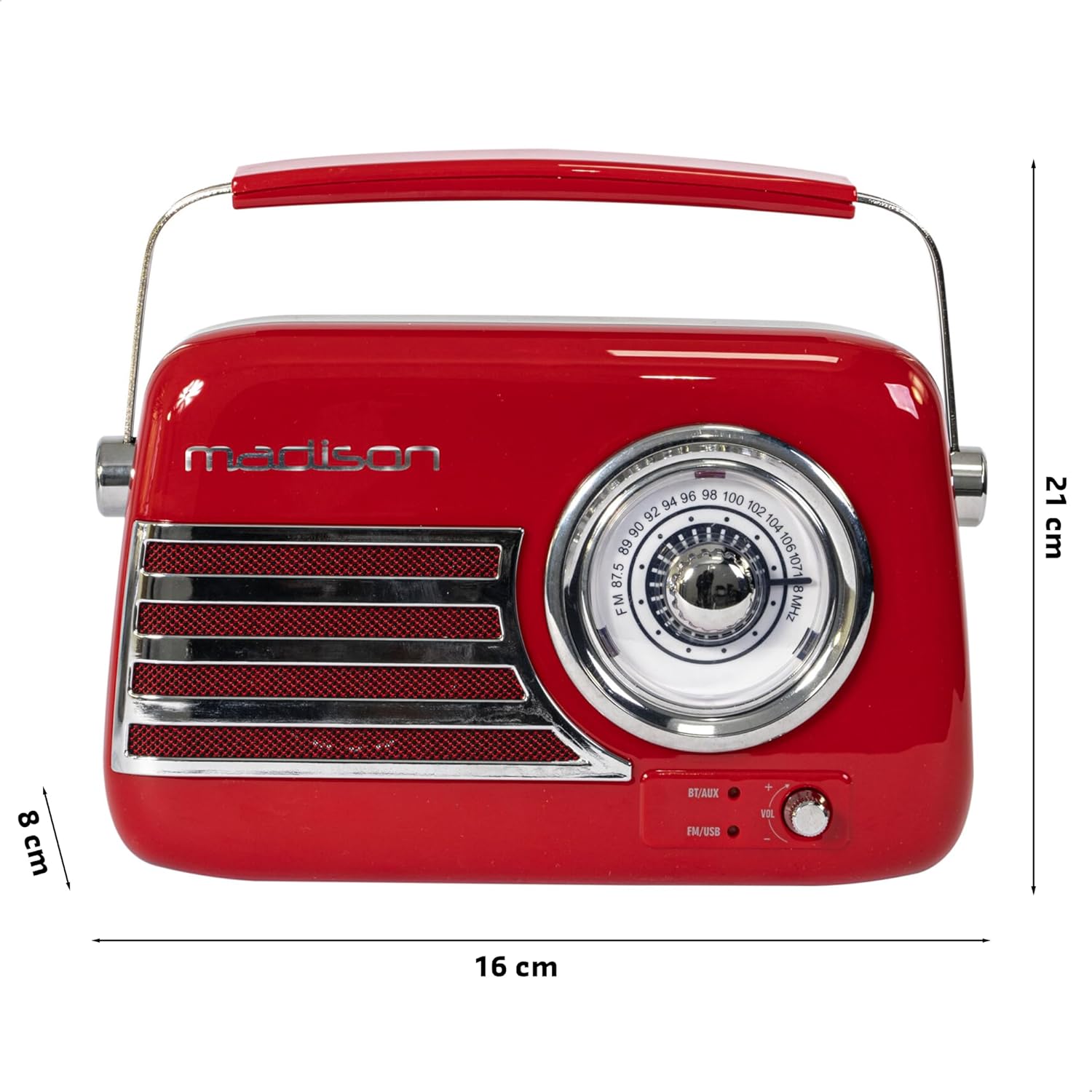
Figure 3: Product Dimensions. Illustrates the radio's approximate dimensions: 21 cm length, 8 cm width, and 16 cm height.

Figure 4: Rear View with Antenna Extended. Shows the telescopic antenna fully extended for improved FM reception.
Key Features:
- Analog Dial Tuner: For classic FM radio tuning.
- Bluetooth Connectivity: Stream audio wirelessly from your smartphone or tablet.
- USB Playback: Play music directly from a USB drive.
- AUX Input: Connect external audio devices via a 3.5mm audio cable.
- FM Radio: Enjoy your favorite FM stations with the retractable antenna.
- Bass Enhancement: Integrated subwoofer for richer bass sound.
- Rechargeable Battery: Built-in long-lasting battery for portable use.
- Portable Design: Lightweight with a dual metal handle for easy carrying.
Setup
Charging the Battery:
- Locate the USB charging port on the rear of the radio.
- Connect the provided USB charging cable to the radio's USB port.
- Connect the other end of the USB cable to a compatible USB power adapter (not included) or a computer's USB port.
- The charging indicator light will illuminate. Once fully charged, the light may change color or turn off, depending on the model.
- A full charge typically takes several hours.
Initial Power On:
- Ensure the radio is sufficiently charged.
- Press and hold the Power/Mode button (usually located on the rear or front panel) to turn on the radio.
- The front indicator lights will show the currently selected source.
Operating Instructions
Volume Control:
Rotate the Volume knob (VOL) on the front panel to adjust the sound level. Turn clockwise to increase volume, counter-clockwise to decrease.
Selecting a Source:
Press the Source/Mode button (often labeled BT/AUX or FM/USB) repeatedly to cycle through the available input modes: Bluetooth, AUX, FM Radio, and USB.
- Bluetooth Mode:
- Switch the radio to Bluetooth mode. The Bluetooth indicator light will blink, indicating it's ready for pairing.
- On your smartphone or tablet, enable Bluetooth and search for available devices.
- Select "FREESOUND-VR40R" (or similar name) from the list.
- Once paired, the Bluetooth indicator light will become solid, and you can stream audio from your device.
- FM Radio Mode:
- Switch the radio to FM mode.
- Extend the telescopic antenna fully for optimal reception.
- Rotate the Tuning Dial on the front panel to manually select your desired FM radio station.
- USB Playback Mode:
- Insert a USB flash drive containing MP3 audio files into the USB port on the rear of the radio.
- Switch the radio to USB mode. The radio will automatically begin playing the audio files.
- Use the playback controls (if available, usually on the rear panel) to skip tracks or pause/play.
- AUX Input Mode:
- Connect one end of a 3.5mm audio cable (not included) to the AUX input port on the rear of the radio.
- Connect the other end of the cable to the headphone jack or audio output of your external device (e.g., MP3 player, CD player).
- Switch the radio to AUX mode. Audio from your external device will now play through the radio.
Maintenance
Cleaning:
To maintain the appearance and functionality of your radio:
- Wipe the exterior surfaces with a soft, dry, lint-free cloth.
- Do not use abrasive cleaners, waxes, or solvents as they may damage the finish.
- Avoid spraying liquids directly onto the radio.
Storage:
If you plan to store the radio for an extended period:
- Fully charge the battery before storage.
- Store the radio in a cool, dry place, away from direct sunlight and extreme temperatures.
- For optimal battery health, recharge the battery every 3-6 months, even if not in use.
Troubleshooting
| Problem | Possible Cause | Solution |
|---|---|---|
| No power / Radio does not turn on. | Battery is depleted. | Charge the radio using the provided USB cable. |
| No sound. | Volume is too low or muted. Incorrect source selected. | Increase the volume. Ensure the correct input source (Bluetooth, FM, USB, AUX) is selected. |
| Poor FM reception. | Antenna not extended. Weak signal. | Fully extend the telescopic antenna. Try repositioning the radio for better signal. |
| Bluetooth device cannot pair. | Radio not in pairing mode. Device too far. Bluetooth disabled on source device. | Ensure radio is in Bluetooth pairing mode (blinking light). Move device closer. Enable Bluetooth on your smartphone/tablet. |
| USB playback not working. | USB drive not inserted correctly. Unsupported file format. | Ensure USB drive is fully inserted. Check if audio files are in MP3 format. |
Specifications
| Model Number: | 10-5567MA |
| Product Dimensions (L x W x H): | 21 x 8 x 16 cm |
| Weight: | 635 grams |
| Color: | Red |
| Material: | Plastic |
| Power Source: | Internal Rechargeable Battery (via USB) |
| Battery Type: | 1 Lithium-polymer (included) |
| Connectivity: | Bluetooth, USB, Auxiliary (AUX) |
| Radio Bands: | FM |
| Special Features: | Telescopic antenna, Analog dial tuner, Bass enhancement |
| Included Components: | USB Charging Cable |
| Manufacturer: | Lotronic S.A. |
| Country of Origin: | China |
Warranty and Support
For warranty information and customer support, please refer to the warranty card included with your product or visit the official Madison website. Keep your proof of purchase for any warranty claims.
For technical assistance or troubleshooting beyond this manual, please contact Madison customer service.
Note: Availability of spare parts is not specified in the product information.


