
1. Introduction
This manual provides detailed instructions for the setup, operation, maintenance, and troubleshooting of your JOOAN 1080P Wireless Indoor Security Camera, Model 366. This camera is designed for indoor surveillance, offering features such as 1080P video resolution, two-way audio, night vision, and motion detection, making it suitable for monitoring homes, pets, or babies.
Please read this manual thoroughly before using the product to ensure correct installation and optimal performance.
2. Packing List
Upon opening the package, please verify that all items listed below are present and in good condition:
- JOOAN WiFi Camera x 1
- Power Plug x 1
- Data Line (USB Cable) x 1
- Install Bracket x 1 (for wall or ceiling mounting)
- Instructions (User Manual) x 1
- Screw Pack x 1 (for bracket installation)

Image: Contents of the JOOAN camera package, including the camera, power adapter, USB cable, mounting bracket, instruction manual, and screw pack.
3. Setup Guide
3.1 Powering On the Camera
- Connect the provided USB cable to the camera's power input port.
- Plug the other end of the USB cable into the power plug adapter.
- Insert the power plug into a standard electrical outlet. The camera will power on and initiate its startup sequence.
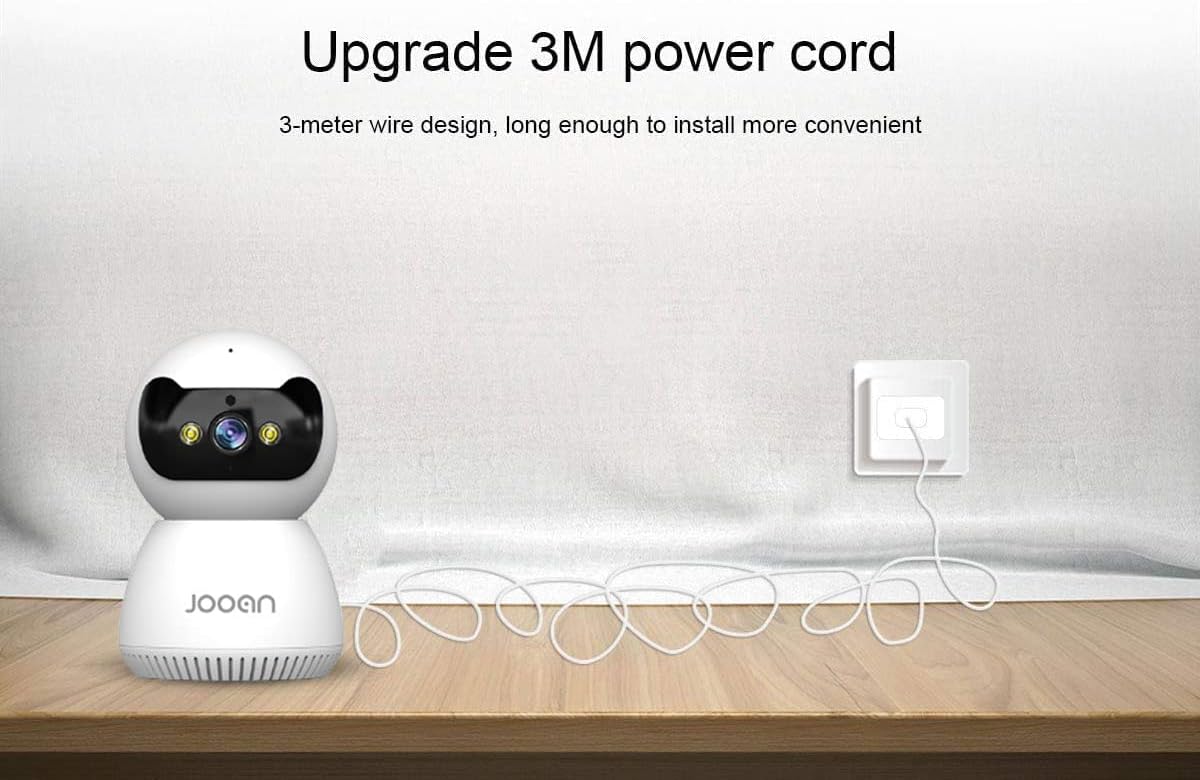
Image: The JOOAN camera connected to its 3-meter power cord and adapter, ready for power connection.
3.2 App Download and Installation
To operate the camera, you need to download the official JOOAN application on your smartphone or tablet.
- Scan the QR code provided in the included instruction manual or search for 'JOOAN' in your device's app store (Google Play Store for Android, Apple App Store for iOS).
- Download and install the application.
- Register a new account or log in if you already have one.
3.3 Wi-Fi Connection
The camera connects to your home Wi-Fi network. Important: This camera is primarily compatible with 2.4GHz Wi-Fi networks. Connection to 5GHz Wi-Fi networks may not be supported or stable.
- Ensure your smartphone is connected to a 2.4GHz Wi-Fi network.
- Open the JOOAN app and follow the on-screen instructions to add a new device.
- Select your Wi-Fi network and enter the password when prompted.
- The app will guide you through the pairing process, which may involve scanning a QR code displayed on your phone with the camera or using audio pairing. Ensure your phone's volume is up during audio pairing.
- Once connected, the camera's indicator light will change, and the app will confirm successful pairing.

Image: The JOOAN camera on a pedestal, illustrating its wireless connectivity. While the image mentions 'Dual-Band WiFi 2.4/5G Hz', users should note that compatibility is primarily with 2.4GHz networks.
3.4 Mounting the Camera
The camera can be placed on a flat surface or mounted to a wall or ceiling using the provided bracket.
- Desktop Placement: Simply place the camera on a stable, flat surface in your desired monitoring area.
- Wall/Ceiling Mounting:
- Choose a suitable location for mounting.
- Use the mounting bracket as a template to mark screw holes on the wall or ceiling.
- Drill pilot holes and insert the provided wall anchors if necessary.
- Secure the mounting bracket using the screws.
- Attach the camera to the bracket by twisting it until it locks into place.
4. Operating Instructions
4.1 Live View and Pan/Tilt Control
Once connected, open the JOOAN app to access the live video feed from your camera.
- Live View: The main screen of the app displays the real-time video feed.
- Pan/Tilt: Use the directional controls within the app to remotely rotate the camera horizontally (355° Pan) and vertically (45° Tilt) to adjust the viewing angle.
- Digital Zoom: Pinch to zoom on the live feed to magnify specific areas.
- Preset Points: Configure up to 6 preset viewing angles for quick navigation.

Image: A JOOAN camera mounted on a ceiling, demonstrating its 355° pan and 45° tilt capabilities, controlled via a smartphone app. Features like 4X digital zoom and preset points are also highlighted.
4.2 Two-Way Audio
The camera features a built-in microphone and speaker, allowing for two-way communication.
- Tap the microphone icon in the app to speak through the camera's speaker.
- Listen to audio from the camera's environment through your smartphone.
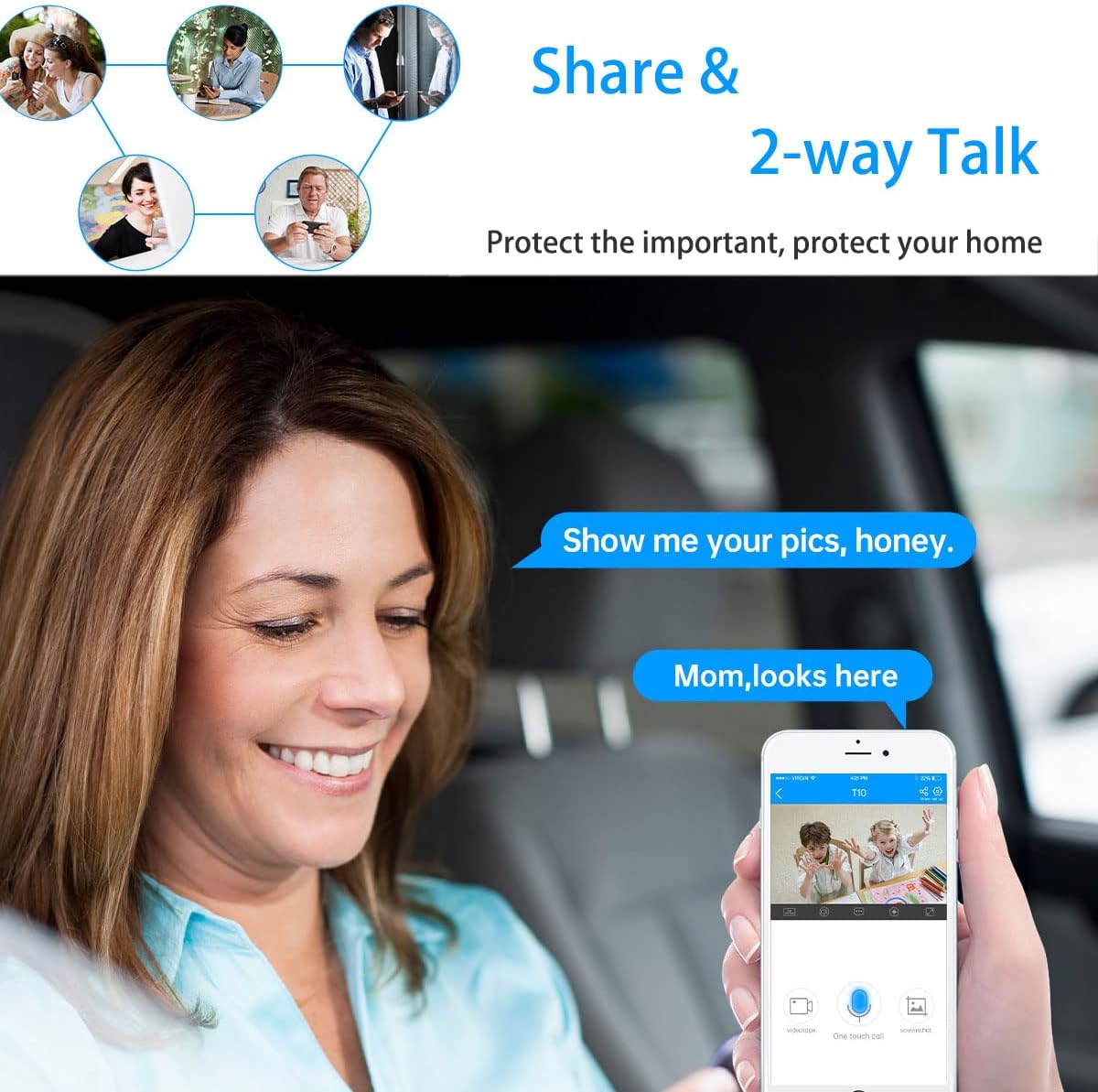
Image: A woman in a car using a smartphone app to engage in two-way communication through the JOOAN camera, demonstrating the 'Share & 2-way Talk' feature.
4.3 Night Vision Modes
The camera offers multiple night vision modes for clear monitoring in low-light conditions.
- Infrared (IR) Night Vision: Automatically activates in low light, providing clear black and white video using 8 IR LEDs.
- Color Night Vision: Utilizes 2 white lights to provide color video in low light.
- Smart Night Vision: Combines IR and white light. Floodlights can turn on automatically upon detection of a moving human shape, providing enhanced visibility and deterrence.
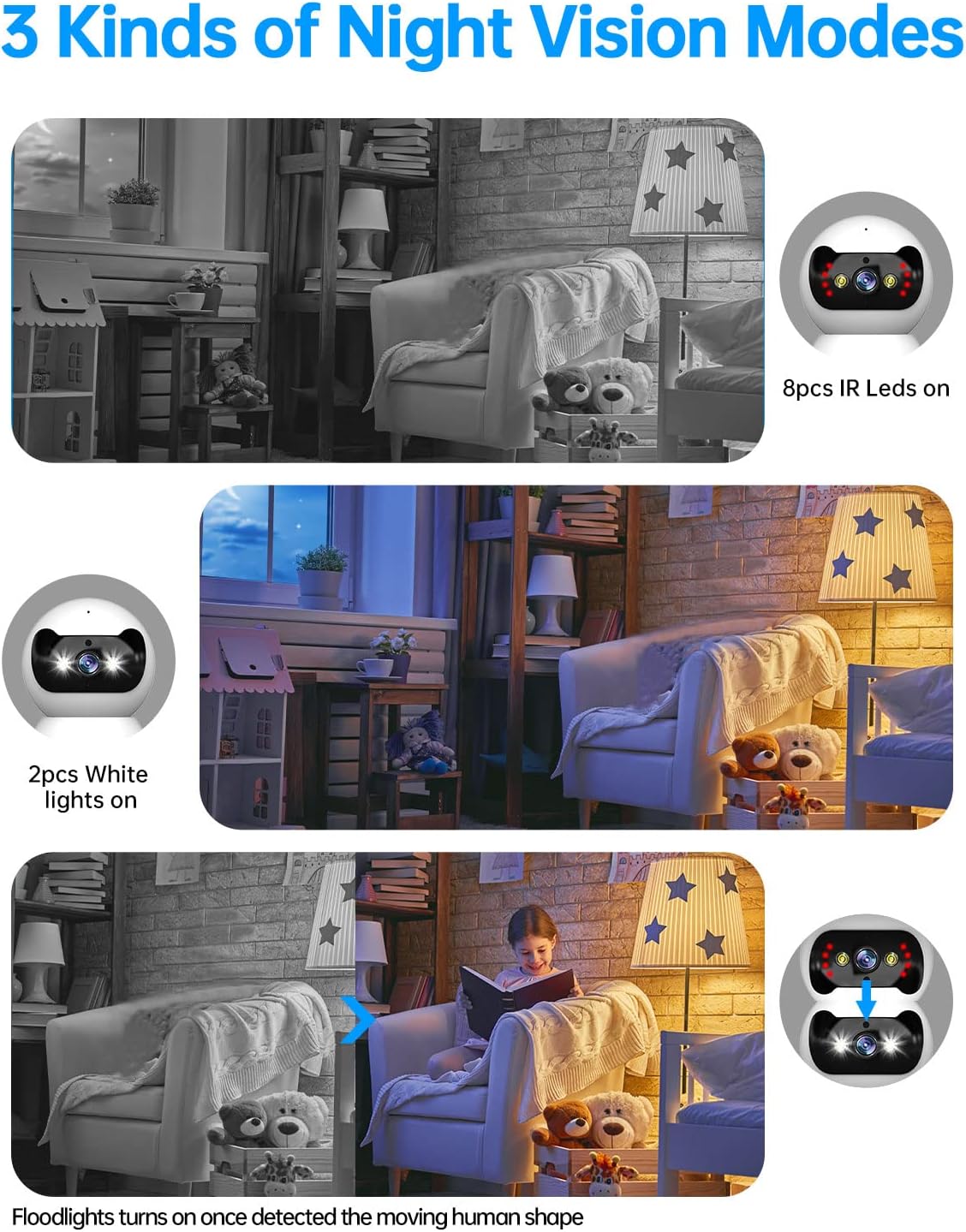
Image: Three panels illustrating the JOOAN camera's night vision capabilities: standard infrared (8 IR LEDs), color night vision (2 white lights), and smart night vision where floodlights activate upon motion detection.
4.4 Motion Detection and Alerts
The camera can detect motion and send alerts to your smartphone.
- Enable motion detection in the app settings.
- Adjust sensitivity levels to minimize false alarms.
- Receive push notifications on your phone when motion is detected.
- The camera supports automatic tracking, following detected movement within its field of view.

Image: A JOOAN camera mounted on a ceiling, demonstrating its automatic tracking feature by highlighting a person moving through a room with red detection zones.
4.5 Recording and Playback
The camera supports video recording, typically to a microSD card (not included) or cloud storage (subscription may be required).
- Insert a compatible microSD card into the camera's slot (refer to app for maximum supported capacity).
- Configure recording settings (e.g., continuous recording, motion-triggered recording) in the app.
- Access recorded footage through the app's playback feature, typically organized by date and time.
5. Maintenance
5.1 Cleaning
To maintain optimal image quality, keep the camera lens clean.
- Ensure the camera is powered off before cleaning.
- Use a soft, dry, lint-free cloth to gently wipe the lens and camera body.
- Avoid using harsh chemicals, solvents, or abrasive materials, as these can damage the camera's surface or lens.
5.2 Firmware Updates
Periodically check for firmware updates through the JOOAN app. Firmware updates can improve performance, add new features, and enhance security.
- Access the camera settings in the app.
- Look for a 'Firmware Update' or 'About Device' section.
- Follow the on-screen prompts to download and install any available updates. Ensure the camera remains powered during the update process.
5.3 Resetting the Device
If you encounter persistent issues or wish to reconfigure the camera, a factory reset may be necessary.
- Locate the reset button on the camera (refer to the product diagram in the app or included manual).
- With the camera powered on, use a pin or a straightened paperclip to press and hold the reset button for approximately 5-10 seconds until you hear a voice prompt or see the indicator light change.
- The camera will restart, and all settings will revert to factory defaults. You will need to re-add the camera to the app.
6. Troubleshooting
This section addresses common issues you might encounter with your JOOAN camera.
6.1 Camera Not Connecting to Wi-Fi
- Check Wi-Fi Band: Ensure your router is broadcasting a 2.4GHz Wi-Fi signal and your phone is connected to it during setup. The camera may not support 5GHz networks.
- Wi-Fi Password: Double-check that the Wi-Fi password entered in the app is correct.
- Signal Strength: Place the camera closer to your Wi-Fi router to ensure a strong signal.
- Router Settings: Ensure your router's firewall or security settings are not blocking the camera.
- Reset Camera: Perform a factory reset on the camera and attempt the setup process again.
6.2 Poor Image Quality
- Clean Lens: Gently clean the camera lens with a soft, dry cloth.
- Network Speed: Ensure your internet connection has sufficient upload speed for streaming high-definition video.
- Lighting: Adjust ambient lighting conditions. For night vision, ensure no obstructions are blocking the IR or white lights.
6.3 Two-Way Audio Issues
- App Volume: Check the volume settings on your smartphone and within the JOOAN app.
- Camera Volume: Ensure the camera's speaker volume is not muted or set too low in the app.
- Interference: Move the camera away from other electronic devices that might cause audio interference.
6.4 Motion Detection Not Working
- Enable Feature: Verify that motion detection is enabled in the camera settings within the app.
- Sensitivity: Adjust the motion detection sensitivity. If it's too low, it might miss events.
- Detection Zone: Ensure the area you want to monitor is within the camera's detection zone.
7. Specifications
| Brand | JOOAN |
| Model Number | 366 |
| Effective Video Resolution | 720 Pixels (Note: Product is marketed as 1080P) |
| Connectivity Technology | Wireless (Wi-Fi) |
| Wireless Communication Technology | Wi-Fi (Primarily 2.4GHz) |
| Special Features | HD 720p, Pan/Tilt Visibility, Two-Way Talk, Easy Setup |
| Indoor/Outdoor Usage | Indoor |
| Night Vision Range | 30 Feet |
| Light Source Type | Infrared |
| Alert Type | Motion Only |
| Control Method | Remote (via Smartphone/Tablet App) |
| Compatible Devices | Desktop, Smartphone, Tablet |
| Power Source | AC/DC |
| Voltage | 12 Volts |
| Wattage | 4.2 watts |
| Item Dimensions (L x W x H) | 1.77 x 1.85 x 2.05 inches |
| Item Weight | 12 ounces |
| Color | White |
| Material | Glass |
| Video Capture Format | MPEG-4 |
8. Warranty Information
Specific warranty details for the JOOAN 1080P Wireless Indoor Security Camera (Model 366) are typically provided with the product packaging or on the manufacturer's official website. Please refer to these sources for comprehensive information regarding warranty coverage, terms, and conditions.
9. Customer Support
For technical assistance, product inquiries, or further support, please visit the official JOOAN website. You may find FAQs, additional resources, and contact information for their customer service team there.
Website: Visit the JOOAN Store on Amazon (for general brand information)


