1. Introduction
This manual provides detailed instructions for the proper use and maintenance of your Baseus H08 Immersive Virtual 3D Gaming Headset. Please read this manual thoroughly before using the product to ensure optimal performance and safety. Keep this manual for future reference.
2. Safety Information
- Hearing Protection: Avoid using the headset at high volume levels for extended periods to prevent hearing damage.
- Environmental Conditions: Do not expose the headset to extreme temperatures, humidity, or direct sunlight.
- Cleaning: Use a soft, dry cloth for cleaning. Avoid liquid cleaners or abrasive materials.
- Disassembly: Do not attempt to disassemble or modify the headset. This may void the warranty and cause damage.
- Children: Keep the headset and its accessories out of reach of small children to prevent choking hazards.
3. Package Contents
Verify that all items are present in the package:
- Baseus H08 Immersive Virtual 3D Gaming Headset
- 3.5mm Audio Cable
- Carrying Case
- User Manual (this document)
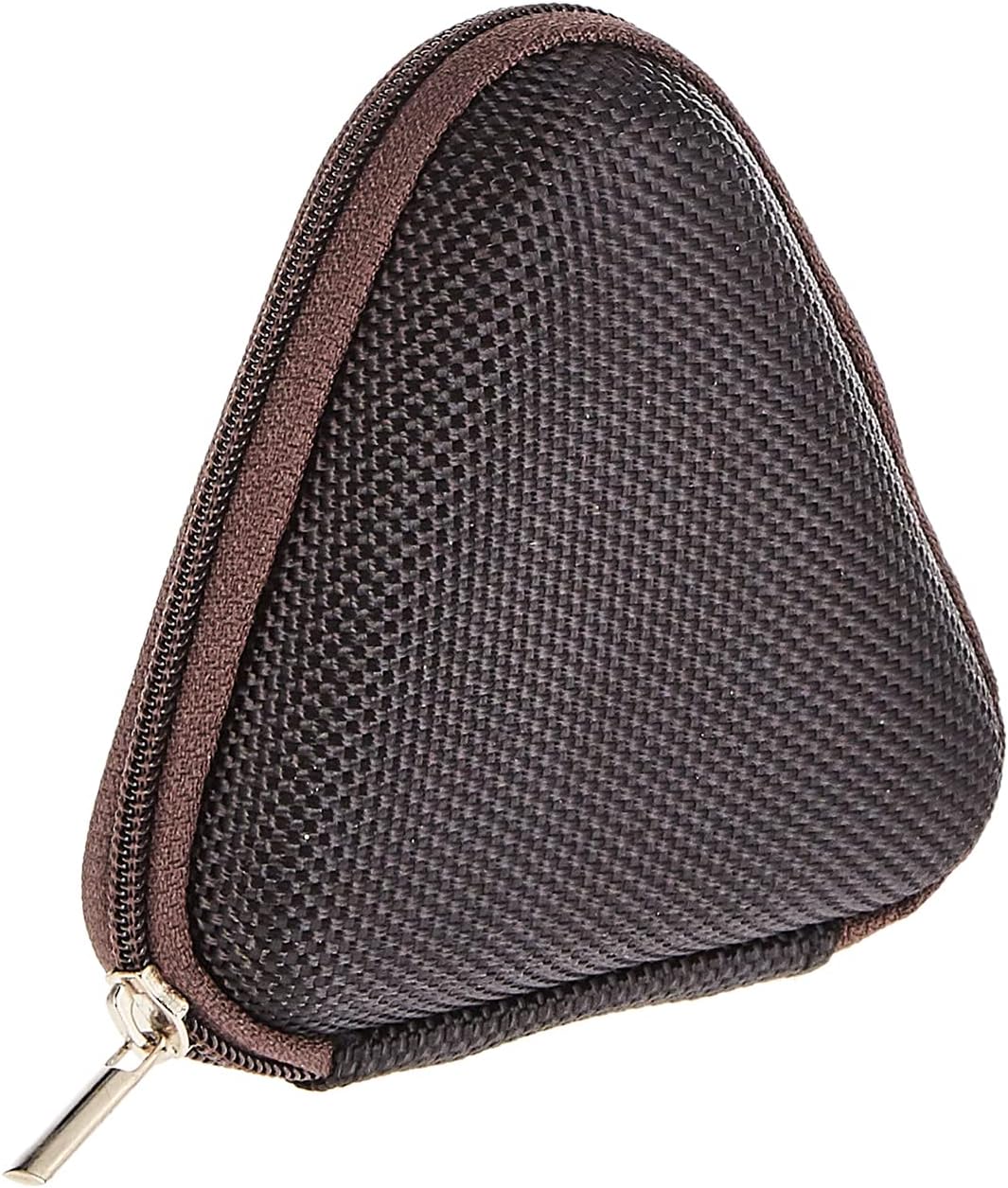
Image: The included triangular carrying case, designed for protecting and transporting the headset.
4. Product Overview
The Baseus H08 headset is designed for an immersive gaming audio experience. It features a comfortable over-ear design and integrated controls.

Image: The Baseus H08 Immersive Virtual 3D Gaming Headset, showcasing its design and components.
Components:
- Earcups: Padded earcups for comfort and sound isolation.
- Headband: Adjustable headband for a secure fit.
- Microphone: Integrated microphone for communication.
- Audio Cable: Detachable 3.5mm audio cable for connection to devices.
- Volume Control: In-line or earcup-mounted volume adjustment.
5. Setup
- Unpack: Carefully remove the headset and all accessories from the packaging.
- Connect Audio Cable: Insert the 3.5mm audio jack into the corresponding port on your gaming device (PC, console controller, smartphone, etc.). Ensure the connection is secure.
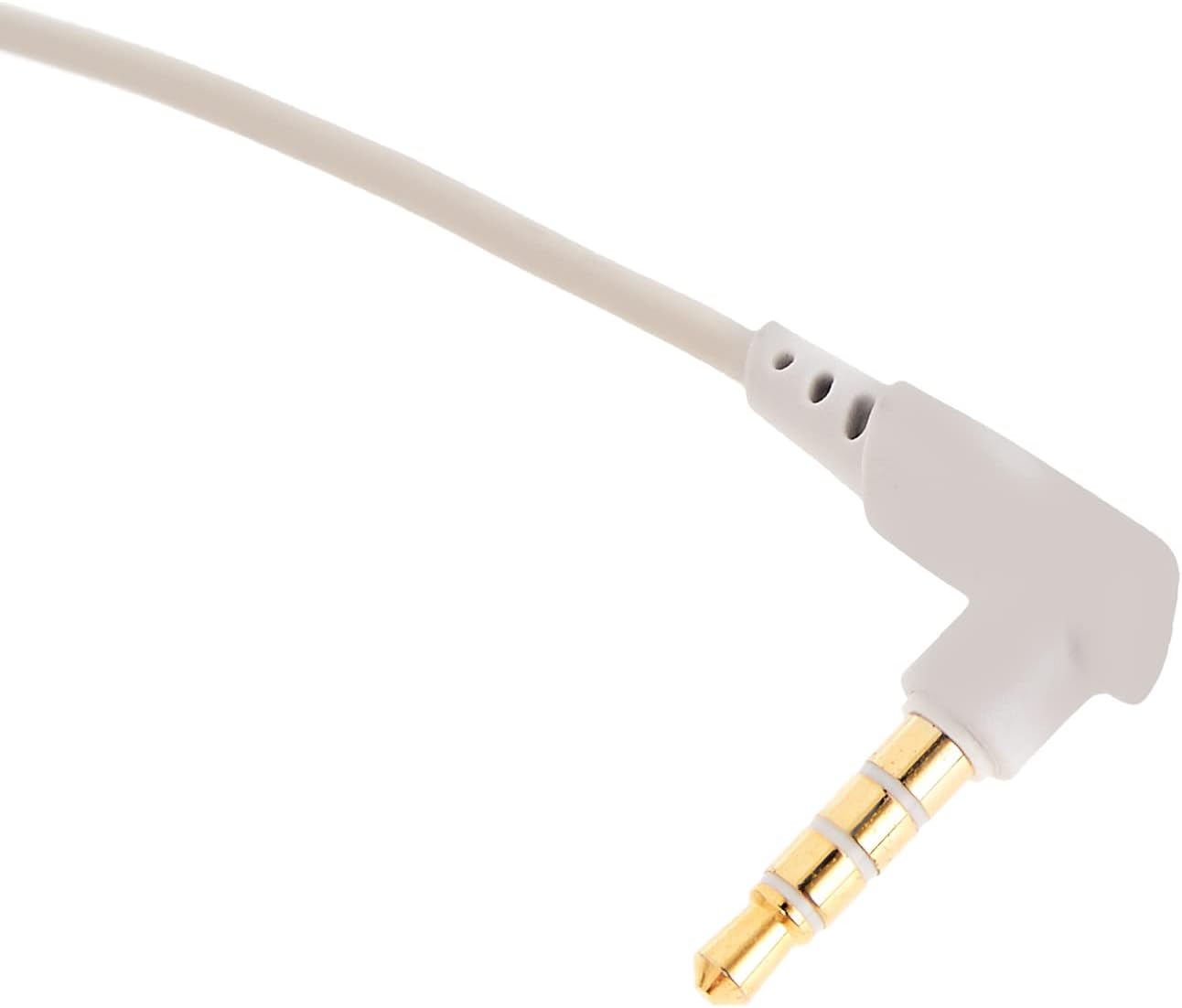
Image: A close-up view of the 3.5mm audio jack, used for connecting the headset to compatible devices.
- Adjust Headset: Place the headset on your head and adjust the headband for a comfortable and secure fit. Position the earcups over your ears.
- Microphone Positioning: If the microphone is adjustable, position it appropriately for clear voice capture, typically near the corner of your mouth.
6. Operating Instructions
- Volume Control: Use the integrated volume control (if present on the cable or earcup) to adjust the audio output level. Rotate or slide the control to increase or decrease volume.
- Microphone Mute: If your headset features a microphone mute switch, use it to toggle the microphone on or off as needed during gameplay or calls.
- Virtual 3D Sound: The headset provides an immersive virtual 3D sound experience. This feature is typically active upon connection and enhances spatial audio cues in compatible games. No specific activation is usually required unless indicated by your device's audio settings.
7. Maintenance
- Cleaning: Wipe the headset with a soft, dry, lint-free cloth. Do not use harsh chemicals, cleaning solvents, or strong detergents.
- Storage: When not in use, store the headset in its carrying case to protect it from dust, scratches, and physical damage. Keep it in a cool, dry place.
- Cable Care: Avoid sharp bends or excessive pulling on the audio cable to prevent internal damage.
8. Troubleshooting
Common Issues and Solutions:
- No Sound:
- Ensure the 3.5mm audio cable is fully plugged into both the headset and your device.
- Check the volume control on the headset and your device to ensure it is not muted or set too low.
- Verify that the correct audio output device is selected in your device's sound settings.
- Poor Sound Quality:
- Check for loose connections.
- Test the headset with another device to rule out a device-specific issue.
- Ensure the audio source is of good quality.
- Microphone Not Working:
- Ensure the microphone is not muted (if applicable).
- Check your device's sound settings to ensure the headset microphone is selected as the input device.
- Test the microphone with another application or device.
- Discomfort During Use:
- Adjust the headband and earcup positions for a better fit.
- Take breaks during long gaming sessions.
9. Specifications
| Feature | Detail |
|---|---|
| Brand | Baseus |
| Model Name | NGH08-2G |
| Item Model Number | B012LZLE1U |
| Product Dimensions | 5 x 3 x 10 cm |
| Item Weight | 200 grams |
| Color | White + Grey |
| Control Type | Volume Control |
| Number of Items | 1 |
| Specific Product Uses | Not available |
| Headphone Form Factor | Not available |
| Headphone Jack | Not available |
| Connectivity Technology | Not available |
| Wireless Communication Technology | Not available |
| Included Components | Not available |
| Age Range (Description) | Not available |
| Material | Not available |
10. Warranty and Support
For warranty information and technical support, please refer to the warranty card included with your product or visit the official Baseus website. You may also contact the retailer from whom you purchased the product for assistance.
Baseus Official Website: www.baseus.com


