
Introduction
Thank you for choosing the Baseus H08 3D Surround Sound Gaming Earphones. This manual provides essential information for the safe and efficient use of your new earphones. Please read it thoroughly before use and retain it for future reference.
Product Overview
The Baseus H08 earphones are designed to deliver an immersive 3D surround sound experience for gaming. They feature a wired connection, in-ear design, and an integrated microphone for clear communication.
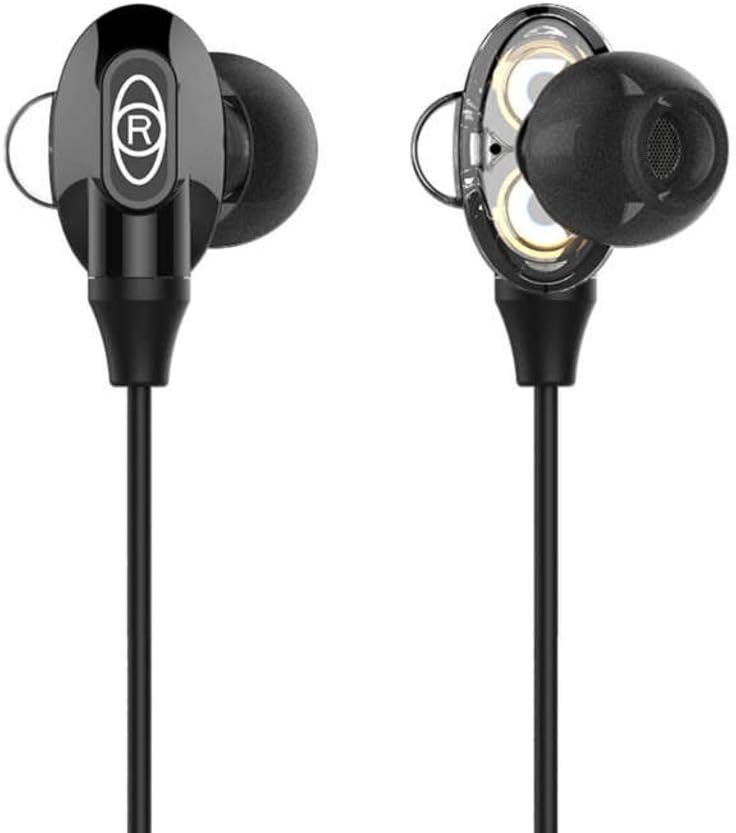
Figure 1: Baseus H08 In-Ear Gaming Earphones
This image displays the two in-ear earpieces of the Baseus H08 earphones, highlighting their sleek black design and the 'R' (right) indicator on one of the earpieces.
Key Features:
- 3D Surround Sound: Engineered for an immersive audio experience, enhancing spatial awareness in games.
- Wired Connectivity: Ensures stable audio transmission with a 3.5mm jack.
- In-Ear Design: Provides a secure and comfortable fit, along with passive noise isolation.
- Integrated Microphone: For clear voice communication during gameplay.
- Inline Control: Easy access to volume adjustments and microphone functions.
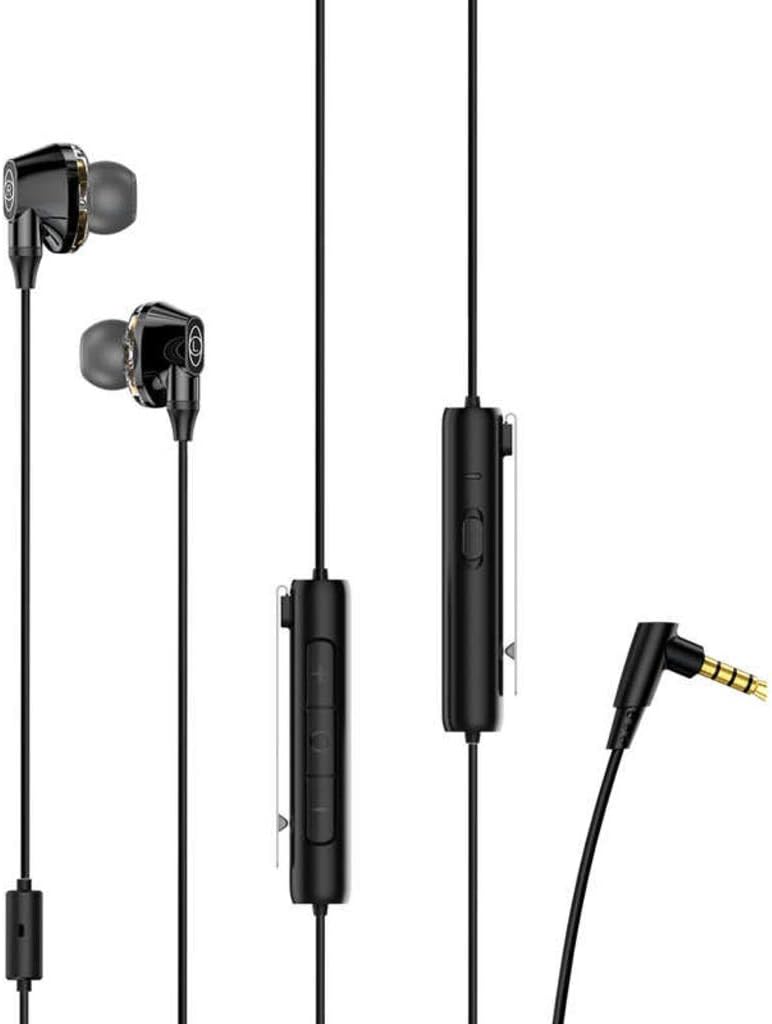
Figure 2: Earphones with Inline Control and 3.5mm Jack
This image shows the full length of the Baseus H08 earphones, including the in-ear buds, the inline control unit with buttons, and the L-shaped 3.5mm audio jack.
Setup
- Connect to Device: Insert the 3.5mm audio jack into the corresponding port on your gaming console, PC, or mobile device. Ensure the connection is secure.
- Wearing the Earphones: Gently insert the left (L) and right (R) earpieces into your ears. Adjust them for a comfortable and snug fit. The correct fit is crucial for optimal sound quality and noise isolation.
- Microphone Positioning: Position the inline microphone close to your mouth for clear voice pickup.
Operating Instructions
Inline Control Functions:
- Volume Control: Use the volume up (+) and volume down (-) buttons on the inline control unit to adjust the audio level.
- Microphone Mute/Unmute: The inline control may include a switch or button to mute or unmute the microphone. Refer to the specific markings on your control unit.
- Call Management: For mobile devices, the central button on the inline control typically allows you to answer/end calls or play/pause music.
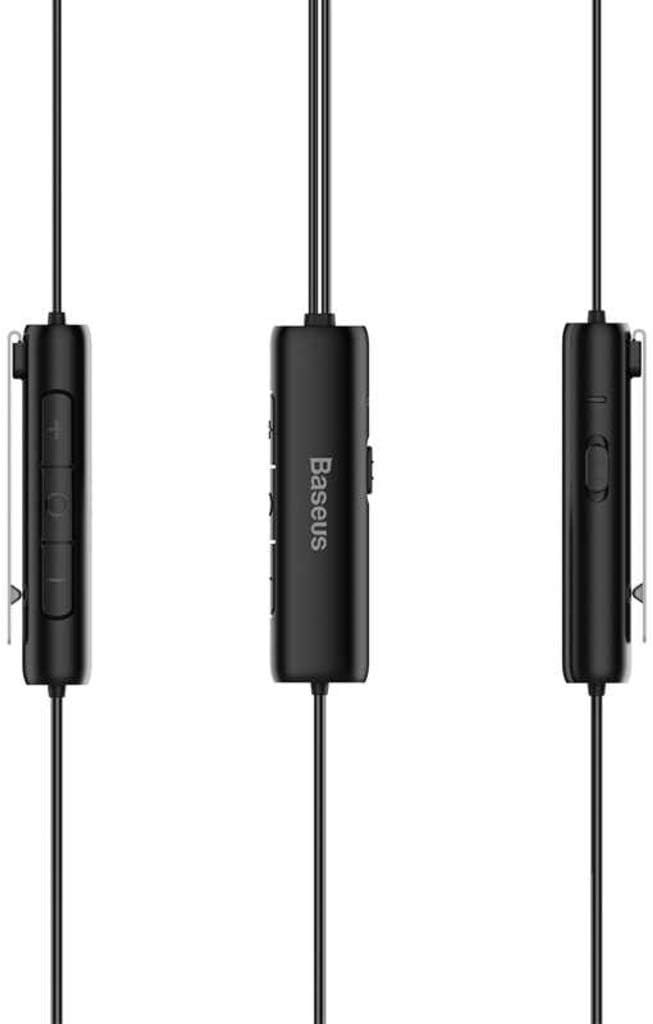
Figure 3: Inline Control Unit
This image provides a detailed view of the inline control unit, showing the volume buttons and the Baseus branding.
3D Surround Sound:
The Baseus H08 earphones are designed to deliver a 3D surround sound effect, enhancing directional audio cues in compatible games. This feature is automatically active when connected to a device that supports stereo audio output. No additional setup is required for the 3D sound functionality.

Figure 4: Immersive 3D Sound Experience
This image shows a person wearing the Baseus H08 earphones, with visual effects suggesting an immersive 3D sound experience, highlighting the earphones' capability to deliver rich audio details.
Maintenance
- Cleaning: Regularly clean the earpieces and ear tips with a soft, dry cloth. For stubborn dirt, a slightly damp cloth can be used, but ensure no moisture enters the speaker grilles.
- Storage: When not in use, store the earphones in a clean, dry place, preferably in a protective pouch, to prevent tangling and damage.
- Avoid Extreme Conditions: Do not expose the earphones to extreme temperatures, humidity, or direct sunlight.
- Cable Care: Avoid sharply bending or pulling the cable, as this can damage internal wiring.
Troubleshooting
| Problem | Possible Cause | Solution |
|---|---|---|
| No sound or low volume |
|
|
| Microphone not working |
|
|
| Poor sound quality |
|
|
Specifications
| Brand | Baseus |
| Model Number | NGH08-01 |
| Connectivity Technology | Wired |
| Headphones Jack | 3.5 mm Jack |
| Headphones Form Factor | In Ear |
| Microphone Included | Yes |
| Noise Control | Active Noise Cancellation |
| Control Type | Volume Control |
| Color | Black |
| Product Dimensions | 5 x 3 x 10 cm |
| Item Weight | 200 grams |
| Compatible Devices | PC, Mac |
Warranty and Support
For warranty information or technical support, please refer to the documentation included with your purchase or visit the official Baseus website. You may also contact Baseus customer service directly for assistance.
Baseus Official Website: www.baseus.com
