
1. Introduction
Thank you for choosing the Spada M201 Bluetooth Selfie Stick. This device is designed to enhance your mobile photography experience, offering extended reach and remote control for capturing photos and videos. It features Bluetooth 3.0 connectivity, compatibility with various smartphones, and an integrated tripod function. Please read this manual carefully to ensure proper use and optimal performance.

Image: The Spada M201 Bluetooth Selfie Stick, showcasing its design and available color options for the extendable rod.
2. Package Contents
Please verify that all the following items are included in your package:
- 1 x Spada Bluetooth Selfie Stick
- 1 x Wrist Strap
- 1 x USB Charging Cable
- 1 x Smartphone Holder
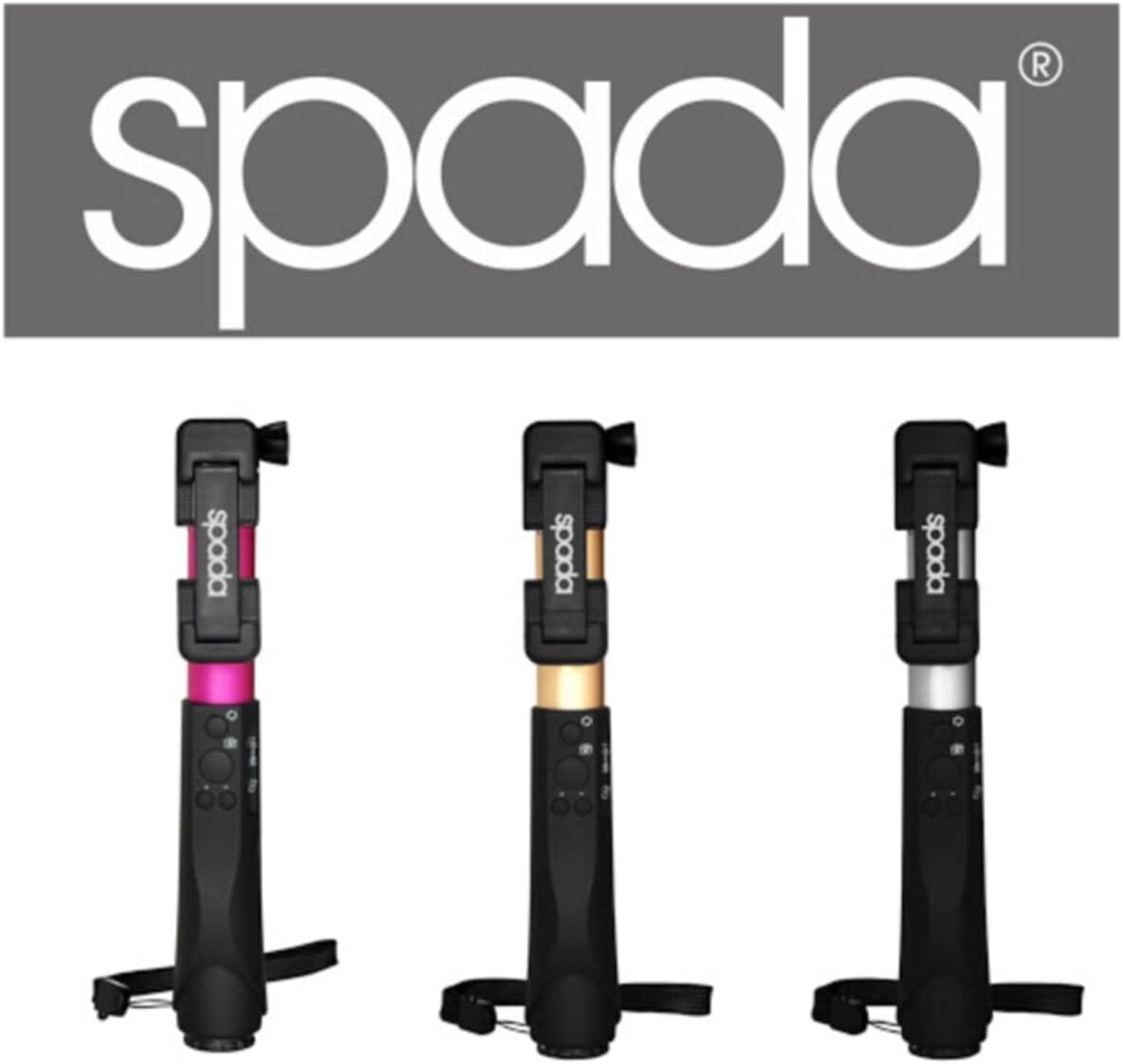
Image: The Spada M201 Bluetooth Selfie Stick presented in its retail box, highlighting the product and packaging design.
3. Setup
3.1. Charging the Selfie Stick
- Connect the provided USB charging cable to the charging port on the selfie stick.
- Connect the other end of the USB cable to a USB power source (e.g., computer, wall adapter).
- The indicator light will show charging status (refer to device for specific light behavior). Charge fully before first use.
3.2. Attaching Your Smartphone
- Gently expand the smartphone holder to fit your device. The holder supports smartphones up to 5.5 inches.
- Carefully place your smartphone into the holder, ensuring it is securely gripped and balanced.
- Adjust the angle of the holder as needed.
3.3. Bluetooth Pairing
The selfie stick uses Bluetooth 3.0 and has a range of approximately 10 meters.
- Ensure your selfie stick is charged and powered on.
- Activate Bluetooth on your smartphone (Settings > Bluetooth).
- Search for available devices. The selfie stick should appear as "Spada M201" or similar.
- Select the device to pair. Once paired, the indicator light on the selfie stick will confirm connection (refer to device for specific light behavior).
3.4. App Installation (Optional for Advanced Features)
For advanced features such as zoom function, camera switching, and trigger functions, an app may be required. Scan the QR code provided on the product packaging or in the quick start guide to download the compatible app for your operating system (iOS 6.0+ / Android 4.2.2+).
4. Operating Instructions
4.1. Extending and Retracting the Stick
To extend the selfie stick, gently pull the rod outwards from the handle. To retract, push the rod back into the handle until it is fully collapsed. The maximum length is 90 cm.
4.2. Taking Photos/Videos
- Ensure your smartphone is securely mounted and Bluetooth is paired.
- Open your smartphone's camera application.
- Position the selfie stick and your smartphone as desired.
- Press the trigger button on the selfie stick handle to capture a photo or start/stop video recording.
4.3. Using Zoom and Camera Functions (App Dependent)
If you have installed the recommended app, you may be able to:
- Zoom Function: Use dedicated buttons on the stick (if available) or within the app to zoom in or out.
- Camera Switching: Switch between front and rear cameras directly from the selfie stick controls or the app interface.
4.4. Integrated Tripod Function
The Spada M201 features an integrated tripod mechanism. To use it:
- Locate the tripod legs at the base of the handle.
- Gently unfold the legs outwards until they lock into place, forming a stable tripod base.
- Place the selfie stick on a flat, stable surface.
- After use, fold the legs back into the handle for compact storage.
5. Maintenance
- Cleaning: Wipe the selfie stick with a soft, dry cloth. Do not use harsh chemicals or abrasive cleaners.
- Storage: Store the device in a cool, dry place away from direct sunlight and extreme temperatures.
- Water Exposure: This device is not waterproof. Avoid exposure to water or high humidity.
- Battery Care: Charge the battery regularly, even if not in use, to maintain battery health.
6. Troubleshooting
6.1. Device Not Pairing via Bluetooth
- Ensure the selfie stick is charged and powered on.
- Make sure Bluetooth is enabled on your smartphone.
- Move the selfie stick closer to your smartphone (within 10 meters).
- Turn off and on both the selfie stick and your smartphone's Bluetooth.
- If previously paired, try unpairing and re-pairing the device.
6.2. Trigger Button Not Working
- Verify that the selfie stick is successfully paired with your smartphone.
- Ensure your camera app is open and active.
- Check the battery level of the selfie stick.
- Some smartphone camera apps may require specific settings for external triggers. Consult your phone's manual.
6.3. App Features Not Functioning
- Ensure you have downloaded the correct and latest version of the recommended app.
- Check if your smartphone's operating system meets the minimum requirements (iOS 6.0+ / Android 4.2.2+).
- Restart the app and the selfie stick.
7. Specifications
| Model Number | M201 (-019802) |
| Brand | Spada |
| Connectivity | Bluetooth 3.0 |
| Bluetooth Range | Up to 10 meters (approx.) |
| Smartphone Compatibility | Apple iOS 6.0+ / Android 4.2.2+ (up to 5.5-inch screen size) |
| Max Length | 90 cm |
| Dimensions | 19.99 x 8.71 x 3 cm (folded) |
| Weight | 99.79 g |
| Color | Black |
| Manufacturer Part Number | 4052335019802 |
8. Warranty and Support
For warranty information or technical support, please refer to the documentation provided at the time of purchase or contact your retailer. Spada GmbH is the manufacturer of this product.