
1. Introduction
This manual provides comprehensive instructions for the Axis Communications 5506-231 T8415 Wireless Installation Tool Camera. This device is designed to assist in the efficient and accurate installation of network cameras, offering features such as Power over Ethernet (PoE) and Wi-Fi connectivity for streamlined setup and configuration.
Please read this manual thoroughly before operating the device to ensure proper usage and to prevent damage.
2. Safety Information
- Ensure the device is used in a dry environment. Avoid exposure to water or excessive humidity.
- Do not attempt to open or modify the device. Refer all servicing to qualified personnel.
- Use only the specified power adapter for charging the device.
- Keep the device away from extreme temperatures and direct sunlight.
- Dispose of the device and its components according to local environmental regulations.
3. Package Contents
Verify that all items are present in the package:
- Axis Communications 5506-231 T8415 Wireless Installation Tool Camera
- Power Adapter (Corded Electric)
- Ethernet Cable
- Quick Start Guide
- Other Networking Devices (as specified by manufacturer)
4. Product Overview
The Axis T8415 is a portable tool designed for efficient camera installation. It features a robust design with various ports and indicators for easy operation.
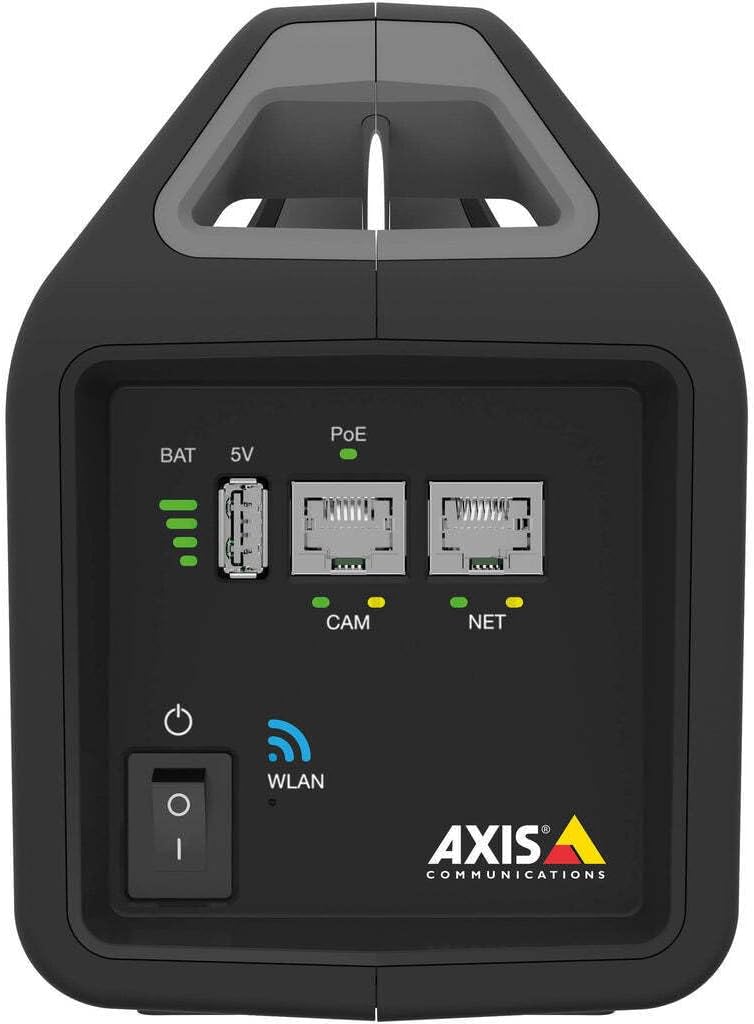
Figure 4.1: Front Panel Overview. This image displays the front of the Axis T8415 tool, highlighting the battery charge level indicator, a 5V USB output port, two Power over Ethernet (PoE) enabled Ethernet ports labeled 'CAM' (for camera connection) and 'NET' (for network connection), the main power button, and a WLAN status indicator light. The Axis Communications logo is visible at the bottom right.

Figure 4.2: Side View. This image shows the side profile of the Axis T8415 Wireless Installation Tool Camera, emphasizing its integrated handle for portability and its compact, rugged casing.
Key Components:
- Battery Indicator (BAT): Displays the current battery charge level.
- 5V USB Port: Provides 5V power output for compatible devices.
- PoE Ports (CAM/NET): Ethernet ports with Power over Ethernet capabilities. 'CAM' is for connecting the camera, 'NET' for connecting to the network.
- Power Button: Turns the device on or off.
- WLAN Indicator: Shows the status of the wireless local area network connection.
5. Setup
5.1 Initial Charging
- Connect the provided power adapter to the charging port on the device.
- Plug the power adapter into a suitable electrical outlet.
- Allow the device to charge fully until the battery indicator shows a full charge.
5.2 Powering On/Off
- To power on, press and hold the power button until the indicators light up.
- To power off, press and hold the power button until the indicators turn off.
5.3 Connecting a Camera
- Ensure the installation tool is powered on.
- Connect an Ethernet cable from the camera to the 'CAM' PoE port on the installation tool.
- The tool will provide power to the camera via PoE, and a connection will be established.
5.4 Network Connection
- For a wired network connection, connect an Ethernet cable from the network source to the 'NET' PoE port.
- For wireless connectivity, ensure the WLAN indicator is active. Access the tool's web interface (if available) or use a dedicated mobile application to configure Wi-Fi settings.
6. Operating Instructions
6.1 Camera Configuration
Once a camera is connected to the 'CAM' port, you can access its configuration interface through a connected laptop or mobile device. The installation tool acts as a bridge, providing power and network access to the camera.
- Connect your laptop to the 'NET' port or connect wirelessly to the tool's Wi-Fi network.
- Open a web browser and navigate to the camera's default IP address or use the manufacturer's discovery tool.
- Configure camera settings such as IP address, video resolution, and network parameters.
6.2 Power over Ethernet (PoE) Functionality
The tool provides PoE to connected cameras, simplifying installation by eliminating the need for separate power cables at the camera location. The PoE indicator will illuminate when power is being supplied.
6.3 Wireless Connectivity (WLAN)
The integrated WLAN allows for wireless connection to the tool, enabling configuration and monitoring from a mobile device or laptop without direct cable connection to the 'NET' port. Refer to the tool's specific documentation or mobile app for WLAN setup details.
7. Maintenance
7.1 Cleaning
- Wipe the exterior of the device with a soft, dry cloth.
- Do not use liquid cleaners or abrasive materials.
7.2 Battery Care
- Charge the battery regularly, even if the device is not in frequent use, to maintain battery health.
- Avoid fully discharging the battery frequently.
8. Troubleshooting
| Problem | Possible Cause | Solution |
|---|---|---|
| Device does not power on. | Low or depleted battery. | Connect the power adapter and charge the device. |
| Camera not receiving power via PoE. | Incorrect cable connection; camera not PoE compatible; tool malfunction. | Ensure cable is securely connected to 'CAM' port. Verify camera supports PoE. Contact support if issue persists. |
| Cannot connect to the tool's Wi-Fi. | WLAN disabled; incorrect Wi-Fi settings. | Check WLAN indicator. Reconfigure Wi-Fi settings via the tool's interface or app. |
9. Specifications
| Feature | Detail |
|---|---|
| Model Name | 5506-231 |
| Brand | Axis Communications |
| Connectivity Technology | Wireless |
| Connectivity Protocol | Wi-Fi |
| Power Source | Corded Electric |
| Voltage | 12 Volts |
| Wattage | 30 watts |
| Item Dimensions (L x W x H) | 5.9 x 3.9 x 8.1 inches |
| Item Weight | 4.85 pounds |
| Indoor/Outdoor Usage | Indoor |
| International Protection Rating | IP65 |
| Included Components | Other Networking Devices |
10. Warranty and Support
Axis Communications products are covered by a limited warranty. For detailed warranty information, please refer to the official Axis Communications website or the warranty card included with your product.
For technical support, product registration, or to download the latest firmware and documentation, visit the official Axis Communications support portal. Contact information for customer service can also be found on their website.
Website: www.axis.com
11. Regulatory Compliance
This device complies with relevant regulatory standards for electronic equipment. For specific compliance information, including FCC, CE, and other regional certifications, please refer to the product documentation available on the Axis Communications website.
Changes or modifications not expressly approved by Axis Communications could void the user's authority to operate the equipment.