
Cheerwing X5SW-V3
Cheerwing Syma X5SW-V3 FPV Drone User Manual
Model: X5SW-V3
1. Introduction
Welcome to the user manual for your Cheerwing Syma X5SW-V3 FPV Drone. This manual provides essential information for setting up, operating, maintaining, and troubleshooting your drone. Please read it thoroughly before first use to ensure safe and optimal performance.
The Syma X5SW-V3 is an advanced FPV (First Person View) drone equipped with a 720P HD camera, designed for both adults and kids. Its user-friendly features include One Key Take Off/Landing, Altitude Hold, Headless Mode, and APP control for enhanced flight experience. The durable ABS material and propeller guards ensure resilience during flight.
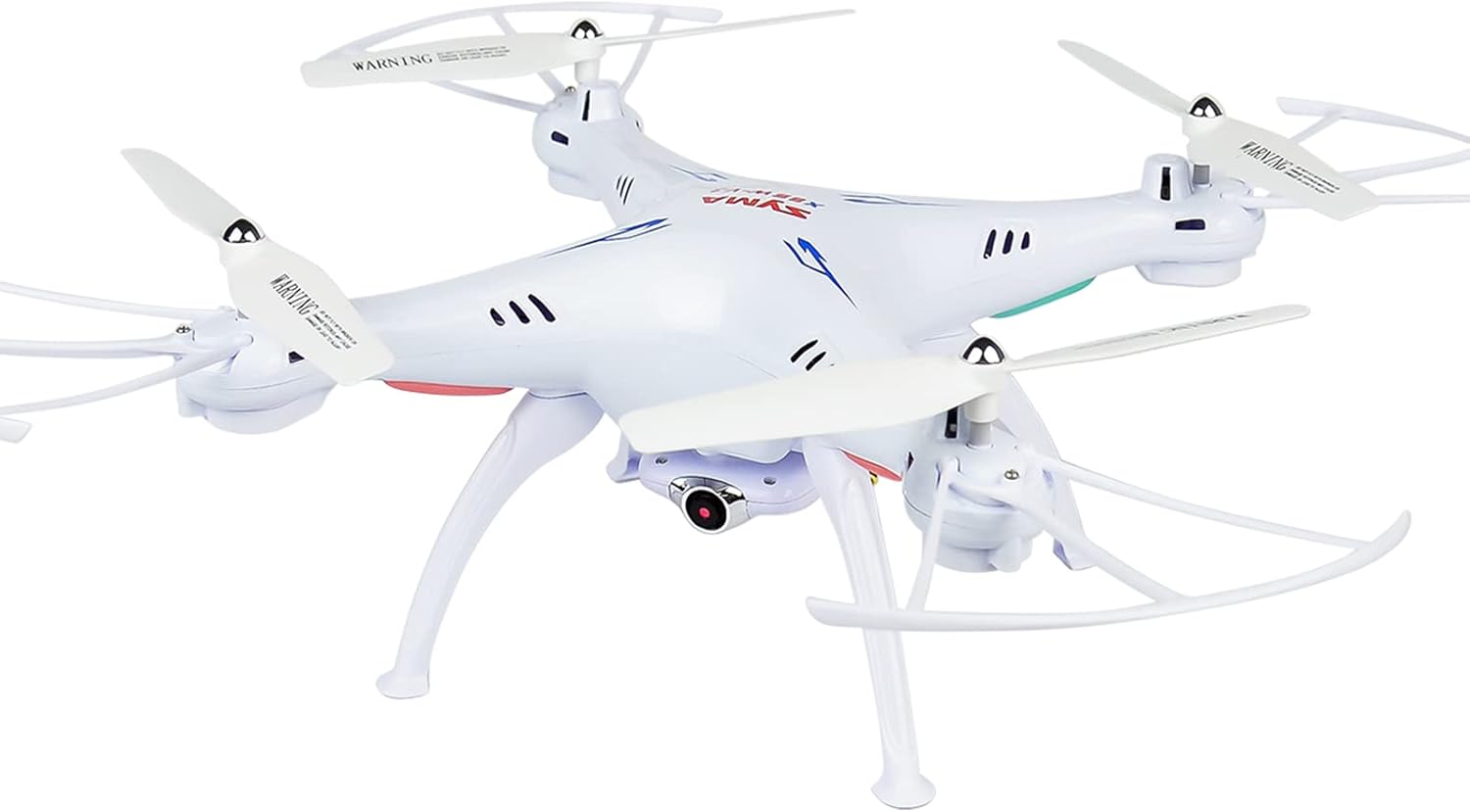
Figure 1: Cheerwing Syma X5SW-V3 FPV Drone (White model)
2. Setup
2.1. Unboxing and Component Check
Carefully unpack all components and verify against the list below. If any parts are missing or damaged, please contact customer support.

Figure 2: Inner Packing showing drone components
- Syma X5SW-V3 Drone
- Remote Controller
- 720P HD Wi-Fi Camera
- USB Charging Cable
- Spare Propellers
- Propeller Guards
- Phone Holder
- Screwdriver
- Landing Gear
2.2. Battery Installation and Charging
The drone uses a 500mAh Lithium Polymer battery. Ensure the battery is fully charged before each flight.
- Open the battery compartment on the drone.
- Insert the drone battery and connect it to the drone's power port.
- Connect the USB charging cable to the battery and a USB power source. The indicator light will show charging status.
- For the remote controller, insert 4 AA batteries (not included) into its battery compartment.

Figure 3: Battery and Camera Connection Points
2.3. Propeller and Guard Installation
Attach the propeller guards to the drone's arms for added protection. Ensure propellers are securely fastened according to their designated positions (A/B).
2.4. Camera Connection
Connect the 720P HD camera to the designated port on the underside of the drone. Ensure a secure connection for FPV functionality.
2.5. App Download and Wi-Fi Connection
To utilize FPV and advanced control features, download the 'Syma DRONE FPV+' app on your smartphone.
- Power on the drone.
- Go to your smartphone's Wi-Fi settings and connect to the drone's Wi-Fi network (usually named 'SYMA-X5SW' or similar).
- Open the 'Syma DRONE FPV+' app. The app should automatically connect to the drone and display the camera's live feed.

Figure 4: Syma FPV App Interface
3. Operating Instructions
3.1. Pre-Flight Checklist
- Ensure drone and remote controller batteries are fully charged.
- Verify all propellers are securely attached and undamaged.
- Choose an open area free from obstacles, people, and animals.
- Check weather conditions; avoid flying in strong winds or rain.
3.2. Pairing the Drone and Remote Controller
1. Turn on the drone's power switch. 2. Place the drone on a flat surface. 3. Turn on the remote controller. 4. Push the left joystick (throttle) all the way up, then all the way down. The indicator lights on the drone will stop flashing, indicating successful pairing.
3.3. One Key Take Off / Landing
After pairing, simply press the One Key Take Off button on the remote or in the app. The drone will automatically ascend to a stable hovering height. Press the One Key Landing button to initiate an automatic descent and landing.

Figure 5: Easy to Fly Features: One Key Take Off/Landing, Headless Mode, Altitude Hold
3.4. Altitude Hold
The Altitude Hold function allows the drone to maintain a consistent altitude, making it easier to control and ideal for stable aerial photography. Once activated, the drone will hover at its current height without constant throttle input.

Figure 6: Drone in Altitude Hold mode
3.5. Headless Mode
In Headless Mode, the drone's orientation is relative to the pilot, regardless of the drone's actual front direction. This simplifies control, especially for beginners, as you don't need to worry about which way the drone is facing.

Figure 7: Headless Mode diagram
3.6. 3D Flips
Perform exciting 3D flips with a single button press. Ensure sufficient altitude and clear surroundings before attempting this maneuver.

Figure 8: Drone executing a 3D Flip
3.7. High/Low Speed Mode
Switch between High and Low Speed modes to suit your skill level and flying environment. Low speed is recommended for beginners and indoor flights, while high speed offers more agility for outdoor and experienced pilots.

Figure 9: Drone in High/Low Speed Mode
3.8. FPV Real-time Transmission
The integrated 720P HD Wi-Fi camera transmits live video directly to your smartphone via the app, providing a first-person view of your flight. You can capture photos and videos directly to your mobile device.

Figure 10: FPV Real-Time Transmission in action
3.9. Trajectory Flight (Waypoint Fly)
Draw a flight path on your smartphone screen within the app, and the drone will automatically follow the designated trajectory. This feature allows for precise and creative flight patterns.

Figure 11: Drone executing a Trajectory Flight
3.10. Official Product Video
Video 1: Cheerwing X5SW-V3 Drone with Camera. This video demonstrates the drone's features and flight capabilities.
4. Maintenance
4.1. Cleaning
Regularly clean the drone body and propellers with a soft, dry cloth to remove dust and debris. Avoid using water or harsh chemicals.
4.2. Propeller Replacement
If propellers become damaged, replace them with the provided spare propellers. Ensure correct orientation (A or B) for each motor. Damaged propellers can affect flight stability and performance.
4.3. Battery Care
To prolong battery life, avoid overcharging or completely draining the battery. Store batteries in a cool, dry place when not in use. Disconnect the battery from the drone after each flight.
5. Troubleshooting
| Problem | Possible Cause | Solution |
|---|---|---|
| Drone does not take off or flies erratically. | Unpaired remote; damaged propellers; motor gear misalignment. | Re-pair remote and drone. Check and replace damaged propellers. Inspect motor gears and realign if necessary (as noted by user reviews). |
| FPV feed is not displayed on the app. | Incorrect Wi-Fi connection; app not launched correctly. | Ensure smartphone is connected to the drone's Wi-Fi network. Restart the app and drone. |
| Short flight time. | Low battery capacity; camera connected during non-recording flights. | Ensure battery is fully charged. Consider purchasing higher capacity batteries. Disconnect camera when not needed to conserve power. |
| Drone drifts during flight. | Wind interference; uncalibrated gyroscope. | Avoid flying in windy conditions. Perform gyroscope calibration (refer to full user manual for specific steps). |
6. Specifications
- Brand: Cheerwing
- Model Name: X5SW V3
- Color: White
- Video Capture Resolution: 720p
- Effective Still Resolution: 0.3 MP
- Connectivity Technology: Wi-Fi
- Item Weight: 4.2 ounces (0.26 Pounds)
- Battery Capacity: 500 Milliamp Hours (Lithium Polymer)
- Maximum Range: 50 Meters
- Product Dimensions: 12.2"L x 12.2"W x 3.15"H
- Recommended Age: 8 years and up
7. Warranty and Support
For detailed warranty information and further support, please refer to the official User Manual PDF or visit the Cheerwing Store.
- Official User Manual (PDF): Download PDF
- Cheerwing Store: Visit Store
- Seller: Cheerwing USA
Ask a question about this manual
Ask about setup, troubleshooting, compatibility, parts, safety, or missing instructions. Manuals+ will review the question and use this page’s manual context to help answer it.