
Introduction
Thank you for choosing the Kreo Hive 98 Wired RGB Mechanical Gaming Keyboard. This manual provides detailed instructions for setting up, operating, maintaining, and troubleshooting your new keyboard. Please read this manual thoroughly to ensure optimal performance and longevity of your device.
Product Overview
The Kreo Hive 98 is a full-size mechanical gaming keyboard designed for both gaming and productivity. It features a compact 98-key layout, hot-swappable switches, per-key RGB lighting, and a metal volume knob for enhanced control.
- 98-Key Compact Layout: Offers full functionality including a numeric keypad in a space-saving design.
- Hot-Swappable Mechanical Switches: Allows for easy customization of switch types (Red or Brown) without soldering, rated for 60 million keypresses.
- Metal Volume Knob: Provides smooth and precise audio control.
- Case Foam Sound Dampening: Reduces vibrations for a quieter and more comfortable typing experience.
- Per-Key RGB Lighting: Customizable RGB effects for individual keys.
- Detachable USB-C Connectivity: Ensures reliable wired connection and easy transport.
- Full Key Anti-Ghosting: Guarantees accurate registration of multiple simultaneous key presses.


Package Contents
Ensure all items are present in the package:
- Kreo Hive 98 Wired RGB Mechanical Gaming Keyboard
- USB-C Cable
- Keycap Puller (for maintenance)
- Switch Puller (for maintenance)
Setup Instructions
- Connect the Keyboard: Plug the provided USB-C cable into the USB-C port on the keyboard and the other end into an available USB-A port on your computer. The keyboard is plug-and-play and should be recognized automatically by most operating systems.
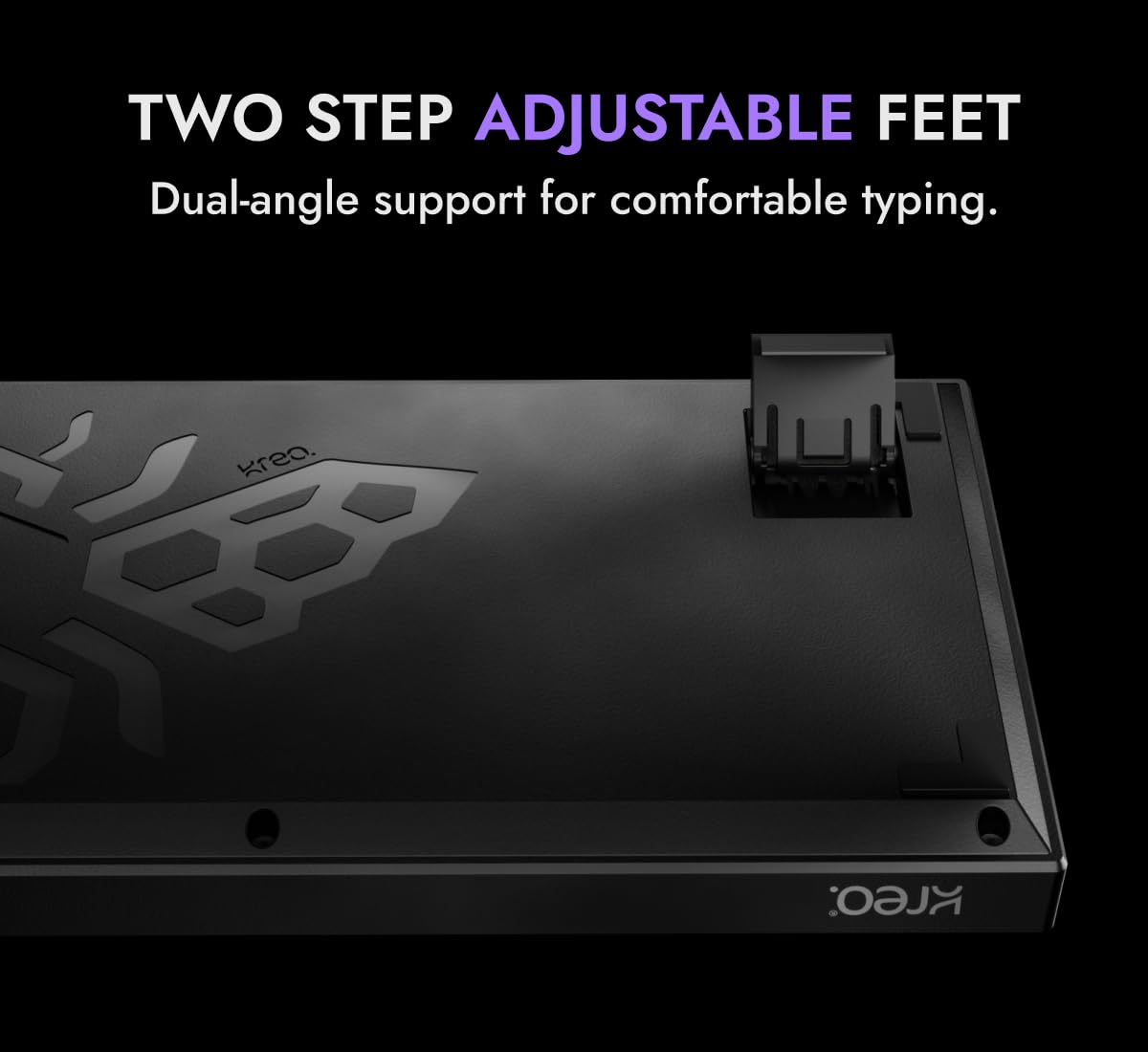
- Adjust Keyboard Feet: The keyboard features two-step adjustable feet on the underside. Flip them out to set your preferred typing angle for ergonomic comfort.
- Install Software (Optional): For advanced customization of RGB lighting and key functions, download the official Kreo software from the Kreo website. Follow the on-screen instructions for installation.

Operating Instructions
Basic Key Functions
The Kreo Hive 98 uses a standard QWERTY layout with a compact 98-key design, including a dedicated numeric keypad. All keys function as standard keyboard keys unless modified by the function (Fn) key or custom software settings.
RGB Lighting Control
The keyboard features per-key RGB lighting with multiple customizable effects. Use the dedicated software for full customization or utilize onboard shortcuts:
- Fn + [Key]: Specific key combinations (refer to software or quick guide) control lighting modes, brightness, and speed.
- Software Customization: The Kreo software allows for granular control over individual key lighting, creating custom profiles, and syncing effects.
Metal Volume Knob
The metal volume knob provides quick audio adjustments:
- Rotate Clockwise: Increases volume.
- Rotate Counter-Clockwise: Decreases volume.
- Press Down: Mutes or unmutes audio.

Hot-Swappable Switches
The Kreo Hive 98 features a 3 & 5-pin hot-swappable PCB, allowing you to change mechanical switches without soldering. This enables customization of your typing feel.

Anti-Ghosting
The keyboard supports full key anti-ghosting, ensuring that every key press is registered accurately, even when multiple keys are pressed simultaneously during intense gaming sessions.
Maintenance
Cleaning the Keyboard
- Disconnect the keyboard from your computer before cleaning.
- Use a soft, lint-free cloth slightly dampened with water or a mild cleaning solution to wipe the keycaps and chassis.
- For dust and debris between keys, use compressed air.
- Avoid spraying liquids directly onto the keyboard.
Keycap Removal and Replacement
Use the provided keycap puller to carefully remove keycaps. Hook the puller onto the keycap and pull straight up. When replacing, align the keycap with the switch stem and press down gently until it clicks into place.

Switch Replacement
To replace a switch, first remove the keycap. Then, use the provided switch puller to grip the top and bottom clips of the switch. Gently rock and pull the switch straight out. When inserting a new switch, ensure the pins are straight and align them with the holes on the PCB. Press down firmly until the switch clicks into place. Avoid excessive force to prevent bending pins or damaging the PCB.
Troubleshooting
| Problem | Possible Cause | Solution |
|---|---|---|
| Keyboard not responding | Loose USB connection, faulty cable, driver issue. | Ensure USB-C cable is securely connected. Try a different USB port or cable. Restart your computer. |
| RGB lighting not working or incorrect | Software settings, onboard lighting mode. | Check lighting settings in the Kreo software. Use onboard shortcuts to cycle through modes. Ensure software is up to date. |
| Specific keys not registering | Faulty switch, debris under keycap. | Remove keycap and clean around the switch. If issue persists, consider replacing the switch (refer to Maintenance section). |
| Volume knob not functioning | Software conflict, physical obstruction. | Ensure no software is overriding the knob's function. Check for any physical debris around the knob. |
Specifications
| Feature | Detail |
|---|---|
| Brand | Kreo |
| Model | Hive 98 |
| Connectivity Technology | USB-C (Wired) |
| Keyboard Description | Mechanical |
| Recommended Use | Gaming |
| Backlighting Color Support | RGB (Per-Key) |
| Switch Type | Mechanical, Tactile (Brown Switch variant) |
| Keyboard Layout | QWERTY |
| Number of Keys | 98 |
| Color | Black-Purple |
| Material | Plastic |
| Item Dimensions (L x W x H) | 15.4L x 4.2W x 33.6H Centimeters |
| Item Weight | 740 Grams |
Warranty Information
The Kreo Hive 98 Wired RGB Mechanical Gaming Keyboard comes with a 400-day warranty from the date of purchase. This warranty covers manufacturing defects and malfunctions under normal use. Please retain your proof of purchase for warranty claims. The warranty does not cover damage caused by misuse, accidents, unauthorized modifications, or normal wear and tear.
Support
For any product-related questions, technical assistance, or warranty claims, please contact Kreo customer support:
- Phone: +91 9611507877
- Email: help@kreo-tech.com
- Operating Hours: Monday to Saturday, 10:00 AM to 6:00 PM (IST)
- Manufacturer Address: Koramangala 4-B Block, Bengaluru, Karnataka 560034, India


