
1. Product Overview
The Xbox One 500GB Console - Gears of War: Ultimate Edition Bundle provides a complete gaming experience. This bundle includes the Xbox One 500GB console and a full-game download of Gears of War: Ultimate Edition. The console offers a powerful platform for gaming, entertainment, and multimedia. Gears of War: Ultimate Edition is a remastered version of the original game, featuring enhanced graphics and additional content.

Figure 1: The Xbox One 500GB Console - Gears of War: Ultimate Edition Bundle packaging.
Key Features:
- Xbox One 500GB Console: A powerful gaming and entertainment system.
- Gears of War: Ultimate Edition: Full-game download of the remastered original.
- Wireless Controller: Ergonomically designed for comfortable gameplay.
- High-Definition Graphics: Experience games in stunning 1080p resolution.
- Online Multiplayer: Connect and play with friends globally via Xbox Live.
2. Initial Setup
Follow these steps to set up your Xbox One console and begin your gaming experience.
2.1 Unboxing and Placement
- Carefully remove all components from the packaging.
- Place the Xbox One console on a stable, flat surface with adequate ventilation. Ensure no vents are blocked.

Figure 2: The Xbox One 500GB Console.
2.2 Connecting the Console
- Power Connection: Connect the power cable to the console and then to a power outlet.
- HDMI Connection: Connect one end of the HDMI cable to the HDMI OUT port on the console and the other end to an HDMI input on your TV or display.
- Internet Connection (Optional): For online features and game downloads, connect an Ethernet cable to the network port on the console, or prepare for Wi-Fi setup during initial boot.
- Controller Connection: Insert the included batteries into the Xbox One Wireless Controller. Press and hold the Xbox button on the controller to turn it on. Press the Pair button on the console and then on the controller to sync them.

Figure 3: The Xbox One Wireless Controller.
2.3 Initial Power On and System Setup
- Press the Xbox button on the console or controller to power it on.
- Follow the on-screen instructions to complete the initial setup, including language selection, network configuration, and Xbox Live account sign-in.
- The console may require a system update. Allow this process to complete without interruption.
3. Operating the Xbox One Console
This section covers basic operation and game management.
3.1 Power On/Off
- To Power On: Press the Xbox button on the console or the controller.
- To Power Off: Press and hold the Xbox button on the controller for a few seconds, then select 'Turn console off' from the power options. Alternatively, press the Xbox button on the console.
3.2 Navigating the Dashboard
Use the Xbox One Wireless Controller to navigate the console's dashboard. The main screen provides access to your games, apps, and system settings. Use the D-pad or left analog stick to move between tiles and the 'A' button to select.
3.3 Playing Games
- Disc-based Games: Insert the game disc into the disc drive. The console will automatically begin installation.
- Digital Games: Download games from the Xbox Store. Once downloaded, they will appear in your 'My games & apps' library.
- Gears of War: Ultimate Edition: As part of this bundle, a digital download code for Gears of War: Ultimate Edition is included. Redeem this code via the Xbox Store to download and install the game.

Figure 4: Gears of War: Ultimate Edition game cover.
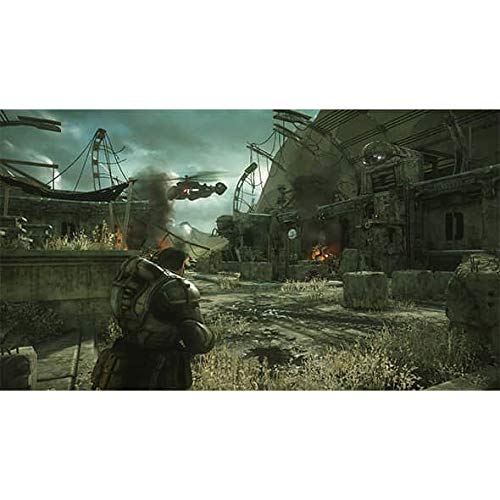
Figure 5: In-game screenshot from Gears of War: Ultimate Edition.
3.4 Media Playback
The Xbox One supports various media formats. You can play Blu-ray and DVD discs, stream content from apps like Netflix and Hulu, and access digital media files.
4. Care and Maintenance
Proper care ensures the longevity and optimal performance of your Xbox One console.
4.1 Cleaning the Console
- Ensure the console is powered off and unplugged before cleaning.
- Use a soft, lint-free cloth to wipe down the exterior of the console.
- Avoid using abrasive cleaners, solvents, or aerosol sprays.
- Regularly clear dust from the vents using a soft brush or compressed air to maintain proper airflow.
4.2 Software Updates
The Xbox One console regularly receives system updates to improve performance, add new features, and enhance security. Ensure your console is connected to the internet to receive these updates automatically. You can also manually check for updates in the system settings.
4.3 Storage Management
The console comes with 500GB of internal storage. To manage your storage:
- Go to Settings > System > Storage.
- Here you can view used space, uninstall games or apps, and manage saved data.
- External USB 3.0 hard drives (256GB or larger) can be connected to expand storage for games and apps.
5. Troubleshooting Common Issues
If you encounter problems with your Xbox One, refer to these common solutions.
5.1 Console Not Powering On
- Check that the power cable is securely connected to both the console and the power outlet.
- Ensure the power brick (if applicable) has a solid white light, indicating it is receiving power.
- Try a different power outlet.
5.2 No Picture or Sound on TV
- Verify that the HDMI cable is securely connected to both the console and the TV.
- Ensure your TV is set to the correct HDMI input source.
- Try a different HDMI cable or HDMI port on your TV.
5.3 Disc Read Errors
- Clean the game disc with a soft, lint-free cloth, wiping from the center outwards.
- Ensure the disc is inserted correctly into the disc drive.
- Try another game disc to determine if the issue is with the console or a specific disc.
5.4 Network Connectivity Issues
- Check your internet router and modem to ensure they are working correctly.
- For wired connections, ensure the Ethernet cable is properly connected.
- For wireless connections, verify your Wi-Fi password and signal strength.
- Restart your console and network equipment.
6. Specifications
| Feature | Detail |
|---|---|
| Model Number | 5C6-00083 |
| Storage Capacity | 500GB |
| Product Dimensions | 20 x 14.5 x 7 inches |
| Item Weight | 12 pounds |
| Release Date | August 25, 2015 |
| Manufacturer | Microsoft Software |
| Included Game | Gears of War: Ultimate Edition (Digital Download) |
| Controller Batteries | 2 AAA batteries required |
7. Related Videos
7.1 Gears of War: Ultimate Edition - Characters That Matter
This video highlights the key characters and narrative elements of Gears of War: Ultimate Edition, providing insight into the game included with your console bundle.
7.2 Gears of War Bundle Overview
An overview video showcasing the Gears of War bundle, detailing its contents and the experience it offers.
8. Warranty and Support
Your Xbox One console is covered by a limited warranty provided by Microsoft. For detailed warranty information, including terms, conditions, and duration, please refer to the warranty documentation included with your product or visit the official Xbox support website.
8.1 Customer Support
For technical assistance, troubleshooting, or service requests, please contact Xbox Customer Support. Support resources, including FAQs, troubleshooting guides, and contact options, are available on the official Xbox website.
- Online Support: Visit support.xbox.com
- Phone Support: Refer to your region-specific Xbox support contact information.


