
Introduction
This manual provides instructions for setting up, operating, and maintaining your Mercury MW3030R Dual Band Wireless Router. Please read this manual carefully before use to ensure proper installation and optimal performance.
Safety Information
- Do not expose the device to water or excessive humidity.
- Do not attempt to disassemble or repair the device yourself.
- Use only the power adapter provided with the device.
- Ensure proper ventilation around the router to prevent overheating.
Package Contents
Verify that your package contains the following items:
- Mercury MW3030R Wireless Router
- Power Adapter
- Ethernet Cable
- Quick Installation Guide (this manual serves as a detailed guide)
Product Overview
Familiarize yourself with the router's components and indicators.
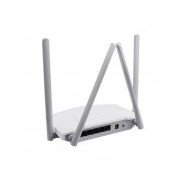
Figure 1: Rear view of the Mercury MW3030R router. This image displays the four external antennas, the WAN port (typically blue), multiple LAN ports (typically yellow), and the power input jack. The reset button and WPS button are also usually located on the rear panel.
Figure 2: Top-down view of the Mercury MW3030R router with its antennas folded. This perspective highlights the router's sleek, white casing and its overall compact form factor, suitable for various placements.
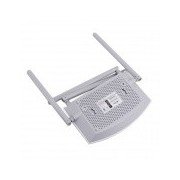
Figure 3: Bottom view of the Mercury MW3030R router. This image shows the ventilation holes designed for heat dissipation and the product label, which typically contains important information such as the default Wi-Fi name (SSID), password, and web management address.
LED Indicators:
- Power LED: Indicates the power status of the router.
- Internet LED: Indicates the status of the internet connection.
- WLAN LED: Indicates wireless activity.
- LAN LEDs: Indicate connection status for each LAN port.
Setup
1. Hardware Connection
- Power On: Connect the power adapter to the router's power port and plug it into a wall outlet. Wait for the Power LED to become stable.
- Connect to Internet (WAN): Connect one end of an Ethernet cable to your modem's LAN port and the other end to the router's WAN port (usually distinctively colored, e.g., blue).
- Connect Devices (LAN): For wired connections, connect your computer or other devices to the router's LAN ports (usually yellow) using Ethernet cables.
- Antennas: Adjust the four antennas for optimal signal coverage.
2. Initial Configuration (Web Interface)
- Connect to Router: Connect your computer to the router either via an Ethernet cable to a LAN port or wirelessly using the default Wi-Fi SSID and password printed on the router's label (refer to Figure 3).
- Access Web Browser: Open a web browser (e.g., Chrome, Firefox) and type the default access address (e.g., http://192.168.1.1 or http://tplinkwifi.net) into the address bar and press Enter.
- Login: Enter the default username and password (usually admin for both, or as specified on the router's label).
- Run Quick Setup: Follow the on-screen instructions of the Quick Setup Wizard to configure your internet connection type (e.g., PPPoE, Dynamic IP, Static IP) and wireless settings (SSID, password).
- Change Default Password: For security, it is highly recommended to change the default login password for the router's web management interface.
Operating Instructions
Connecting to Wi-Fi
- On your wireless device (smartphone, laptop), search for available Wi-Fi networks.
- Select your router's Wi-Fi network name (SSID) that you configured during setup.
- Enter the Wi-Fi password you set.
- Your device should now be connected to the internet.
Dual Band Operation
The MW3030R supports both 2.4GHz and 5.0GHz wireless bands. The 2.4GHz band offers wider coverage, while the 5.0GHz band provides faster speeds with less interference over shorter distances. You can connect your devices to either band based on your needs.
Guest Network
Access the router's web interface to enable and configure a separate guest network. This allows guests to access the internet without accessing your main network resources.
Maintenance
- Firmware Updates: Regularly check the manufacturer's website for firmware updates. Updating firmware can improve performance, add new features, and fix security vulnerabilities.
- Restarting the Router: If you experience network issues, try restarting the router by unplugging the power adapter, waiting 10 seconds, and then plugging it back in.
- Cleaning: Keep the router clean and free from dust. Use a soft, dry cloth. Do not use liquid cleaners.
- Placement: Place the router in a central location, away from obstructions and devices that may cause interference (e.g., microwaves, cordless phones).
Troubleshooting
No Internet Access
- Check if the Internet LED on the router is lit or blinking correctly.
- Ensure the Ethernet cable from your modem is securely connected to the router's WAN port.
- Restart your modem and router.
- Verify your internet connection settings in the router's web interface.
Slow Wireless Speed
- Ensure your device is connected to the 5.0GHz band if it supports it, for faster speeds.
- Move closer to the router or adjust antenna positions.
- Check for interference from other electronic devices.
- Reduce the number of devices connected to the network or bandwidth-intensive activities.
Cannot Access Router's Web Interface
- Ensure your device is connected to the router (wired or wireless).
- Verify the IP address you are typing in the browser is correct (e.g., http://192.168.1.1).
- Try clearing your browser's cache or using a different browser.
- If you forgot the login password, you may need to perform a factory reset (Warning: This will erase all your settings).
Specifications
| Feature | Description |
|---|---|
| Model | MW3030R |
| Wireless Standards | IEEE 802.11ac/n/g/b/a |
| Frequency | 2.4GHz and 5.0GHz (Dual Band) |
| Wireless Speed | Up to 600Mbps (combined) |
| Antennas | 4 External Antennas |
| Interfaces | 1x WAN Port, Multiple LAN Ports (typically 3 or 4) |
| Power Supply | External Power Adapter (provided) |
Warranty and Support
The Mercury MW3030R router comes with a standard manufacturer's warranty. For detailed warranty information, technical support, or service inquiries, please refer to the official Mercury website or contact their customer support. Keep your purchase receipt for warranty claims.


