
1. Introduction
Thank you for choosing the TECKNET M003 2.4G Wireless Optical Mouse. This ergonomic mouse is designed for comfort and precision, offering a reliable wireless connection for various computing tasks. Please read this manual carefully to ensure proper setup and operation.

Figure 1: TECKNET M003 Wireless Optical Mouse with ergonomic design highlighted.
2. Package Contents
- TECKNET Pro Wireless Mouse
- Nano USB Receiver
- User Manual (this document)
3. Product Overview
Familiarize yourself with the components of your TECKNET M003 mouse:
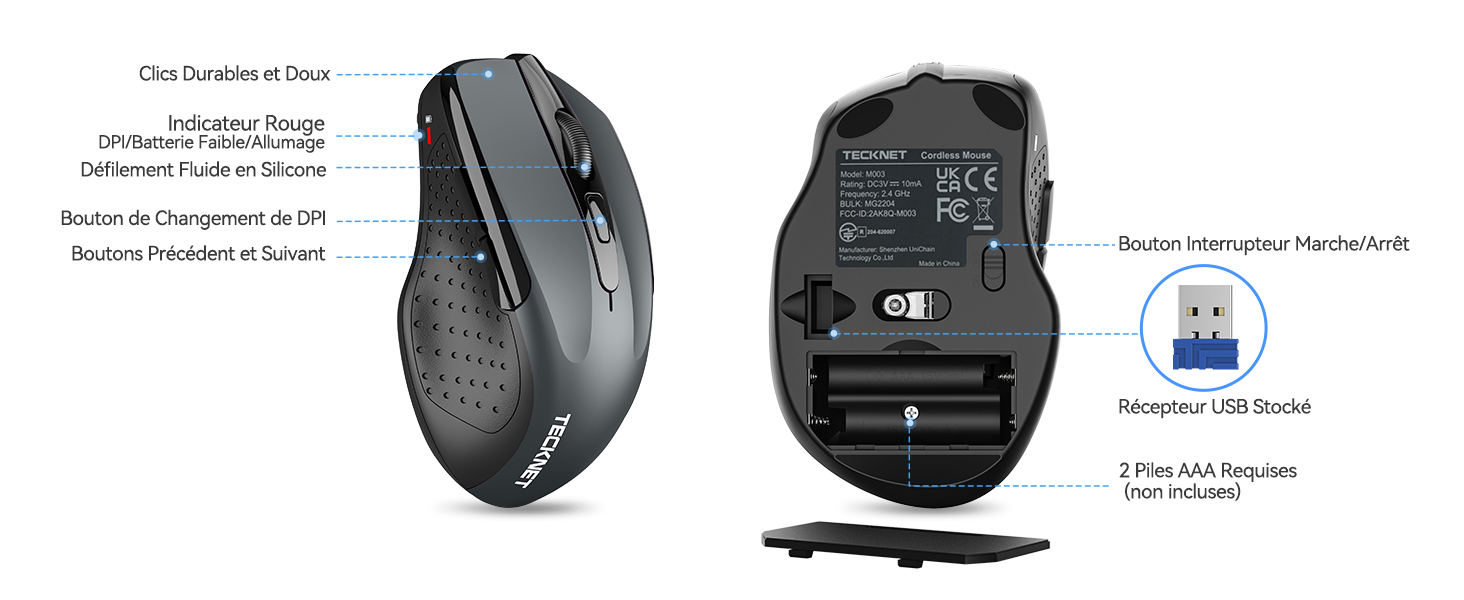
Figure 2: Front and bottom view of the mouse with labeled parts.
- Left Button: Standard click function.
- Right Button: Standard right-click function.
- Scroll Wheel: For vertical scrolling and middle-click function.
- DPI Switch Button: Adjusts cursor sensitivity.
- Forward Button: Navigates forward in web browsers or file explorers (not available for Mac OS).
- Backward Button: Navigates backward in web browsers or file explorers (not available for Mac OS).
- Power Switch (On/Off): Located on the bottom of the mouse.
- Optical Tracking Sensor: For precise movement detection.
- Battery Compartment: Holds two AAA batteries.
- USB Receiver Storage Slot: Located inside the battery compartment for convenient storage.
4. Setup Instructions
4.1 Battery Installation
- Open the battery compartment cover located on the bottom of the mouse.
- Insert two (2) AAA batteries, ensuring correct polarity (+/-). Batteries are not included.
- Close the battery compartment cover securely.
4.2 Connecting the USB Receiver
- Locate the nano USB receiver stored inside the battery compartment of the mouse.
- Remove the USB receiver from its storage slot.
- Plug the USB receiver into an available USB port on your computer (PC, laptop, Chromebook, Mac).
- Turn on the mouse using the power switch on the bottom.
Your computer should automatically detect and install the necessary drivers. The mouse will be ready for use within a few seconds.

Figure 3: Plugging the USB receiver into a computer.
5. Operating Instructions
5.1 Basic Operation
- Move the mouse on a flat surface to control the cursor on your screen.
- Use the left and right buttons for clicking and context menus.
- Roll the scroll wheel to navigate vertically through documents and web pages. Press the scroll wheel for a middle-click function (behavior may vary by application).
- The forward and backward buttons (side buttons) allow for quick navigation in web browsers or file explorers. Note: These buttons are not supported on Mac OS.
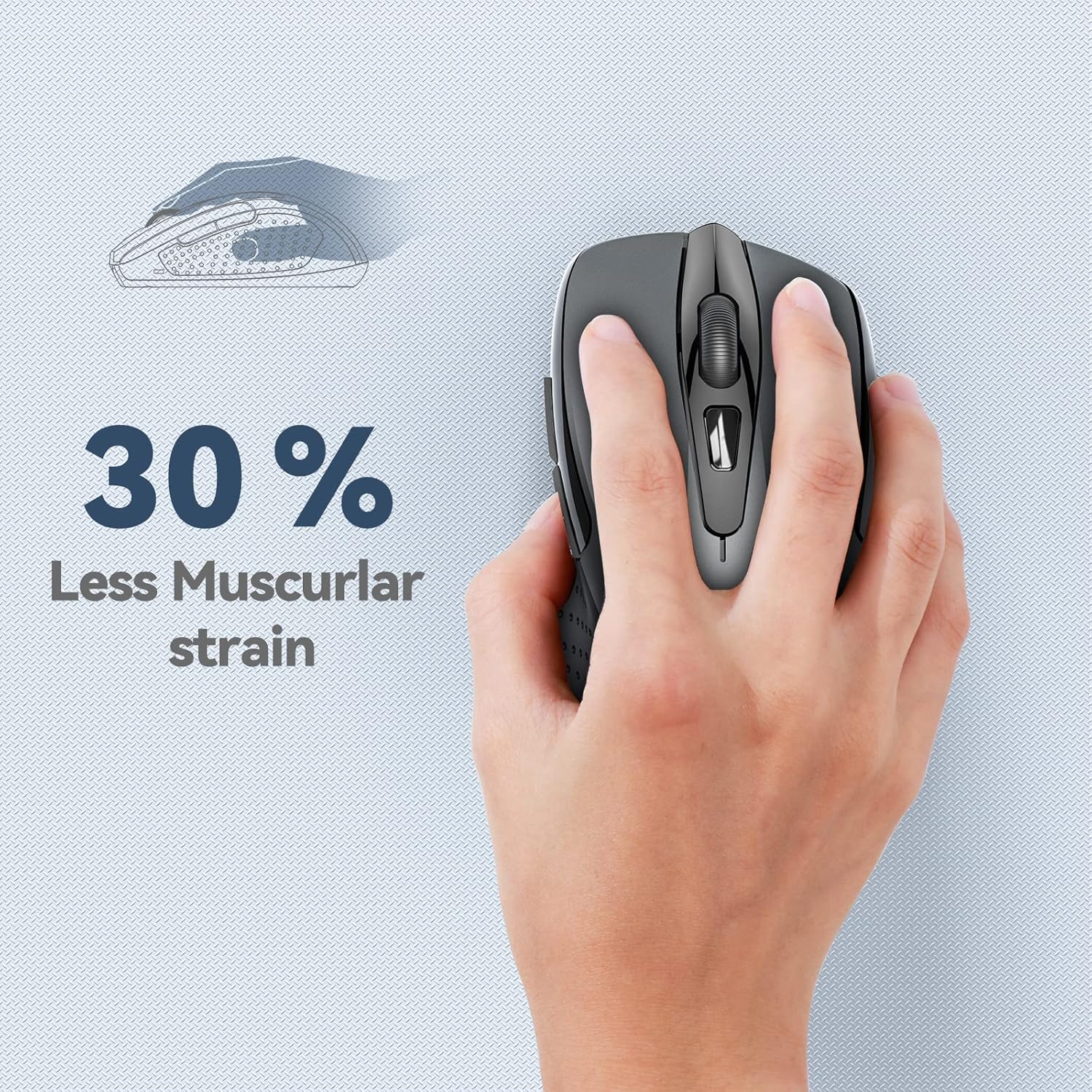
Figure 4: Ergonomic design reduces muscle strain during use.
5.2 DPI Adjustment
The mouse features 5 adjustable DPI (Dots Per Inch) levels, allowing you to customize cursor sensitivity for different tasks. Press the DPI switch button (located below the scroll wheel) to cycle through the following settings:
- 800 DPI: Suitable for general web browsing.
- 1200 DPI: Ideal for spreadsheet editing (e.g., Excel).
- 1600 DPI: Recommended for video editing.
- 2000 DPI: Useful for graphic design software (e.g., Photoshop).
- 2600 DPI: High sensitivity for gaming or fast-paced tasks.

Figure 5: DPI levels and their recommended uses.
6. Maintenance
6.1 Battery Management
- The mouse requires two AAA batteries. For optimal performance, use high-quality alkaline batteries.
- The mouse features an automatic sleep mode to conserve power when not in use.
- Always turn off the mouse using the power switch on the bottom when transporting it or when it will not be used for an extended period.
- Expected battery life is up to 24 months, depending on usage.
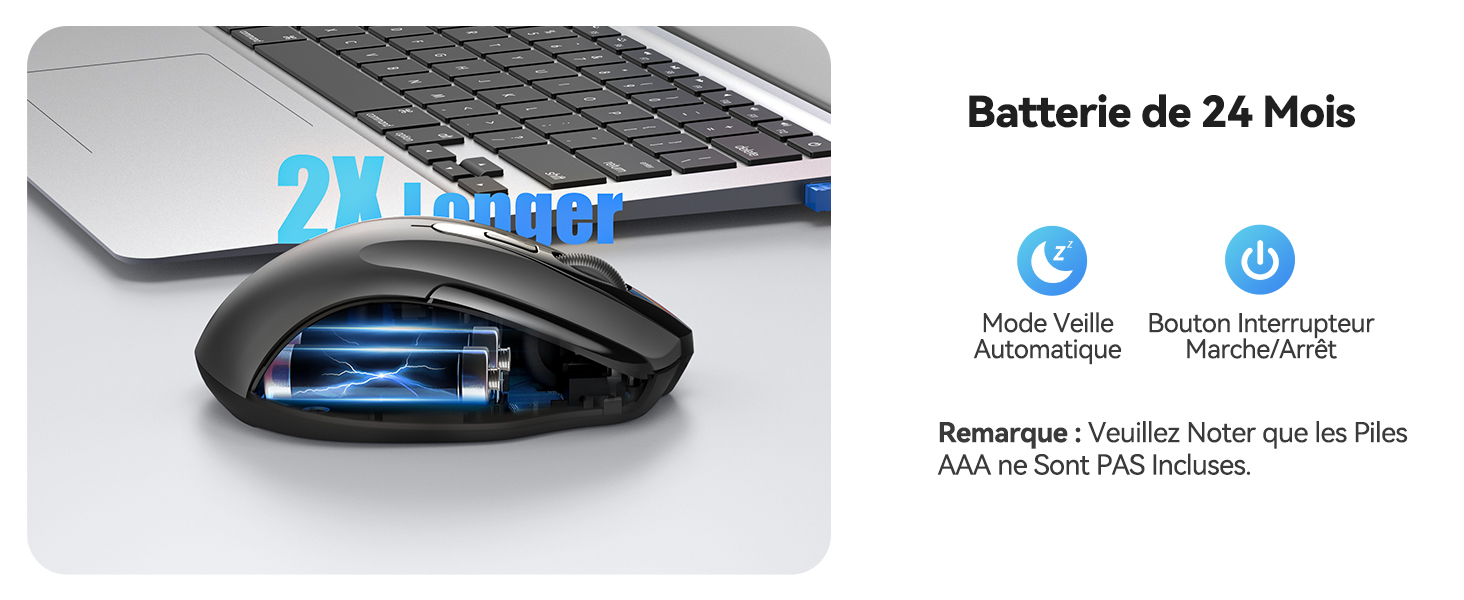
Figure 6: Battery saving features.
6.2 Cleaning
To clean your mouse, gently wipe it with a soft, damp cloth. Avoid using harsh chemicals or abrasive materials.
7. Troubleshooting
- Mouse not responding:
- Ensure the mouse is turned on.
- Check if the batteries are inserted correctly and have sufficient charge. Replace if necessary.
- Verify that the USB receiver is securely plugged into a working USB port on your computer. Try a different USB port.
- Move the mouse closer to the USB receiver to ensure it is within the 15-meter operating range.
- Restart your computer.
- Erratic cursor movement:
- Clean the optical sensor on the bottom of the mouse.
- Ensure you are using the mouse on a suitable surface. Avoid highly reflective or transparent surfaces.
- Adjust the DPI setting to a lower sensitivity if the cursor is too fast.
- Side buttons not working on Mac:
- The forward and backward side buttons are not supported on Mac OS. This is expected behavior.
8. Specifications
| Feature | Specification |
|---|---|
| Model Number | M003 |
| Connectivity Technology | 2.4G Wireless (USB Receiver) |
| Movement Detection Technology | Optical |
| Adjustable DPI | 800 / 1200 / 1600 / 2000 / 2600 |
| Number of Buttons | 6 |
| Hand Orientation | Ambidextrous |
| Operating Range | Up to 15 meters |
| Battery Type | 2 x AAA (not included) |
| Estimated Battery Life | Up to 24 months (675 hours average) |
| Compatible Operating Systems | Windows XP/Vista/7/8/10/11, Mac OS, Linux, Chromebook |
| Item Weight | 100 Grams |
| Dimensions (L x W) | 10.6L x 6.8W centimeters |
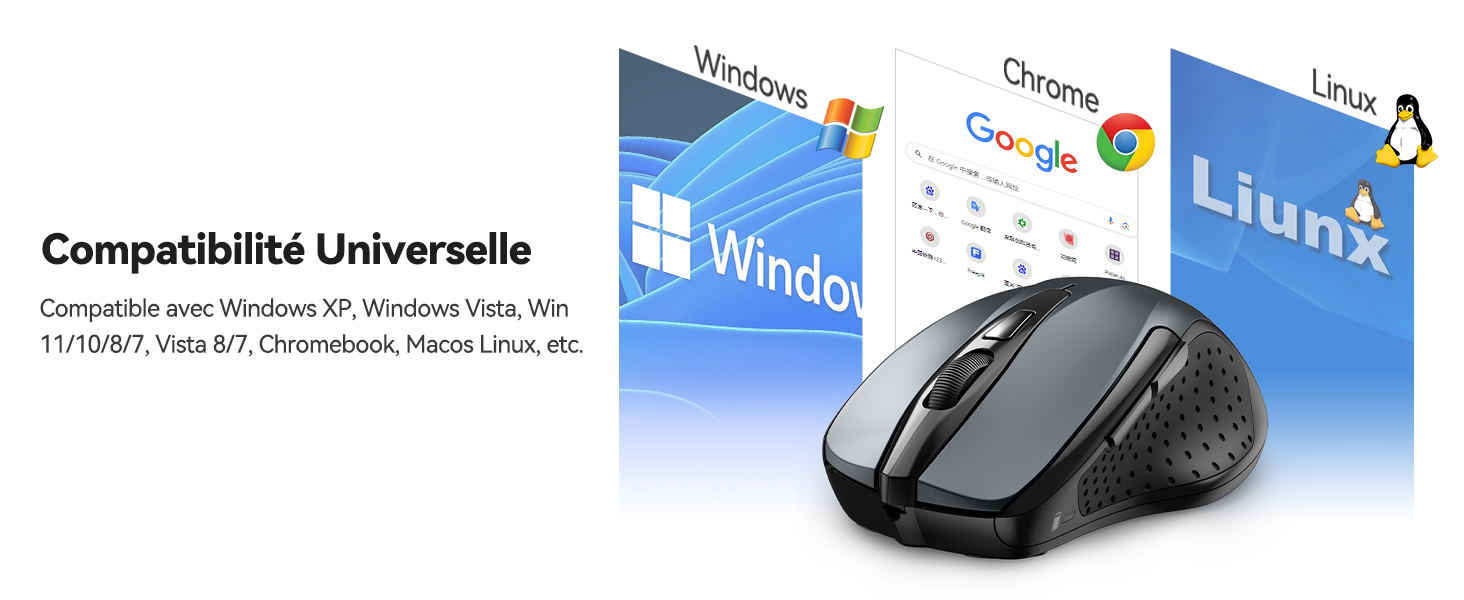
Figure 7: Universal compatibility with various operating systems.
9. Warranty and Support
The TECKNET M003 Wireless Optical Mouse comes with a 2-year warranty from the date of purchase.
If you encounter any issues during product use, please contact the professional TECKNET customer service team for assistance. You can find contact information on the official TECKNET website or through your retailer.
10. Product Video Overview
Video 1: A brief overview of the TECKNET 2.4G Wireless Mouse, highlighting its features and ease of use.


