
Vivitar DVR786HD-RED-EU
Vivitar DVR 786HD ActionCam User Manual
Model: DVR786HD-RED-EU
1. Introduction
The Vivitar DVR 786HD ActionCam is designed to capture high-quality video and photos in various environments. This compact and versatile action camera records Full HD 1080p video and captures 12.1-megapixel still images. It features a 2-inch touchscreen display for easy navigation and playback, and comes with a waterproof case and a wireless remote control, making it suitable for a wide range of activities.
2. Safety Information
- Do not expose the camera to extreme temperatures or direct sunlight for extended periods.
- Keep the camera and its accessories away from children and pets.
- Use only the specified battery type and charger. Improper use may result in fire, explosion, or other hazards.
- Ensure the waterproof case is properly sealed before submerging the camera in water.
- Avoid dropping or subjecting the camera to severe impacts.
- Do not attempt to disassemble or modify the camera. This will void the warranty and may cause damage.
- Dispose of electronic waste responsibly according to local regulations.
3. Package Contents
Verify that all items are present in your package:
- Vivitar DVR 786HD ActionCam
- Waterproof Case
- Wireless Remote Control
- Bike/ATV Mount
- Helmet Mount
- USB Cable
- Rechargeable Lithium-Ion Battery
- User Manual (this document)
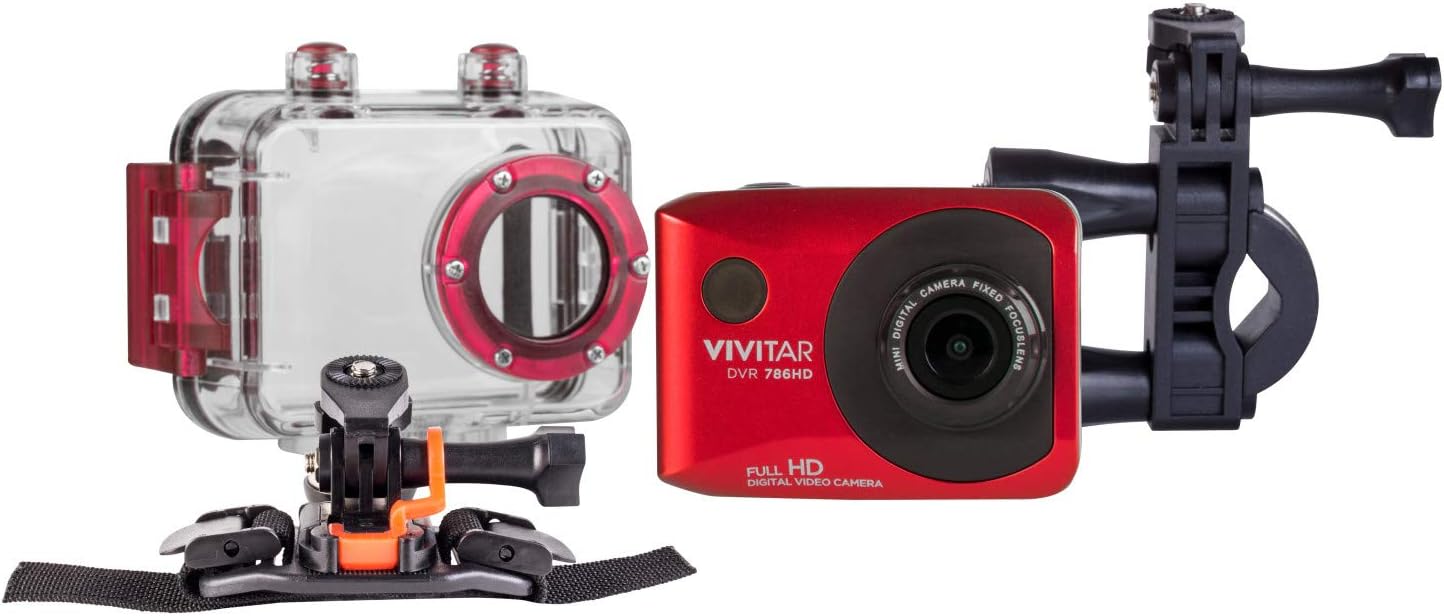
The image above displays the main camera unit, its transparent waterproof housing, and two common mounting accessories: a bike/ATV mount and a helmet mount. These accessories allow for versatile attachment of the camera during various activities.
4. Product Overview
Familiarize yourself with the main components of your Vivitar DVR 786HD ActionCam.

This image shows the front of the camera, highlighting the lens, the Vivitar logo, and the DVR 786HD model designation. The large circular button on the left is typically the power/mode button.
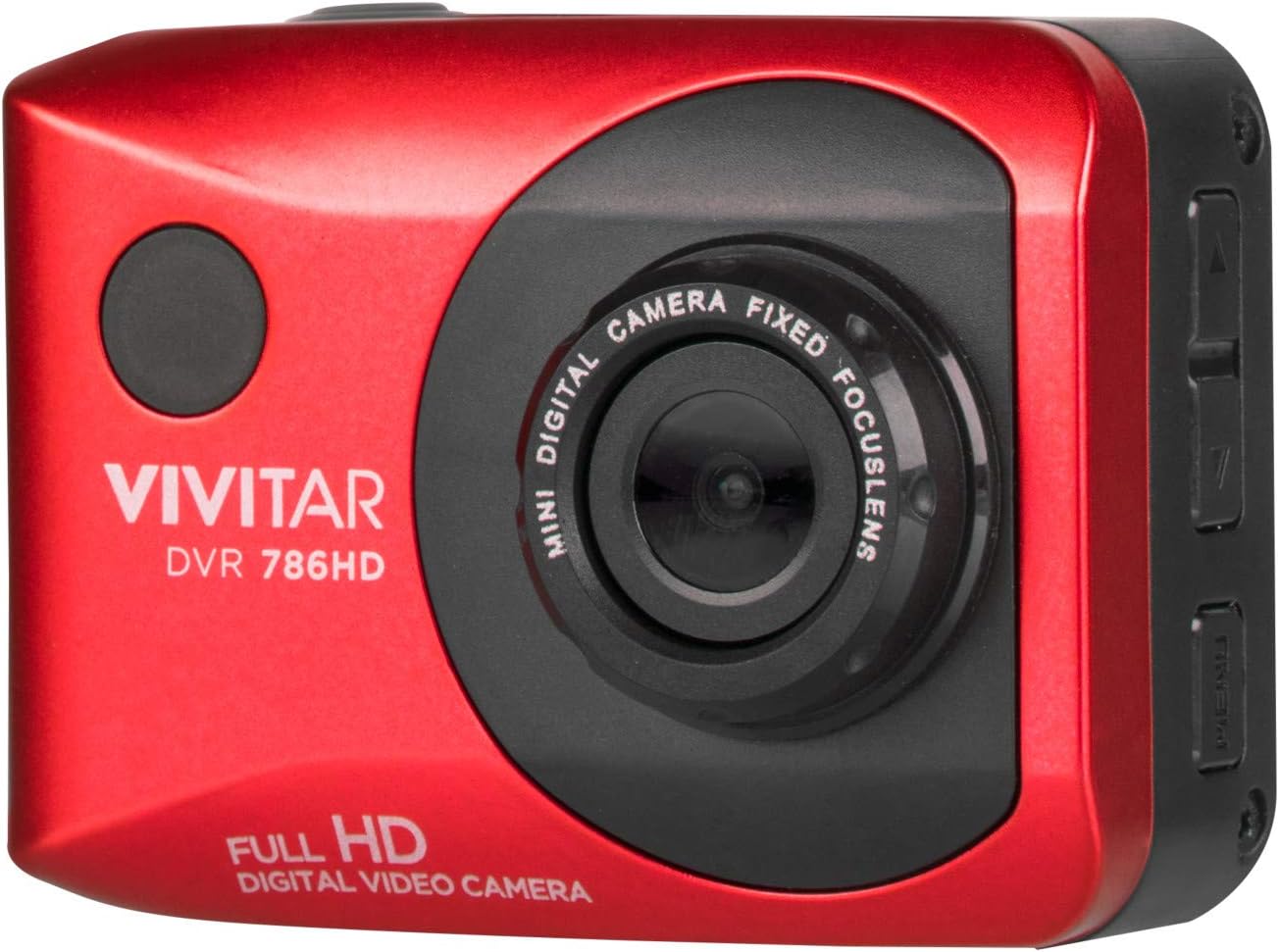
The side view illustrates the various ports and buttons, including the micro SD card slot and the reset button, which are essential for camera operation and maintenance.
5. Setup
5.1. Inserting the Battery
- Locate the battery compartment cover on the camera.
- Open the cover and insert the included Lithium-Ion battery, ensuring the correct polarity.
- Close the battery compartment cover securely.
5.2. Inserting a Micro SD Card
A Micro SD card (not included) is required to store videos and photos. The camera supports Micro SD cards up to 32GB.
- Locate the Micro SD card slot on the side of the camera (refer to Figure 4.2).
- Gently insert the Micro SD card with the gold contacts facing down until it clicks into place.
- To remove, push the card in slightly until it springs out.
5.3. Charging the Camera
- Connect the small end of the USB cable to the camera's USB port.
- Connect the large end of the USB cable to a USB power adapter (not included) or a computer's USB port.
- The charging indicator light will illuminate. It will turn off or change color when charging is complete.
6. Operating Instructions
6.1. Powering On/Off
- To power on: Press and hold the Power/Mode button (large circular button on the front) for a few seconds until the screen illuminates.
- To power off: Press and hold the Power/Mode button again until the screen turns off.
6.2. Recording Video
- Ensure the camera is in video recording mode. If not, press the Power/Mode button repeatedly to cycle through modes until the video icon is displayed on the screen.
- Press the Shutter/OK button (usually on top) to start recording. A red dot or recording timer will appear on the screen.
- Press the Shutter/OK button again to stop recording.
6.3. Taking Photos
- Switch to photo mode by pressing the Power/Mode button until the camera icon is displayed.
- Frame your shot using the 2-inch touchscreen display.
- Press the Shutter/OK button to capture a photo.
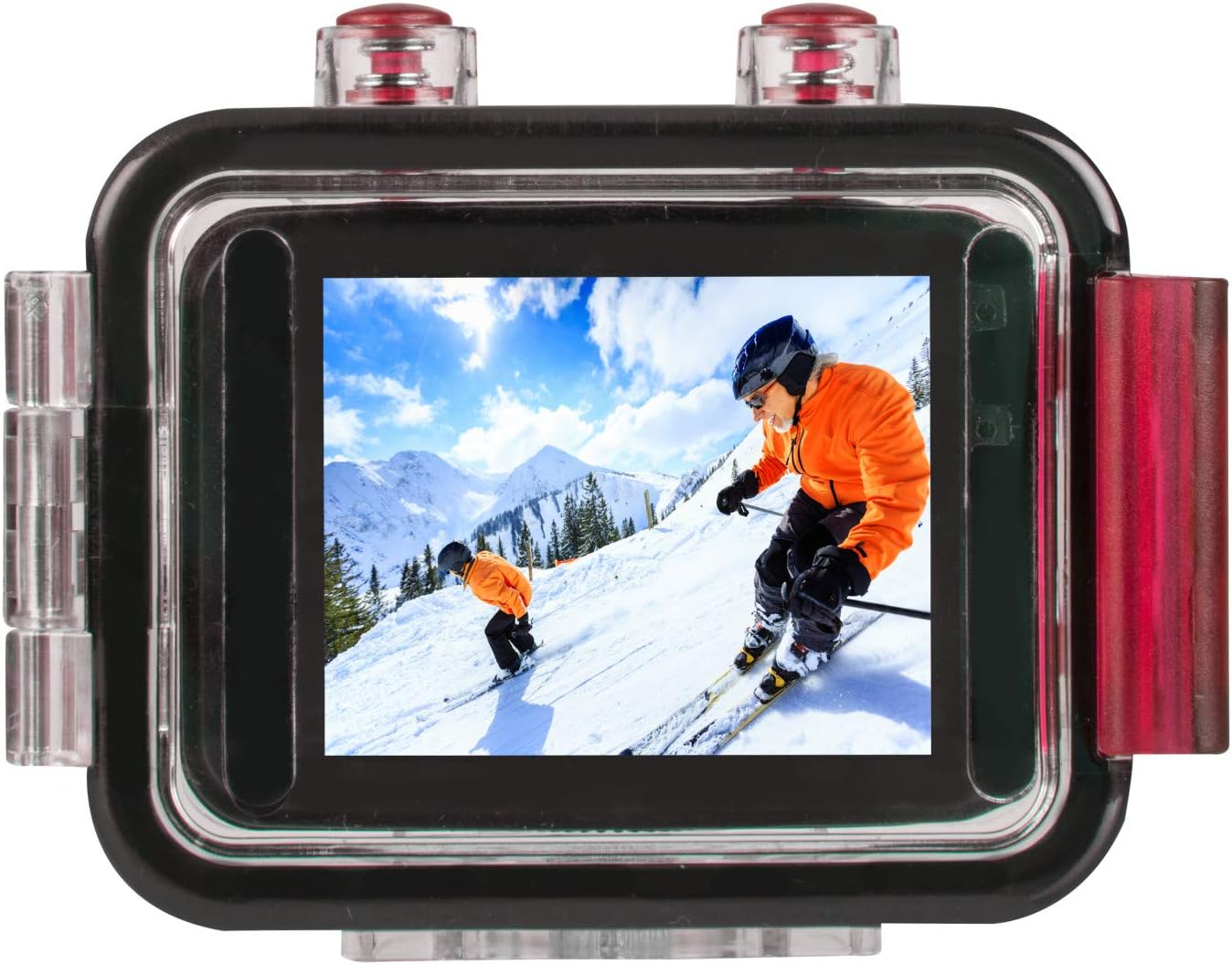
The camera's 2-inch touchscreen allows for live preview and playback of your captured footage and photos, as shown in this example displaying a skiing scene.
6.4. Using the Wireless Remote Control
The included wireless remote control allows you to operate the camera from a distance.
- Ensure the remote control has a working battery (remove any battery protector tabs if present).
- The remote typically has separate buttons for video recording and photo capture. Refer to the remote's markings for specific functions.
- Point the remote towards the camera for optimal signal reception.
6.5. Using the Waterproof Case
The waterproof case protects your camera from water, dust, and impacts, allowing for underwater use up to a certain depth (check case specifications for exact depth rating).

This image displays the camera enclosed within its transparent waterproof housing, ready for use in aquatic environments or for protection against harsh conditions. Ensure the case is clean and free of debris before sealing.
- Open the latch(es) on the waterproof case.
- Carefully place the camera inside the case, ensuring it fits snugly.
- Close the latch(es) firmly until you hear a click, ensuring a complete seal.
- Before first use, it is recommended to test the empty waterproof case in water to ensure no leaks are present.
7. Maintenance
7.1. Cleaning the Camera and Case
- Use a soft, lint-free cloth to clean the camera body and lens.
- For the waterproof case, rinse with fresh water after saltwater use and allow to air dry. Clean the O-ring seal regularly to prevent debris buildup.
- Do not use harsh chemicals or abrasive cleaners.
7.2. Battery Care
- Charge the battery fully before first use.
- Avoid completely draining the battery before recharging to prolong its lifespan.
- If storing the camera for an extended period, remove the battery.
7.3. Storage
- Store the camera in a cool, dry place away from direct sunlight.
- Keep the camera and accessories in their original packaging or a protective case when not in use.
8. Troubleshooting
| Problem | Possible Cause | Solution |
|---|---|---|
| Camera does not turn on. | Battery is low or depleted. Battery not inserted correctly. | Charge the battery fully. Ensure the battery is inserted with correct polarity. |
| Cannot record video or take photos. | Micro SD card is full, corrupted, or not inserted. Camera is in the wrong mode. | Insert a Micro SD card. Format the card if necessary (this will erase all data). Ensure camera is in video or photo mode. |
| Poor image/video quality. | Insufficient lighting. Lens is dirty. Camera settings are incorrect. | Ensure adequate lighting. Clean the camera lens. Check camera settings for resolution and exposure. |
| Water inside waterproof case. | Case not properly sealed. O-ring is dirty or damaged. | Immediately remove camera and dry it. Check case latches and O-ring for debris or damage. Replace O-ring if damaged. |
| Remote control not working. | Remote battery is dead. Remote is out of range. | Replace remote battery. Ensure remote is pointed towards the camera and within effective range. |
9. Specifications
| Feature | Detail |
|---|---|
| Model Number | DVR786HD-RED-EU |
| Video Resolution | Full HD 1080p |
| Photo Resolution | 12.1 Megapixels |
| Display | 2-inch Touchscreen |
| Digital Zoom | 4x |
| Storage Media | Micro SD (up to 32GB) |
| Battery Type | Lithium Ion (included) |
| Connectivity | Wireless (for remote control) |
| Dimensions | 8.1 x 6.4 x 1.3 inches |
| Weight | 8 ounces |
| Manufacturer | SAKAR INTERNATIONAL |
10. Warranty and Support
For warranty information or technical support, please contact Vivitar customer service or refer to the official Vivitar website. Keep your proof of purchase for any warranty claims.
Vivitar Customer Service: www.vivitar.com/support
Related documentsDVR786HD-RED-EU


Ask a question about this manual
Ask about setup, troubleshooting, compatibility, parts, safety, or missing instructions. Manuals+ will review the question and use this page’s manual context to help answer it.