
1. Introduction
Thank you for choosing the Moxie KX1 Bluetooth Handsfree Car Kit. This device is designed to provide a safe and convenient way to manage calls and enjoy music wirelessly while driving. Please read this manual carefully before using the device to ensure proper operation and to maximize its performance and lifespan.
2. Product Overview
2.1 Components
- Moxie KX1 Bluetooth Handsfree Car Kit
- USB Charging Cable
- Car Charger Adapter
- User Manual
2.2 Device Layout and Controls
Familiarize yourself with the buttons and indicators on your KX1 device:
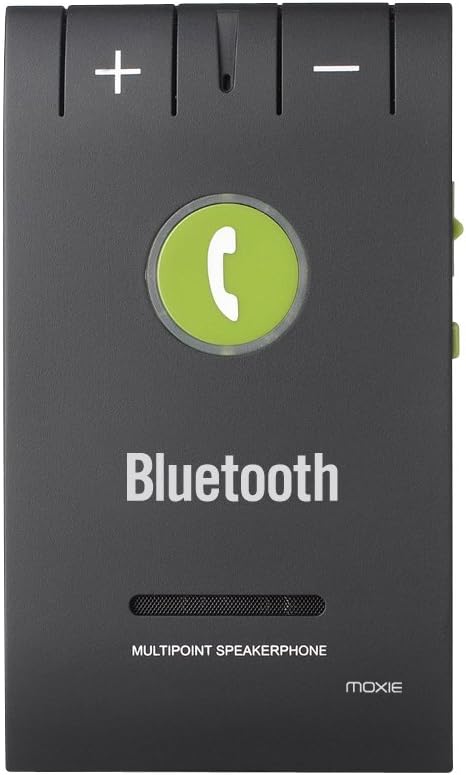
Image 1: Front panel of the Moxie KX1, highlighting the volume controls (+ and -), the central call button, and the 'Bluetooth' indicator.
| Control | Function |
|---|---|
| + Button | Increase Volume / Next Track (during music playback) |
| - Button | Decrease Volume / Previous Track (during music playback) |
| Call Button (Center) | Answer/End Call, Redial, Voice Assistant Activation, Play/Pause Music |
| Power Switch (Side) | Power On/Off |
| Charging Port (Side) | Connect USB charging cable |
3. Specifications
| Feature | Detail |
|---|---|
| Bluetooth Version | V4.0 + EDR |
| Operating Frequency | ISM (Ralink 3070) |
| Bluetooth Range | Up to 10 meters (33 feet) |
| Supported Profiles | HFP (Hands-Free Profile), HSP (Headset Profile), AVRCP (Audio/Video Remote Control Profile) |
| Multipoint Connection | Connects to 2 phones simultaneously |
| Device History | Stores pairing history for up to 8 devices |
| Talk Time | Approximately 15 hours |
| Standby Time | Approximately 1000 hours |
| Charging Time | Approximately 2 hours |
| Noise Cancellation | DSP (Digital Signal Processing) for noise and echo cancellation |
| Battery Type | 3.7V, 750mAh Lithium Battery |
| Dimensions | 98 x 57 x 45 mm |
| Weight | 64 g |
| Compatible Devices | Acer Liquid M320, M330, Z320, Z330, Blackberry Priv, HTC One A9, Huawei G8, Lenovo IdeaTab A10-70, Microsoft Lumia 550, Sony Xperia C5 Ultra (and other Bluetooth-enabled devices) |
4. Setup
4.1 Charging the Device
Before first use, fully charge your Moxie KX1. Connect the provided USB charging cable to the device's charging port and the other end to a USB power source (e.g., car charger adapter, computer USB port). The indicator light will show charging status (e.g., red for charging, off or blue for fully charged).

Image 2: Side view of the Moxie KX1, illustrating the location of the charging port and the ON/OFF power switch.
A full charge typically takes about 2 hours.
4.2 Pairing with a Bluetooth Device
- Ensure the KX1 is fully charged and powered off.
- Slide the power switch to the 'ON' position. The device will automatically enter pairing mode, indicated by a flashing blue/red light.
- On your mobile phone, enable Bluetooth and search for available devices.
- Select "Moxie KX1" from the list of found devices.
- If prompted for a password, enter "0000".
- Once paired, the indicator light will turn solid blue, and you may hear a confirmation tone.
The KX1 will automatically attempt to reconnect to the last paired device when powered on.
4.3 Mounting the Device
The Moxie KX1 comes with a magnetic clip for easy attachment to your car's sun visor.

Image 3: Rear view of the Moxie KX1, displaying the integrated magnetic clip designed for secure attachment to a car's sun visor.
- Attach the magnetic clip securely to the back of the KX1.
- Slide the clip onto your car's sun visor, ensuring it is firmly in place and does not obstruct your view.
5. Operating Instructions
5.1 Power On/Off

Image 4: Top view of the Moxie KX1, clearly showing the ON/OFF slide switch for device power control.
- To Power On: Slide the power switch to the 'ON' position. The device will announce "Power On" and attempt to connect to the last paired device.
- To Power Off: Slide the power switch to the 'OFF' position. The device will announce "Power Off".
5.2 Making and Receiving Calls
- Answering a Call: When a call comes in, the device will announce the incoming number. Press the Call Button once to answer.
- Ending a Call: During a call, press the Call Button once to end the call.
- Rejecting a Call: When a call comes in, press and hold the Call Button for approximately 2 seconds to reject the call.
- Redialing Last Number: In standby mode, double-press the Call Button to redial the last dialed number.
- Activating Voice Assistant: In standby mode, press and hold the Call Button for approximately 2 seconds to activate your phone's voice assistant (e.g., Siri, Google Assistant).
5.3 Music Playback
Once paired, you can stream music from your phone through the KX1 speaker.
- Play/Pause: Press the Call Button once to play or pause music.
- Next Track: Press the + Button once.
- Previous Track: Press the - Button once.
- Volume Control: Press and hold the + or - Button to adjust the volume.
5.4 Multipoint Connection
The Moxie KX1 supports connecting to two Bluetooth devices simultaneously.
- Pair the first phone as described in Section 4.2.
- After the first phone is paired, disable Bluetooth on the first phone.
- The KX1 will re-enter pairing mode (flashing blue/red light).
- Pair the second phone as described in Section 4.2.
- Once the second phone is paired, re-enable Bluetooth on the first phone. Both phones should now be connected to the KX1.
When two phones are connected, the KX1 will manage calls from both devices. Music playback will typically come from the last connected or active device.
6. Maintenance
- Clean the device with a soft, dry cloth. Do not use abrasive cleaners or solvents.
- Avoid exposing the device to extreme temperatures, moisture, or direct sunlight.
- Store the device in a cool, dry place when not in use for extended periods.
- Do not attempt to disassemble or repair the device yourself, as this will void the warranty.
7. Troubleshooting
| Problem | Possible Solution |
|---|---|
| Device does not power on. | Ensure the device is charged. Connect to a power source and allow it to charge for at least 30 minutes before attempting to power on again. |
| Cannot pair with phone. |
|
| No audio or poor audio quality. |
|
| Calls are not clear (echo/noise). | Ensure the microphone is not obstructed. Try adjusting the position of the KX1 on the sun visor. The DSP technology should minimize most background noise. |
| Multipoint connection issues. | Ensure both phones have Bluetooth enabled and are within range. Re-follow the multipoint pairing instructions in Section 5.4. |
8. Safety Information
- Do not operate the device while driving if it distracts you. Always prioritize road safety.
- Keep the device away from water, moisture, and extreme temperatures.
- Do not drop, puncture, or disassemble the device.
- Keep out of reach of children.
- Dispose of the battery and device according to local regulations.
9. Warranty and Support
Moxie products are designed for reliability and performance. For warranty information or technical support, please refer to the contact details provided with your purchase or visit the official Moxie website. Please retain your proof of purchase for warranty claims.