
1. Setup
This section guides you through the initial setup of your Canon Pixma MG3620 printer, from unboxing to connecting it to your network.
1.1 Unboxing and Physical Setup
Carefully remove all packaging materials from the printer. Place the printer on a stable, flat surface near a power outlet.
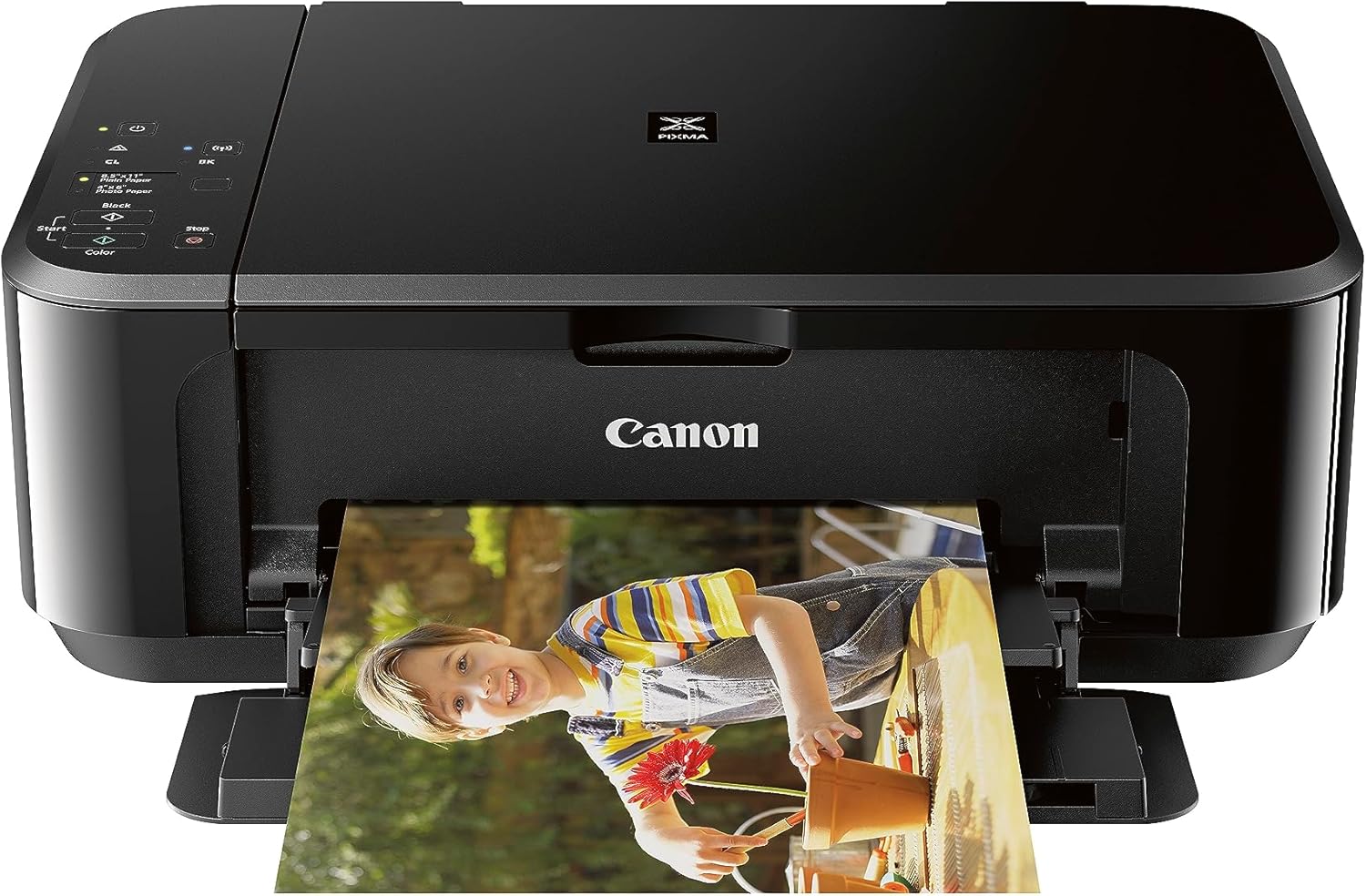
Figure 1.1: Front view of the Canon Pixma MG3620 printer.
Ensure all protective tapes and packing materials are removed from inside and outside the printer. Open the front output tray and extend the paper support as shown in Figure 1.2.

Figure 1.2: Canon Pixma MG3620 printer with the front output tray extended.
1.2 Power Connection
Connect the power cord to the printer's power input port located at the rear, then plug the other end into a wall outlet. Press the power button on the control panel to turn on the printer.

Figure 1.3: Rear view of the printer showing power and USB connection points.
1.3 Software and Driver Installation
Insert the setup CD-ROM into your computer's CD drive. If you do not have a CD drive, download the latest drivers and software from the official Canon website. Follow the on-screen instructions to complete the installation.
1.4 Wireless Network Connection
The Canon Pixma MG3620 supports wireless connectivity. During software installation, you will be prompted to connect the printer to your Wi-Fi network. Follow the instructions provided by the setup utility. Ensure your computer or mobile device is connected to the same network as the printer for seamless wireless printing.
2. Operating the Printer
Learn how to perform common tasks such as printing documents, photos, and using the scanning and copying functions.
2.1 Loading Paper
Open the paper support and gently load paper into the rear tray. Adjust the paper guides to fit the paper size. The printer supports various paper sizes including 8.5" x 11" plain paper and 4" x 6" photo paper.

Figure 2.1: Loading paper into the printer's rear tray.
2.2 Printing Documents and Photos
From your computer or mobile device, select the document or photo you wish to print. Choose the Canon Pixma MG3620 from your list of available printers. Adjust print settings such as paper type, size, and print quality as needed. Press the "Print" button on your device or the "Start" button on the printer's control panel to begin printing.

Figure 2.2: Wireless printing from a smartphone.

Figure 2.3: Direct printing from a digital camera.
2.3 Scanning and Copying
Lift the scanner lid and place the document or photo face-down on the scanner glass. Close the lid. On the printer's control panel, select either "Black" for monochrome or "Color" for color scanning/copying. Press the corresponding "Start" button to initiate the process. Scanned documents can be saved to your connected device.
2.4 Smart Features with Alexa
The Canon Pixma MG3620 can be integrated with Alexa for convenient smart reorders of ink or toner. Download the Alexa app, connect your printer, and follow the in-app guidance to set up smart reorders. This ensures you never run out of supplies, with no subscription needed.
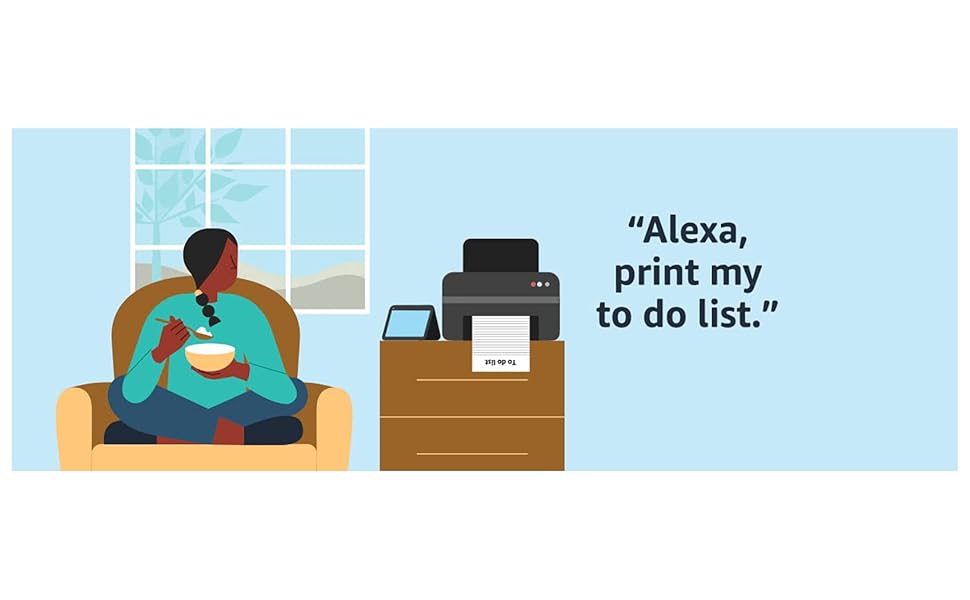
Figure 2.4: Steps for setting up Alexa smart reorders.
3. Maintenance
Regular maintenance ensures optimal performance and longevity of your printer.
3.1 Ink Cartridge Replacement
When an ink cartridge runs low or is empty, the printer's indicator light will signal. To replace cartridges, open the front cover of the printer. The cartridge holder will move to the replacement position. Gently press down on the empty cartridge to release it, then pull it out. Unpack the new cartridge, remove the protective tape, and insert it into the correct slot (Color or Black) until it clicks into place. Close the front cover.
3.2 Cleaning the Printer
Regularly wipe the exterior of the printer with a soft, damp cloth. For the scanner glass, use a lint-free cloth and a non-abrasive glass cleaner. To prevent dust accumulation inside the printer, ensure the paper output tray is closed when not in use.
4. Troubleshooting
This section addresses common issues you might encounter with your Canon Pixma MG3620 printer.
4.1 Paper Jams
If a paper jam occurs, the printer's error light will flash. Carefully open the printer's covers (front and rear access if available) and gently pull out any jammed paper. Ensure no torn pieces remain inside. Close all covers and the printer should resume operation. If the issue persists, refer to the detailed troubleshooting guide on the Canon support website.
4.2 Connectivity Issues
If the printer is not connecting to your network or device, check the Wi-Fi indicator light on the printer. Ensure your router is functioning correctly and the printer is within range. Restart both the printer and your device. Verify that your device is connected to the same Wi-Fi network as the printer. For persistent issues, try reinstalling the printer drivers or consulting the network setup guide.
4.3 Print Quality Problems
Poor print quality (streaks, faded colors, missing lines) can often be resolved by performing a print head cleaning or print head alignment from the printer's utility software on your computer. Ensure genuine Canon ink cartridges are used and that they are not empty. If the problem continues, check the nozzles using the nozzle check pattern print function.
5. Specifications
| Feature | Detail |
|---|---|
| Product Dimensions | 12"D x 17.7"W x 6"H |
| Connectivity Technology | Wireless, USB |
| Printing Technology | Inkjet |
| Max Print Speed (Monochrome) | 9.9 ppm |
| Max Print Speed (Color) | 5.7 ppm |
| Scanner Type | Flatbed |
| Max Input Sheet Capacity | 100 sheets |
| Duplex Printing | Automatic |
| Maximum Color Print Resolution | 4800 x 1200 Dots Per Inch |
| Ink Color | Cyan, Magenta, Yellow, Black |
| Item Weight | 11.9 Pounds |
6. Warranty and Support
Your Canon Pixma MG3620 printer comes with a 1 Year Warranty from the date of purchase.
For further assistance, detailed user guides, and troubleshooting resources, please refer to the official Canon support channels:


