
1. Product Overview
The UtechSmart Mercury RGB Mechanical Gaming Keyboard is designed for an immersive typing and gaming experience. It features professional blue mechanical switches, customizable RGB backlighting, and dedicated multimedia keys. Constructed with brushed aluminum, it offers durability and a modern aesthetic.

Figure 1: Full view of the UtechSmart Mercury RGB Mechanical Gaming Keyboard.
Key Features:
- Professional Blue Mechanical Switches: Provides tactile feedback and an audible click for precise keystrokes.
- Customizable RGB Backlighting: Full color illumination for every key with multiple lighting effects.
- 100% Anti-Ghosting: Ensures all key presses are registered accurately during intense gaming sessions.
- 12 Dedicated Multimedia Keys: Convenient control over media playback, volume, and other functions.
- Durable Construction: Features a brushed aluminum top plate and patented unique bicolor mold for keycaps.
- Wide Compatibility: Plug-and-play functionality with various Windows operating systems (Win Me, 2000, XP, Vista, 7, 8, 8.1, 10) and PC devices.

Figure 2: Hands demonstrating typing on the UtechSmart Mercury keyboard, highlighting its anti-ghosting feature.
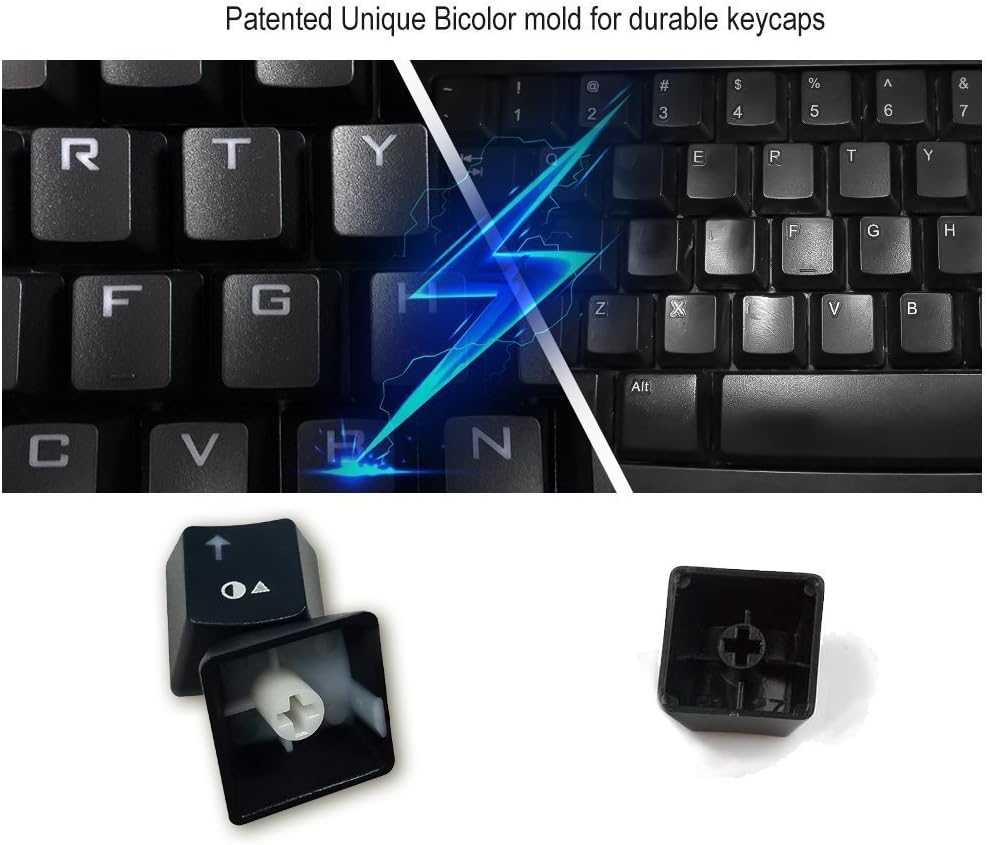
Figure 3: Close-up view of a keycap and switch, illustrating the patented unique bicolor mold for durable keycaps.
2. Setup Instructions
- Unpack the Keyboard: Carefully remove the keyboard and its accessories from the packaging.
- Connect to Computer: Plug the USB 2.0 connector of the keyboard cable into an available USB port on your computer.
- Automatic Driver Installation: Your operating system will automatically detect and install the necessary drivers. No additional software installation is required.
- Ready for Use: Once the drivers are installed, the keyboard is ready for immediate use.

Figure 4: The UtechSmart Mercury keyboard with its braided USB cable, emphasizing wired connectivity.
3. Operating Instructions
3.1 RGB Backlighting Control
The UtechSmart Mercury keyboard offers various RGB lighting modes and customization options directly from the keyboard, without the need for software.
- Switch Lighting Modes: Press FN + INSERT to cycle through spectral color automatic cycle modes.
- Adjust Speed: In spectral modes, press FN + "+" or FN + "-" to adjust the speed of the flowing color (25 levels available).
- Lock Color: Long press FN + INSERT again to stop the mode and display a single color.
- 7-Color Diffusion Gradient: Press FN + PAGE UP to activate a 7-color diffusion gradient from right to left. Adjust speed with FN + "+" or FN + "-". Long press again to stop the mode.
- Customizable Individual Key Lighting: Press FN + END to enter custom lighting mode. In this mode, you can select individual keys and change their backlight color. Press FN + END again to save and exit.
- Brightness Adjustment: Press FN + PAGE DOWN to adjust the backlight brightness (5 levels available).
3.2 Multimedia Keys
Access various functions quickly using the FN key in combination with the F1-F12 keys:
- FN + F1: Media Player
- FN + F2: Volume Down
- FN + F3: Volume Up
- FN + F4: Mute
- FN + F5: Stop
- FN + F6: Previous Track
- FN + F7: Play/Pause
- FN + F8: Next Track
- FN + F9: Email
- FN + F10: Home
- FN + F11: Calculator
- FN + F12: Search

Figure 5: The UtechSmart Mercury keyboard with its 12 dedicated multimedia keys highlighted.
Video 1: Official product video demonstrating the UtechSmart Mercury RGB Mechanical Gaming Keyboard's features, including its design, key switches, and various RGB lighting effects.
4. Maintenance
To ensure the longevity and optimal performance of your UtechSmart Mercury keyboard, follow these maintenance tips:
- Regular Cleaning: Use a soft, dry cloth to wipe down the keyboard surface. For dust and debris between keys, use compressed air.
- Avoid Liquids: Do not spill liquids on the keyboard. If a spill occurs, immediately unplug the keyboard and allow it to dry completely before reconnecting.
- Handle with Care: Avoid dropping the keyboard or subjecting it to excessive force.
5. Troubleshooting
If you encounter issues with your UtechSmart Mercury keyboard, try the following steps:
- Keyboard Not Responding:
- Ensure the USB cable is securely plugged into both the keyboard and the computer.
- Try plugging the keyboard into a different USB port.
- Restart your computer.
- Backlighting Not Working/Incorrect:
- Check if the brightness is set too low (use FN + PAGE DOWN to increase).
- Cycle through different lighting modes using FN + INSERT to see if the issue persists across modes.
- If in custom mode, ensure settings were saved correctly (FN + END).
- Keys Not Registering:
- Clean the affected keys and surrounding area for any debris.
- Test the keyboard on another computer to rule out a system-specific issue.
If these steps do not resolve the issue, please contact UtechSmart customer support for further assistance.
6. Specifications
| Feature | Detail |
|---|---|
| Product Dimensions | 18.5 x 7.5 x 1.2 inches |
| Item Weight | 3.64 pounds |
| Manufacturer | UtechSmart |
| ASIN | B0109XJT40 |
| Model Name | Mercury |
| Compatible Devices | PC |
| Connectivity Technology | Wired |
| Keyboard Description | Gaming |
| Recommended Uses | Laptop, Gaming, Office, Typing |
| Special Feature | Ergonomic, RGB Backlit, Mechanical Switches, Anti-Ghosting, Multimedia Keys |
| Material | Metal (Brushed Aluminum) |
| Key Switches | Professional Blue Mechanical Switches |
| Key Rollover | 104-Key Rollover |
| Keycap Type | Patented Unique Bicolor Mold |
7. Warranty and Support
UtechSmart products come with a manufacturer's warranty. For specific warranty details, please refer to the product packaging or the official UtechSmart website. If you require technical support, have questions, or need assistance with your UtechSmart Mercury keyboard, please contact UtechSmart customer service.
Contact Information:
- Website: http://www.utechsmart.com
- Email: Support@utechsmart.com