
Introduction
This manual provides essential instructions for the proper setup, operation, and maintenance of your IBM Lenovo ThinkPad X200/X201 Series UltraBase Docking Station. This docking station is designed to expand the connectivity options of your compatible ThinkPad laptop, allowing for a more versatile desktop computing experience. Please read this manual thoroughly before using the device.

Figure 1: IBM Lenovo ThinkPad X200 X201 Series UltraBase Docking Station, top-down view.
Setup Instructions
- Unpacking: Carefully remove the docking station from its packaging. Ensure all components, including any keys, are present.
- Connecting Power: Connect the AC adapter (not included, use your laptop's AC adapter) to the power input port on the docking station. Plug the AC adapter into a power outlet.
- Connecting Peripherals: Connect your external monitor(s), keyboard, mouse, network cable, and other USB devices to the appropriate ports on the docking station.
- Docking the ThinkPad:
- Ensure your ThinkPad X200 or X201 series laptop is powered off or in sleep mode.
- Align the laptop with the docking connector on the UltraBase.
- Gently press the laptop down until it securely latches into place. You should hear a click.
- Securing the Laptop (Optional): If your docking station includes a key lock, insert the key and turn it to lock the laptop to the docking station for added security.
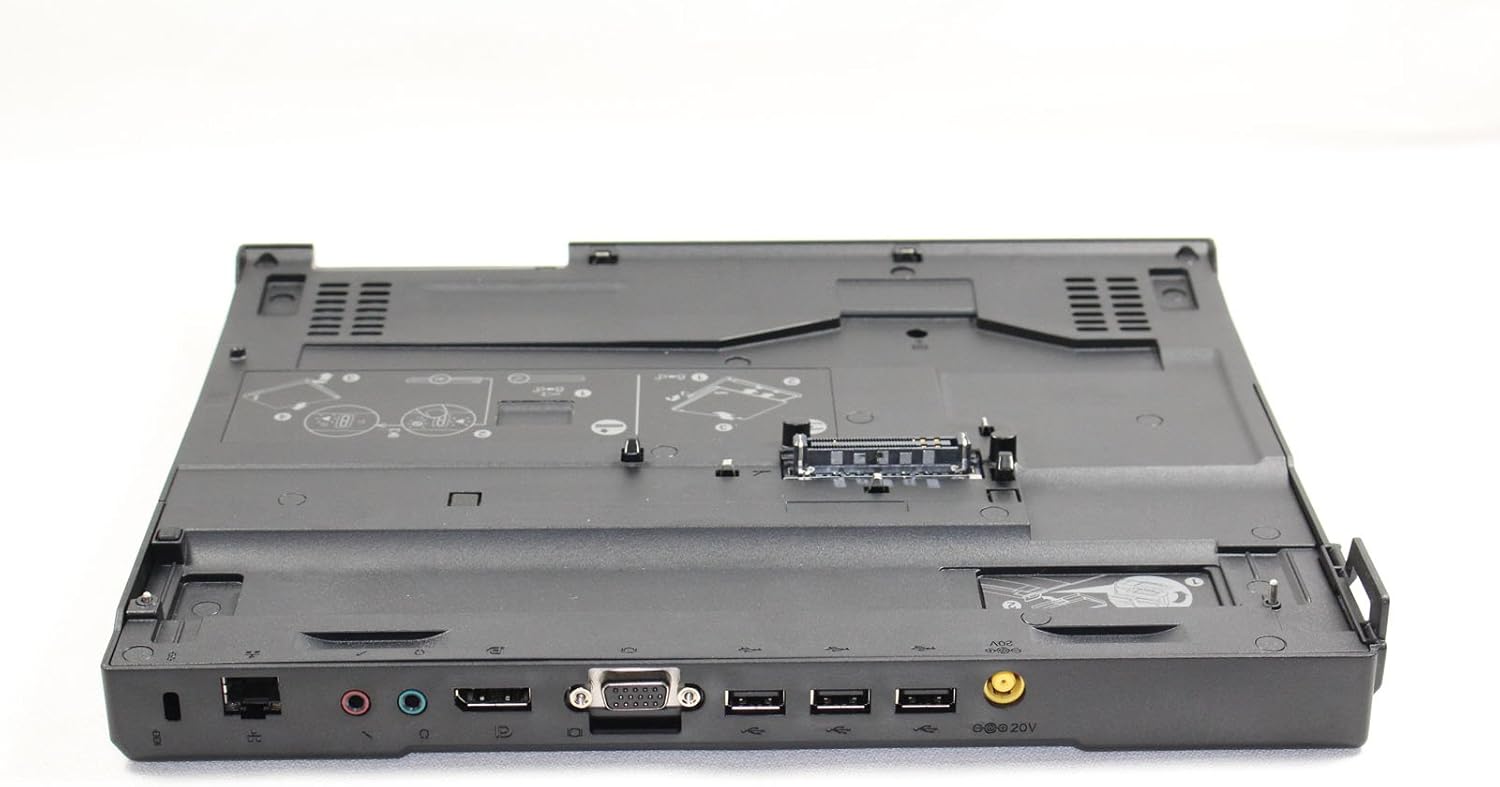
Figure 2: Rear view of the docking station, illustrating available ports for external devices such as VGA, USB, Ethernet, and audio.

Figure 3: Top view of the docking station, highlighting the central connector where the ThinkPad laptop attaches.

Figure 4: Included keys for securing the laptop to the docking station.
Operating Instructions
- Powering On: Once docked, press the power button on your ThinkPad laptop or the power button on the docking station (if available and configured) to turn on the system.
- Using Peripherals: All connected peripherals (monitor, keyboard, mouse, etc.) should be automatically recognized and functional once the laptop is powered on and docked.
- Undocking the ThinkPad:
- Ensure all applications are closed and save your work.
- Safely eject the laptop from the operating system (e.g., using the 'Safely Remove Hardware' icon in Windows).
- If locked, unlock the docking station using the key.
- Press the eject button or release lever on the docking station.
- Carefully lift the ThinkPad laptop from the docking station.
Maintenance
- Cleaning: Use a soft, dry, lint-free cloth to clean the exterior of the docking station. For stubborn dirt, slightly dampen the cloth with water. Avoid using harsh chemicals or abrasive cleaners.
- Connector Care: Keep the docking connector free of dust and debris. Do not touch the connector pins directly.
- Storage: When not in use, store the docking station in a clean, dry environment away from extreme temperatures.
Troubleshooting
| Problem | Possible Solution |
|---|---|
| Laptop does not power on when docked. |
|
| External monitor not displaying. |
|
| USB devices not recognized. |
|
| Laptop does not undock. |
|
Specifications
- Brand: IBM / Lenovo
- Model: ThinkPad X200 / X201 Series UltraBase Docking Station
- MPN (Model Number): 42X4963, 44C0554, 43R8781, 45K1736
- Compatible Devices: ThinkPad X200, ThinkPad X201
- Hardware Interface: VGA
- Total USB Ports: 4
- Item Weight: Approximately 2 pounds (0.91 kg)
- Package Dimensions: Approximately 19.2 x 14.3 x 3.4 inches (48.8 x 36.3 x 8.6 cm)
Warranty and Support
For warranty information and technical support, please refer to the documentation provided with your original purchase or contact the vendor from whom you purchased this product. IBM and Lenovo provide support resources on their official websites for their products.


