
1. Introduction
This manual provides detailed instructions for the POWERADD Detachable Bluetooth Keyboard Case, designed exclusively for the 10.8-inch Microsoft Surface 3 Tablet. It covers product features, setup, operation, maintenance, and troubleshooting to ensure optimal use of your device.
2. Product Overview
The POWERADD keyboard case combines a protective cover with a detachable Bluetooth keyboard and integrated touchpad, offering a versatile solution for your Surface 3. The case features a magnetic closure and an adjustable stand for comfortable viewing and typing angles.
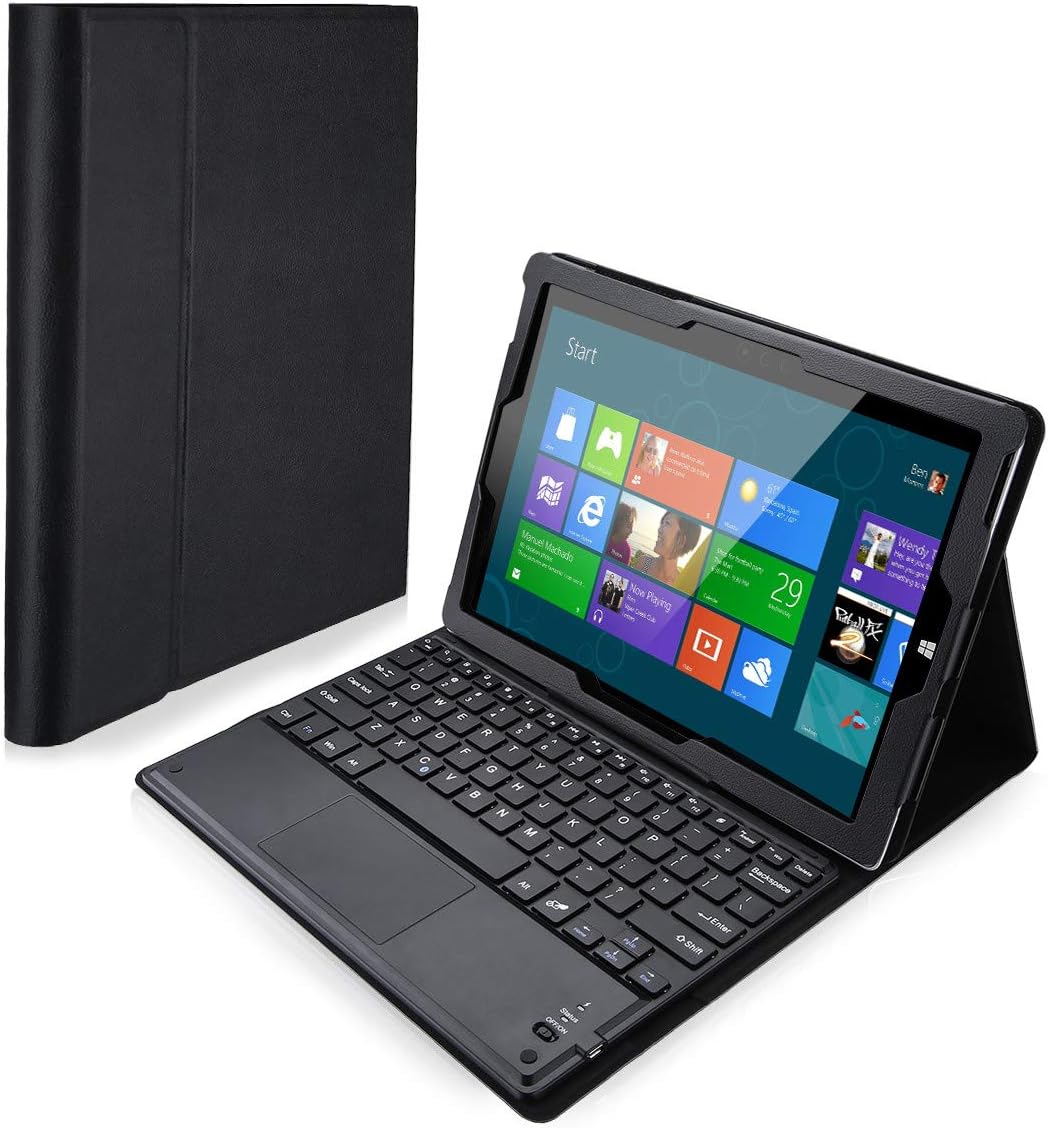
Figure 2.1: Fully assembled keyboard case with Surface 3 tablet.

Figure 2.2: Detachable Bluetooth Keyboard and Case.

Figure 2.3: Adjustable Stand Functionality.

Figure 2.4: Magnetic Closure Detail.

Figure 2.5: PU Leather Soft Edge for Screen Protection.
3. Setup
3.1 Inserting the Surface 3 Tablet
- Gently align your 10.8-inch Microsoft Surface 3 tablet with the case's frame.
- Press the tablet firmly into the protective frame until it is securely seated. Ensure all ports and buttons are accessible.
3.2 Attaching the Keyboard
The keyboard attaches magnetically to the case. Simply align the keyboard with the magnetic strip at the bottom edge of the case, and it will snap into place.
3.3 Bluetooth Pairing
- Charge the Keyboard: Before first use, ensure the keyboard is fully charged using the included USB cable.
- Power On: Locate the power switch on the keyboard and slide it to the 'ON' position. The indicator light will illuminate.
- Enter Pairing Mode: Press the 'Connect' button (usually located near the power switch or on the side) on the keyboard. The Bluetooth indicator light will start blinking, indicating it is in pairing mode.
- Enable Bluetooth on Surface 3: On your Microsoft Surface 3, go to 'Settings' > 'Devices' > 'Bluetooth & other devices'. Turn Bluetooth 'On'.
- Select Device: Your Surface 3 will search for available Bluetooth devices. Select 'Bluetooth Keyboard' (or a similar name) from the list.
- Confirm Pairing: If prompted, enter the displayed code on the keyboard and press 'Enter'. The Bluetooth indicator light on the keyboard will stop blinking and remain solid, confirming successful pairing.
4. Operating Instructions
4.1 Keyboard Usage
The keyboard functions like a standard QWERTY keyboard. Use it for typing, navigating, and executing commands on your Surface 3. The keyboard features 78 buttons for comprehensive input.
4.2 Touchpad Usage
The integrated touchpad allows for mouse-like navigation. Use single-finger taps for left-click, two-finger taps for right-click, and two-finger scrolling for vertical movement. Refer to your Surface 3's operating system settings for additional touchpad gesture customization.

Figure 4.1: Keyboard and Touchpad in Use.
4.3 Adjusting the Stand
The case features an adjustable stand. Fold the back cover to create a triangular support, allowing you to position your Surface 3 at various comfortable viewing and typing angles.
5. Charging
The keyboard is rechargeable. When the battery is low, the indicator light may flash or turn off. Connect the included USB charging cable to the keyboard's charging port and the other end to a USB power source (e.g., computer USB port, USB wall adapter). The indicator light will typically show red during charging and turn off or change color when fully charged.
6. Maintenance
6.1 Cleaning
To clean the PU leather case, wipe it gently with a soft, damp cloth. For the keyboard, use a dry, soft cloth. Avoid using harsh chemicals or abrasive cleaners, as these can damage the materials.
6.2 Storage
When not in use for extended periods, store the keyboard case in a cool, dry place. Ensure the keyboard is powered off to conserve battery life.
7. Troubleshooting
7.1 Keyboard Not Connecting
- Ensure the keyboard is powered on and fully charged.
- Verify Bluetooth is enabled on your Surface 3.
- Put the keyboard back into pairing mode and attempt to re-pair it with your Surface 3.
- If previously paired, try 'forgetting' the device in your Surface 3's Bluetooth settings and then re-pairing.
7.2 Keys Not Responding
- Check the keyboard's battery level and charge if necessary.
- Ensure the keyboard is properly connected via Bluetooth.
- Restart your Surface 3 and the keyboard.
7.3 Touchpad Not Working
- Ensure the keyboard is powered on and connected.
- Check your Surface 3's settings to ensure the touchpad is enabled.
- Restart the keyboard and your Surface 3.
8. Specifications
| Feature | Specification |
|---|---|
| Compatibility | Microsoft Surface 3 (10.8 inch ONLY) |
| Connectivity | Wireless Bluetooth |
| Keyboard Type | Detachable, Wireless |
| Special Features | Rechargeable, Touchpad, Magnetic Closure, Adjustable Stand |
| Number of Buttons | 78 |
| Battery Energy Content | 1.1 Watt Hours (Lithium Battery) |
| Included Components | USB Cable |
| Product Dimensions | 32.51 x 22.61 x 2.54 cm |
| Item Weight | 793.79 g |
9. Warranty and Support
For warranty information or technical support, please refer to the product packaging or contact POWERADD customer service directly. Keep your purchase receipt for warranty claims.