Introduction
The Logitech Illuminated Living-Room Keyboard K830 is designed to enhance your home entertainment experience. This keyboard combines a full keyboard layout with a built-in touchpad, offering seamless wireless control of your connected TV or computer, even in low-light conditions, thanks to its bright backlit keys.

Figure 1: Logitech K830 Illuminated Living-Room Keyboard, top view.
Package Contents
Ensure all items are present in the package:
- Logitech K830 Illuminated Living-Room Keyboard
- Logitech Unifying receiver
- USB recharge cable
- USB range extender
- User information (this manual)
Setup
1. Charging the Keyboard
Before first use, fully charge the keyboard. Connect the supplied USB recharge cable to the micro-USB port on the keyboard and the other end to a USB power source (e.g., computer USB port, USB wall adapter).
- The battery indicator light will glow green when charging and turn off when fully charged.
- A full charge typically provides several weeks of use.
2. Connecting the Keyboard
The K830 keyboard offers two connection methods: Logitech Unifying receiver or Bluetooth Smart technology.
2.1. Using the Logitech Unifying Receiver (Recommended for PCs)
- Locate the Logitech Unifying receiver in the package.
- Plug the Unifying receiver into an available USB port on your computer or smart TV. For optimal range, use the included USB range extender if the receiver is obstructed or far from the keyboard.
- Turn on the keyboard by sliding the power switch located on the top edge of the keyboard to the ON position.
- The keyboard should automatically connect to the receiver. If not, use the Logitech Unifying Software (downloadable from Logitech's website) to pair the devices.

Figure 2: User operating the K830 keyboard from a comfortable distance.
2.2. Using Bluetooth Smart Technology (For compatible devices)
- Ensure your device (e.g., Android TV, tablet) has Bluetooth Smart (Bluetooth Low Energy) enabled.
- Turn on the keyboard.
- Press and hold the Bluetooth pairing button (usually indicated by a Bluetooth icon) on the keyboard until the indicator light starts blinking rapidly, indicating it's in pairing mode.
- On your device, go to Bluetooth settings and select "Logitech K830" from the list of available devices to pair.
- Follow any on-screen prompts to complete the pairing process.
Operating Instructions
Keyboard Layout and Functions
The K830 features a compact layout optimized for living room use, including standard alphanumeric keys, function keys, and dedicated media controls.
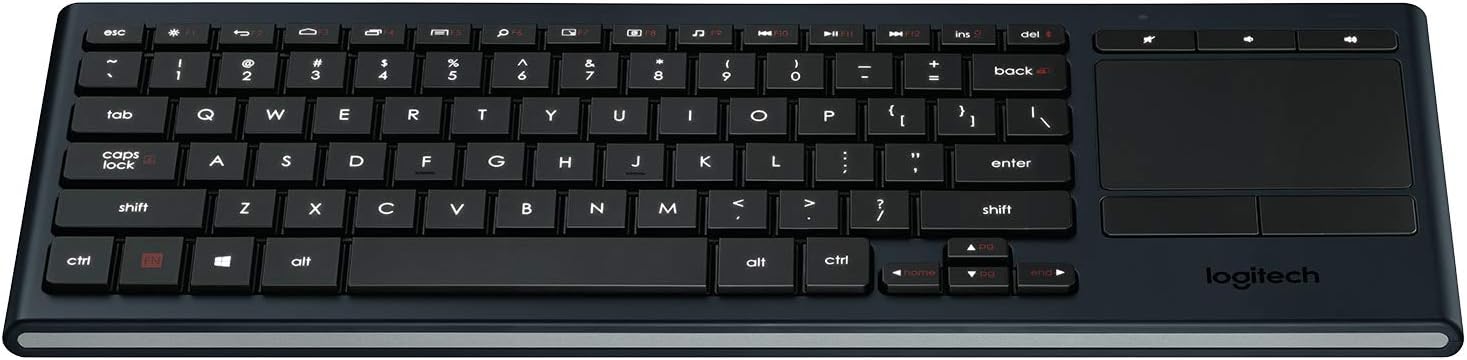
Figure 3: Overview of the K830 keyboard layout.
Backlighting
The keyboard features automatic backlighting that adjusts to ambient light conditions. A sensor detects the room's light level and automatically brightens or dims the key backlights for optimal visibility. The backlighting also activates when your hands approach the keyboard and turns off when not in use to conserve battery.
Integrated Touchpad
The large, responsive touchpad provides precise cursor control and supports multi-touch gestures. The two physical buttons below the touchpad function as left-click and right-click.
- Single Finger Tap: Left-click.
- Two Finger Tap: Right-click.
- Two Finger Scroll: Drag two fingers up or down to scroll vertically.
- Pinch Zoom: Pinch in or out with two fingers to zoom.

Figure 4: Side view highlighting the integrated touchpad and power indicator.
Media Keys and Shortcut Keys
The top row of keys includes dedicated media controls and shortcut keys for quick access to common functions. These keys are optimized for Windows and Android operating systems.
- Volume Controls: Mute, Volume Down, Volume Up.
- Media Playback: Play/Pause, Previous Track, Next Track.
- Windows/Android Shortcuts: Home, Back, Search, etc. (specific functions may vary by OS).
To use the F1-F12 functions, press the Fn key simultaneously with the desired F-key.
Maintenance
Cleaning the Keyboard
To clean your K830 keyboard:
- Turn off the keyboard before cleaning.
- Use a soft, lint-free cloth slightly dampened with water or a mild cleaning solution.
- Avoid excessive moisture and do not spray cleaners directly onto the keyboard.
- For the touchpad, use a dry, soft cloth to remove fingerprints and smudges.
Battery Care
The K830 uses a built-in rechargeable Lithium Polymer battery. To maximize battery life:
- Charge the keyboard regularly, but avoid leaving it plugged in constantly after it's fully charged.
- If storing the keyboard for an extended period, charge it to about 50% before storage.
- Avoid exposing the keyboard to extreme temperatures.
Troubleshooting
| Problem | Possible Cause | Solution |
|---|---|---|
| Keyboard not responding | Low battery; Keyboard off; Receiver not plugged in; Out of range; Pairing issue. | Charge the keyboard. Ensure the keyboard is ON. Plug the Unifying receiver into a working USB port. Move closer to the receiver (within 10 meters/33 feet). Re-pair the keyboard using Logitech Unifying Software or Bluetooth pairing process. |
| Backlighting not working | Low battery; Ambient light too bright; Sensor obstruction. | Charge the keyboard. The backlighting automatically adjusts; it may not activate in bright environments. Ensure the light sensor (located near the top edge) is not covered. |
| Touchpad erratic or unresponsive | Dirty touchpad surface; Software issue; Interference. | Clean the touchpad surface with a dry, soft cloth. Restart your computer/device. Ensure no other wireless devices are causing interference. |
| Keys not typing correctly | Software issue; Physical obstruction under key. | Restart your computer/device. Gently check for any debris under the affected key. |
Specifications
| Feature | Detail |
|---|---|
| Model Number | 920-007182 |
| Connectivity | Logitech Unifying (2.4 GHz RF), Bluetooth Smart (Bluetooth Low Energy) |
| Wireless Range | Up to 10 meters (33 feet) |
| Battery Type | Rechargeable Lithium Polymer |
| Backlighting | Automatic, single color |
| Integrated Touchpad | Yes, with multi-touch gesture support |
| Operating System Compatibility | Windows 7, Windows 8, Windows 10 or later; Android 5.0 or later; Chrome OS |
| Dimensions (LxWxH) | 15.1 x 5.59 x 1.65 inches (38.35 x 14.2 x 4.19 cm) |
| Weight | 1.09 pounds (0.49 kg) |
Warranty and Support
For warranty information, technical support, and additional resources, please visit the official Logitech support website or refer to the user guide PDF:
- Logitech Support Website: www.logitech.com/support
- User Guide (PDF): Download PDF
Please retain your proof of purchase for warranty claims.


