
1. Introduction
The Smart Tech SMARTBoard SB680 is a 77-inch touch-sensitive, front-projection interactive whiteboard designed to enhance collaboration and presentation. This device allows users to interact with computer applications directly on the screen using a finger or specialized pens, enabling a dynamic and engaging experience.
Key functionalities include:
- Touch-Sensitive Surface: Convert contact with the whiteboard into mouse clicks or digital ink. Use your finger as a mouse or write notes directly on the durable, low-reflective surface.
- SMART Board Software: Write over any computer application, create and edit notes, and save content in a single file. Features include Notebook software for capturing annotations, SMART Recorder (Windows only) for synchronized audio and data playback, and SMART Video Player for writing over video.
- SMART Pen Tray: Optical sensors detect when a stylus or eraser is lifted, activating the corresponding tool. Buttons provide quick access to the on-screen keyboard and right-click functionality. Whisper-tip styluses and an eraser are included.
- Projected and Non-Projected Modes: Operate with a projector to interact with computer materials or use in non-projected mode to save dry-erase marker notes to the computer.
2. Package Contents
Before beginning installation, please verify that all components are present in your package:
- 1 x SMARTBoard SB680 Interactive Whiteboard
- Mounting Hardware
- 1 x Pen Tray
- 4 x Pens (Black, Blue, Red, Green)
- 1 x Eraser
- 1 x USB Cable (5 meters)
- 1 x Ultra Short Throw Projector
- 1 x Projector Power Cord
- 1 x HDMI Cable
- 1 x Projector Remote Control
- 1 x Projector Mount
- Quick Start Guide
3. Setup and Installation
This section outlines the general steps for setting up your SMARTBoard SB680. For detailed instructions, refer to the included Quick Start Guide and the specific projector manual.
3.1 Mounting the SMARTBoard
The SMARTBoard SB680 requires secure wall mounting. Use the provided mounting hardware and ensure the wall can support the weight of the board (approximately 30 pounds) and the projector. Position the board at a comfortable height for interaction.

Image: The SMARTBoard SB680 mounted on a wall, with an ultra-short throw projector positioned above it. The board displays a Windows operating system desktop, indicating its readiness for interactive use.
3.2 Projector Installation
Mount the ultra-short throw projector using the provided projector mount. Ensure the projector is aligned correctly to fill the SMARTBoard's surface without distortion. Connect the projector to a power source using the power cord.

Image: A SMARTBoard SB680 is shown installed on a wall, with a projector mounted above it. The board displays a vibrant image, demonstrating the integrated setup for interactive presentations.
3.3 Connecting to a Computer
- Connect the SMARTBoard to your computer using the supplied 5-meter USB cable. The USB cable provides both data communication and power to the SMARTBoard.
- Connect the projector to your computer using the HDMI cable for video output.
- Install the necessary SMART Board software on your computer. This software is essential for enabling interactive features.
4. Operating Instructions
The SMARTBoard SB680 offers intuitive interaction methods. Once connected and calibrated, you can begin using it for various tasks.
4.1 Basic Interaction
- Touch: Use your finger to interact with the projected image as you would with a mouse. Tap to click, drag to move items, and use gestures supported by the SMART Board software.
- Pens: Select a pen from the pen tray. The optical sensors will detect which color pen is removed, and you can write directly on the screen in digital ink.
- Eraser: Lift the eraser from the pen tray to activate the erase function and remove digital ink from the screen.

Image: A young girl is actively engaged with the SMARTBoard SB680, using a pen to write on the interactive display. The board shows educational content, highlighting its use in learning environments.
4.2 Using SMART Board Software
The SMART Board software suite provides powerful tools for creating and delivering interactive content.
- Notebook Software: Create interactive lessons, presentations, and documents. Annotate over any application, save notes, and distribute files.
- SMART Recorder (Windows only): Record audio and data simultaneously for playback as a synchronized file, ideal for capturing lectures or meetings.
- SMART Video Player: Interact with video content by writing or drawing over moving or still video frames.
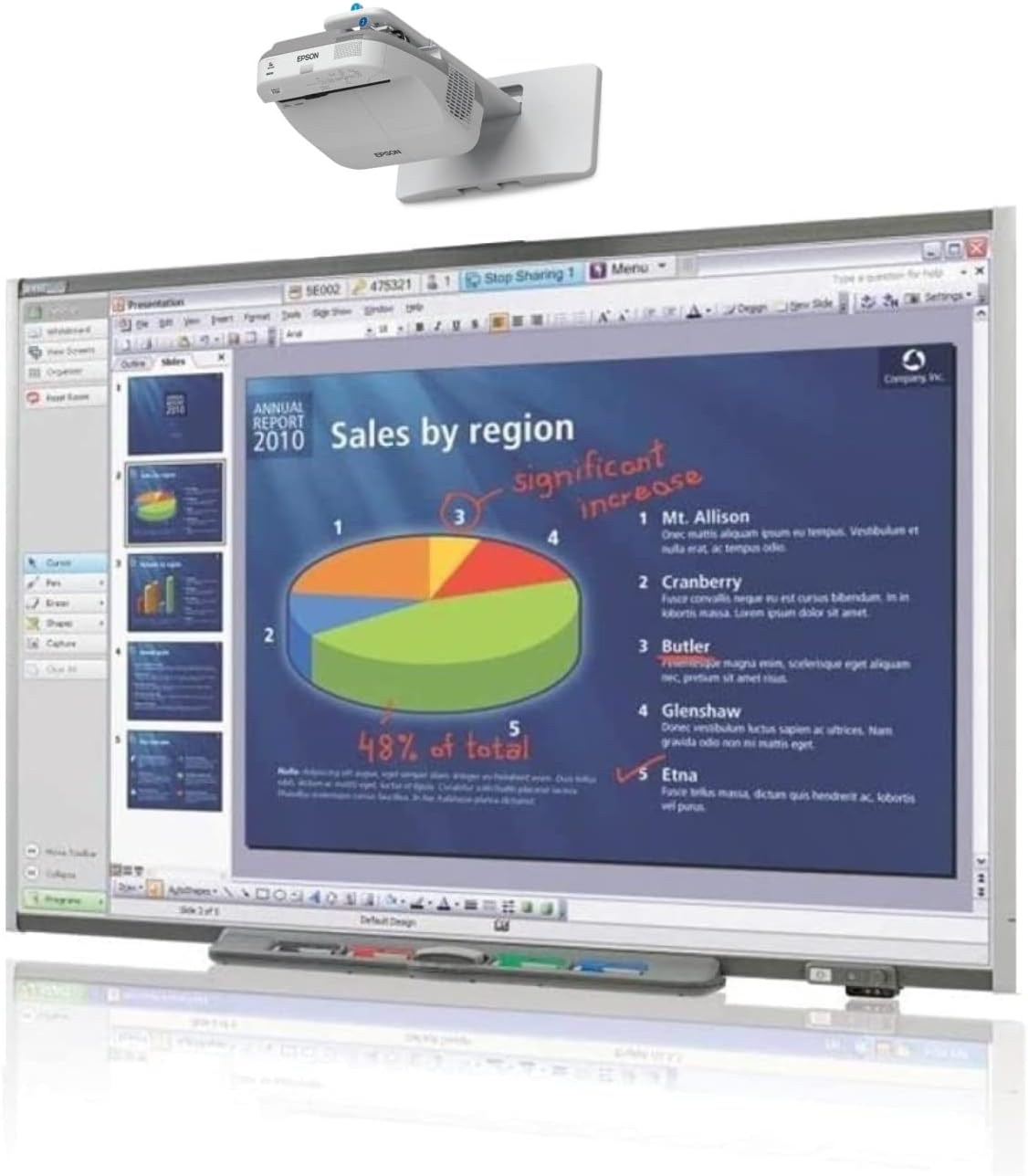
Image: An adult is shown interacting with the SMARTBoard SB680, which displays a business presentation with charts and text. Digital ink annotations are visible, demonstrating the interactive capabilities for professional use.
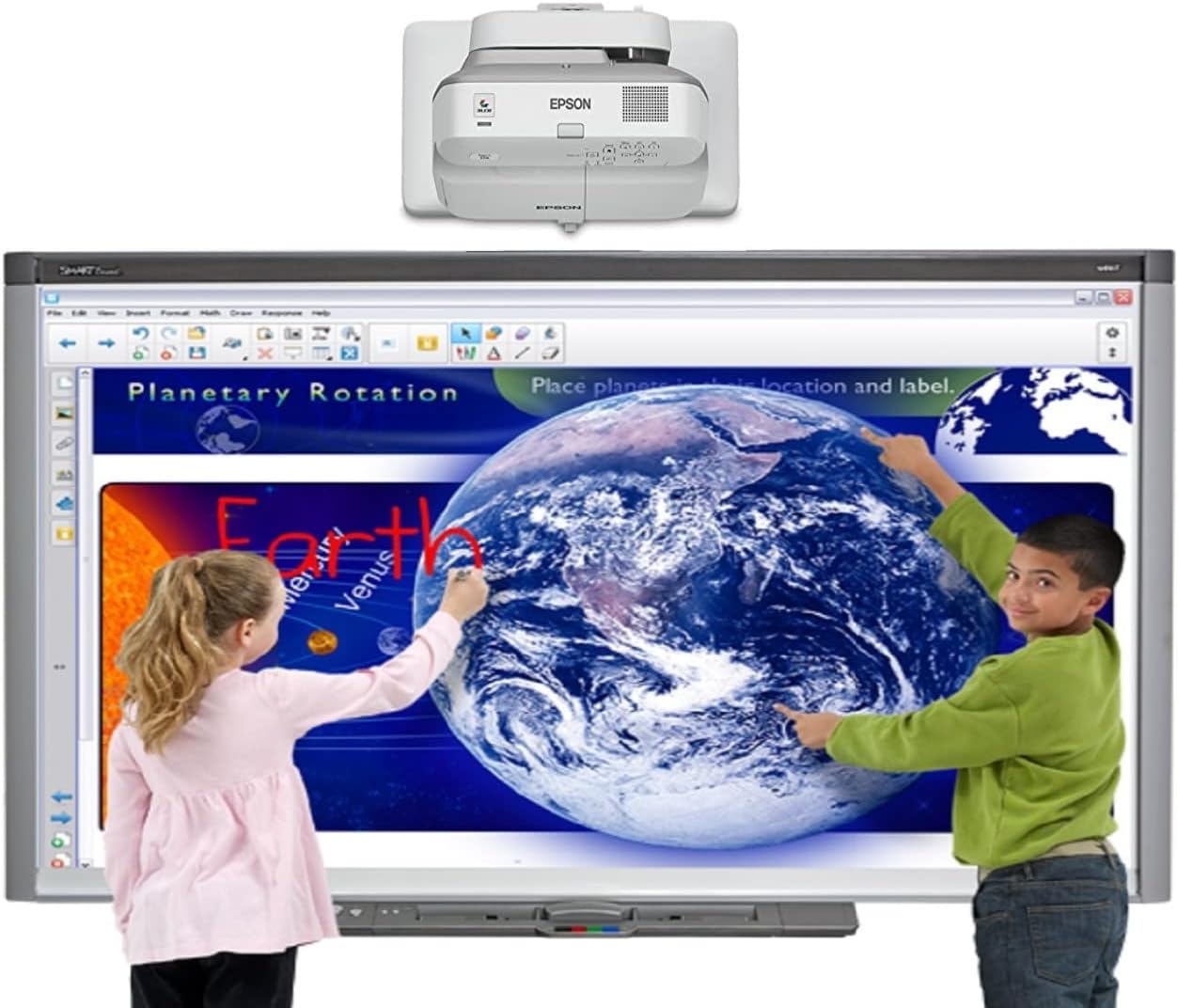
Image: Two children are actively engaging with the SMARTBoard SB680, which displays a large image of the Earth. They are pointing at different regions on the globe, illustrating the interactive learning potential of the device.
5. Maintenance
Proper maintenance ensures the longevity and optimal performance of your SMARTBoard SB680.
5.1 Screen Cleaning
The hard-coated polyester surface of the SMARTBoard is tear-proof and compatible with dry-erase markers. To clean the screen:
- Use a soft, lint-free cloth.
- For stubborn marks, use a specialized whiteboard cleaner. Avoid abrasive cleaners or harsh chemicals, as these can damage the surface.
- Ensure the screen is dry before use.
5.2 General Care
- Keep the pen tray free of dust and debris to ensure proper sensor function.
- Store pens and eraser in their designated slots in the pen tray when not in use.
- Avoid exposing the SMARTBoard to extreme temperatures or humidity.
6. Troubleshooting
If you encounter issues with your SMARTBoard SB680, refer to the following common troubleshooting steps:
6.1 Board Not Responding to Touch
- Check USB Connection: Ensure the USB cable is securely connected to both the SMARTBoard and your computer. The board draws power directly from the computer via USB.
- Restart Computer: A simple restart can often resolve communication issues.
- Verify Software Installation: Confirm that the SMART Board software is correctly installed and running on your computer.
- Recalibrate: If interaction is inaccurate, perform a calibration from the SMART Board software settings.
6.2 No Image from Projector
- Check Power: Ensure the projector is powered on and its power cord is securely connected.
- Check HDMI Connection: Verify the HDMI cable is firmly connected between the projector and your computer.
- Computer Display Settings: Ensure your computer's display settings are configured to output to the projector (e.g., duplicate or extend display).
- Projector Input: Confirm the projector's input source is set to the correct HDMI port.
6.3 Pens Not Detected
- Clean Pen Tray Sensors: Ensure the optical sensors in the pen tray are clear of any obstructions or debris.
- Proper Placement: Make sure the pens are correctly placed in their slots when not in use, and lifted cleanly when selected.
7. Specifications
| Feature | Specification |
|---|---|
| Brand | Smart Tech |
| Model | SB680 |
| Screen Size | 77 Inches |
| Product Dimensions | 65 x 2 x 49 inches |
| Item Weight | 30 pounds |
| Material Type | Aluminum |
| Color | White |
| Connectivity Technology | USB |
| Operating System Compatibility | Windows |
| Power Requirements | Less than 1.5 W (300mA at 5V) via USB |
| Screen Surface | Hard-coated polyester, tear-proof, optimized for projection, dry-erase compatible |
8. Warranty and Support
For specific warranty information regarding your Smart Tech SMARTBoard SB680, please refer to the documentation included with your product or visit the official Smart Technologies website. Warranty terms typically cover manufacturing defects for a specified period from the date of purchase.
For technical assistance, customer support, or to download the latest software and drivers, please visit the Smart Technologies support portal or contact their customer service department. Contact information is usually available on the manufacturer's website.
