
ZEBRONICS ZEB-250JP
Zebronic ZEB-250JP USB Vibration Game Pad Remote Joystick User Manual
Model: ZEB-250JP
Introduction
This manual provides detailed instructions for the setup, operation, and maintenance of your Zebronic ZEB-250JP USB Vibration Game Pad. Please read this manual carefully before using the product to ensure proper functionality and longevity.
Product Features
- Dual vibration and shock function for immersive gaming.
- Ergonomic slip-proof handle design for comfortable grip.
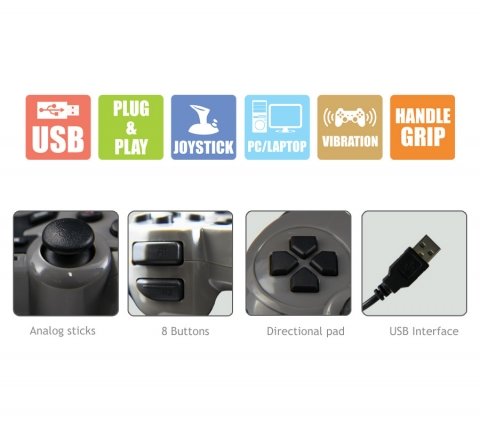
- Equipped with a directional pad, 8 fire buttons, and 2 analog sticks.
- Compatible with Windows XP, Vista, and Windows 7 operating systems.
- Supports both digital and analog modes.
Package Contents
- Zebronic ZEB-250JP Game Pad
- Installation CD (for drivers, if required)
Setup Instructions
- Connect the Game Pad: Locate an available USB port on your computer (Desktop or Laptop). Insert the USB connector of the ZEB-250JP Game Pad into the USB port. The device is designed for plug-and-play functionality.
- Driver Installation: For optimal performance, especially on older operating systems like Windows XP or Vista, it is recommended to install the drivers from the provided installation CD. Insert the CD into your computer's optical drive and follow the on-screen instructions. For Windows 7 and newer, drivers may install automatically.
- System Compatibility: Ensure your computer is running a compatible operating system (Windows XP, Vista, Windows 7).
Operating Instructions
Controls Overview
- Directional Pad (D-Pad): Used for directional movement or menu navigation.
- Analog Sticks: Two analog sticks provide 360-degree movement for finer control in games.
- Fire Buttons (8 buttons): Action buttons for in-game commands.
- Vibration Function: The game pad features dual vibration motors that provide tactile feedback during gameplay, enhancing immersion. This function is automatically activated by compatible games.
Mode Selection
The game pad supports both digital and analog modes. The mode can typically be switched using a dedicated button on the game pad (often labeled 'Mode' or 'Analog') or is automatically detected by the game. Refer to your game's settings for specific controller configurations.
Maintenance
- Keep the game pad clean by wiping it with a soft, dry cloth.
- Avoid exposing the device to extreme temperatures, direct sunlight, or moisture.
- Do not use harsh chemicals or abrasive cleaners.
- Store the game pad in a safe place when not in use to prevent damage to the cable or buttons.
Troubleshooting
- Game Pad Not Detected:
- Ensure the USB cable is securely connected to both the game pad and the computer.
- Try connecting the game pad to a different USB port.
- Restart your computer.
- Verify that the necessary drivers are installed from the provided CD or through Windows Update.
- Vibration Function Not Working:
- Confirm that the game you are playing supports vibration feedback.
- Check the game's settings to ensure vibration is enabled.
- Ensure drivers are correctly installed.
- Buttons or Analog Sticks Unresponsive:
- Test the game pad on another computer or in a different game to isolate the issue.
- Ensure the game pad is in the correct mode (digital/analog) for the game.
- Reinstall the device drivers.
Specifications
| Brand | ZEBRONICS |
| Model | ZEB-250JP |
| Connectivity Technology | USB |
| Controller Type | Gamepad |
| Compatible Devices | Windows (Desktop, Laptop) |
| Operating System Support | Windows XP, Vista, Windows 7 |
| Special Features | Handle Grip, Joystick, Plug and Play, Vibration |
| Product Dimensions | 24.1 x 18.3 x 6.4 cm |
| Item Weight | 290 g |
Warranty Information
This product is covered by a standard manufacturer's warranty. Please refer to the warranty card included in your package or contact Zebronic's customer support for specific warranty terms and conditions. Keep your purchase receipt as proof of purchase.
Support
For further assistance, technical support, or service inquiries, please visit the official Zebronics website or contact their customer service department. You can find more information and contact details on the Zebronics Store on Amazon.
Ask a question about this manual
Ask about setup, troubleshooting, compatibility, parts, safety, or missing instructions. Manuals+ will review the question and use this page’s manual context to help answer it.