
Baseus E09
Contents
Baseus Encok E09 Wireless Speaker User Manual
Model: E09
1. Introduction
This manual provides detailed instructions for the operation and maintenance of your Baseus Encok E09 Wireless Speaker. Please read this manual thoroughly before using the product to ensure proper function and longevity.
The Baseus Encok E09 is a versatile wireless speaker designed for portable audio playback. It features Bluetooth connectivity, a digital display, and a compact design.
2. Package Contents
Please verify that all items are present in the package:
- Baseus Encok E09 Wireless Speaker
- USB Charging Cable
- User Manual
3. Product Overview
Familiarize yourself with the speaker's components and controls.
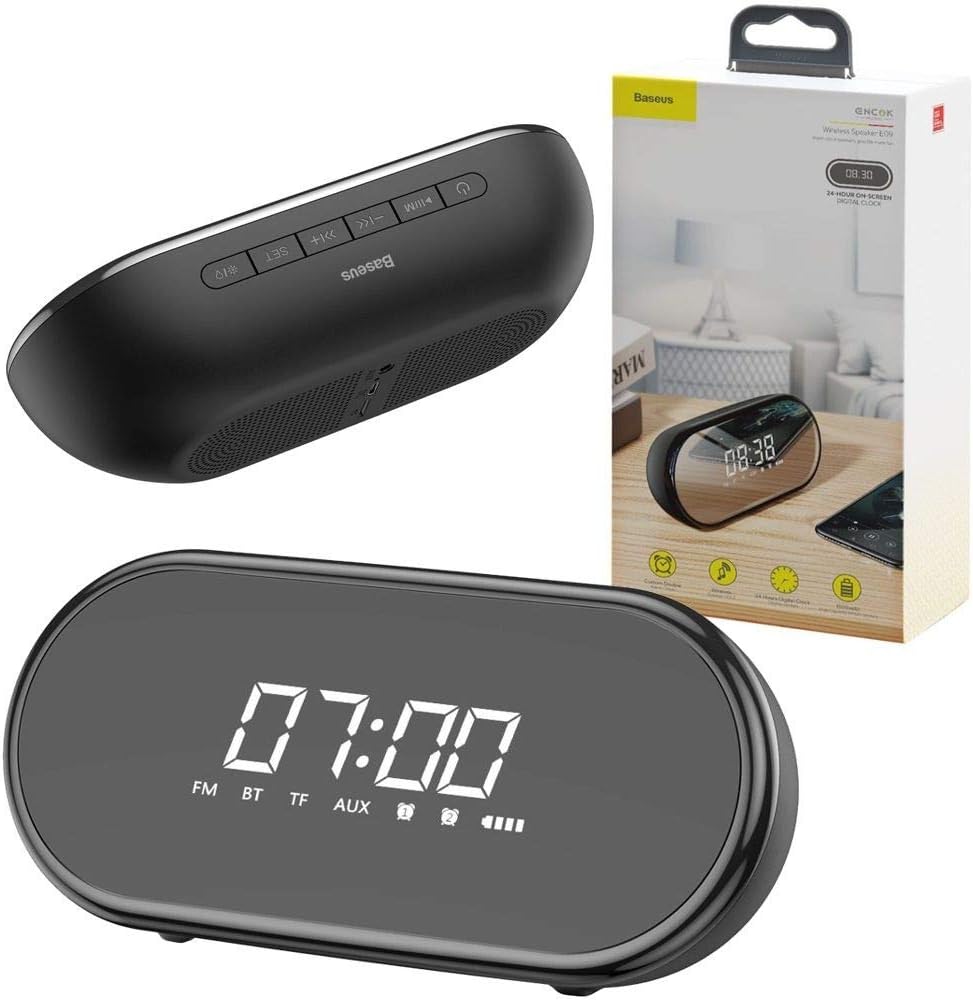
Image: The Baseus Encok E09 Wireless Speaker shown alongside its retail packaging, highlighting its compact size and digital display. The top panel with control buttons is also visible.
Controls and Indicators:
- Power Button: Press and hold to power on/off.
- Play/Pause Button: Press to play or pause audio.
- Volume Up/Next Track: Short press for volume up, long press for next track.
- Volume Down/Previous Track: Short press for volume down, long press for previous track.
- Mode Button (M): Press to switch between FM, Bluetooth (BT), TF card, and AUX modes.
- Set Button: Used for setting time and alarms.
- Digital Display: Shows time, mode (FM, BT, TF, AUX), alarm indicators, and battery level.

Image: A close-up view of the speaker's front display, showing the time "07:00" and indicators for FM, BT, TF, AUX, alarm 1, alarm 2, and battery level.
4. Setup
4.1 Charging the Speaker
Before first use, fully charge the speaker. Connect the provided USB charging cable to the speaker's charging port and the other end to a USB power adapter (not included) or a computer's USB port. The battery indicator on the display will show charging status.
4.2 Powering On/Off
Press and hold the Power button for approximately 3 seconds to turn the speaker on or off. The digital display will illuminate upon power-on.
5. Operating Instructions
5.1 Bluetooth Pairing
- Ensure the speaker is powered on and in Bluetooth mode (the display will show "BT" and flash). If not, press the 'M' (Mode) button to switch to Bluetooth mode.
- On your mobile device, enable Bluetooth and search for available devices.
- Select "Baseus Encok E09" from the list of devices.
- Once paired, the speaker will emit a confirmation tone, and the "BT" indicator on the display will stop flashing.
Note: The speaker will automatically attempt to reconnect to the last paired device when powered on.
5.2 FM Radio Mode
- Press the 'M' (Mode) button to switch to FM radio mode (the display will show "FM").
- Long press the Play/Pause button to initiate an automatic station scan. The speaker will scan and save available FM stations.
- Short press the Volume Up/Down buttons to navigate between saved stations.
5.3 TF Card Playback
Insert a TF (MicroSD) card with audio files into the TF card slot. The speaker will automatically switch to TF card mode and begin playing music. Press the 'M' button if it does not switch automatically.
5.4 AUX Mode
Connect an audio device to the speaker's AUX input using a 3.5mm audio cable (not included). The speaker will automatically switch to AUX mode. Press the 'M' button if it does not switch automatically.
5.5 Setting Time and Alarms
- Setting Time: Press and hold the 'SET' button. The hour digits will flash. Use the Volume Up/Down buttons to adjust the hour. Press 'SET' again to move to minutes, adjust, and press 'SET' to confirm.
- Setting Alarm 1/2: Short press the 'SET' button to cycle through Alarm 1 and Alarm 2 settings. When an alarm time flashes, use Volume Up/Down to adjust, and 'SET' to confirm. You can also enable/disable alarms from this menu.
6. Maintenance
- Clean the speaker with a soft, dry cloth. Do not use abrasive cleaners or solvents.
- Avoid exposing the speaker to extreme temperatures, humidity, or direct sunlight.
- Do not disassemble the speaker. This will void the warranty.
- Store the speaker in a cool, dry place when not in use for extended periods.
7. Troubleshooting
| Problem | Possible Cause | Solution |
|---|---|---|
| Speaker does not power on. | Low battery. | Charge the speaker fully. |
| Cannot pair via Bluetooth. | Speaker not in pairing mode; device Bluetooth off; too far from speaker. | Ensure speaker is in BT mode and flashing. Turn on device Bluetooth. Move device closer (within 10 meters). |
| No sound. | Volume too low; incorrect mode selected; audio source issue. | Increase speaker and device volume. Press 'M' to select correct mode. Check audio source. |
| FM radio static. | Weak signal. | Relocate the speaker to an area with better reception. |
8. Specifications
| Feature | Detail |
|---|---|
| Brand | Baseus |
| Model Name | Encok E09 |
| Model Number | 6953156293748 |
| Product Dimensions | 21 x 10 x 6.5 cm |
| Item Weight | 368 grams |
| Connectivity Technology | Wired/Wireless (Bluetooth V4.2) |
| Wireless Range | 10 meters |
| Audio Output Mode | Stereo |
| Speaker Type | Subwoofer |
| Material | ABS + Silicone |
| Color | Black (also available in White/Pink) |
9. Warranty and Support
This product is covered by a manufacturer's warranty. For details regarding warranty terms and conditions, please refer to the warranty card included with your purchase or contact Baseus customer support.
For technical support or service inquiries, please visit the official Baseus website or contact their customer service department. Keep your purchase receipt as proof of purchase for warranty claims.
Extended warranty plans may be available from your retailer. For example, a 2-year extended warranty for electronics is offered for products priced between 0 SAR and 499.99 SAR.
Ask a question about this manual
Ask about setup, troubleshooting, compatibility, parts, safety, or missing instructions. Manuals+ will review the question and use this page’s manual context to help answer it.