
TECKNET 78863
TECKNET Bluetooth Ultra-Slim Wireless Keyboard User Manual
Model: 78863
Brand: TECKNET
1. Important Safety Information
Please read these instructions carefully before using your TECKNET Bluetooth Ultra-Slim Wireless Keyboard. Keep this manual for future reference.
- Do not expose the keyboard to liquids, humidity, or extreme temperatures.
- Avoid dropping or subjecting the keyboard to strong impacts.
- Do not attempt to disassemble or modify the keyboard. This will void the warranty.
- Use only the provided USB charging cable or a certified equivalent for charging.
- Keep out of reach of children.
2. Package Contents
Verify that all items are present in your package:
- 1 x TECKNET Bluetooth Ultra-Slim Wireless Keyboard
- 1 x USB Charging Cable
- 1 x User Manual (this document)
- 1 x Warranty Card
3. Product Overview
The TECKNET Bluetooth Ultra-Slim Wireless Keyboard is designed for convenience and portability, offering a comfortable typing experience across various operating systems.
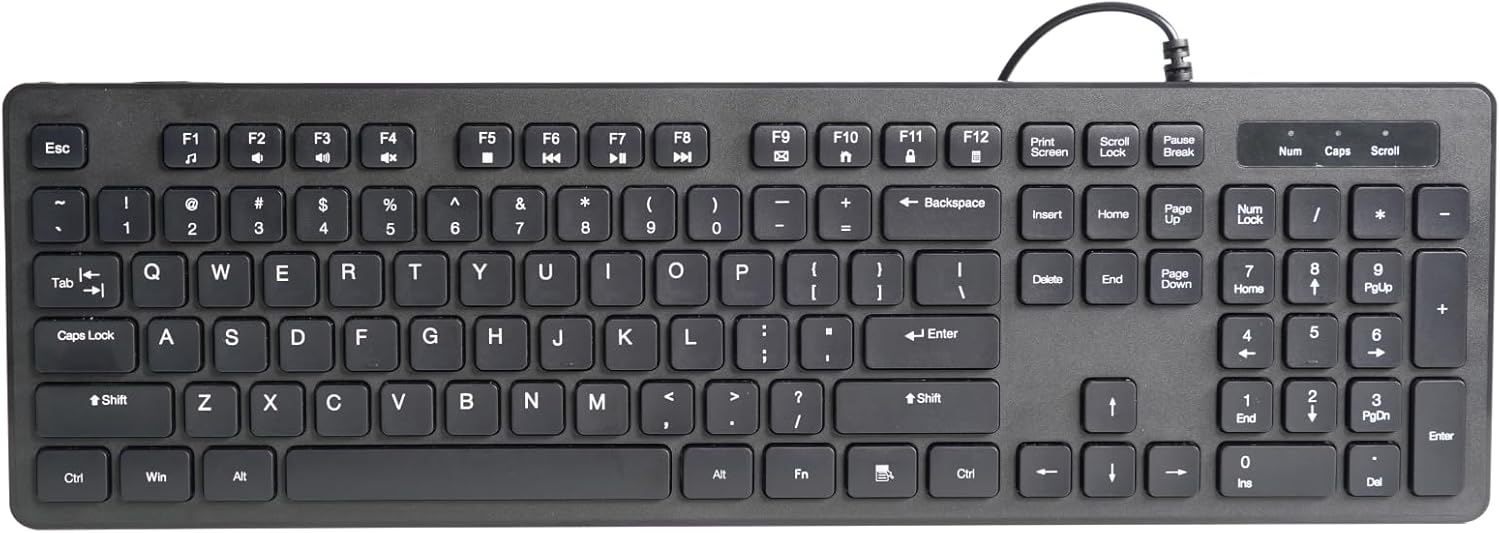
Figure 3.1: Front view of the TECKNET Bluetooth Ultra-Slim Wireless Keyboard.
This keyboard features a compact design with a QWERTY UK layout, making it suitable for various environments from office to home. Its scissor switch construction ensures a comfortable and quiet typing experience, with keys designed to withstand up to 5 million keystrokes.

Figure 3.2: The keyboard features a standard QWERTY UK layout with integrated multimedia keys.

Figure 3.3: Detail of the scissor switch construction, providing comfortable and durable key presses.
4. Setup
4.1. Charging the Keyboard
The keyboard is equipped with a built-in rechargeable Li-polymer battery. Before first use, or when the battery indicator flashes, charge the keyboard using the provided USB cable.
- Connect the small end of the USB charging cable to the charging port on the keyboard.
- Connect the larger end of the USB cable to a USB power source (e.g., computer USB port, USB wall adapter).
- The charging indicator light will illuminate during charging and turn off when fully charged. A full charge typically takes approximately 2 hours.
A full charge provides up to 200 hours of continuous working time and a standby time of up to 200 days.

Figure 4.1: The keyboard features a rechargeable battery and is charged via a USB cable.
4.2. Pairing with Your Device
The TECKNET keyboard uses Bluetooth 3.0 for wireless connection and is compatible with iOS, Android, Mac OS, and Windows operating systems.
- Ensure the keyboard is charged.
- Turn on the keyboard by sliding the power switch to the "ON" position.
- Press the Connect button on the keyboard. The Bluetooth indicator light will start blinking, indicating it is in pairing mode.
- On your device (tablet, smartphone, computer), go to the Bluetooth settings.
- Search for available Bluetooth devices. The keyboard will appear as "TECKNET Keyboard" or similar.
- Select the keyboard from the list. Your device may prompt you to enter a pairing code displayed on the screen. Type this code on the TECKNET keyboard and press Enter.
- Once paired, the Bluetooth indicator light on the keyboard will stop blinking and remain solid or turn off, indicating a successful connection.
The operating distance for the Bluetooth connection is up to 10 meters.

Figure 4.2: The keyboard is compatible with Android, iOS, and Windows devices.

Figure 4.3: The keyboard offers a remote connection range of up to 10 meters.
5. Operating Instructions
5.1. Basic Typing
Once paired, you can use the keyboard for standard text input on your connected device. The keys provide a responsive and comfortable typing experience.
5.2. Function Keys and Multimedia Controls
The top row of keys (F1-F12) on the keyboard serves dual functions. To access the multimedia or special functions, press and hold the Fn key, then press the desired function key.
| Key Combination | Function |
|---|---|
| Fn + F1 | Channel 1 |
| Fn + F2 | Channel 2 |
| Fn + F3 | Channel 3 |
| Fn + F4 | Home |
| Fn + F5 | Menu |
| Fn + F6 | Back/Previous |
| Fn + F7 | Track Backward |
| Fn + F8 | Play/Pause |
| Fn + F9 | Next Track |
| Fn + F10 | Mute |
| Fn + F11 | Volume Down |
| Fn + F12 | Volume Up |

Figure 5.1: The keyboard features 12 convenient multimedia keys accessible via the Fn key.
5.3. Operating System Mode Switching
To optimize keyboard functions for your specific operating system, you can switch modes:
- Press Fn + Q for Android OS.
- Press Fn + W for Windows OS.
- Press Fn + E for iOS/Mac OS.
5.4. Keyboard Illumination (If Applicable)
Some versions of this keyboard feature backlighting. If your keyboard is illuminated, you can control the lighting as follows:
- Press the dedicated illumination key (often marked with a light bulb icon) to cycle through brightness levels or turn the illumination on/off.
- To change the backlight color (if supported), hold down the illumination button and press Page Up or Page Down. Available colors may include Blue, Red, Green, Purple, Yellow, Sapphire, and Cyan.
6. Maintenance and Care
6.1. Cleaning the Keyboard
- Turn off the keyboard before cleaning.
- Use a soft, lint-free cloth slightly dampened with water or a mild cleaning solution.
- Do not spray cleaners directly onto the keyboard.
- Avoid using abrasive cleaners, alcohol, or solvents.
6.2. Storage
- Store the keyboard in a cool, dry place away from direct sunlight and extreme temperatures.
- If storing for an extended period, ensure the keyboard is fully charged before storage and recharge it periodically to maintain battery health.
7. Troubleshooting
7.1. Keyboard Not Connecting/Pairing
- Check Battery: Ensure the keyboard is fully charged.
- Power Cycle: Turn the keyboard off and then on again.
- Re-pair: Delete the keyboard from your device's Bluetooth list and attempt to pair again.
- Device Bluetooth: Ensure Bluetooth is enabled on your device and it is discoverable.
- Distance: Make sure the keyboard is within the 10-meter operating range of your device.
- Interference: Move away from other wireless devices that might cause interference.
7.2. Keys Not Responding
- Reconnection: The Bluetooth connection might have dropped. Try turning the keyboard off and on, or re-pairing.
- Battery Level: Low battery can cause intermittent key response. Recharge the keyboard.
- Operating System Mode: Ensure the keyboard is set to the correct OS mode (Fn+Q/W/E).
7.3. Short Battery Life
- Full Charge: Ensure the keyboard is fully charged each time.
- Illumination: If your keyboard has backlighting, turning it off or reducing brightness will extend battery life.
- Auto-Sleep: The keyboard has an auto-sleep feature to save power. If it's not sleeping, ensure it's not constantly being used or moved.
8. Product Specifications
| Feature | Detail |
|---|---|
| Brand | TECKNET |
| Model Number | 78863 |
| Connectivity Technology | Bluetooth 3.0 |
| Operating Systems | iOS, Android, Mac OS, Windows |
| Power Source | Rechargeable Li-polymer Battery |
| Battery Life (Continuous Use) | Up to 200 hours |
| Standby Time | Up to 200 days |
| Operating Distance | Up to 10 meters |
| Dimensions | 245 x 150 x 5.5 mm |
| Weight | 215g |
| Key Lifespan | 5 million keystrokes |
| Number of Keys | 78 |
| Colour | Black |
Figure 8.1: Approximate dimensions of the keyboard: 245mm length, 150mm width, and 5.5mm thickness.
9. Warranty and Support
TECKNET provides an 18-month warranty for this product, covering manufacturing defects from the date of purchase. Additionally, lifetime technical support is available.
For warranty claims, technical assistance, or general inquiries, please contact TECKNET customer support through their official website or the retailer where the product was purchased. Please have your proof of purchase and product model number ready.
For more information, visit the official TECKNET website: www.tecknet.co.uk
Related documents78863

Ask a question about this manual
Ask about setup, troubleshooting, compatibility, parts, safety, or missing instructions. Manuals+ will review the question and use this page’s manual context to help answer it.