
Introduction
This manual provides essential instructions for setting up, operating, and maintaining your Targus Wired Tablet Keyboard (Model AKB122US). This keyboard is designed to enhance your typing experience on compatible PC and Android devices through a reliable Micro-USB connection.
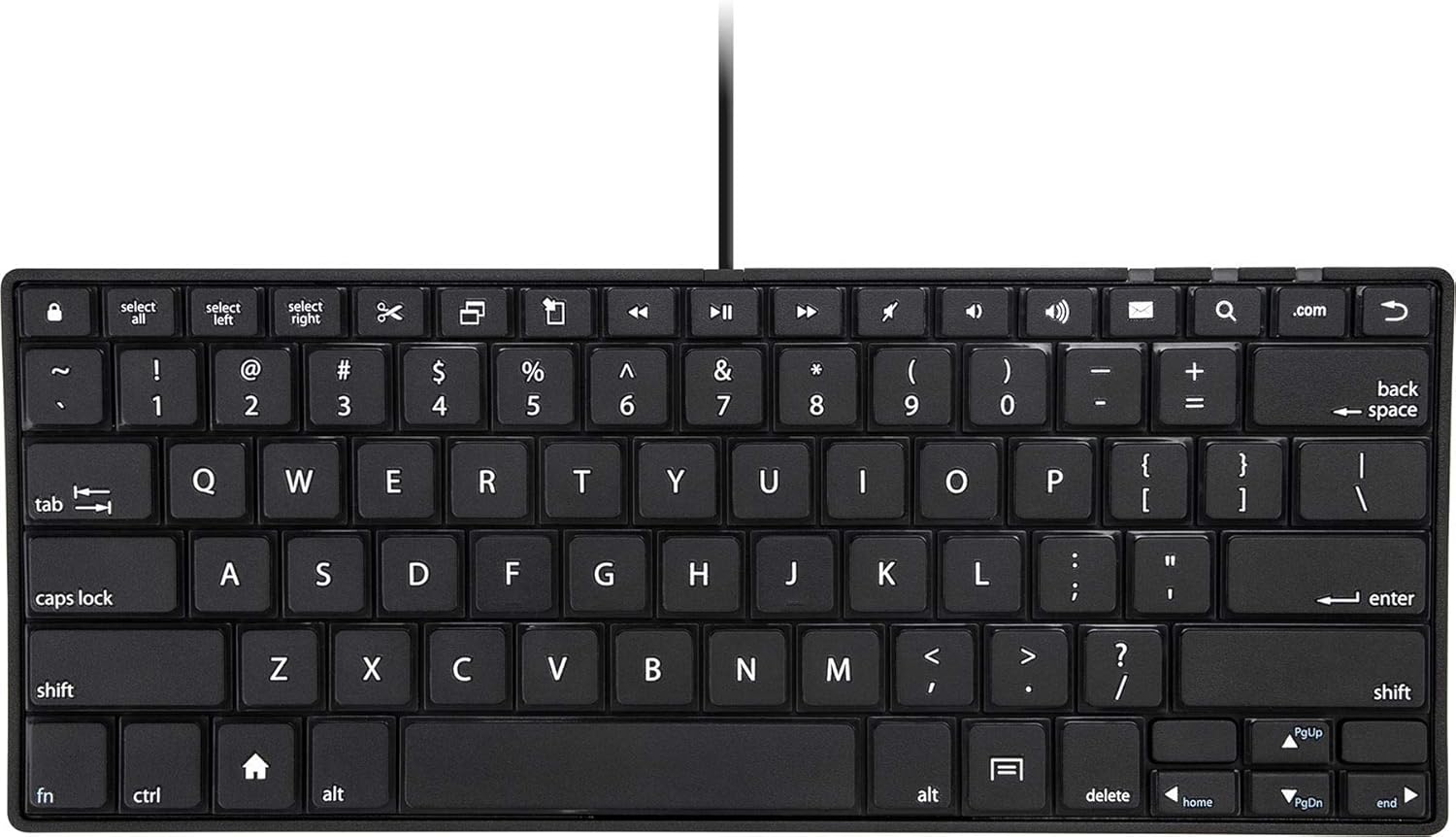
Image: Top-down view of the Targus AKB122US Wired Tablet Keyboard, showcasing its full QWERTY layout and compact design.
Setup Instructions
- Unpack the Keyboard: Carefully remove the keyboard from its packaging.
- Identify the Connector: Locate the Micro-USB connector attached to the keyboard cable.

Image: Close-up of the Micro-USB connector, which plugs into your tablet or device.
- Connect to Device: Plug the Micro-USB connector into the corresponding port on your PC or Android tablet. Ensure the connection is secure.
- Automatic Recognition: The keyboard is plug-and-play and should be automatically recognized by your device without requiring additional drivers.
- Adjust Typing Angle: For ergonomic comfort, flip down the integrated feet located on the underside of the keyboard to achieve two different typing angles.

Image: Side view of the keyboard demonstrating the adjustable feet extended for an elevated typing angle.
Operating Instructions
The Targus AKB122US keyboard provides a standard QWERTY layout for efficient typing. It features well-spaced, short-throw keys designed for a comfortable typing experience.
- Standard Typing: Use the keyboard as you would a traditional computer keyboard for text input.
- Function Keys: The top row of keys includes various media and function controls. Their specific functionality may vary depending on your device's operating system and applications.
- Compatibility: This keyboard is compatible with PC and Android operating systems. Functionality may vary slightly across different devices and OS versions.

Image: Angled view of the Targus AKB122US keyboard, highlighting the key spacing and overall slim profile.
Maintenance
- Cleaning: To clean the keyboard, gently wipe the surface with a soft, damp cloth. Avoid using harsh chemicals or abrasive cleaners.
- Storage: When not in use, store the keyboard in a clean, dry place. Its slim design allows for easy storage in a backpack or briefcase.
- Cable Care: Avoid sharp bends or excessive pulling on the Micro-USB cable to prevent damage.
Troubleshooting
- Keyboard Not Responding:
- Ensure the Micro-USB connector is fully and securely plugged into your device.
- Try plugging the keyboard into a different USB port on your device, if available.
- Restart your tablet or PC.
- Verify that your device's operating system is compatible with external keyboards.
- Keys Not Functioning Correctly:
- Check for any debris or obstructions under the keys.
- Ensure the keyboard is clean and dry.
- Test the keyboard on another compatible device to determine if the issue is with the keyboard or the original device.
Specifications
| Model Name | AKB122US |
| Brand | Targus |
| Connectivity Technology | Micro USB |
| Compatible Devices | Tablet (PC/Android devices) |
| Keyboard Description | Standalone, QWERTY |
| Special Feature | Foldable feet for adjustable typing angles, Portable |
| Color | Black |
| Material | Plastic |
| Item Weight | 11.4 ounces |
| Product Dimensions (LxWxH) | 11.5 x 4.5 x 0.74 inches |
| Included Components | Keyboard |
Warranty Information
This Targus product is covered by a limited warranty. Please note that the limited warranty does not cover products purchased from unauthorized third-party sellers. For full details regarding warranty terms and conditions, please refer to the official Targus website or contact customer support.
Support
For further assistance, technical support, or to view additional product information, please visit the official Targus website:
You may also find helpful resources and frequently asked questions on the product support page for model AKB122US.


