
1. Introduction
The Netatmo Smart Indoor Camera (model NSC01-EU) is designed to enhance your home security by providing intelligent surveillance. It features motion detection, facial recognition, night vision, and two-way audio, allowing you to monitor your home and communicate with occupants from anywhere. This manual provides essential information for installation, operation, and troubleshooting.
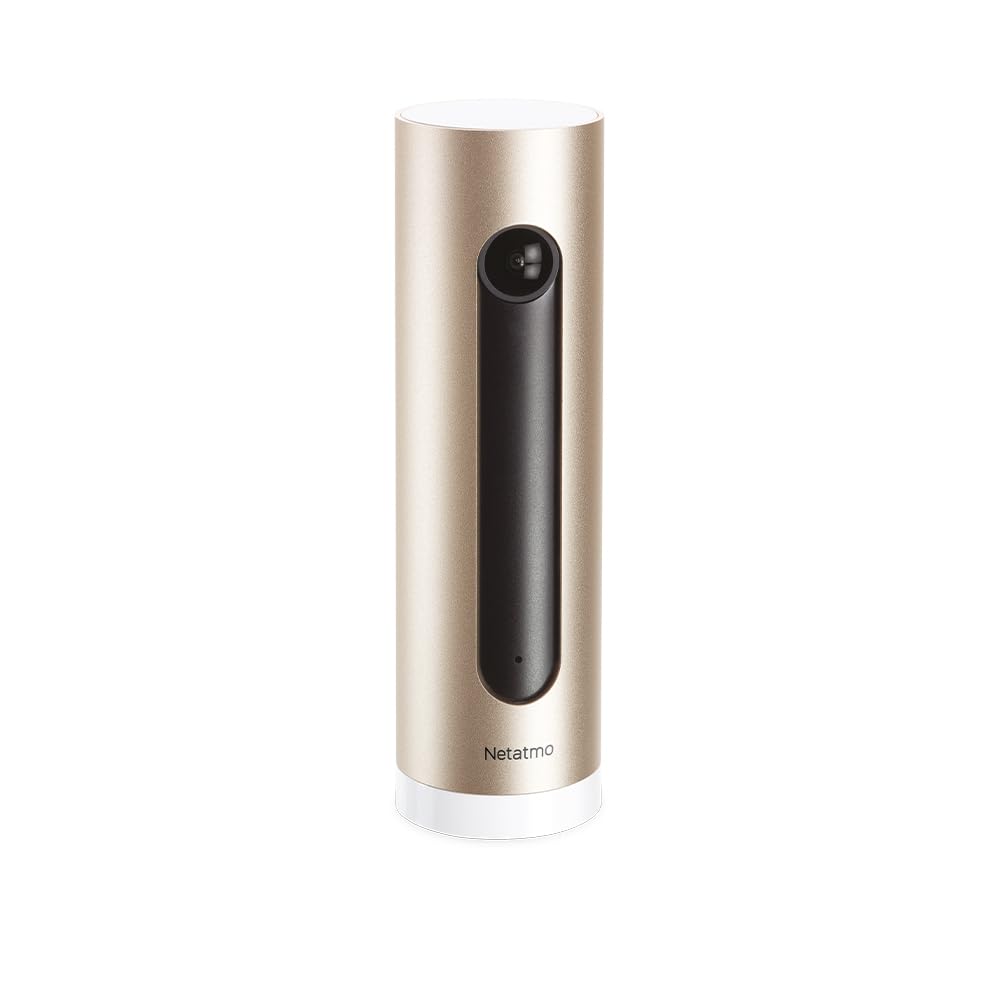
Image: The Netatmo Smart Indoor Camera, showcasing its compatibility with Apple HomeKit, Amazon Alexa, and Google Assistant.
2. Setup
2.1 Unpacking and Contents
Carefully unpack the camera and verify all components are present:
- Netatmo Smart Indoor Camera (NSC01-EU)
- Power Adapter
- USB Cable
- User Guide (this document)

Image: The Netatmo Smart Indoor Camera along with its included power adapter, USB cable, and printed user guide.
2.2 Camera Placement
Place the camera indoors on a stable, flat surface with a clear view of the area you wish to monitor. Ensure it is within range of your Wi-Fi network. Avoid placing it in direct sunlight or near heat sources.

Image: The Netatmo Smart Indoor Camera positioned discreetly on a wooden desk, demonstrating typical indoor placement.

Image: The Netatmo Smart Indoor Camera placed on a windowsill, offering a view of an indoor plant and the outdoor environment.
2.3 Power Connection
- Connect the USB cable to the camera's power port.
- Plug the other end of the USB cable into the power adapter.
- Insert the power adapter into a wall outlet. The camera will power on automatically.
2.4 App Installation and Pairing
- Download the Netatmo Security app from the Apple App Store or Google Play Store.
- Open the app and create a new account or log in with an existing one.
- Follow the on-screen instructions within the app to add your new camera. This typically involves scanning a QR code on the camera or packaging and connecting it to your home Wi-Fi network.
3. Operating the Camera
3.1 Live View and Event Timeline
Once connected, open the Netatmo Security app to access the live video feed from your camera. The app also displays a timeline of recorded events, such as motion detections or recognized faces.

Image: The Netatmo Smart Indoor Camera positioned beside a smartphone, illustrating the camera's live feed and event timeline within the Netatmo Security application.
3.2 Motion Detection and Alerts
The camera is equipped with advanced motion detection. When motion is detected, the camera records the event and sends a notification to your smartphone. You can customize alert settings within the app.
3.3 Facial Recognition
The Netatmo Smart Indoor Camera can learn to recognize familiar faces. Once a face is identified, you can assign a name to it in the app. This allows the camera to differentiate between known individuals and strangers, providing more relevant alerts.
3.4 Two-Way Audio
Utilize the built-in microphone and speaker for two-way communication. Tap the microphone icon in the live view to speak through the camera, and hear responses through your phone's speaker.
3.5 Night Vision
The camera automatically switches to infrared night vision in low-light conditions, ensuring continuous surveillance even in complete darkness.
3.6 Privacy Controls
Manage your privacy settings through the Netatmo Security app. You can define specific zones within the camera's view to ignore for motion detection or disable recording when certain individuals are detected.
3.7 Video Storage
The Netatmo Smart Indoor Camera offers free local storage of video recordings on a microSD card (included or purchased separately). You can also opt for cloud storage solutions if desired, though no subscription is required for basic functionality.
4. Maintenance
4.1 Cleaning
To maintain optimal performance, periodically clean the camera lens and body with a soft, dry, lint-free cloth. Do not use harsh chemicals or abrasive materials.
4.2 Software Updates
Ensure your camera's firmware is up to date. The Netatmo Security app will typically notify you of available updates and guide you through the installation process. Regular updates provide new features and security enhancements.
5. Troubleshooting
5.1 Camera Not Powering On
- Verify the power adapter is securely plugged into both the camera and a working wall outlet.
- Try a different wall outlet.
- Ensure the USB cable is not damaged.
5.2 No Wi-Fi Connection
- Check if your home Wi-Fi network is active and functioning correctly.
- Ensure the camera is within range of your Wi-Fi router.
- Restart your Wi-Fi router.
- Attempt to re-pair the camera with the Netatmo Security app.
5.3 Poor Video Quality
- Clean the camera lens.
- Ensure adequate lighting in the monitored area (outside of night vision mode).
- Check your internet connection speed; a slow connection can affect streaming quality.
5.4 Motion Detection Issues
- Review motion detection settings in the Netatmo Security app.
- Adjust the camera's placement to optimize its field of view.
- Ensure no objects are obstructing the camera's view.
6. Specifications
| Feature | Description |
|---|---|
| Brand | Netatmo |
| Model Name | NSC01-EU |
| Connectivity Technology | Wired, Wireless (Wi-Fi) |
| Special Features | Two-Way Audio, Night Vision, Motion Detection, Facial Recognition |
| Usage Environment | Indoor |
| Power Source | AC/DC |
| Compatible Devices | Smartphones (iOS, Android), Apple HomeKit, Amazon Alexa, Google Assistant |
7. Warranty and Support
7.1 Warranty Information
For detailed warranty information, please refer to the warranty card included in your product packaging or visit the official Netatmo website. Keep your proof of purchase for warranty claims.
7.2 Customer Support
If you encounter any issues not covered in this manual or require further assistance, please visit the official Netatmo support website at www.netatmo.com/support. You can find FAQs, troubleshooting guides, and contact information for technical support.


