
1. Introduction
The Clickfree Automatic Backup HD325R is a portable external hard drive designed to simplify data backup for your computer. This device automatically backs up your files, photos, videos, and documents without requiring complex software installation or configuration. Simply connect the device to your computer, and it will begin backing up your data.
This manual provides instructions for setting up, operating, maintaining, and troubleshooting your Clickfree HD325R device.
2. Package Contents
Please verify that all items are present in your package:
- Clickfree Automatic Backup 320GB External Hard Drive (HD325R)
- USB 2.0 Cable
- Quick Start Guide (if included)
3. Setup
Follow these steps to set up your Clickfree HD325R:
- Connect the USB Cable: Plug the smaller end of the included USB 2.0 cable into the USB port on the Clickfree HD325R device.
- Connect to Computer: Plug the larger end of the USB 2.0 cable into an available USB port on your computer (PC or Mac).
- Initial Recognition: Your computer should automatically detect the Clickfree device. Depending on your operating system, a new drive letter may appear, or a notification may indicate a new device has been connected.
- First Backup: The Clickfree software, pre-loaded on the device, will typically launch automatically and begin scanning your computer for files to back up. This initial backup may take a significant amount of time depending on the volume of data.
- Review Options (Optional): Before the backup starts, you may have an option to click on "Options" to customize what is backed up (e.g., only pictures and documents, or specific folders). If no options are selected, the device will proceed with a full automatic backup.
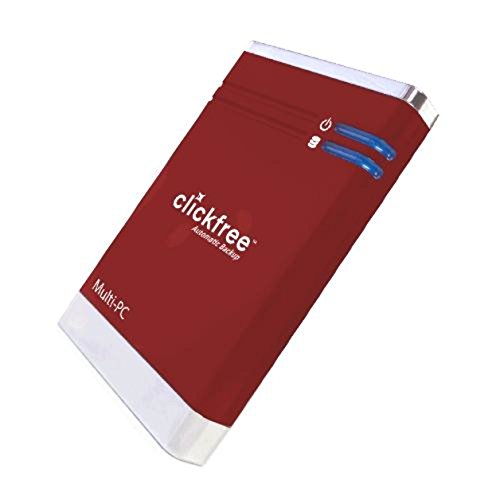
Figure 1: Clickfree HD325R connected to a computer. The device is a compact red external hard drive with a USB port.
4. Operating Instructions
4.1 Automatic Backup
The primary function of the Clickfree HD325R is automatic backup. Once connected, the device will continuously monitor your computer for changes and new files, backing them up in the background. You do not need to manually initiate backups after the initial setup.
- Plug and Play: Simply plug the Clickfree device into your computer's USB port.
- Automatic Detection: The device will detect changes and new files on your computer.
- Background Operation: Backups occur automatically without user intervention.
- Reminders: The system may provide periodic reminders (e.g., every two weeks) to ensure regular backups.
4.2 Restoring Data
In the event of data loss or a computer crash, you can restore your backed-up files using the Clickfree HD325R.
- Connect the Device: Plug the Clickfree HD325R into the computer where you wish to restore data.
- Access Restore Options: Once the device is recognized, the Clickfree software interface should appear. Look for an option labeled "Restore" or "Transfer".
- Initiate Restore: Select the "Restore" option. The Clickfree device will automatically transfer all saved data back to your computer.
- Completion: Wait for the restoration process to complete. Do not disconnect the device during this time.
5. Maintenance
Proper maintenance ensures the longevity and reliability of your Clickfree HD325R.
- Safe Disconnection: Always safely eject the device from your computer before physically disconnecting the USB cable. This prevents data corruption.
- Cleaning: Use a soft, dry cloth to clean the exterior of the device. Avoid liquid cleaners or abrasive materials.
- Storage: Store the device in a cool, dry place away from direct sunlight and extreme temperatures.
- Periodic Full Backup Refresh: Over time, deleted files from your computer may still reside on the backup drive. To optimize storage and ensure only current files are backed up, consider performing a full backup refresh annually. This involves deleting all data on the Clickfree drive and then performing a new, complete backup from your computer. (Note: Ensure you have another backup or are certain you no longer need the old versions of deleted files before proceeding with this step.)
6. Troubleshooting
If you encounter issues with your Clickfree HD325R, refer to the following common solutions:
| Problem | Solution |
|---|---|
| Device not recognized by computer. |
|
| Automatic backup does not start. |
|
| "Easy Fix" feature not working (for specific PC models). | The "Easy Fix" feature may have compatibility limitations with certain PC models or operating system configurations. Consult the Clickfree support website for specific compatibility information or alternative solutions for your computer model. |
| Restoration process fails or is incomplete. |
|
7. Specifications
| Feature | Detail |
|---|---|
| Model Number | HD325R |
| Digital Storage Capacity | 320 GB |
| Hard Disk Interface | USB 1.1 (Note: Product title states USB 2.0, but specifications list USB 1.1. Please refer to product packaging for definitive interface.) |
| Hardware Platform | Mac, PC |
| Form Factor | 2.5 Inches (Portable) |
| Item Weight | 6.4 ounces |
| Dimensions (Package) | 7.9 x 4.9 x 2.7 inches |
8. Warranty and Support
For warranty information, technical support, or further assistance, please refer to the documentation included with your product or visit the official Clickfree support website. Keep your purchase receipt for warranty claims.
Note: Specific warranty terms and support contact details may vary by region and purchase date.


