
Introduction
This manual provides comprehensive instructions for the Excelvan HD 720P 5MP Video Recorder Eyewear. This device combines a camera and eyewear, allowing for discreet video recording and photo capture. It supports up to a 32GB TF card for storage and can function as a PC camera or a U-disk. Please read this manual carefully before use to ensure proper operation and to maximize the product's lifespan.
Package Contents
Upon unpacking, please verify that all items listed below are present and in good condition:
- 1 x Eyewear (Glasses)
- 1 x Black Pouch
- 1 x Cleaning Cloth
- 1 x USB Cable
- 1 x User Manual

Image: Contents of the Excelvan HD 720P 5MP Video Recorder Eyewear package.
Product Overview
Familiarize yourself with the components and dimensions of your Excelvan Video Recorder Eyewear.

Image: Labeled components of the eyewear, indicating the USB port, TF memory slot, reset button, camera lens, and ON/OFF record button.
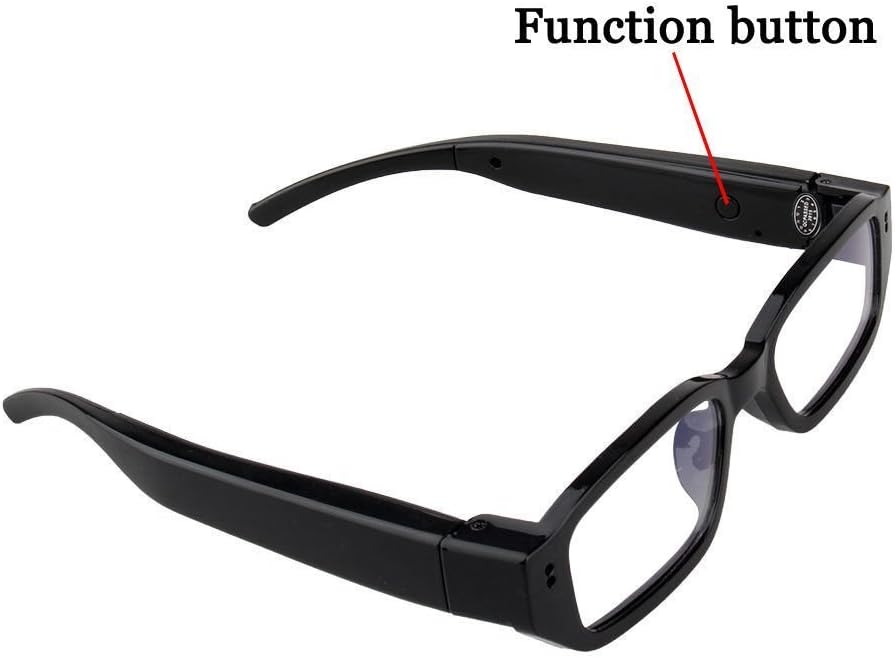
Image: Location of the function button on the eyewear arm.
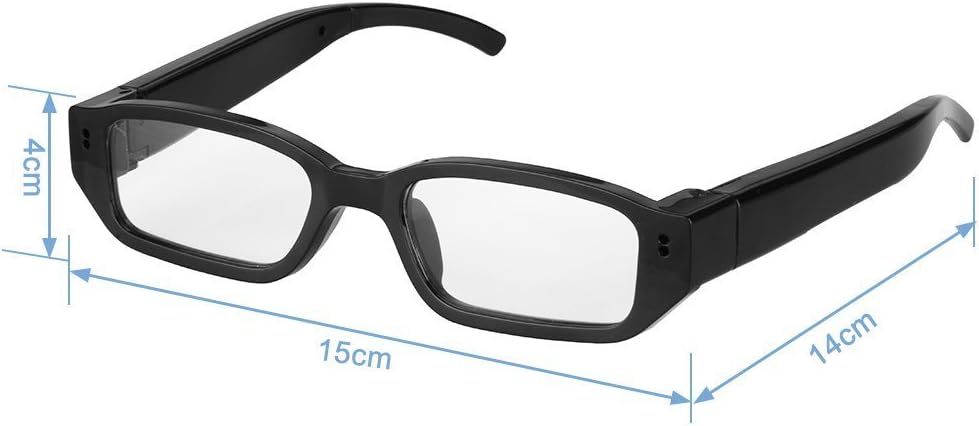
Image: Dimensional view of the eyewear, indicating approximate measurements.
Setup
1. Charging the Battery
Before first use, fully charge the device. Connect the eyewear to a USB power source (e.g., computer USB port or 5V/500mAh USB adapter) using the provided USB cable. The indicator light will show charging status (specific light behavior not detailed in product info, assume standard charging indicator). A full charge typically takes 1-2 hours and provides 1-2 hours of operation.
2. Inserting the Memory Card
The device supports a Micro SD (TF) card up to 32GB (not included). Locate the TF memory slot (refer to Product Overview image). Gently insert the Micro SD card with the gold contacts facing down until it clicks into place. To remove, push the card in slightly until it springs out.
Note: Ensure the device is powered off before inserting or removing the memory card to prevent data loss or damage.
Operating Instructions
1. Power On/Off
- Power On: Press and hold the ON/OFF record button (refer to Product Overview image) for approximately 2-3 seconds until the indicator light illuminates.
- Power Off: Press and hold the ON/OFF record button for approximately 3-5 seconds until the indicator light turns off. The device will automatically save any ongoing recording before powering down.
2. Recording Video
With the device powered on and a memory card inserted:
- Ensure the device is in video recording mode (indicator light status may vary, refer to full user manual for specific light patterns).
- Press the ON/OFF record button once to start video recording. The indicator light will change (e.g., blink) to signify recording is in progress.
- Press the ON/OFF record button again to stop recording. The video file will be saved to the memory card, and the indicator light will return to standby mode.
3. Taking Photos
With the device powered on and a memory card inserted:
- Ensure the device is in photo capture mode (if applicable, some devices have separate modes or a quick press for photos).
- Press the Function button (refer to Product Overview image) once to take a photo. The indicator light may flash briefly, and the image file will be saved to the memory card.
4. Connecting to a Computer (PC Camera / U-Disk Mode)
You can connect the eyewear to a computer to transfer files or use it as a PC camera.
- File Transfer (U-Disk Mode):
- Ensure the eyewear is powered off.
- Connect the eyewear to your computer using the USB cable.
- The computer should recognize the device as a removable disk. You can then access and transfer your video and photo files.
- PC Camera Mode:
- Connect the eyewear to your computer via USB.
- The device may automatically enter PC camera mode, or you might need to press a specific button (e.g., the Function button) while connected.
- Open a video conferencing application (e.g., Skype, Zoom) and select the "Excelvan Eyewear Camera" as your video input device.
Note: Driver installation may be required for some operating systems. If the device is not recognized, check your computer's device manager or refer to the manufacturer's website for drivers.
Maintenance
- Cleaning: Use the provided cleaning cloth to gently wipe the lenses and frame. Avoid using harsh chemicals or abrasive materials.
- Storage: Store the eyewear in the black pouch when not in use to protect it from dust and scratches. Keep it in a cool, dry place away from direct sunlight and extreme temperatures.
- Battery Care: To prolong battery life, avoid fully discharging the battery frequently. Charge the device regularly, even if not in use for extended periods.
Troubleshooting
- Device does not power on:
Ensure the battery is fully charged. Connect to a power source and try again. If the issue persists, try resetting the device using the reset button (refer to Product Overview image) with a small pin.
- Cannot record video/take photos:
Check if a Micro SD (TF) card is properly inserted and has sufficient free space. Ensure the card is formatted correctly (FAT32 is usually recommended). The battery might be low; charge the device.
- Computer does not recognize the device:
Try connecting to a different USB port or another computer. Ensure the USB cable is not damaged. If prompted, install necessary drivers. Try restarting both the device and the computer.
- Poor video/image quality:
Ensure the camera lens is clean and free from smudges. Record in well-lit environments. Avoid sudden movements during recording.
Specifications
| Feature | Detail |
|---|---|
| Brand | Excelvan |
| Model | KV7 (Reference: HD800) |
| Color | Black |
| Material | ABS Plastic |
| Lens Specification | 5.0 MP |
| Video Resolution | 1280 x 720p HD |
| Video Format | AVI |
| Image Resolution | 1280 x 720 |
| Audio | Stereo |
| Recording Frame Rate | Max 30 fps |
| USB Interface | 2.0 (High Speed) |
| Memory Support | Max. 32 GB Micro SD (TF) card (not included) |
| Power Supply | 280 mAh Lithium Polymer Battery |
| Power Duration | 1 - 2 hours |
| Power Adapter | DC 5 V / 500 mAh |
| Power Consumption | <0.8 W |
| Compatible Players | Windows Media Player, Real Player, Storm Codec |
| Operating System | WinXP, Win2000, Windows Vista, Windows XP, Win7 |
| Dimensions | Approx. 15cm (width) x 14cm (arm length) x 4cm (lens height) |
| Net Weight | 30 g |
Warranty and Support
This product comes with a standard manufacturer's warranty. For specific warranty terms, duration, and support inquiries, please refer to the warranty card included in your package or contact Excelvan customer service. Keep your purchase receipt as proof of purchase.
For technical assistance or further questions, please visit the official Excelvan website or contact their support channels.