
1. Introduction
Thank you for purchasing the Blow KidsTab7 Tablet. This device is designed to provide an engaging and safe digital experience for children, featuring a 7-inch display, Android 9.0 Go operating system, and a durable protective shell. This manual provides essential information on how to set up, operate, and maintain your tablet to ensure optimal performance and longevity.
2. Safety Information
Please read all safety instructions carefully before using the tablet. Failure to follow these instructions may result in electric shock, fire, or damage to the device.
- Choking Hazard: Keep small parts away from young children.
- Water Exposure: Do not expose the tablet to water or excessive moisture.
- Temperature: Avoid extreme temperatures. Do not leave the tablet in direct sunlight or in very cold environments.
- Charging: Use only the provided charger or a certified compatible charger. Supervise children during charging.
- Battery: Do not attempt to replace the battery yourself. Contact support if battery issues arise.
- Cleaning: Disconnect the tablet from power before cleaning. Use a soft, dry cloth.
- Hearing Protection: Prolonged use at high volume may cause hearing damage.
3. Package Contents
Ensure all items are present in the package:
- Blow KidsTab7 Tablet
- Protective Silicone Shell (pre-installed or separate)
- USB Charging Cable
- Power Adapter
- User Manual (this document)

This image displays the retail packaging box for the Blow KidsTab7 Multimedia Tablet. The box features the 'BLOW' brand logo, 'KIDS TAB 7' model name, and an image of the tablet. Icons for HD, Wi-Fi, and 7-inch screen are visible, along with various app icons and award seals.
4. Device Overview
Familiarize yourself with the physical components of your Blow KidsTab7 Tablet.
4.1 Front and Back View

This image displays the Blow KidsTab7 Tablet. On the left, the back of the tablet is visible, featuring the 'Multimedia tablet KIDS TAB 7 BLOW' branding, a rear camera, and a speaker grille. On the right, the tablet is shown from the front, encased in its pink protective shell, with the screen displaying colorful graphics.
4.2 Side and Top Views
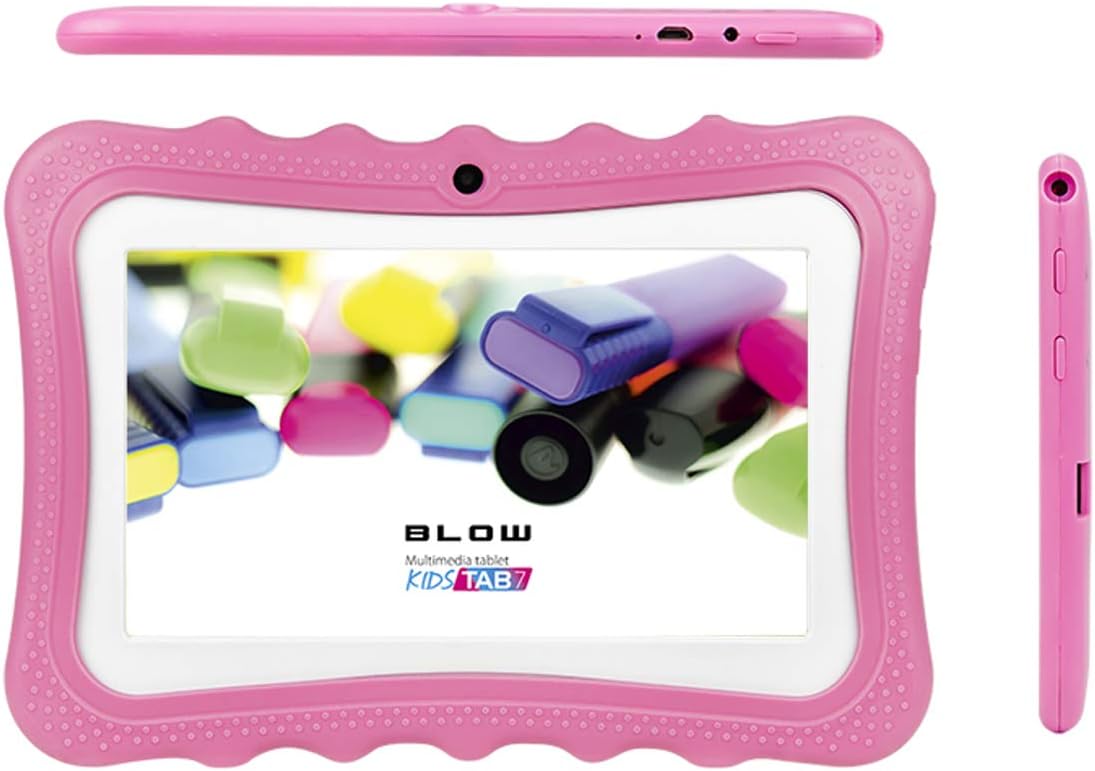
This image provides multiple perspectives of the Blow KidsTab7 Tablet. The top view shows the power button and charging port. The main view presents the tablet from the front, within its pink protective case, displaying the screen. A side view on the right highlights the volume buttons and headphone jack.
4.3 Protective Shell and Kickstand

This image illustrates the Blow KidsTab7 Tablet separated from its pink protective shell. The shell is shown on the left, highlighting its textured design and cutouts. The tablet itself is on the right, displaying its screen with colorful content.

The image shows the back of the Blow KidsTab7 Tablet, still in its pink protective case. A pink, dog-shaped kickstand is attached, allowing the tablet to stand upright. The rear camera and speaker grille are also visible.
5. Setup
5.1 Initial Charging
Before first use, fully charge the tablet for approximately 3-4 hours.
- Connect the USB charging cable to the tablet's charging port.
- Connect the other end of the USB cable to the power adapter.
- Plug the power adapter into a wall outlet.
- The battery icon on the screen will indicate charging status.
5.2 Powering On/Off
- To Power On: Press and hold the Power button (located on the top edge) for a few seconds until the screen lights up.
- To Power Off: Press and hold the Power button until a menu appears. Select 'Power off' and confirm.
- To Restart: Press and hold the Power button until a menu appears. Select 'Restart' and confirm.
5.3 Connecting to Wi-Fi
To access the internet and download apps, connect your tablet to a Wi-Fi network.
- From the home screen, swipe down from the top to open the Quick Settings panel.
- Tap and hold the Wi-Fi icon to open Wi-Fi settings.
- Ensure Wi-Fi is toggled 'On'.
- Select your desired Wi-Fi network from the list.
- Enter the network password if prompted, then tap 'Connect'.
5.4 Initial Device Setup
Follow the on-screen prompts for initial setup, which typically includes:
- Language selection
- Time zone and date settings
- Google account sign-in (required for Play Store access)
- Accepting terms and conditions
6. Operating Instructions
6.1 Basic Navigation
- Touch: Tap an icon to open an app or select an item.
- Swipe: Drag your finger across the screen to scroll through pages or lists.
- Pinch-to-Zoom: Use two fingers to zoom in or out on images and web pages.
- Home Button: Tap the circle icon at the bottom of the screen to return to the home screen.
- Back Button: Tap the triangle icon to go back to the previous screen.
- Recent Apps: Tap the square icon to view and switch between recently used applications.
6.2 App Management
- Downloading Apps: Open the Google Play Store app, search for desired apps, and tap 'Install'.
- Uninstalling Apps: Go to Settings > Apps & notifications > See all apps. Select the app and tap 'Uninstall'.
- Organizing Apps: Drag and drop app icons on the home screen to rearrange them or create folders.
6.3 Parental Controls
The Android operating system offers built-in parental control features to manage content and screen time.
- Google Family Link: Download the Google Family Link app on your own device and the child's tablet to set up comprehensive controls, including app approvals, screen time limits, and location tracking.
- Google Play Store Controls: In the Play Store app, go to Settings > Parental controls to restrict content based on age ratings for apps, games, movies, and music.
- Digital Wellbeing: Access Settings > Digital Wellbeing & parental controls to monitor usage and set app timers.
7. Maintenance
7.1 Cleaning the Tablet
- Always power off the tablet and disconnect it from the charger before cleaning.
- Use a soft, lint-free cloth to gently wipe the screen and body.
- For stubborn marks, slightly dampen the cloth with water or a screen-safe cleaner. Avoid harsh chemicals.
- Clean the protective shell separately with mild soap and water if necessary, ensuring it is completely dry before reattaching.
7.2 Battery Care
- Avoid fully discharging the battery frequently. Charge it before it drops below 20%.
- Do not leave the tablet charging for extended periods after it reaches 100%.
- Store the tablet in a cool, dry place if not used for a long time, with the battery charged to about 50%.
7.3 Software Updates
Periodically check for software updates to ensure your tablet has the latest features and security patches. Go to Settings > System > Advanced > System update.
8. Troubleshooting
If you encounter issues with your tablet, refer to the following common solutions:
| Problem | Solution |
|---|---|
| Tablet will not power on | Ensure the battery is charged. Connect to the charger for at least 30 minutes, then try powering on again. |
| Cannot connect to Wi-Fi | Check if Wi-Fi is enabled in settings. Verify the Wi-Fi password. Restart your router and the tablet. |
| Apps are crashing or freezing | Close and reopen the app. Clear the app's cache (Settings > Apps & notifications > App info > Storage & cache > Clear cache). Restart the tablet. |
| Slow performance | Close unused apps. Clear cache for frequently used apps. Free up storage space by deleting unnecessary files. |
| Screen is unresponsive | Perform a forced restart by holding the Power button for about 10-15 seconds until the tablet restarts. |
9. Specifications
Key technical specifications for the Blow KidsTab7 Tablet (Model 79-006#):
| Feature | Detail |
|---|---|
| Brand | Blow |
| Model Number | 79-006# |
| Operating System | Android 9.0 Go |
| Screen Size | 7 Inches |
| Display Resolution | 1024 x 600 |
| Memory Storage Capacity | 8 GB |
| Wireless Communication | Bluetooth, Wi-Fi (802.11a) |
| Rear Webcam Resolution | 2 MP |
| Video Capture Resolution | HD 720p |
| Batteries | 1 Lithium Ion battery (included) |
| Lithium Battery Energy Content | 29.02 Watt Hours |
| Item Weight | 800 Grams |
| Hardware Interface | USB |
| Color | Pink |
10. Warranty and Support
The Blow KidsTab7 Tablet comes with a standard manufacturer's warranty. Please refer to the warranty card included in your package for specific terms and conditions, including warranty period and coverage details.
For technical support, troubleshooting assistance beyond this manual, or warranty claims, please contact Blow customer service. Contact information can typically be found on the product packaging or the official Blow website.
- Online Support: Visit the official Blow website for FAQs, support articles, and contact forms.
- Email Support: Refer to your warranty documentation for a support email address.
- Phone Support: Refer to your warranty documentation for a customer service phone number.
