
1. Introduction
This manual provides detailed instructions for the operation and maintenance of the iCarsoft BMM V3.0 Diagnostic Tool. This device is designed to assist in diagnosing and performing various service functions on BMW, Mini, and Rolls-Royce vehicles. Please read this manual thoroughly before using the device to ensure proper and safe operation.
2. Product Overview
The iCarsoft BMM V3.0 is a professional diagnostic scanner offering comprehensive system diagnostics and advanced service functions for specific vehicle brands. It is engineered to provide in-depth analysis and maintenance capabilities.

Image: The iCarsoft BMM V3.0 diagnostic tool, showcasing its user interface and main menu options.
Key Features:
- All System Diagnostics: Comprehensive scanning of all available vehicle systems.
- Bi-directional Control/Active Test: Ability to send commands to vehicle systems and components.
- Extensive Service Functions: Includes Oil Reset, EPB, SAS, BMS, ETC, D-P.Filter, ABS Bleeding, Injector Coding, TPMS Reset, and more.
- ECU Coding: For performance optimization, fuel efficiency, and software updates.
- Battery Test & Registration: Assess battery health and register new batteries.
- Full OBDII Functions: Standard OBDII diagnostic capabilities.
3. Setup
3.1 Connecting the Device
Locate the 16-pin OBDII diagnostic port in your vehicle, typically found under the dashboard on the driver's side. Connect the diagnostic tool's OBDII adapter securely to this port. Ensure the connection is firm.
3.2 Initial Power-Up
Once connected to the vehicle's OBDII port, the device will typically power on automatically. Follow the on-screen prompts to select your vehicle's make and model.
3.3 Software Updates
It is recommended to keep the device's software updated to ensure access to the latest vehicle models and functions. Updates are performed via a PC. Refer to the 'Maintenance' section for detailed update instructions.
3.4 Compatibility Check
Before purchasing or performing specific functions, verify compatibility with your vehicle model. This can be done through the manufacturer's official website.

Image: Instructions on how to check vehicle compatibility and available functions on the iCarsoft website.
4. Operating Instructions
4.1 General Navigation
The device features a user-friendly interface with directional buttons (up, down, left, right), 'ENTER' for selection, 'BACK' to return, and function keys (F1, F2) for quick access to specific features. Navigate through menus using the arrow keys and confirm selections with 'ENTER'.
4.2 Auto VIN Scan
The Auto VIN function allows the tool to automatically detect and identify vehicle information. If auto-scan is not supported for your vehicle, manual VIN input or selection is available.

Image: The Smart Auto VIN and Auto Scan feature, demonstrating how the tool automatically identifies vehicle information.
4.3 Diagnostics
This function performs a comprehensive scan of all vehicle systems to identify fault codes and provide detailed reports.
- Read/Clear Codes: Retrieve and erase diagnostic trouble codes (DTCs).
- Live Data Stream: View real-time data parameters from various sensors and modules.
- DTC Lookup: Access a built-in library for definitions of diagnostic trouble codes.
- Vehicle Health Report: Generate a summary of the vehicle's diagnostic status.

Image: Overview of all system diagnostics capabilities, illustrating the tool's ability to scan various vehicle systems and perform core diagnostic functions.
4.4 Service Functions (Resets)
The BMM V3.0 offers a wide range of service reset functions to assist with vehicle maintenance.
- Oil Reset Service: Resets the engine oil life system.
- EPB (Electronic Parking Brake Service): Deactivates and activates the brake control system.
- SAS (Steering Angle Calibration Service): Performs calibration for the Steering Angle Sensor.
- BMS (Battery Management System Service): Registers new batteries and clears fault information.
- ETC (Electronic Throttle Control Service): Resets the throttle actuator.
- D-P.Filter Service: Performs Diesel Particulate Filter regeneration.
- BLD (ABS Bleeding Service): Bleeds the brake system.
- INJ (Injector Coding Service): Codes new injector numbers.
- TPMS (Tire Pressure Monitor System Service): Resets tire pressure monitoring system.
- BSC (Body Stability Control Service): Performs body stability control system functions.
- ECM (Engine Control Service): Engine control module related services.
- TCM (Transmission Control Service): Transmission control module related services.
- IDL (Engine Idle Service): Adjusts engine idle parameters.
- MIS (Miscellaneous): Other various service functions.

Image: A visual representation of the extensive list of maintenance services available through the diagnostic tool.
4.5 Bi-directional Control / Active Test
This feature allows the diagnostic tool to send commands to vehicle systems and components to perform specific tests, verifying their functionality. This is useful for pinpointing malfunctions.
- Injector Test: Activates individual injectors.
- Fuel Pump Test: Commands the fuel pump to operate.
- Window Test: Controls window movement.
- Cooling Fan Test: Activates the cooling fan.
- HVAC Test: Tests heating, ventilation, and air conditioning components.
- Wiper Test: Controls wiper operation.
- Door Lock Test: Tests door lock mechanisms.
- Horn Test: Activates the vehicle horn.

Image: A visual explanation of the bi-directional control and active test capabilities, showing how the tool interacts with vehicle components.
4.6 ECU Coding
ECU Coding allows for advanced vehicle customization and optimization. This function can:
- Improve engine power performance.
- Optimize fuel efficiency.
- Match new hardware units to the vehicle.
- Customize driving modes.
- Fix and update original software bugs.
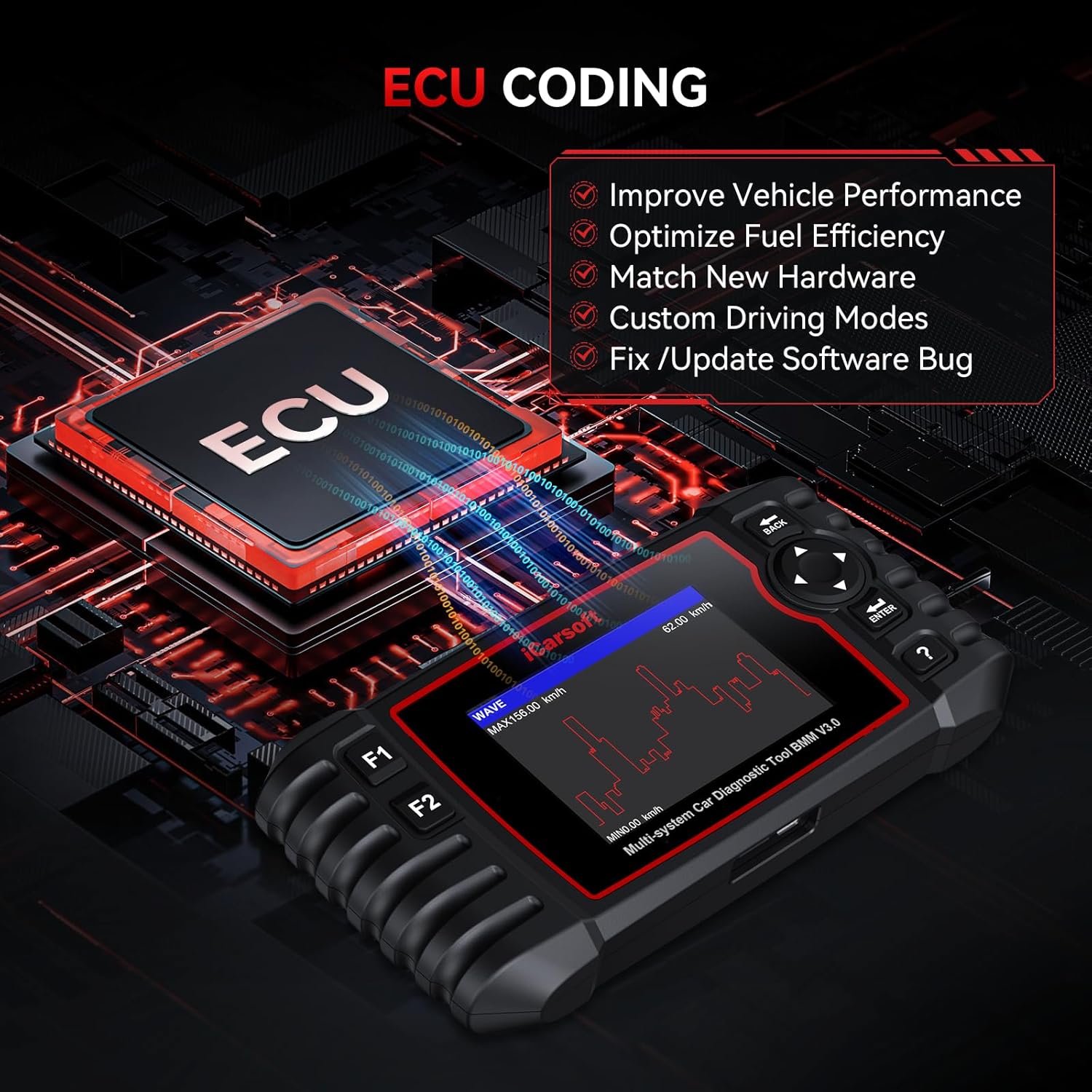
Image: The ECU Coding feature, highlighting its benefits for vehicle performance and software management.
4.7 Full OBDII Functions
The tool supports all standard OBDII diagnostic modes, providing essential engine and emission-related information.
- Read/Clear DTCs: Standard diagnostic trouble code management.
- Live Data: Real-time sensor data.
- O2 Sensor Tests: Monitors oxygen sensor performance.
- I/M Readiness: Checks emission system readiness.
- Freeze Frame Data: Captures vehicle conditions at the time a fault code was set.
- Read Vehicle Information: Displays VIN, CID, CVN.
- On-board Monitor Test: Accesses results of on-board diagnostic monitoring tests.
- EVAP Test: Tests the Evaporative Emission System.
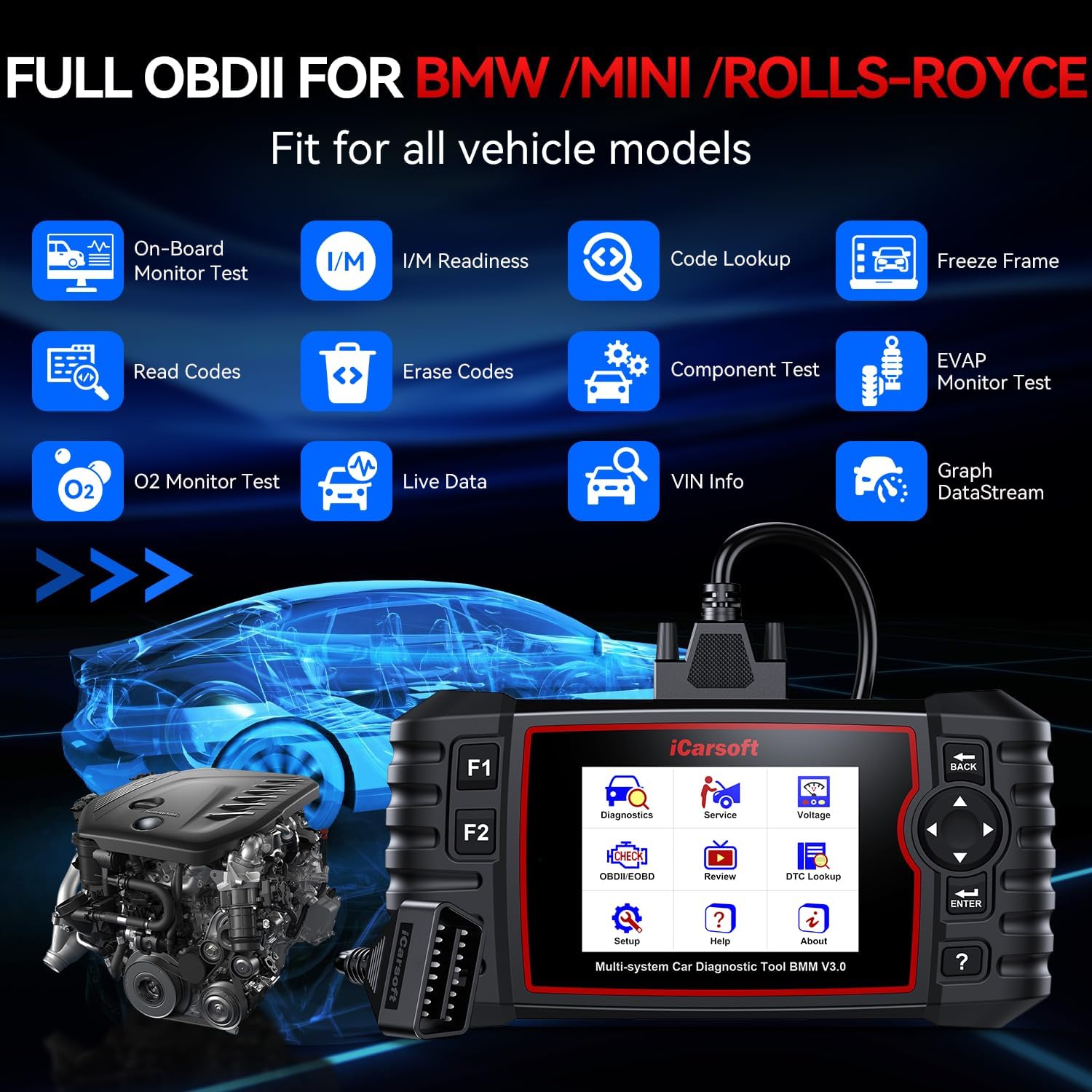
Image: A comprehensive view of the full OBDII functions supported by the iCarsoft BMM V3.0.
4.8 Battery Test and Registration
The tool includes functions to assess the health of your vehicle's battery and to properly register a new battery with the vehicle's Battery Management System (BMS).

Image: The battery test and registration feature, illustrating the tool's role in managing vehicle battery health.
5. Maintenance
5.1 Device Care
Keep the device clean and free from dust and moisture. Store it in a dry, cool environment when not in use. Avoid dropping the device or exposing it to extreme temperatures.
5.2 Software Updates
Regular software updates are crucial for maintaining optimal performance and compatibility with new vehicle models. Updates are free for life and can be performed via a PC.
- Connect the device to a computer using the provided USB cable.
- Download and install the update client software from the iCarsoft official website.
- Follow the on-screen instructions in the update client to download and install the latest software version onto your device.

Image: The process of updating the diagnostic tool's software via a personal computer.
6. Troubleshooting
If you encounter issues with your iCarsoft BMM V3.0, consider the following:
- Device Not Powering On: Ensure the OBDII connector is securely plugged into the vehicle's diagnostic port. Check the vehicle's battery status.
- Communication Error: Verify that the vehicle's ignition is on. Ensure the OBDII connector is properly seated. Try connecting to a different vehicle to rule out a vehicle-specific issue.
- Function Not Working: Some functions are vehicle-specific. Refer to the compatibility list on the iCarsoft website for your specific vehicle model. Ensure the software is up to date.
- Screen Freezes: Disconnect the device from the vehicle and reconnect. If the issue persists, perform a software update.
- Vehicle After 2023: For vehicles manufactured after 2023, contact iCarsoft support for compatibility verification as some newer models may have diagnostic limitations.
- Incorrect OBDII Port: The device comes with a 16-pin OBD2 adapter. If your vehicle has a 14-pin diagnostic socket, contact iCarsoft for a solution.
For persistent issues, please contact iCarsoft technical support.
7. Specifications
| Brand | iCarsoft |
| Model Number | i909 (BMM V3.0) |
| Item Weight | 15.8 ounces |
| Package Dimensions | 10.35 x 7.4 x 2.64 inches |
| Operating System | WIN PE (Professional Automotive Inspection OS) |
| UPC | 616245679620 |
| Date First Available | August 27, 2015 |
8. Warranty and Support
iCarsoft is committed to providing reliable diagnostic tools and comprehensive customer support.

Image: An overview of iCarsoft's lifetime service commitment for the BMM V3.0 diagnostic tool.
Warranty:
- 1-Year Warranty: Covers manufacturing defects.
- Lifetime Free Software Update: Ensures your device always has the latest features and vehicle coverage.
- Lifetime Hardware Free Repair: Repair services for hardware issues (excluding logistics costs).
Technical Support:
- Lifetime Technical Support: Access to technical engineers for assistance.
- 24/7/365 After-Sale Service: Continuous support for any queries or issues.
For support, please visit the official iCarsoft website or contact their customer service.


