
ZEBRONICS SW8590 RUCF
Zebronics SW8590 RUCF 5.1 Channel Multimedia Speakers User Manual
Model: SW8590 RUCF | Brand: ZEBRONICS
1. Important Safety Instructions
Please read these instructions carefully before operating the device and retain them for future reference. Adhere to all warnings and instructions provided with the product.
- Power Source: Ensure the power supply voltage matches the requirements specified on the speaker unit (AC 220V).
- Ventilation: Do not block any ventilation openings. Install in accordance with the manufacturer's instructions.
- Water and Moisture: Do not expose this apparatus to rain or moisture. Do not place objects filled with liquids, such as vases, on the apparatus.
- Heat: Do not install near any heat sources such as radiators, heat registers, stoves, or other apparatus (including amplifiers) that produce heat.
- Cleaning: Clean only with a dry cloth. Avoid using liquid or aerosol cleaners.
- Servicing: Do not attempt to service this product yourself. Refer all servicing to qualified service personnel.
- Cables: Protect the power cord from being walked on or pinched, particularly at plugs, convenience receptacles, and the point where they exit from the apparatus.
2. Package Contents
Verify that all items listed below are present in your package:
- Subwoofer Unit (1)
- Satellite Speakers (5)
- Remote Control (1)
- Audio Input Cable (1)
- User Manual (1)
3. Product Overview
The Zebronics SW8590 RUCF is a 5.1 channel multimedia speaker system designed to deliver immersive surround sound. It features a central subwoofer unit for deep bass and five satellite speakers for clear mid-range and treble frequencies.
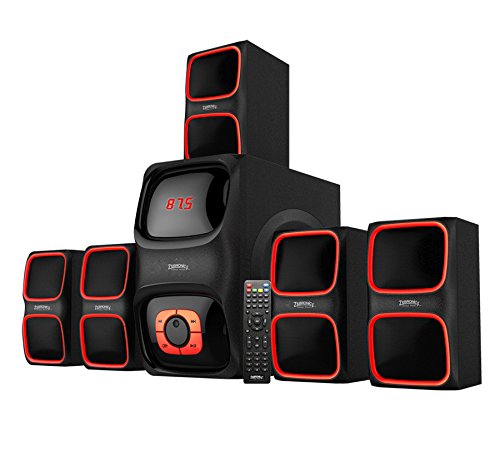
Figure 3.1: An overview of the Zebronics SW8590 RUCF 5.1 multimedia speaker system, showing the central subwoofer unit and five satellite speakers.
The system includes multiple input options such as USB, SD card, FM radio, and AUX, providing versatile connectivity for various audio sources. A remote control is provided for convenient operation.
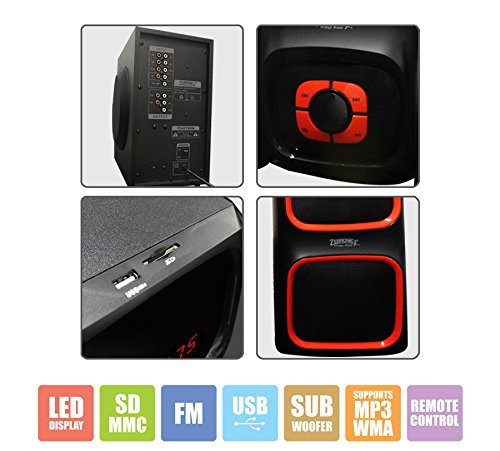
Figure 3.2: Close-up images illustrating the rear panel connections, front panel controls, USB/SD card slots, and speaker grille design of the Zebronics SW8590 RUCF speakers.
4. Setup
4.1 Speaker Placement
Proper placement of your 5.1 speaker system is crucial for optimal surround sound experience.
- Subwoofer: Place the subwoofer on the floor, preferably in a corner or near a wall, to enhance bass response.
- Front Speakers (Left, Right): Position these speakers on either side of your display, facing the listening area.
- Center Speaker: Place the center speaker directly above or below your display, ensuring it is centered with the listening position.
- Rear Speakers (Left, Right): Position these speakers behind the main listening area, slightly to the sides, to create an enveloping sound field.
4.2 Connecting Satellite Speakers
Connect the five satellite speakers to the corresponding output ports on the rear panel of the subwoofer unit. Ensure each speaker cable is securely inserted into its designated port (e.g., Front Left, Front Right, Center, Surround Left, Surround Right).
4.3 Connecting Audio Sources
The SW8590 RUCF offers multiple ways to connect your audio devices:
- AUX Input: Use the provided audio cable to connect the AUX input port on the subwoofer to the audio output (e.g., headphone jack) of your computer, laptop, smartphone, or TV.
- USB Input: Insert a USB flash drive containing MP3/WMA audio files into the USB port on the front panel.
- SD Card Input: Insert an SD/MMC card containing MP3/WMA audio files into the SD card slot on the front panel.
- FM Radio: The system has a built-in FM tuner. Ensure the FM antenna (if external) is properly connected and extended for better reception.
4.4 Power Connection
After all audio and speaker connections are made, plug the power cord of the subwoofer unit into a standard AC 220V wall outlet.
5. Operating Instructions
5.1 Power On/Off
Press the 'POWER' button on the front panel of the subwoofer or on the remote control to turn the speakers on or off.
5.2 Input Mode Selection
Press the 'MODE' button on the front panel or remote control to cycle through available input modes: AUX, USB, SD, FM.
- AUX Mode: For audio connected via the AUX input cable.
- USB Mode: Automatically plays audio from a connected USB drive.
- SD Mode: Automatically plays audio from an inserted SD card.
- FM Mode: Activates the built-in FM radio tuner.
5.3 Volume Control
Adjust the master volume using the 'VOLUME +/-' buttons on the front panel or the remote control.
5.4 Bass and Treble Adjustment
Use the dedicated 'BASS' and 'TREBLE' controls (if available on the remote or front panel) to fine-tune the low and high frequencies of the audio output.
5.5 Remote Control Functions
The remote control provides convenient access to various functions:
- Power: Turns the unit on/off.
- Mode: Switches between input sources (AUX, USB, SD, FM).
- Volume +/-: Adjusts the master volume.
- Mute: Mutes or unmutes the audio.
- Play/Pause: Controls playback for USB/SD modes.
- Previous/Next: Skips tracks in USB/SD modes or changes FM stations.
- FM Scan: Automatically scans and saves FM radio stations.
5.6 USB/SD Card Playback
When a USB drive or SD card is inserted, the system will automatically switch to the respective mode and begin playing compatible audio files (MP3/WMA). Use the Play/Pause, Previous, and Next buttons on the remote or front panel to control playback.
5.7 FM Radio Operation
In FM mode, press the 'SCAN' button on the remote control to automatically search and store available radio stations. Use the 'Previous/Next' buttons to navigate through the stored stations.
6. Maintenance
- Cleaning: Wipe the speaker surfaces with a soft, dry cloth. Do not use abrasive cleaners, waxes, or solvents.
- Storage: If not in use for an extended period, unplug the speakers from the power outlet and store them in a cool, dry place away from direct sunlight and extreme temperatures.
- Ventilation: Ensure the ventilation openings on the subwoofer are clear of dust and debris to prevent overheating.
7. Troubleshooting
Refer to the table below for common issues and their solutions.
| Problem | Possible Cause | Solution |
|---|---|---|
| No power | Power cord not connected; Power outlet faulty; Unit switched off. | Ensure power cord is securely plugged in; Test outlet with another device; Press the power button. |
| No sound | Incorrect input mode; Volume too low; Audio cable loose/faulty; Mute function active. | Select correct input mode; Increase volume; Check audio cable connections; Deactivate mute. |
| Distorted sound | Volume too high; Poor audio source quality; Loose speaker connections. | Reduce volume; Try a different audio source; Check all speaker cable connections. |
| Remote control not working | Batteries depleted; Obstruction between remote and unit; Remote sensor blocked. | Replace remote batteries; Remove obstructions; Ensure remote is pointed at the unit's sensor. |
| Poor FM reception | Weak signal; Antenna not extended/positioned correctly. | Extend and adjust the FM antenna for better signal; Try auto-scanning again. |
8. Specifications
| Feature | Specification |
|---|---|
| Model Name | SW8590 RUCF |
| Speaker Type | 5.1 Channel Surround Sound Multimedia Speakers |
| Total Output Power (RMS) | 65 Watts |
| Frequency Response | 450Hz to 18KHz |
| Impedance | 8 Ohm |
| Satellite Speaker Driver | Full range 2.25 inches |
| Connectivity Technology | USB |
| Input Modes | AUX, USB, SD Card, FM Radio |
| Control Method | Remote Control |
| Power Input | AC 220V |
| Compatible Devices | Desktop, Laptop, Radio, Smartphone |
| Item Weight | 4.47 kg |
| Indoor/Outdoor Usage | Indoor |
9. Warranty and Support
For warranty information, service, or technical support, please refer to the warranty card included with your product or visit the official ZEBRONICS website. Keep your purchase receipt as proof of purchase for warranty claims.
Related documentsSW8590 RUCF

Ask a question about this manual
Ask about setup, troubleshooting, compatibility, parts, safety, or missing instructions. Manuals+ will review the question and use this page’s manual context to help answer it.