
1. Introduction
This manual provides essential information for the safe and efficient use of your MSI S100 PLUS-001JP 2-in-1 Tablet/Notebook PC. Please read this manual thoroughly before operating the device and retain it for future reference. The MSI S100 PLUS-001JP is a versatile device featuring a 10.1-inch IPS multi-touch display and a detachable keyboard with a touchpad, designed for both tablet and notebook functionality.
2. Safety Information
- Power Supply: Use only the original power adapter provided with your device. Using unauthorized adapters may damage the device and void the warranty.
- Battery Care: Do not expose the battery to extreme temperatures or disassemble it. Dispose of batteries according to local regulations.
- Water and Moisture: Keep the device away from water, rain, and high humidity.
- Cleaning: Disconnect the power adapter before cleaning. Use a soft, dry cloth. Avoid liquid cleaners.
- Ventilation: Ensure proper ventilation. Do not block ventilation openings.
- Operating Temperature: Operate the device within the recommended temperature range (typically 5°C to 35°C).
3. Package Contents
Verify that all items are present and in good condition upon unpacking:
- MSI S100 PLUS-001JP Tablet
- Dedicated Keyboard Cover with Touchpad
- Power Adapter
- Quick Start Guide (may vary by region)
4. Product Overview
Familiarize yourself with the components and features of your MSI S100 PLUS-001JP.
4.1. Tablet Components

Figure 4.1: Front view of the MSI S100 PLUS-001JP tablet.
4.2. Ports and Buttons
The tablet features various ports and buttons for connectivity and control.

Figure 4.2: Side view showing the ports and buttons on the MSI S100 PLUS-001JP tablet. These include the power button, reset button, HDMI port, USB port, and DC 5V power input.
- Power Button: Press and hold to turn on/off or put the device to sleep.
- Reset Button: A small pinhole button for system reset in case of unresponsiveness.
- HDMI Port: Connect to an external display.
- USB Port: Connect USB devices.
- DC 5V Input: Connect the power adapter for charging.
- Headphone Jack: Connect headphones or external speakers.
4.3. Keyboard Cover
The included keyboard cover transforms your tablet into a notebook for enhanced productivity.

Figure 4.3: The detachable keyboard cover with integrated touchpad for the MSI S100 PLUS-001JP.
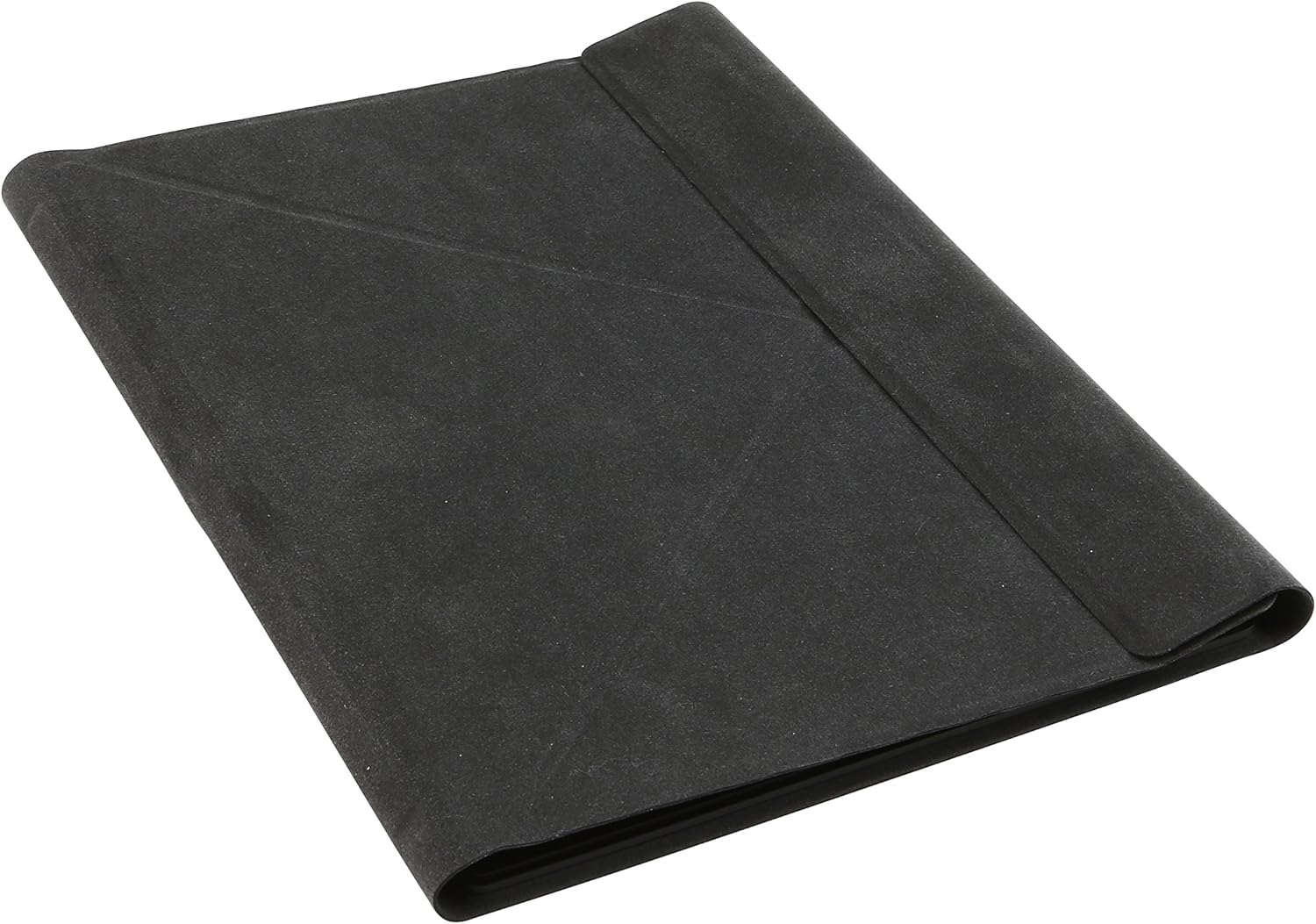
Figure 4.4: The MSI S100 PLUS-001JP tablet with the keyboard cover closed, providing protection and portability.
5. Setup
5.1. Initial Charging
- Connect the power adapter to the DC 5V input port on the tablet.
- Plug the power adapter into a wall outlet.
- Allow the device to charge for at least 8 hours before first use to ensure optimal battery performance. The charging indicator light will typically show the charging status.
5.2. Attaching the Keyboard Cover
Align the magnetic connector of the keyboard cover with the corresponding port on the tablet. The magnets will secure the keyboard in place.
5.3. First Boot and Windows Setup
- After initial charging, press and hold the Power Button until the screen turns on.
- Follow the on-screen instructions to complete the Windows 8.1 setup process, including language selection, network connection, and user account creation.
5.4. Microsoft Office Activation
Your device comes with Microsoft Office Home & Business 2013 pre-installed. Follow the prompts to activate your Office suite after completing the Windows setup. An internet connection is required for activation.
6. Operating the Device
6.1. Tablet Mode
When detached from the keyboard, the device functions as a tablet. Use the 10-point multi-touch display for navigation and interaction.

Figure 6.1: Demonstrating the 10-point multi-touch capabilities of the MSI S100 PLUS-001JP display.
6.2. Notebook Mode
Attach the keyboard cover to use the device as a traditional notebook. The touchpad functions as a mouse, and the physical keyboard allows for efficient typing.
6.3. Windows 8.1 Interface
The device runs on Windows 8.1 with Bing. Familiarize yourself with the Start screen, live tiles, and desktop environment.

Figure 6.2: The Windows 8.1 Start screen on the MSI S100 PLUS-001JP, featuring live tiles and access to applications.
7. Maintenance
- Cleaning the Screen: Use a soft, lint-free cloth specifically designed for electronics. Do not use abrasive cleaners or sprays directly on the screen.
- Cleaning the Body: Wipe the device body with a soft, slightly damp cloth. Avoid getting moisture into ports.
- Software Updates: Regularly check for and install Windows updates to ensure system stability and security.
- Storage: When not in use for extended periods, store the device in a cool, dry place.
8. Troubleshooting
This section addresses common issues you might encounter with your MSI S100 PLUS-001JP.
8.1. Device Does Not Turn On
- Ensure the device is sufficiently charged. Connect the power adapter and allow it to charge for at least 30 minutes before attempting to power on.
- Press and hold the power button firmly for several seconds.
- If the device remains unresponsive, locate the small reset pinhole (refer to Section 4.2) and gently press it with a straightened paperclip. Then, attempt to power on again.
8.2. Charging Issues
- Verify that the power adapter is securely connected to both the tablet and the wall outlet.
- Ensure the power outlet is functional.
- If the device does not charge while the keyboard is attached, try detaching the keyboard and charging the tablet directly.
8.3. Keyboard or Touchpad Not Responding
- Ensure the keyboard cover is securely attached to the tablet's magnetic connector.
- Detach and reattach the keyboard cover.
- Restart the tablet.
8.4. Slow Performance
- Close unnecessary applications running in the background.
- Ensure there is sufficient free storage space on the device.
- Run Windows Update to ensure all drivers and system files are current.
9. Specifications
Detailed technical specifications for the MSI S100 PLUS-001JP.

Figure 9.1: Physical dimensions of the MSI S100 PLUS-001JP tablet.
| Feature | Specification |
|---|---|
| Model Name | S100 PLUS-001JP |
| Operating System | Windows 8.1 with Bing |
| Processor | Intel Atom Z3735F (Quad-Core, 1.33GHz) |
| Graphics | Integrated Intel HD Graphics |
| Memory (RAM) | 2GB DDR3 |
| Storage | 32GB SSD |
| Display | 10.1-inch IPS LCD, 1280x800 resolution, 10-point Multi-Touch |
| Cameras | Front and Rear 2.0 Megapixel |
| Wireless Connectivity | IEEE 802.11b/g/n, Bluetooth 4.0 |
| Ports | USB, HDMI, Headphone Jack, DC 5V Input |
| Battery | 7500mAh |
| Included Software | Microsoft Office Home & Business 2013 |
| Weight | Approximately 0.6 kg (tablet only) |
10. Warranty and Support
10.1. Warranty Information
The MSI S100 PLUS-001JP comes with a 1-year limited warranty from the date of purchase. This warranty covers manufacturing defects under normal use. Please retain your proof of purchase for warranty claims. The warranty does not cover damage caused by misuse, accidents, unauthorized modifications, or external factors.
10.2. Customer Support
For technical assistance, warranty service, or product-related inquiries, please contact MSI customer support or the retailer from whom you purchased the device. Refer to the official MSI website for the most up-to-date support contact information.