
IQ Sound SC-6D
User Manual for Mini Key Chain Digital Photo Viewer
Model: SC-6D
Introduction
This manual provides detailed instructions for the setup, operation, and maintenance of your IQ Sound Mini Key Chain Digital Photo Viewer, model SC-6D. Please read this manual thoroughly before using the device to ensure proper functionality and longevity.

Image: The IQ Sound Mini Key Chain Digital Photo Viewer, model SC-6D, shown in its clear retail packaging, highlighting its compact size and key chain attachment.
Package Contents
Verify that all items are present in the package:
- Mini Key Chain Digital Photo Viewer (SC-6D)
- USB Cable
- Key Chain Attachment
- Software CD (for photo management)
- User Manual (this document)
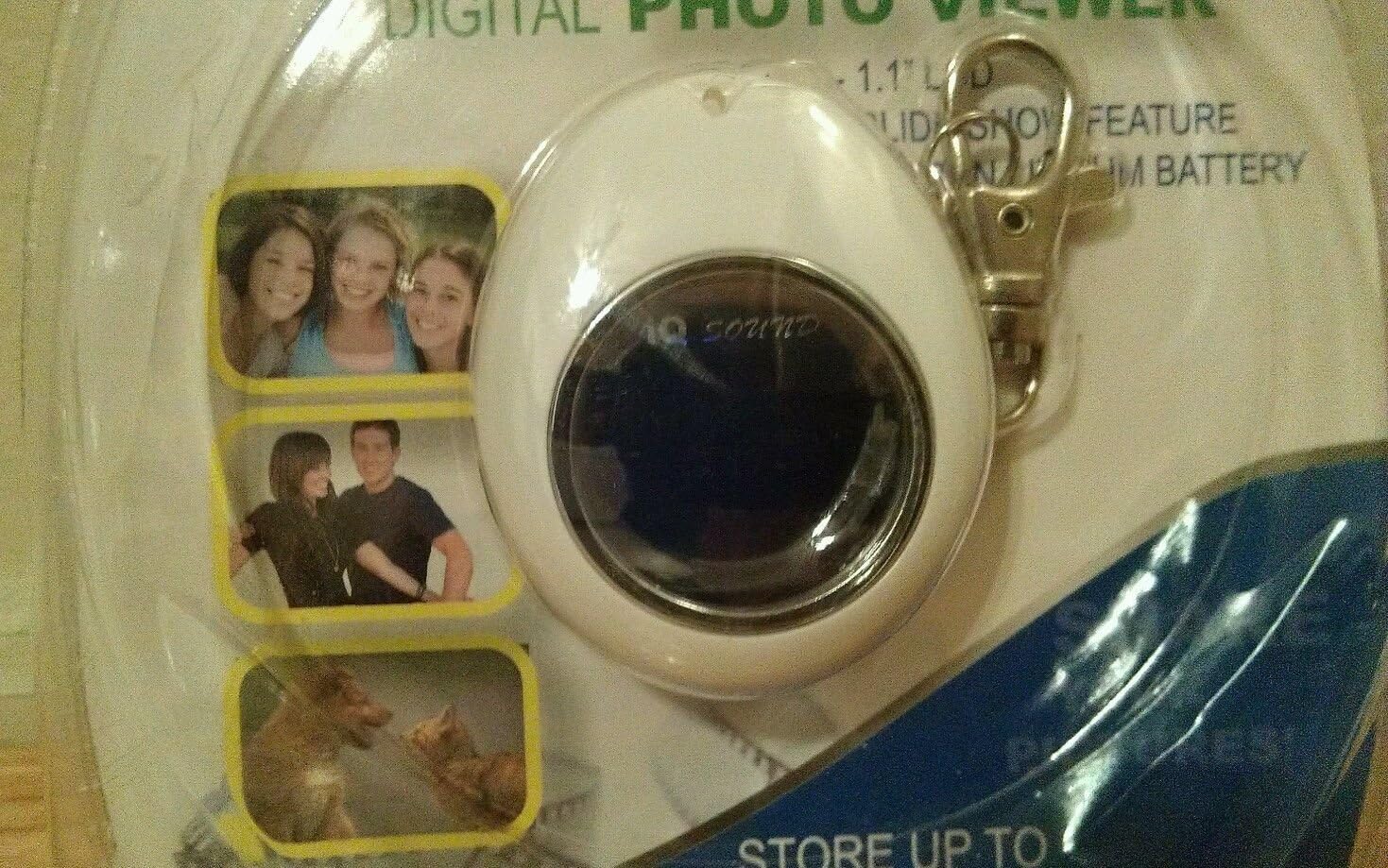
Image: A close-up view of the IQ Sound Mini Key Chain Digital Photo Viewer, showing its 1.1-inch LCD screen and the attached key chain clip, still within its original packaging.
Setup
Charging the Device
The Mini Key Chain Digital Photo Viewer is equipped with a built-in lithium rechargeable battery. Before first use, fully charge the device.
- Connect the small end of the provided USB cable to the USB port on the photo viewer.
- Connect the larger end of the USB cable to an available USB port on your computer or a compatible USB wall adapter (not included).
- The device will indicate charging status (e.g., an LED indicator). Charging typically takes 1-2 hours.
- Once fully charged, disconnect the USB cable.
Installing Software
To transfer and manage photos, you need to install the accompanying software on your PC. The device is PC compatible.
- Insert the provided software CD into your computer's CD/DVD drive.
- Follow the on-screen instructions to install the photo management software. If the installer does not launch automatically, navigate to the CD drive in "My Computer" or "This PC" and run the "setup.exe" or "install.exe" file.
- Once installed, you can launch the software to browse, crop, and transfer photos to your device.
Operating Instructions
Transferring Photos
The device can store up to 150 photos. Use the installed software to transfer images.
- Ensure the photo viewer is connected to your PC via the USB cable.
- Launch the photo management software.
- Within the software, select the photos you wish to transfer. The software allows you to browse and crop images before transfer.
- Initiate the transfer process. The software will automatically resize and optimize images for the 1.1" LCD display (SVGA resolution).
- Once transfer is complete, safely eject the device from your computer before disconnecting the USB cable.
Viewing Photos
The device features a 1.1" LCD display for viewing your stored images.
- Power On/Off: Locate the power button (usually a small button on the side or back). Press and hold to turn the device on or off.
- Navigation: Use the navigation buttons (if present, typically two buttons for 'next' and 'previous' or a single multi-function button) to cycle through your stored photos.
- Slideshow Feature: The device may have an automatic slideshow feature. Refer to the on-screen prompts or specific button functions for activation.
Maintenance
Cleaning
- Use a soft, dry, lint-free cloth to clean the device's exterior and screen.
- Do not use liquid cleaners, aerosols, or abrasive solvents.
Storage
- Store the device in a cool, dry place away from direct sunlight and extreme temperatures.
- If storing for extended periods, ensure the battery is partially charged (around 50%) to preserve battery life.
Troubleshooting
| Problem | Possible Cause | Solution |
|---|---|---|
| Device does not turn on. | Battery is depleted. | Charge the device using the provided USB cable. |
| Cannot transfer photos. | Software not installed or device not connected properly. | Ensure software is installed and the USB cable is securely connected to both the device and the PC. Try a different USB port. |
| Photos appear distorted or low quality. | Original image resolution too low or transfer error. | Ensure original photos are of reasonable quality. Re-transfer photos using the software, which optimizes them for the device's screen. |
| Device not recognized by PC. | Driver issue or faulty USB connection. | Try a different USB port or cable. Restart your computer. Reinstall the photo management software. |
Specifications
| Feature | Detail |
|---|---|
| Model | SC-6D |
| Brand | IQ Sound |
| Display Type | LCD |
| Screen Size | 1.1 inches (2" / 3 cm visible screen diagonal) |
| Resolution | SVGA |
| Storage Capacity | Up to 150 photos |
| Battery | Lithium Rechargeable |
| Connectivity | USB |
| Compatible Devices | Personal Computer |
| Actual Size (approx.) | 45 x 55 x 20.5 mm |
| Item Weight | 7.2 ounces |
| Package Dimensions | 8 x 5 x 1.5 inches |

Image: Two IQ Sound Mini Key Chain Digital Photo Viewers, model SC-6D, displayed together in their multi-pack retail packaging, illustrating the product's compact design.
Warranty and Support
Specific warranty information for the IQ Sound Mini Key Chain Digital Photo Viewer (SC-6D) is not provided in this document. Please refer to the product packaging or contact IQ Sound customer support for warranty details.
For technical support or further assistance, please visit the official IQ Sound website or consult the contact information provided with your purchase documentation.
Ask a question about this manual
Ask about setup, troubleshooting, compatibility, parts, safety, or missing instructions. Manuals+ will review the question and use this page’s manual context to help answer it.