
1. Introduction
The iCES ICR-210 is a versatile FM clock radio designed to provide reliable timekeeping, alarm functions, and FM radio entertainment. Its compact design and user-friendly controls make it an ideal companion for your bedside table or office desk. This manual provides detailed instructions for setting up and operating your new clock radio.

Figure 1.1: Front view of the iCES ICR-210 FM Clock Radio, showing the LED display and control buttons.
2. Package Contents
Please check the package for the following items:
- iCES ICR-210 FM Clock Radio
- Multilingual Operating Instructions (this manual)

Figure 2.1: Contents of the iCES ICR-210 package, including the clock radio, power cable, and manual.
3. Product Features
- FM clock radio with PLL (Phase-Locked Loop) tuning for stable reception.
- 0.6-inch LED display for clear time and frequency indication.
- Dual alarm function, allowing two separate alarm times to be set.
- Alarm selectable between FM radio or traditional buzzer.
- Snooze function for temporary alarm pause.
- Sleep timer function for falling asleep to music.
- Clear placement of control buttons for easy operation.
- Battery backup compartment for time and alarm settings retention during power outages (3V storage battery not included).
4. Setup
4.1 Power Connection
- Unpack the clock radio and place it on a stable, flat surface.
- Connect the AC power cord to the power input on the back of the unit.
- Plug the other end of the power cord into a standard AC 230V ~ 50Hz wall outlet.
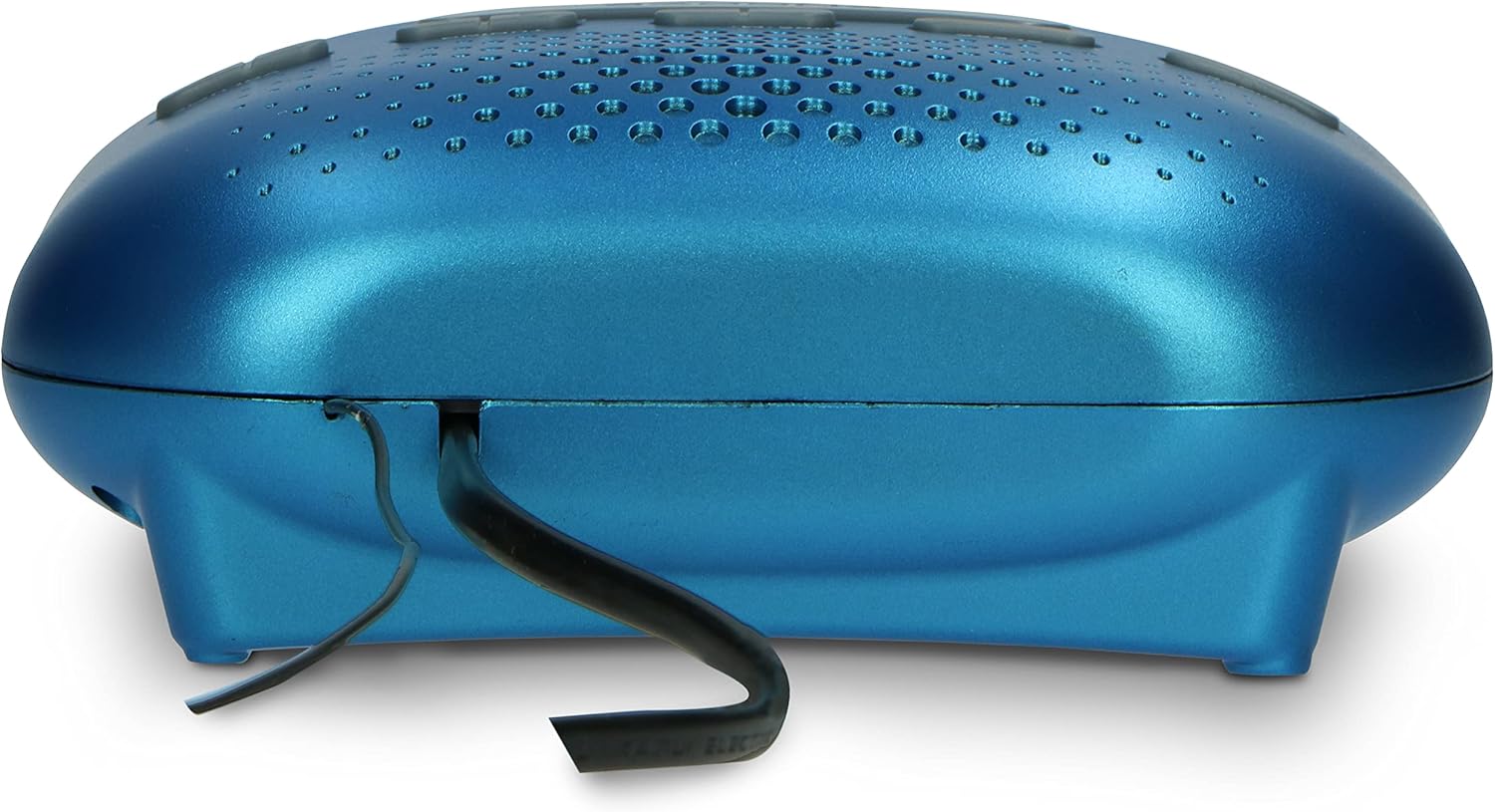
Figure 4.1: Rear view of the clock radio, illustrating the power cord connection.
4.2 Battery Backup (Optional)
To retain time and alarm settings during a power interruption, install a 3V storage battery (not included) into the battery compartment located on the bottom of the unit. Ensure correct polarity (+/-) when inserting the battery.
4.3 Antenna
For optimal FM radio reception, fully extend the built-in wire antenna located at the back of the unit. Adjust its position for the best signal.
5. Operating Instructions
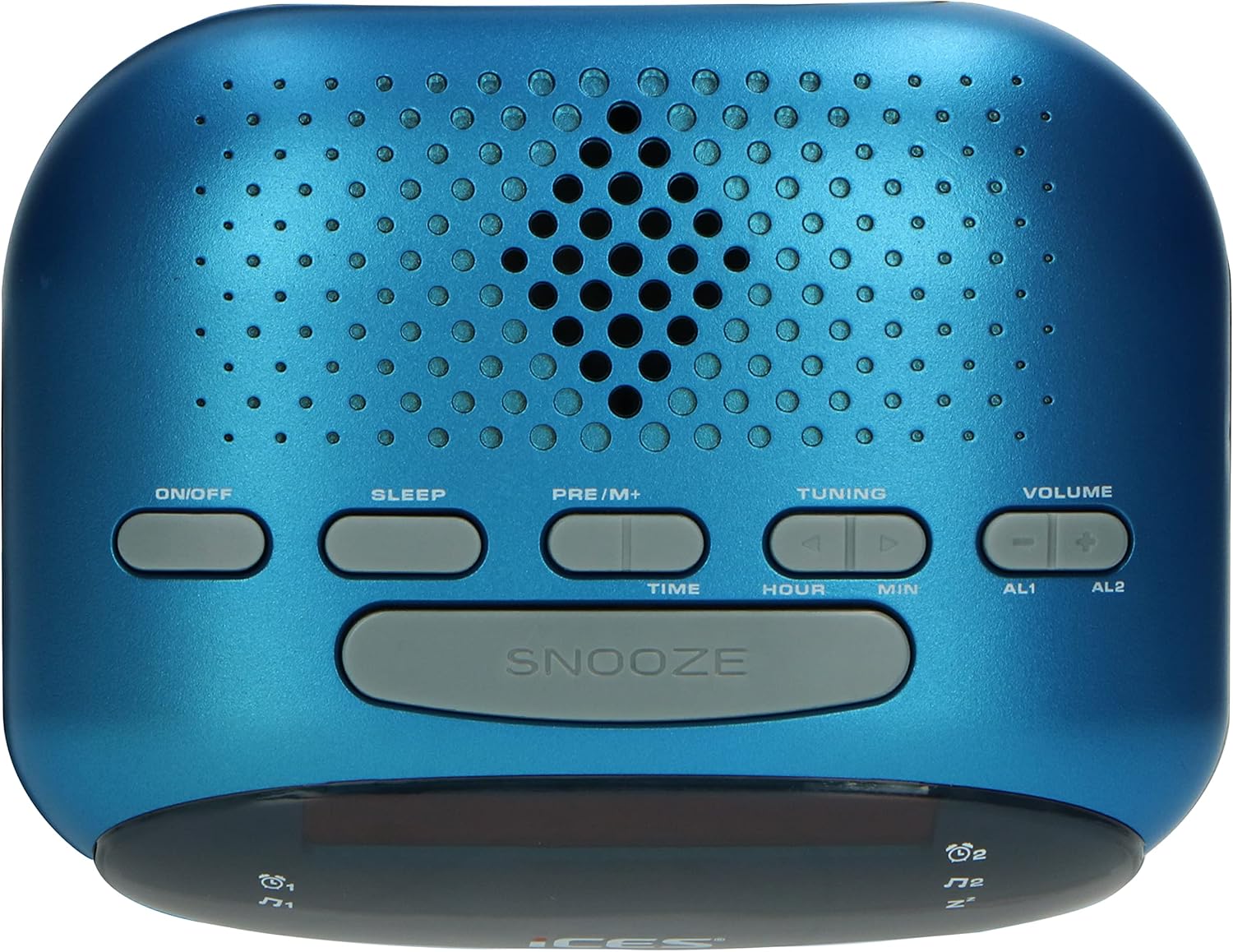
Figure 5.1: Top view of the clock radio, highlighting the control buttons.
5.1 Setting the Time
- Press and hold the TIME button until the display flashes.
- Press the HOUR button to set the hour.
- Press the MIN button to set the minute.
- Press the TIME button again to confirm and exit time setting mode.
5.2 Setting the Alarm
The ICR-210 features two independent alarms (AL1 and AL2).
- Press and hold the AL1 or AL2 button until the display flashes.
- Press the HOUR button to set the alarm hour.
- Press the MIN button to set the alarm minute.
- Press the AL1 or AL2 button again to select the alarm source: Buzzer or Radio. The corresponding icon will appear on the display.
- Press the AL1 or AL2 button one more time to confirm and exit alarm setting mode.
5.3 Snooze Function
When the alarm sounds, press the large SNOOZE button to temporarily silence the alarm. The alarm will sound again after approximately 9 minutes.
5.4 Sleep Timer
The sleep timer allows you to fall asleep to the radio, which will automatically turn off after a set period.
- Press the SLEEP button repeatedly to cycle through available sleep times (e.g., 90, 60, 30, 15 minutes, OFF).
- The radio will play for the selected duration and then automatically turn off.
5.5 FM Radio Operation
- Press the ON/OFF button to turn on the radio.
- Press the TUNING buttons (▲ or ▼) to manually tune to a desired FM frequency. Press and hold to auto-scan for the next available station.
- Adjust the volume using the VOLUME buttons (+ or -).
- To save a preset station: Tune to the desired station, then press and hold the PRE/M+ button until the preset number flashes. Use the TUNING buttons to select a preset number (P01-P10), then press PRE/M+ again to confirm.
- To recall a preset station: Briefly press the PRE/M+ button repeatedly to cycle through saved presets.
6. Maintenance
6.1 Cleaning
To clean the unit, wipe the exterior with a soft, dry cloth. Do not use abrasive cleaners, waxes, or solvents as they may damage the finish. Ensure the unit is unplugged before cleaning.
6.2 Battery Replacement
If the battery backup is used, replace the 3V storage battery annually or when the time/alarm settings are no longer retained during power outages. Dispose of old batteries responsibly according to local regulations.
7. Troubleshooting
| Problem | Possible Cause | Solution |
|---|---|---|
| Unit does not power on. | Power cord not properly connected. | Ensure the power cord is securely plugged into the unit and the wall outlet. |
| No sound from radio. | Volume is too low or muted. | Increase the volume using the VOLUME + button. |
| Poor FM radio reception. | Antenna not extended or positioned correctly. | Fully extend the wire antenna and adjust its position for better reception. |
| Alarm does not sound. | Alarm not set or turned off. Incorrect alarm time. | Verify that the alarm is set and enabled (icon visible on display). Check the alarm time. |
| Time/settings lost after power outage. | Battery backup not installed or depleted. | Install a new 3V storage battery in the battery compartment. |
8. Specifications
| Model: | ICR-210 blue |
| Power Supply: | AC 230V ~ 50Hz |
| Battery Backup: | DC 3V (3V storage battery, not included) |
| Power Consumption: | Max./Standby: 6 W |
| Display: | 0.6 inch LED |
| Tuner Type: | PLL FM Radio |
| Dimensions (W x H x D): | 140 x 110 x 50 mm (5.5 x 4.3 x 2.0 inches) |
| Weight: | 0.320 kg (0.7 lbs) |
| Material: | Acrylonitrile Butadiene Styrene (ABS) |
9. Warranty and Support
For warranty information and technical support, please refer to the specific warranty card included with your product or visit the official iCES website. Keep your purchase receipt as proof of purchase for any warranty claims.


