
1. Introduction
The Tendak HDMI to Composite/S-Video Converter is designed to convert a digital HDMI signal into analog Composite Video (CVBS) or S-Video, along with L/R stereo audio. This allows modern HDMI-only devices to connect to older televisions, VCRs, or projectors that only have Composite or S-Video inputs. The converter supports various HDMI input resolutions up to 1080p and offers switchable PAL/NTSC output formats.
2. Features
- Converts HDMI signal to Composite Video (RCA) and L/R stereo audio output.
- Converts HDMI signal to S-Video analog video and L/R audio output.
- Note: This converter is uni-directional; it only converts HDMI to S-Video/RCA, not the other way around.
- Supports HDMI input resolutions: 480p(60Hz), 576p(50Hz), 720p(50Hz/60Hz), 1080i(50Hz/60Hz), 1080p(50Hz/60Hz).
- Features a PAL/NTSC switch for selecting the output video system.
- Output video: S-Video or Composite (RCA CVBS AV), 576p/i, 480p/i.
- Output audio: R/L analog.
- Compatible with a wide range of devices including Apple TV, Roku, Xbox, STB, VCR, Blu-ray, DVD, PS3, PS4, Laptops, TVs, and Projectors.
- Durable metal casing material.
- HDMI Version: Compatible with HDMI 1.3.
3. Package Contents
Please ensure all items are present in the package:
- 1 x HDMI to RCA/S-Video Converter (Model AV-068-BK)
- 1 x AC Power Adapter
- 1 x RCA Cable (1.5m/5ft)
- 1 x S-Video Cable (1.5m/5ft)
- 1 x User Manual (This document)

4. Product Overview
Familiarize yourself with the ports and switches on the converter unit.

Input Side (Top View)
- HDMI Input: Connect your HDMI source device (e.g., PC, game console, Blu-ray player).
- PAL/NTSC Switch: Toggles between PAL and NTSC video output standards. Select the standard compatible with your display device.
- VIDEO Switch (CVBS/S-VIDEO): Selects between Composite Video (CVBS) and S-Video output. Only one can be active at a time.
- LED Light: Indicates power status.
- Power (DC5V): Connect the included 5V AC power adapter here.
Output Side (Bottom View)
- S-Video Output: Connect to your display device's S-Video input using the S-Video cable.
- Video Output (CVBS - Yellow RCA): Connect to your display device's Composite Video input using the yellow RCA cable.
- L/R Audio Output (White/Red RCA): Connect to your display device's L/R stereo audio inputs using the white and red RCA cables.
5. Setup Instructions
Follow these steps to connect and set up your Tendak HDMI to Composite/S-Video Converter:
- Connect HDMI Source: Connect an HDMI cable (not included) from your source device (e.g., PC, game console, DVD player) to the HDMI Input port on the converter.

Image 5.1: HDMI input side of the converter. - Connect Analog Output:
- If using S-Video: Connect the included S-Video cable from the S-Video Output port on the converter to the S-Video input on your display device (TV, VCR, projector).
- If using Composite Video (RCA): Connect the included yellow RCA cable from the Video Output (CVBS) port on the converter to the yellow Composite Video input on your display device.
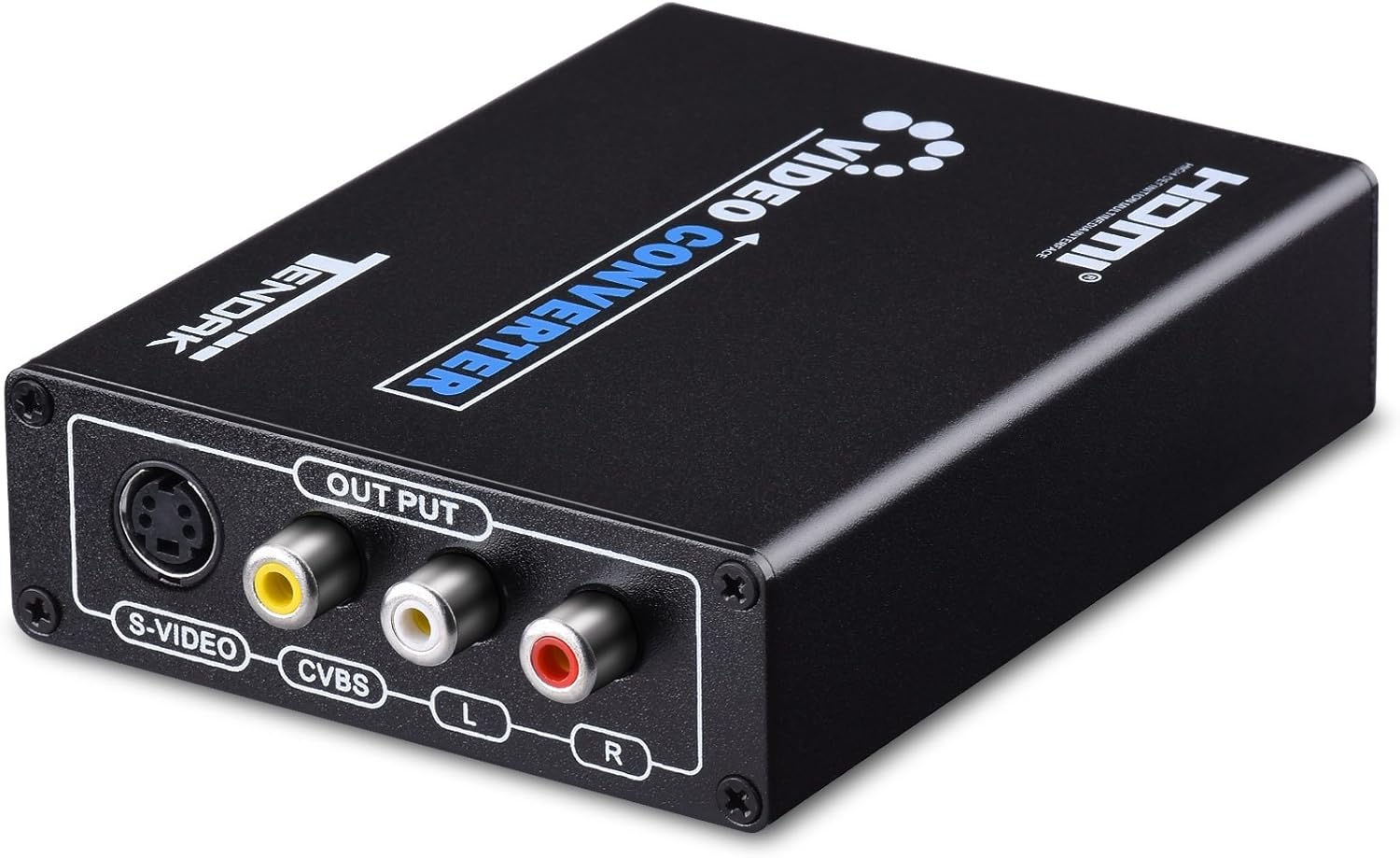
Image 5.2: S-Video and RCA output side of the converter. - Connect Audio Output: Connect the included white and red RCA cables from the L/R Audio Output ports on the converter to the corresponding L/R audio inputs on your display device or audio system.
- Select Output Type: Use the VIDEO Switch (CVBS/S-VIDEO) on the converter to select either Composite Video or S-Video output, matching your connection. Note: Simultaneous output of Composite Video and S-Video is not supported.
- Select Video System: Use the PAL/NTSC Switch to select the appropriate video system (PAL or NTSC) for your region and display device.
- Connect Power: Plug the included AC power adapter into the DC5V Power port on the converter, then plug the adapter into a wall outlet. The LED light will illuminate.

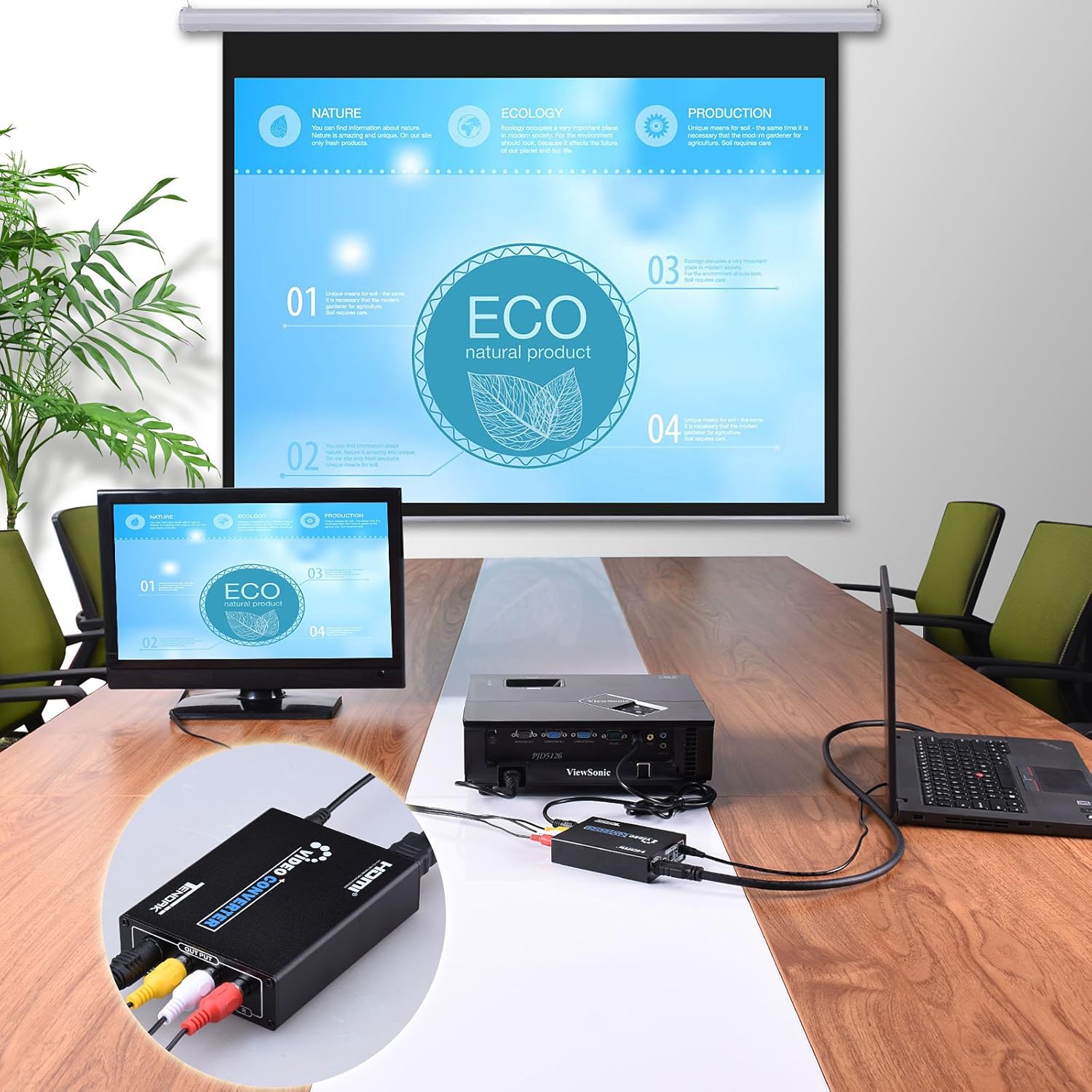
Image 5.3: Fully connected converter with input, output, and power cables. - Select Input on Display: Switch your television or display device to the correct AV or S-Video input source.
- Adjust Source Resolution (if needed): If you experience no signal, try adjusting the resolution of your HDMI source device to 480p, 576p, 720p, or 1080p. The maximum supported resolution for this converter is 1080p.

6. Operation
Once all connections are made and power is supplied, the converter will automatically process the HDMI signal. Ensure your display is set to the correct input channel (AV or S-Video).
6.1. Output Selection
- Use the VIDEO Switch to choose between Composite Video (CVBS) or S-Video output. For best picture quality, S-Video is generally recommended if your display supports it.
- Use the PAL/NTSC Switch to match the video standard of your display device. Incorrect selection may result in a black and white image or no image.
6.2. Aspect Ratio Considerations (PC Source)
When connecting a PC as an HDMI source to an older 4:3 aspect ratio display, widescreen content may appear squished. To correct this, you can adjust your PC's display settings:
- Connect the converter to your PC's HDMI output.
- On your PC, right-click the desktop and select "Display settings."
- Scroll down and click "Advanced Display settings."
- Ensure the Tendak converter's display adapter is selected.
- Click "Display adapter properties" for that device.
- In the adapter properties window, click "List all modes."
- Select a 4:3 aspect ratio resolution (e.g., 800x600, 1024x768) that is compatible with your display and apply it. You may need to try a few resolutions until the "Active signal mode" matches the "Desktop mode" in the Advanced Display settings.
- Once a suitable 4:3 resolution is set, content from your PC will display correctly on your 4:3 CRT or older display.
7. Troubleshooting
If you encounter issues, please refer to the following common problems and solutions:
| Problem | Solution |
|---|---|
| No Display/No Signal |
|
| Picture but No Sound |
|
| Black and White Image |
|
| Image is Squished (Widescreen on 4:3 TV) |
|
8. Specifications
| Model Number | AV-068-BK |
| HDMI Version | Compatible with HDMI 1.3 |
| Input HDMI Resolution Support | 480p(60Hz), 576p(50Hz), 720p(50Hz/60Hz), 1080i(50Hz/60Hz), 1080p(50Hz/60Hz) |
| Output Signal | CVBS (1.0Vpp), S-Video (Y:1.0Vpp, C:0.3Vpp) |
| Output Video Systems | PAL/NTSC (Switchable) |
| Output Video Impedance | 75 ohm |
| Product Dimensions (L x W x H) | 4.33 x 3.31 x 1.1 inches (11 x 8.4 x 2.8 cm) |
| Item Weight | 7.1 ounces (201 grams) |
| Material | Metal Casing |
| Power Supply | DC 5V (Included AC Adapter) |

9. Maintenance
To ensure the longevity and optimal performance of your Tendak converter, follow these simple maintenance guidelines:
- Cleaning: Use a soft, dry cloth to clean the exterior of the unit. Do not use liquid cleaners or aerosols.
- Storage: Store the device in a cool, dry place away from direct sunlight and extreme temperatures.
- Handling: Avoid dropping or subjecting the unit to strong impacts.
- Power: Disconnect the power adapter when the device is not in use for extended periods.
10. Warranty Information
Specific warranty details for Tendak products may vary by region and retailer. Please refer to the warranty information provided with your purchase documentation or visit the official Tendak website for the most up-to-date warranty policy.
11. Customer Support
If you require further assistance or encounter issues not covered in this manual, please contact Tendak customer support. Our support team aims to provide a resolution within 24 hours.
For contact information, please refer to the Tendak official website or your purchase platform.