
Introduction
Thank you for choosing the Smart Weigh SMS500 Digital Bathroom Scale. This scale is designed for accurate personal weight monitoring with advanced features such as smart step-on technology, auto-recognition for multiple users, and a unique dual-color display for weight change detection. Please read this manual carefully to ensure proper use and maintenance of your device.
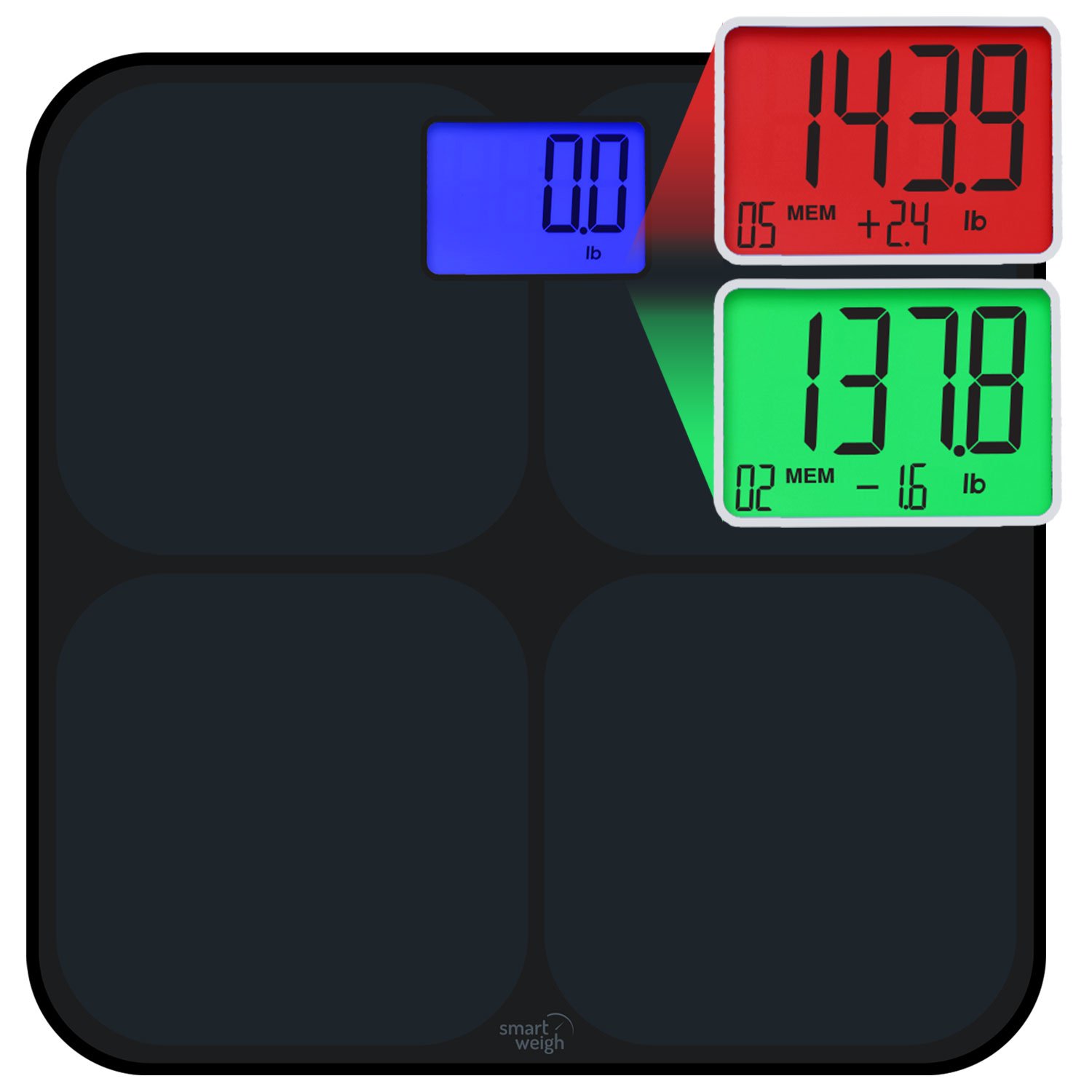
Image: Top view of the Smart Weigh SMS500 Digital Bathroom Scale, showing the black tempered glass platform and blue LED display.
Setup
1. Battery Installation
Your Smart Weigh SMS500 scale requires 4 AAA batteries, which are included. To install:
- Turn the scale over to access the battery compartment on the underside.
- Open the battery compartment cover.
- Insert the 4 AAA batteries, ensuring correct polarity (+/-) as indicated inside the compartment.
- Close the battery compartment cover securely.
2. Scale Placement
For accurate readings, place the scale on a hard, flat, and stable surface. Avoid carpets, rugs, or uneven flooring, as these can affect accuracy.
3. Initial Calibration
Before first use or if the scale has been moved, perform an initial calibration:
- Gently step onto the scale until the display lights up.
- Step off the scale and wait for the display to show "0.0" or turn off.
- The scale is now calibrated and ready for use.

Image: Angled view of the Smart Weigh SMS500 Digital Bathroom Scale, highlighting its sleek profile.
Operating Instructions
1. Taking a Measurement
The SMS500 features step-on technology, eliminating the need to tap the scale to turn it on.
- Step onto the center of the scale with bare feet.
- Stand still until your weight is displayed and stabilizes.
- The scale will automatically turn off after a few seconds.
2. User Recognition and Memory
This scale can store and recognize up to 8 user profiles based on their weight. When a user steps on, the scale attempts to match the current weight to a stored profile. If a match is found, it will display the user number (e.g., "U1", "U2") and then the weight.
- First Use for a User: The first time a person uses the scale, it will register their weight and assign them a user profile (U1-U8).
- Subsequent Uses: The scale will automatically recognize the user and display their current weight.
3. Dual-Color Weight Change Detection
The SMS500 provides visual feedback on weight changes compared to the last recorded measurement for a recognized user:
- If you have lost weight since your last measurement, the display will light up in green.
- If you have gained weight since your last measurement, the display will light up in red.
- If there is no significant change, the display will remain its standard blue color.
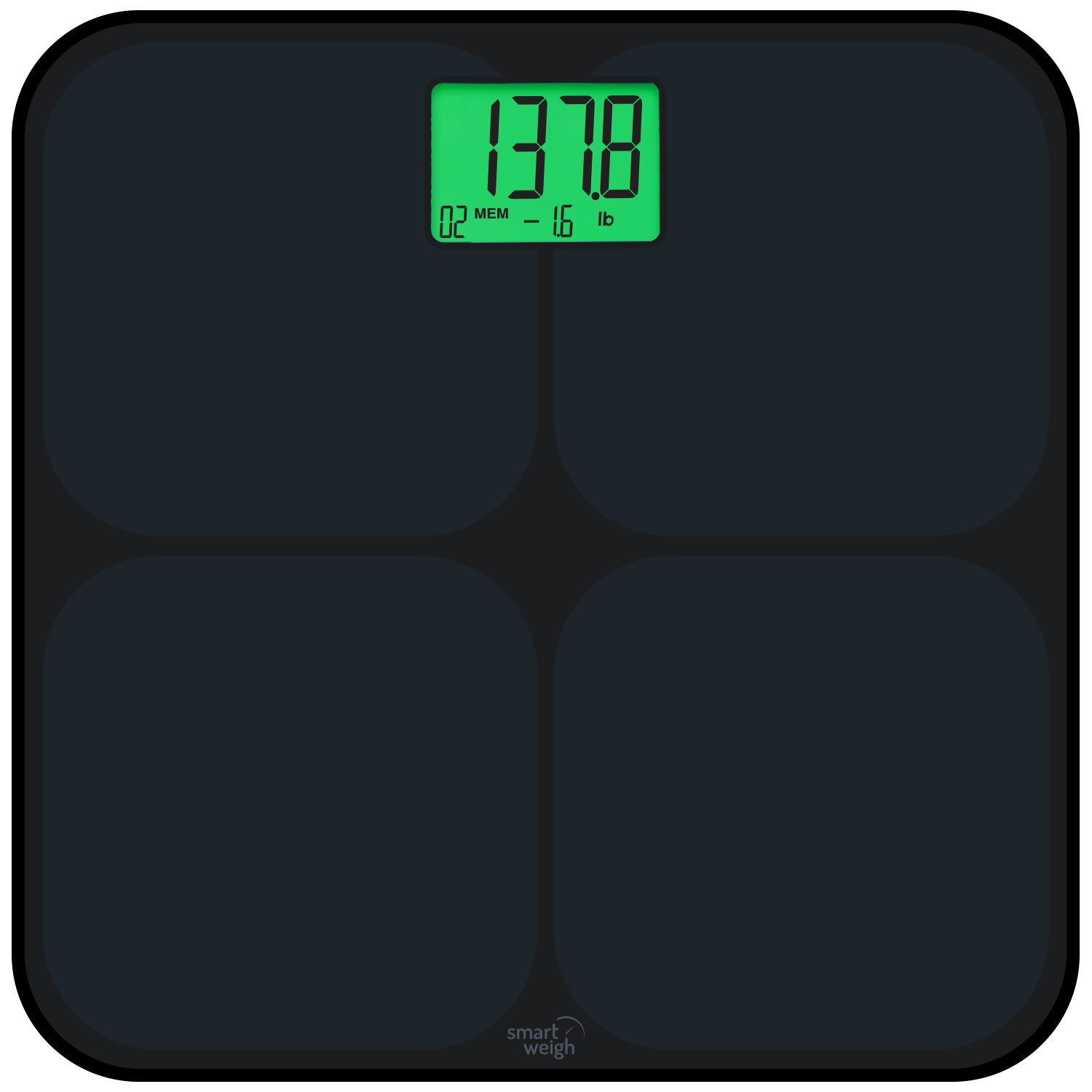
Image: Scale display showing a green backlight, indicating weight loss.
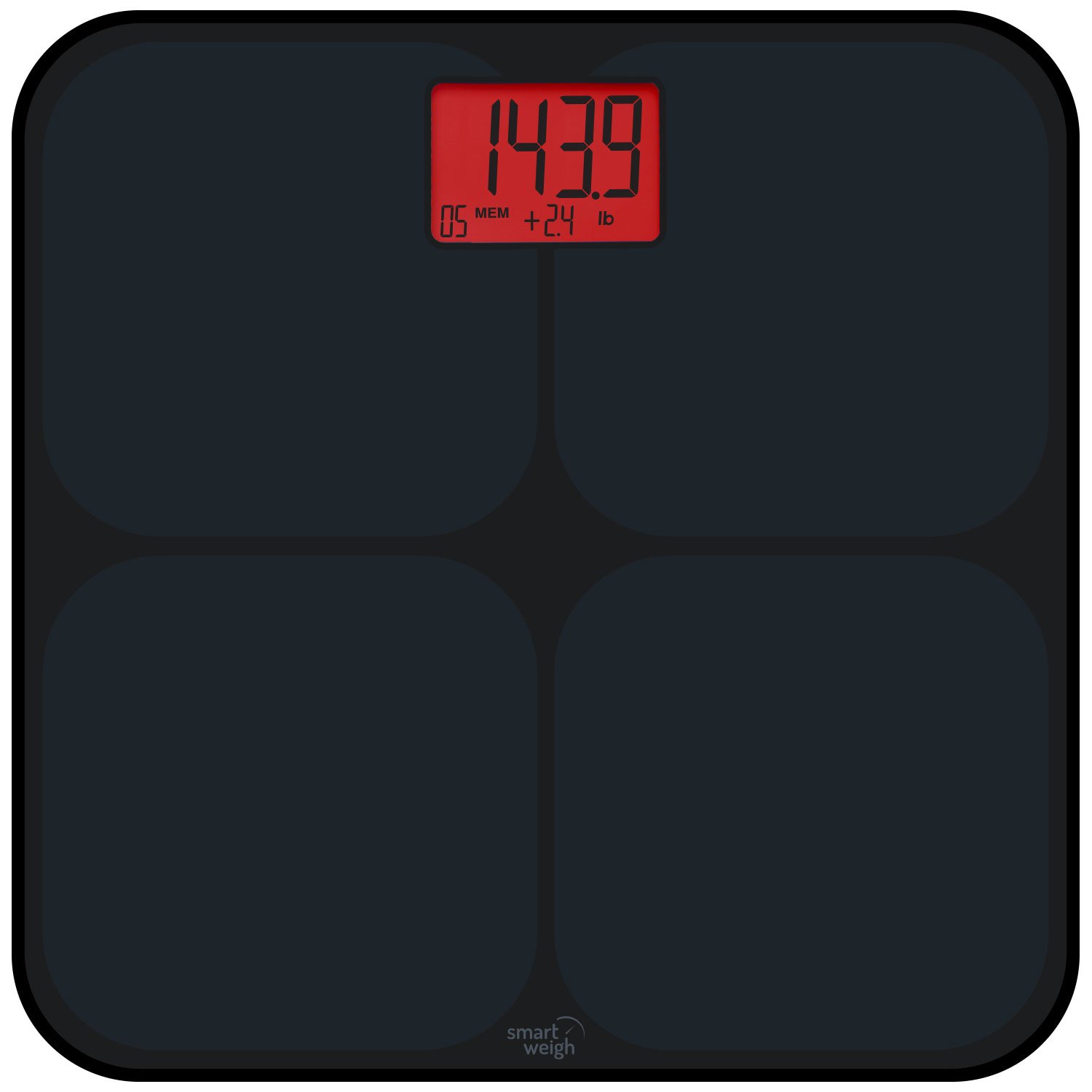
Image: Scale display showing a red backlight, indicating weight gain.
4. Weight Units
The scale measures weight in pounds (lbs) and ounces (oz). There is no unit conversion button on this model; it operates in lbs and oz only.
Maintenance
Cleaning
To clean your scale, wipe the surface with a soft, damp cloth. Do not use abrasive cleaners or immerse the scale in water. The tempered glass surface is easy to clean.
Battery Replacement
When the battery indicator appears on the display, replace all 4 AAA batteries with new ones. Refer to the "Battery Installation" section under Setup for instructions.
Storage
Store the scale in a cool, dry place. Avoid extreme temperatures and direct sunlight. Do not place heavy objects on the scale when not in use.

Image: Side view of the Smart Weigh SMS500 Digital Bathroom Scale, showing its slim profile.
Troubleshooting
- Inaccurate Readings: Ensure the scale is placed on a hard, flat, and stable surface. Carpets or uneven floors can cause inaccuracies. Perform initial calibration as described in the Setup section.
- "Lo" or No Display: This indicates low battery. Replace the 4 AAA batteries.
- "Err" Message: This may indicate an overload (weight exceeds 440 lbs) or a measurement error. Step off the scale and try again.
- User Recognition Issues: If two users have very similar weights, the scale might occasionally confuse them. Ensure you stand still on the scale. If issues persist, try clearing user data (refer to manufacturer support for specific instructions if available, as this model does not have a direct user clear button).
- Scale Alerts for Movement/Recalibration: The advanced sensor technology may alert you if the scale has been moved or requires recalibration. Simply perform the initial calibration steps.
Specifications
| Feature | Detail |
|---|---|
| Model Number | SMS500 |
| Capacity | 440 lbs (200 kg) |
| Measurement Units | Pounds (lbs), Ounces (oz) |
| Power Source | 4 x AAA batteries (included) |
| Product Dimensions | 31.75 x 31.75 x 2.54 cm (12.5 x 12.5 x 1 inches) |
| Material | Tempered Glass |
| User Profiles | Up to 8 users with auto-recognition |
| Display Type | LED/LCD with dual-color feedback (Green/Red) |
| Special Features | Step-on Technology, Auto Recognition, Weight Change Detection |
Warranty Information
The Smart Weigh SMS500 Digital Bathroom Scale comes with a 2-year manufacturer's warranty. This warranty covers defects in materials and workmanship under normal use. Please retain your proof of purchase for warranty claims. The warranty does not cover damage caused by misuse, accidents, unauthorized modifications, or failure to follow the instructions in this manual.
Support
For further assistance, technical support, or warranty inquiries, please contact Smart Weigh customer service. Refer to the product packaging or the official Smart Weigh website for current contact information.