
EUG PJA88W
EUG x660s+ 3D HDMI LED Projector User Manual
Model: PJA88W | Brand: EUG
1. Introduction
Thank you for purchasing the EUG x660s+ 3D HDMI LED Projector. This manual provides detailed instructions for setting up, operating, and maintaining your projector to ensure optimal performance and longevity. Please read this manual thoroughly before using the product.

Figure 1.1: The EUG x660s+ Projector, a compact and versatile device designed for home cinema and multimedia projection.
The EUG x660s+ is a versatile projector featuring a built-in Android system, WiFi connectivity, and DVB-T support, allowing for direct online video streaming, application installation, and reception of analog and digital TV signals. It supports various wireless protocols like DLNA, Miracast, and Airplay for seamless integration with your mobile devices and computers. With 2800 lumens brightness and a native resolution of 1280x720, it delivers a clear and vibrant viewing experience for home cinema, gaming, and presentations.
2. Product Overview
2.1. Package Contents

Figure 2.1: The image displays the EUG x660s+ projector, its retail packaging, and included accessories such as the remote control, various connection cables (HDMI, VGA, AV), and the user manual.
2.2. Projector Components

Figure 2.2: This diagram labels the key components of the projector, including the projection lens, infrared receiver, radiator inlets, adjustable lift leg, anti-dust mesh panel, keystone knob, power switch, signal connector, power wire connector, operation buttons, feature label, balance adjustment leg, two-dimensional code identification label, and hoisting screw holes.
2.3. Input/Output Ports
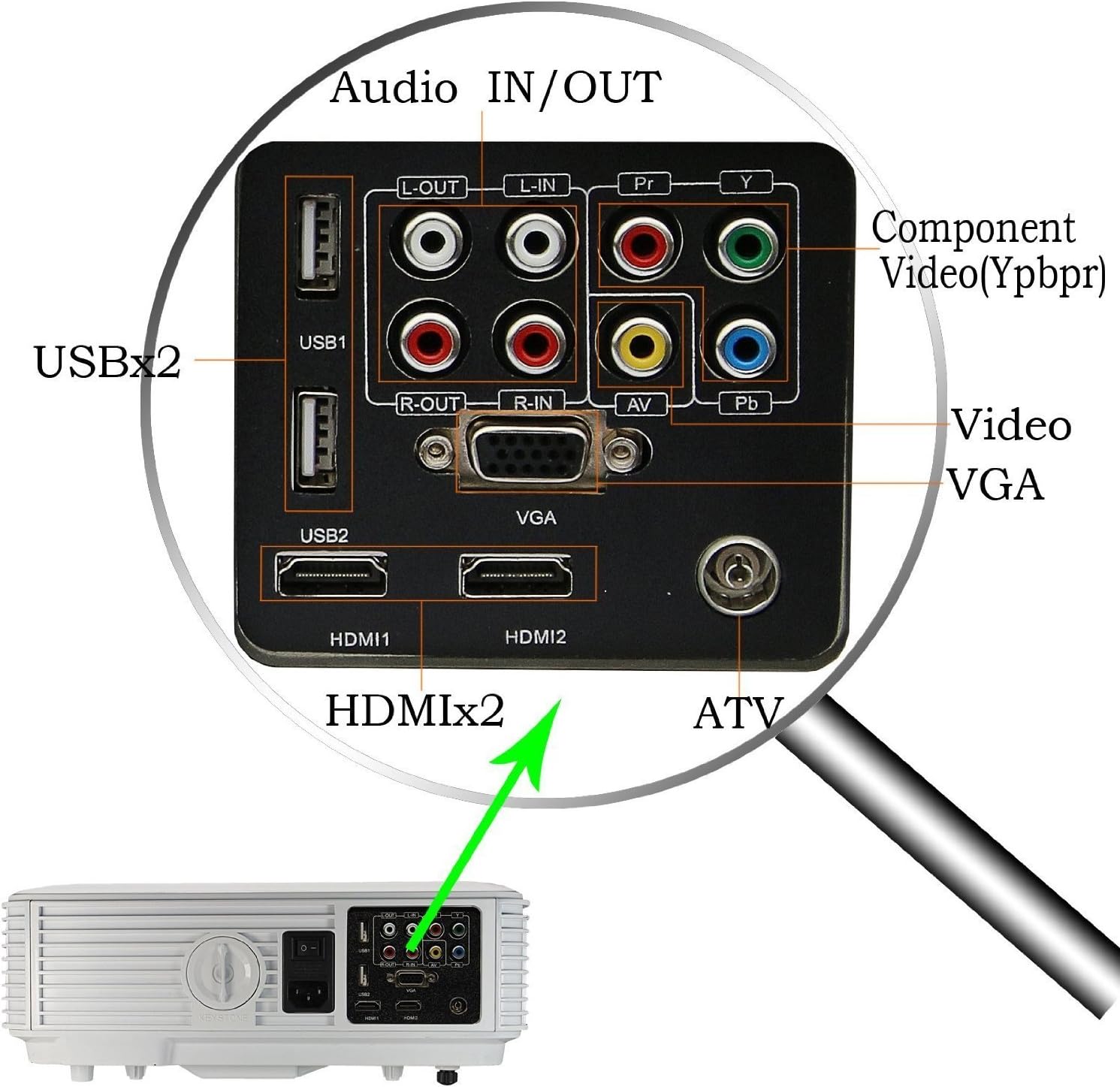
Figure 2.3: A detailed view of the projector's rear panel, highlighting the available input and output ports: Audio IN/OUT, USBx2, Component Video (YPbPr), VGA, HDMIx2, and ATV (Antenna TV) input.
3. Setup
3.1. Placement
Choose a stable, flat surface for the projector. Ensure adequate ventilation around the unit. The projection distance will determine the screen size.

Figure 3.1: This chart illustrates the recommended projection distances for various screen sizes (50", 70", 100", 120") when using a 4:3 image aspect ratio. Distances range from 1.90m for 50" to 4.40m for 120".
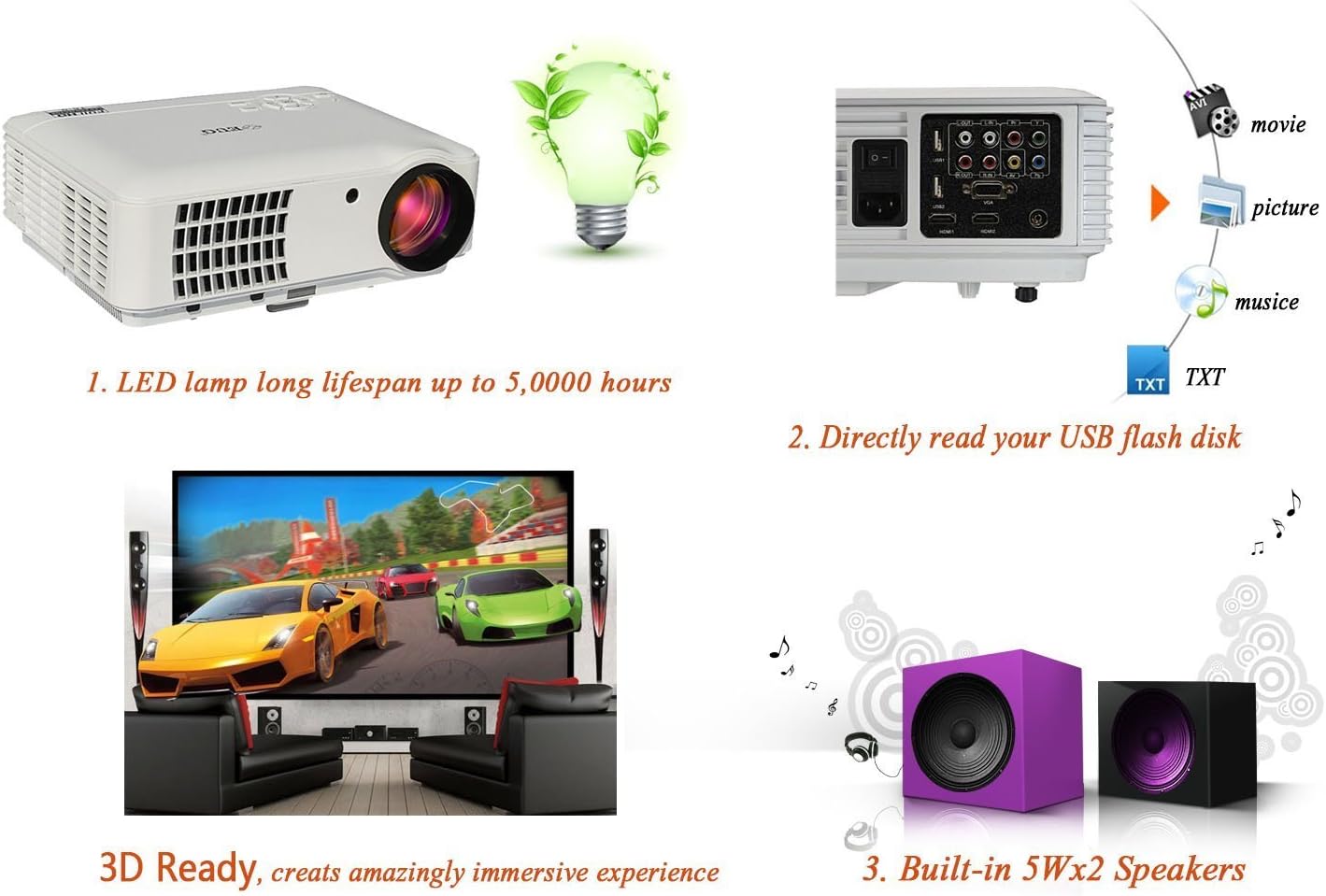
Figure 3.2: This chart illustrates the recommended projection distances for various screen sizes (50", 70", 100", 120") when using a 16:9 image aspect ratio. Distances range from 1.63m for 50" to 3.80m for 120".
The projector supports projection sizes from 50 to 200 inches with a projection distance of 1.2 to 5 meters.
3.2. Power Connection
Connect the power cable to the projector's power input and then to a wall outlet (AC 100-240V/50-60Hz).
3.3. Initial Power On
Press the power button on the projector or the remote control to turn on the device. The LED indicator will change color.
4. Operating Instructions
4.1. Adjusting Focus and Keystone
Use the focus ring around the lens to sharpen the image. If the image appears trapezoidal, use the keystone knob to correct the distortion and make the image rectangular.
4.2. Source Selection
Press the "Source" button on the remote control or the projector's control panel to select the desired input source (e.g., HDMI1, HDMI2, VGA, USB, AV, TV).
4.3. Android System and WiFi
The projector features a built-in Android system. Connect to your WiFi network via the system settings to access online content and install applications. You can navigate the Android interface using the remote control or by connecting a wired/wireless mouse.
4.4. DVB-T/ATV Functionality
Connect an antenna to the ATV port to receive digital (DVB-T) or analog TV signals directly through the projector. Use the TV source input to access this feature.
4.5. Wireless Connectivity (DLNA, Miracast, Airplay)
The projector supports screen mirroring technologies:
- DLNA: For streaming media content from compatible devices over your network.
- Miracast: For mirroring Android device screens wirelessly.
- Airplay: For mirroring iOS device screens wirelessly.
Ensure your device and the projector are connected to the same WiFi network for these features to work.
4.6. Media Playback via USB
Insert a USB flash drive into one of the USB ports. The projector can directly read and play various media files:
- Audio: WMA, MP3
- Image: JPEG, BMP
- Video: MPG, MPEG-1, MPEG-2, MPEG-4, AVI, MP4, DivX, TS, TRP, MKV, WMV, RM, RMVB
5. Connecting External Devices
The EUG x660s+ projector offers a wide range of connectivity options for various devices:

Figure 5.1: This diagram illustrates the versatility of the projector, showing its ability to connect to a wide array of external devices such as DVD players, laptops, set-top boxes, HDD players, Xbox consoles, personal computers, iPhones, and digital video cameras.
- HDMI: Connect Blu-ray players, gaming consoles (Xbox, PlayStation), laptops, and set-top boxes using HDMI cables for high-definition audio and video.
- VGA: Connect older laptops or desktop computers using a VGA cable.
- Component Video (YPbPr): Connect devices with component video output.
- AV: Connect devices with composite video output (e.g., older DVD players, digital video cameras).
- USB: For media playback from USB drives or connecting USB peripherals like a mouse.
- Audio IN/OUT: Connect external speakers or audio systems for enhanced sound, or input audio from external sources. The projector also has built-in 2x5W speakers.
- iOS Devices: For iOS devices with a Lightning connector, a Lightning Digital AV Adapter and an HDMI cable are required. For older 30-pin iOS devices, a 30-pin Digital AV Adapter is needed.
6. Specifications
| Feature | Description |
|---|---|
| Brand | EUG |
| Model Number | PJA88W |
| Type | LCD Projector |
| Light Source | 170W LED Lamp |
| Brightness | 2800 Lumens |
| Native Resolution | 1280 x 720 |
| Max. Resolution | WUXGA (1920 x 1200) |
| Contrast Ratio | 3000:1 (Full On/Off) |
| Projection Distance | 1.2 - 5 meters |
| Projection Size | 50 - 200 inches |
| Aspect Ratio | 16:9, 4:3 Compatible |
| Built-in Speakers | 2 x 5W |
| Power Supply | AC 100-240V / 50-60Hz |
| Power Consumption | <180W |
| Input/Output Ports | Component Video (YPbPr), VGA, HDMI, USB * 2, TV, Stereo Audio |
| Supported Audio Formats | WMA, MP3 |
| Supported Image Formats | JPEG, BMP |
| Supported Video Formats | MPG, MPEG-1, MPEG-2, MPEG-4, AVI, MP4, DivX, TS, TRP, MKV, WMV, RM, RMVB |
| System Version | Android 4.2 and later |
| CPU | ARM Cortex-A7 DualCore |
| RAM | DDR3 / 1GB |
| ROM | DDR3 / 4GB |
| Control Support | Infrared Remote Control, Wired/Wireless Mouse |
| Weight | 4 Kilograms |
7. Maintenance
7.1. Cleaning the Lens
Use a soft, lint-free cloth specifically designed for optical lenses to gently wipe the projection lens. Do not use abrasive cleaners or excessive force.
7.2. Cleaning the Projector Body
Wipe the exterior of the projector with a soft, dry cloth. For stubborn stains, slightly dampen the cloth with water and then wipe dry. Avoid using chemical cleaners.
7.3. Ventilation
Ensure that the projector's ventilation openings are not blocked. Regularly check and clean the anti-dust mesh panel to prevent overheating and maintain optimal performance.
8. Troubleshooting
8.1. No Image or "No Signal" Message
- Check if the power cable is securely connected and the projector is turned on.
- Verify that the correct input source is selected (e.g., HDMI1, VGA).
- Ensure the source device (laptop, DVD player) is powered on and outputting a signal.
- Try a different HDMI/VGA cable or port.
8.2. Blurry Image
- Adjust the focus ring on the lens until the image is sharp.
- Ensure the projection distance is within the recommended range.
- Clean the projector lens if it's dirty.
8.3. Trapezoidal Image
- Use the keystone knob to correct the image distortion.
- Ensure the projector is placed on a level surface and is perpendicular to the screen.
8.4. No Sound
- Check the volume settings on both the projector and the source device.
- Ensure audio cables are correctly connected if using external speakers or AV input.
- If using HDMI, ensure the source device is outputting audio via HDMI.
8.5. WiFi/Screen Mirroring Issues
- Ensure the projector and your device are connected to the same WiFi network.
- Check your network connection and router settings.
- Restart both the projector and the device you are trying to connect.
9. Warranty and Support
The EUG x660s+ projector comes with the following warranty and service:
- Lamp Replacement: 1 month free lamp replacement shipping.
- Product Replacement: 3 months replacement service.
- Repair Service: 6 months and 1 year repair service.
For technical support or warranty claims, please contact your retailer or the manufacturer's customer service with your purchase details and model number (PJA88W).
Ask a question about this manual
Ask about setup, troubleshooting, compatibility, parts, safety, or missing instructions. Manuals+ will review the question and use this page’s manual context to help answer it.