
1. Overview
The STANLEY PI500S Power Inverter converts your vehicle's 12V DC power into household 120V AC power and 3.1A USB power. This device is designed for powering and charging various electronic appliances and tools on the go. It offers two modes of operation: a 120W mode via the 12V DC adapter and a 500W mode when connected directly to a vehicle battery using the included clamps.

Figure 1: STANLEY PI500S Power Inverter with included accessories.
Key features include dual 120V AC electrical outlets, dual 3.1 Amp USB ports, and built-in battery protection warnings to prevent damage from low vehicle battery levels. Over-voltage protection is also integrated to safeguard against blown fuses.
2. Safety Information
WARNING: Cancer and reproductive harm. For more information, please refer to www.P65Warnings.ca.gov.
Always read and understand all instructions before using this product. Failure to follow all instructions listed below may result in electric shock, fire, and/or serious injury.
- Ensure proper ventilation around the inverter during operation.
- Do not expose the inverter to rain or wet conditions.
- Do not operate the inverter if it has received a sharp blow, been dropped, or otherwise damaged.
- Keep children away from the inverter.
- Use only the accessories provided or recommended by the manufacturer.
- Disconnect the inverter from the power source when not in use.
3. Setup
The STANLEY PI500S Power Inverter offers two primary connection methods, depending on the required power output.
3.1. 120W Operation (via 12V DC Adapter)
For lower power requirements, such as charging small electronics, use the 12V DC adapter:
- Ensure the inverter's ON/OFF switch is in the OFF position.
- Insert the 12V DC adapter plug firmly into your vehicle's 12V accessory outlet (cigarette lighter socket).
- Plug your devices into the AC outlets or USB ports on the inverter.
- Turn the inverter ON using the ON/OFF switch. The green indicator light should illuminate.
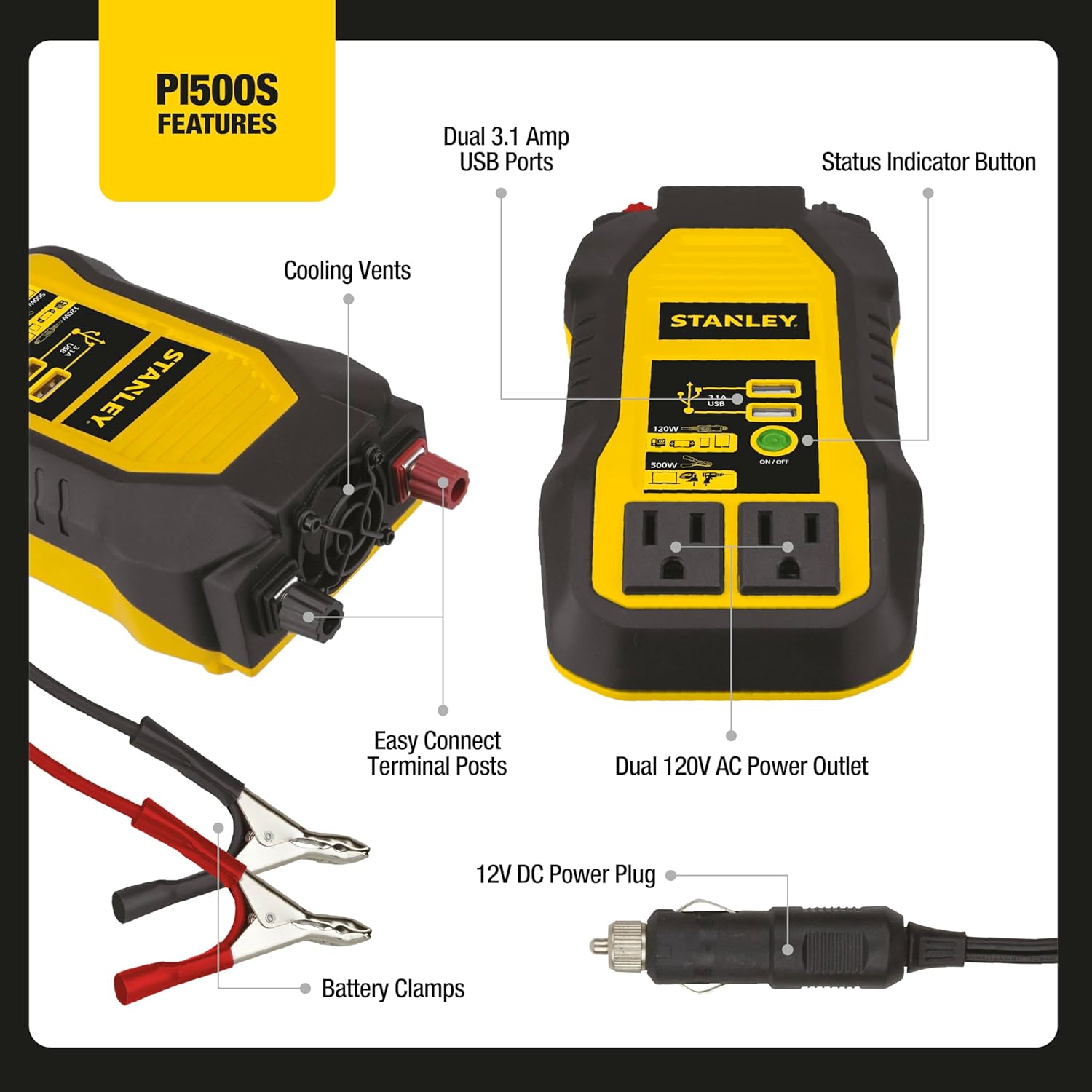
Figure 2: Inverter connected via 12V DC adapter, powering a laptop.
This mode provides up to 120 watts of power, suitable for devices like smartphones, tablets, and small portable electronics.
3.2. 500W Operation (via Battery Clamps)
For higher power demands, such as operating power tools or larger electronics, connect the inverter directly to your vehicle's battery:
- Ensure the inverter's ON/OFF switch is in the OFF position.
- Connect the red battery clamp to the positive (+) terminal of your vehicle's battery.
- Connect the black battery clamp to the negative (-) terminal of your vehicle's battery.
- Plug your devices into the AC outlets or USB ports on the inverter.
- Turn the inverter ON using the ON/OFF switch. The green indicator light should illuminate.

Figure 3: Side view of the inverter showing easy connect terminal posts for battery clamps.
This mode provides up to 500 watts of continuous power, suitable for laptops, small power tools, and other higher-wattage devices.
Video 1: An informational video explaining what a power inverter is and how it functions, provided by STANLEY.
4. Operation
The STANLEY PI500S Power Inverter is designed for straightforward operation.
4.1. Powering On/Off
To activate the inverter, press the ON/OFF button located on the front panel. A green indicator light will illuminate, signifying that the inverter is operational. To turn off the inverter, press the ON/OFF button again. The green light will extinguish.

Figure 4: Front panel of the inverter showing the ON/OFF button and power output options.
4.2. Using AC Outlets and USB Ports
Once the inverter is powered on, you can connect your devices:
- AC Outlets: The inverter features two 120V AC outlets. Plug your AC-powered devices directly into these outlets. Ensure the total wattage of connected devices does not exceed the inverter's capacity (120W for 12V DC adapter connection, 500W for battery clamp connection).
- USB Ports: Two 3.1 Amp USB ports are available for charging USB-powered devices such as smartphones, tablets, and other portable electronics.
Figure 5: Detailed view of the inverter's features, including USB ports and AC outlets.
4.3. Power Consumption Guidelines
Refer to the following table for approximate wattage requirements of common devices. Always check your device's specific power requirements.

Figure 6: Example wattage chart for various devices.
5. Maintenance
The STANLEY PI500S Power Inverter requires minimal maintenance. Keep the unit clean and free from dust and debris. Ensure the cooling vents are not obstructed to prevent overheating. Store the inverter in a dry, cool place when not in use.
6. Troubleshooting
The inverter is equipped with a built-in fault indicator. If the indicator light turns red, it signifies a power failure or fault condition. In such cases:
- Disconnect all connected devices from the inverter.
- Turn the inverter OFF.
- Disconnect the inverter from its power source (either the 12V DC adapter or battery clamps).
- Check for any loose connections or damaged cables.
- Ensure the total wattage of your devices does not exceed the inverter's capacity.
- Reconnect the inverter to its power source and then turn it ON. If the red light persists, the unit may require service.
A common cause for a fault is drawing too much power or a low vehicle battery. The inverter includes a battery protection warning to indicate when the vehicle battery is running low, prompting you to disconnect the inverter to prevent draining the battery completely.
7. Specifications
| Feature | Detail |
|---|---|
| Model | PI500S |
| Continuous Power Output (Battery Clamps) | 500 Watts |
| Continuous Power Output (12V DC Adapter) | 120 Watts |
| Input Voltage | 12 Volts DC |
| AC Outlets | Dual 120V AC |
| USB Ports | Dual 3.1 Amp USB |
| Dimensions | 4 x 8.5 x 2.2 inches |
| Item Weight | 1 pound |
| Manufacturer | Baccus Global LLC |
8. Warranty
The STANLEY PI500S Power Inverter comes with a 1-Year Limited Warranty. Please retain your proof of purchase for warranty claims. For specific warranty details and service, refer to the documentation included with your product or contact STANLEY customer support.
9. Support
For further assistance or technical support, please visit the official STANLEY website or contact their customer service department. Contact information can typically be found in the product packaging or on the manufacturer's website.


