1. Introduction
This manual provides essential information for the safe and efficient operation of your Haier 40E3500 40-inch 1080P LED HDTV. Please read these instructions thoroughly before using your television and retain them for future reference.
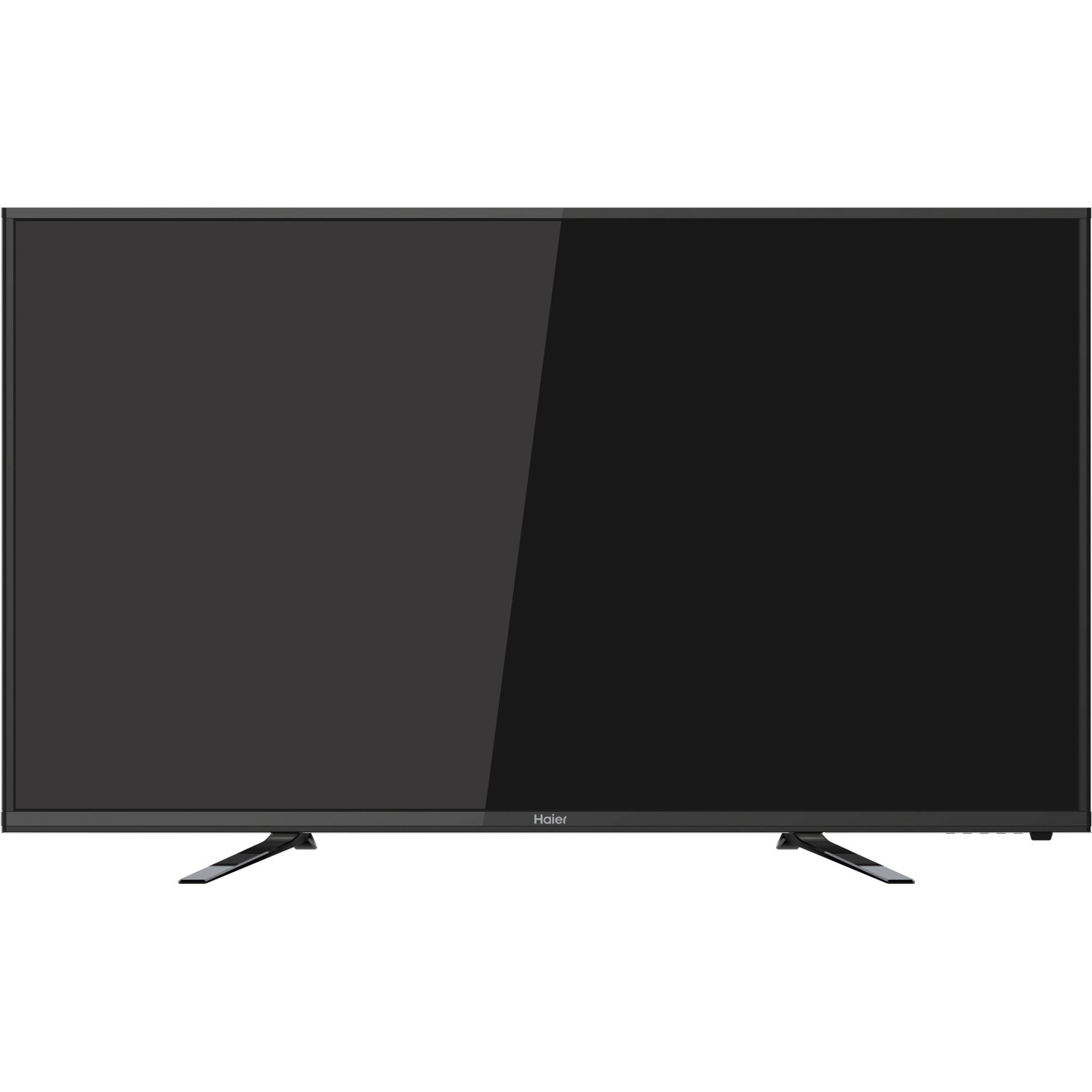
Image: Front view of the Haier 40E3500 40-inch LED HDTV, showcasing its slim frame and display.
2. Setup
2.1 Unpacking and Contents
Carefully remove the television from its packaging. Ensure all components are present:
- Haier 40E3500 Television Unit
- TV Stand
- Remote Control (with batteries)
- Power Cord
- User Manual (this document)
2.2 Attaching the Stand
Place the TV screen face down on a soft, clean surface to prevent scratches. Align the stand with the mounting holes on the bottom of the television. Secure the stand using the provided screws. Ensure the stand is firmly attached before placing the TV upright.
2.3 Wall Mounting (Optional)
If wall mounting, consult a professional installer. Note that this TV model may use smaller mounting screws than some other TV sets of similar size. Ensure compatible mounting hardware is used.
2.4 Connecting Power
Connect the power cord to the TV's power input, then plug the other end into a standard AC outlet.
2.5 Connecting External Devices
Your Haier 40E3500 HDTV offers multiple connectivity options:
- HDMI Ports (x3): For high-definition audio and video sources such as Blu-ray players, game consoles, and cable/satellite boxes. One HDMI port is MHL (Mobile High-Definition Link) enabled, allowing connection of compatible smartphones, tablets, or streaming sticks.
- USB Port (x1): For connecting USB storage devices to play media files.
- Component Video Input: For connecting devices using component video cables.
- Composite Video Input: For connecting devices using composite video cables.
- RF Input: For connecting an antenna or cable TV feed.
Ensure the TV is powered off before connecting or disconnecting any devices.
3. Operating Instructions
3.1 Initial Setup Wizard
Upon first power-on, the TV will guide you through an initial setup process. This typically includes:
- Language selection
- Time zone and clock settings
- Channel scan (for antenna/cable connections)
3.2 Basic Functions
- Power On/Off: Press the Power button on the remote control or on the TV.
- Volume Control: Use the Volume Up/Down buttons on the remote.
- Channel Selection: Use the Channel Up/Down buttons or the number pad on the remote.
- Input Selection: Press the 'Input' or 'Source' button on the remote to cycle through available input sources (HDMI 1, HDMI 2, HDMI 3, USB, Component, Composite, TV).
3.3 Picture Settings
Access the Picture menu to adjust settings such as Brightness, Contrast, Color, Tint, and Sharpness. Pre-set picture modes (e.g., Standard, Dynamic, Movie) are available for quick adjustments.
3.4 Sound Settings
Access the Sound menu to adjust settings such as Bass, Treble, and Balance. The TV features two dedicated sound chambers designed to produce enhanced sound quality with improved mid-range response and richer overall sound texture.
3.5 MHL Functionality
Connect MHL-compatible devices (smartphones, tablets, Roku Streaming Stick) to the designated HDMI/MHL port using an MHL cable. This allows you to display content from your mobile device directly on the TV screen and often charges the device simultaneously.
4. Maintenance
4.1 Cleaning the Screen
Gently wipe the screen with a soft, lint-free cloth. For stubborn marks, slightly dampen the cloth with water or a specialized screen cleaner. Do not spray liquid directly onto the screen.
4.2 General Care
- Avoid exposing the TV to direct sunlight or extreme temperatures.
- Keep the TV away from sources of moisture.
- Ensure proper ventilation around the TV to prevent overheating.
- Unplug the TV from the power outlet during lightning storms or when left unattended for long periods.
5. Troubleshooting
Before contacting customer support, try the following solutions for common issues:
- No Power: Ensure the power cord is securely plugged into both the TV and the wall outlet. Try a different outlet.
- No Picture, But Sound: Check the input source selection. Ensure the connected device is powered on and functioning correctly.
- No Sound, But Picture: Check the volume level and mute setting. Ensure external audio devices are connected correctly.
- Remote Control Not Working: Replace the batteries. Ensure there are no obstructions between the remote and the TV's IR sensor.
- Poor Sound Quality: While the TV has dedicated sound chambers, some users may prefer external audio solutions. Adjust sound settings in the menu.
- HDMI Input Issues: If an HDMI input is not functioning, try connecting the device to a different HDMI port. Ensure the HDMI cable is not damaged.
6. Specifications
| Model Number | 40E3500 |
| Screen Size | 40 Inches |
| Display Technology | LED |
| Resolution | 1080p (Full HD) |
| Refresh Rate | 60 Hz |
| Product Dimensions (L x W x H) | 8.3 x 35.6 x 21.8 inches |
| Item Weight | 14.84 pounds |
| Connectivity Technology | HDMI (x3, one MHL enabled), USB (x1) |
| Color | Black |
7. Warranty and Support
For warranty information, please refer to the warranty card included with your product or visit the official Haier website. Keep your purchase receipt as proof of purchase for warranty claims.
For technical support or service inquiries, please contact Haier customer service. Contact details can typically be found on the manufacturer's website or in the product packaging.