
1. Introduction
This manual provides essential information for the proper use and maintenance of your Beyution GA600WJSA, GA362WJSA, GA416WJSA Replacement Remote Control. This remote is designed as a direct replacement for various Sharp TV models, offering immediate functionality without the need for complex programming or setup.
The remote control operates using infrared technology and has a maximum effective distance of 10 meters. It is constructed from durable ABS plastic to ensure longevity.
2. Setup
2.1. Battery Installation
The remote control requires two (2) AAA batteries for operation. Follow the steps below to install the batteries:
- Locate the battery compartment on the back of the remote control.
- Slide the battery compartment cover downwards or outwards to open it.
- Insert two AAA batteries, ensuring the positive (+) and negative (-) terminals align correctly with the indicators inside the compartment.
- Close the battery compartment cover by sliding it back into place until it clicks securely.
Note: Always use new alkaline batteries for optimal performance. Do not mix old and new batteries, or different types of batteries.
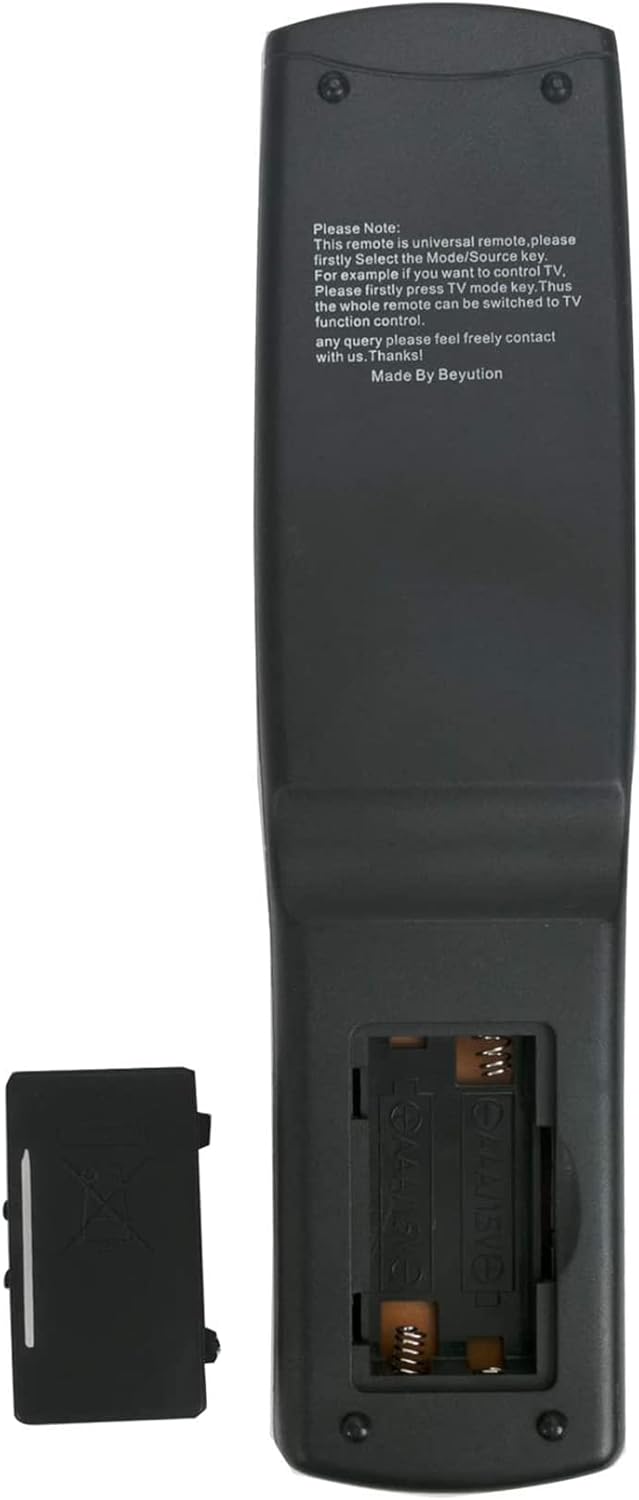
Figure 2.1: Battery compartment on the back of the remote control.
2.2. Initial Use
This replacement remote control is designed to work immediately with compatible Sharp TV models without any programming or setup. Once the batteries are correctly installed, the remote control is ready for use.
Important: No programming or pairing is required for this remote control to function with compatible Sharp TV models.
3. Operating Instructions
The remote control provides full functionality for your Sharp TV. Below is a general overview of common button functions. Refer to your TV's original manual for specific features.

Figure 3.1: Front view of the remote control with button layout.
3.1. Basic Functions
- TV / Power Button: Turns the television on or off.
- SOURCE: Selects the input source (e.g., HDMI, AV, Component).
- Number Buttons (0-9): Directly enters channel numbers.
- VOL +/-: Adjusts the volume level.
- CH +/-: Changes the television channel up or down.
- MUTE: Mutes or unmutes the television audio.
- ENTER: Confirms selections in menus or enters channel numbers.
3.2. Navigation and Menu Functions
- MENU: Accesses the TV's main menu.
- Arrow Buttons (Up, Down, Left, Right): Navigates through menu options.
- EXIT: Exits the current menu or on-screen display.
- RETURN: Returns to the previous screen or channel.
3.3. Advanced Functions
- CBL/SAT, VCR, DVD, AUDIO, REC: Selects specific device modes if your TV supports integrated control or external device switching.
- PLAY, PAUSE, STOP, FF (Fast Forward), REW (Rewind), SKIP: Controls playback for connected media devices (e.g., VCR, DVD player).
- VIEW MODE: Changes the screen display mode (e.g., aspect ratio).
- INFO: Displays information about the current program or input.
- TV GUIDE: Accesses the electronic program guide (if supported by your TV and service).
- FAVORITE CH (A, B, C, D): Accesses pre-set favorite channels.
- RECORD: Initiates recording on a connected recording device.
- i.LINK: For compatible devices using i.LINK (FireWire) connection.
- REC STOP: Stops recording.
- OPTION: Accesses context-sensitive options.
- FREEZE: Freezes the current image on screen.
- DISPLAY: Toggles on-screen display information.
- CC (Closed Caption): Toggles closed captions on or off.
- SLEEP: Sets a sleep timer for the TV.
- AV MODE: Adjusts audio/video modes.
- FAVORITE / EDIT: Manages favorite settings or enters edit mode.
4. Maintenance
Proper maintenance ensures the longevity and optimal performance of your remote control.
- Cleaning: Use a soft, dry cloth to clean the remote control. For stubborn dirt, slightly dampen the cloth with water or a mild, non-abrasive cleaner. Do not use harsh chemicals or abrasive materials.
- Battery Replacement: Replace batteries when the remote's response becomes sluggish or it ceases to function. Always replace both batteries simultaneously.
- Storage: Store the remote control in a cool, dry place away from direct sunlight, extreme temperatures, and high humidity. If the remote will not be used for an extended period, remove the batteries to prevent leakage.
- Handling: Avoid dropping the remote control or subjecting it to strong impacts, as this can damage internal components.
5. Troubleshooting
If you encounter issues with your remote control, refer to the following troubleshooting steps:
- Remote Control Not Responding:
- Ensure batteries are installed correctly with the correct polarity (+/-).
- Replace old batteries with new alkaline batteries.
- Check for any obstructions between the remote control and the TV's infrared sensor. Ensure a clear line of sight.
- Verify that the remote control is pointed directly at the TV's sensor.
- Limited Functionality:
- Confirm that your TV model is listed as compatible. While this remote is broadly compatible, some specific TV models or functions may vary.
- Remember that this remote does not require programming. If it's not working, it's typically a battery or line-of-sight issue, not a programming one.
- Physical Damage:
- If the remote control has been dropped or physically damaged, internal components may be affected.
If the issue persists after following these steps, or if the remote control was received damaged, please refer to the Warranty and Support section for further assistance.
6. Specifications
| Feature | Description |
|---|---|
| Model Numbers | GA600WJSA, GA362WJSA, GA416WJSA (Replacement for cd-GA600WJSA/GA362WJSA/GA416WJSB-gen) |
| Product Dimensions | 10 x 6 x 2 inches (approximately) |
| Item Weight | 2.47 ounces |
| Batteries Required | 2 AAA batteries |
| Connectivity Technology | Infrared (IR) |
| Compatible Devices | Television (Specific Sharp TV models) |
| Max Number of Supported Devices | 1 (One TV) |
| Maximum Remote Distance | 10 Meters (approximately 33 feet) |
| Material | ABS Plastic |
7. Warranty and Support
7.1. Warranty Information
This Beyution replacement remote control comes with a 6-month warranty period from the date of purchase. Additionally, a 1-year return policy is offered, allowing for returns if the product does not meet expectations or is found to be defective.
7.2. Customer Support
For any questions, concerns, or issues regarding your remote control, including damage upon receipt or non-functionality, please contact the seller or manufacturer directly. They are committed to providing a satisfactory solution within 24 hours.
Please retain your proof of purchase for warranty claims.