
1. Introduction
The CronusMax Plus is an advanced cross-platform controller adapter designed to enhance your gaming experience. It allows you to use your preferred game controller on various consoles and PCs, including PlayStation 4, PlayStation 3, Xbox One, Xbox 360, and Windows PC. This device eliminates compatibility barriers, enabling you to enjoy games with the controller you are most comfortable with, regardless of the platform.
Beyond basic compatibility, the CronusMax Plus offers extensive customization options, including controller remapping and advanced modding capabilities, providing a versatile solution for gamers seeking flexibility and enhanced control.
2. Safety Information
Please read and follow these safety guidelines to ensure proper operation and prevent damage to the device or connected equipment:
- Do not expose the device to water, moisture, or extreme temperatures.
- Avoid dropping or subjecting the device to severe impacts.
- Use only compatible cables and accessories.
- Do not attempt to disassemble or modify the device, as this will void the warranty and may cause damage.
- Keep the device away from children.
3. Package Contents
Verify that all items are present in your CronusMax Plus package:
- CronusMax Plus Adapter (Model 1131Plus)
- Micro USB Cable (for data transfer and programming)
- USB Extension Cable
- Audio Adapter (3.5mm to USB, for PS4 headset compatibility)

Image: The CronusMax Plus adapter, showing the main unit with a USB-A male connector on one end and a USB-A female port labeled "OUTPUT" on the other. The device also features a small display and buttons.
4. Setup Instructions
4.1. Initial Device Preparation
Before connecting the CronusMax Plus to your console or PC, ensure you have the necessary software and cables.
- Download Cronus Pro Software: Visit the official CronusMax website (cronusmax.com) to download the latest Cronus Pro software and firmware. This software is essential for configuring the adapter, updating firmware, and loading game packs or scripts.
- Micro USB Cable: Ensure your Micro USB cable supports data transfer. Some cables are designed only for charging and will not work for programming or connecting the CronusMax Plus to a PC.

Image: A CronusMax Plus device connected to a Micro USB cable. The image highlights the importance of using a cable that supports data transfer, not just charging, for proper functionality.
- Check Controller Compatibility: Not all controllers are natively supported. Before use, consult the official compatibility list on the CronusMax website to ensure your controller is supported.

Image: A warning graphic advising users to check the product's compatibility list on the official CronusMax website before use. A link to the compatibility page is provided.
4.2. Connecting to a Console/PC
The connection method varies slightly depending on your console and controller type (wired or wireless).
- Connect CronusMax Plus: Plug the CronusMax Plus adapter into an available USB port on your console (PS4, PS3, Xbox One, Xbox 360) or PC.
- Connect Controller:
- Wired Controllers: Connect your wired controller directly to the "INPUT" port on the CronusMax Plus.
- Wireless Controllers: For wireless controllers, you will typically need a compatible wireless adapter (e.g., Xbox 360 Wireless Receiver for Xbox 360 controllers) plugged into the CronusMax Plus's "INPUT" port, or connect the controller via a USB cable for authentication before disconnecting for wireless play (method varies by console/controller). Refer to the CronusMax Pro software manual for specific wireless setup instructions.
- Authentication: Some consoles (like PS4 and Xbox One) require the CronusMax Plus to authenticate with an official controller first. Follow the on-screen prompts or software instructions for this process.
- Audio Adapter (for PS4): If using a headset with a PS4 controller, connect the provided 3.5mm to USB audio adapter to the CronusMax Plus, then plug your headset into the audio adapter.

Image: An end view of the CronusMax Plus adapter, showing a 3.5mm audio jack port, which is used for connecting headsets via the included audio adapter.
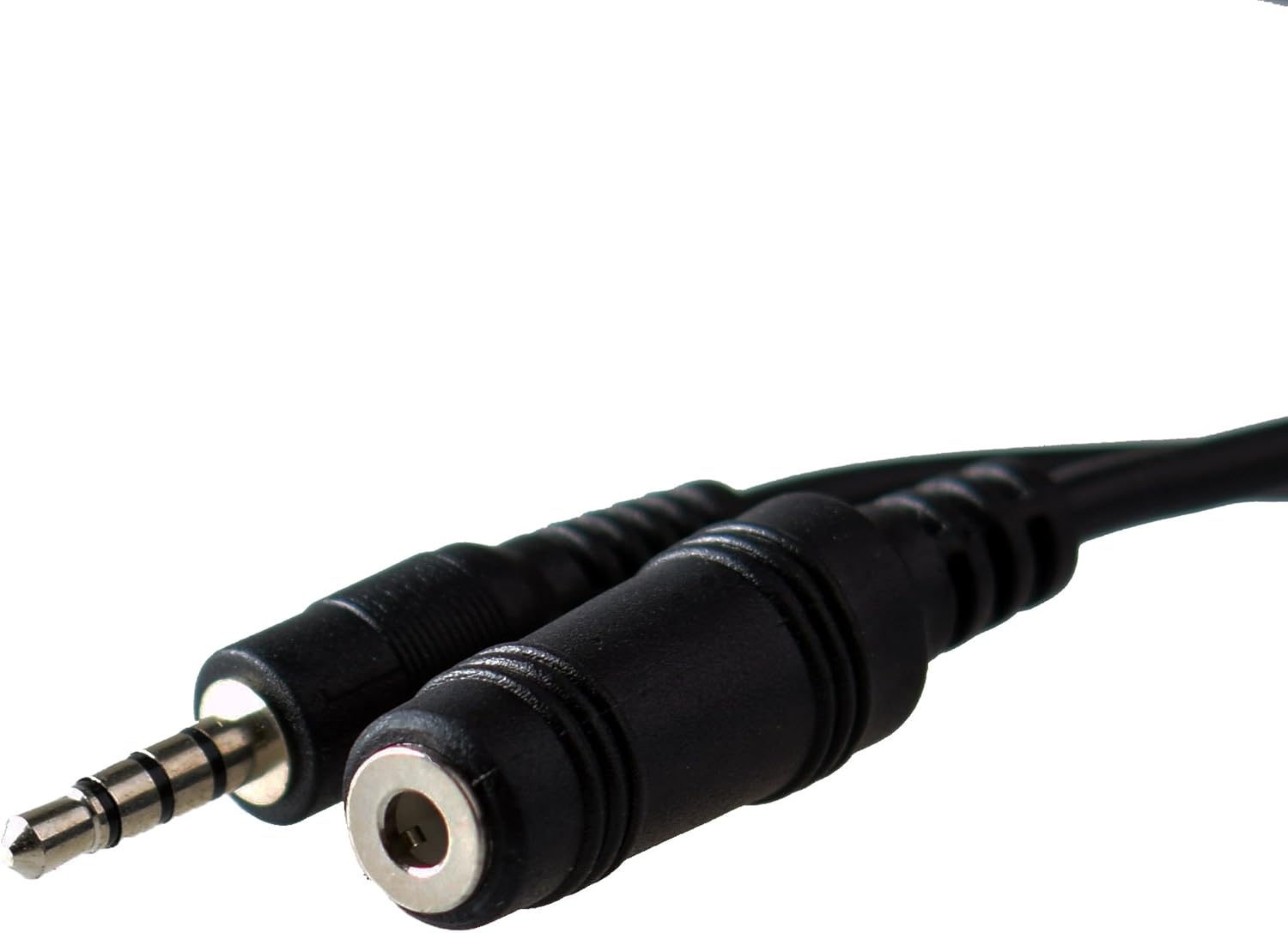
Image: The 3.5mm to USB audio adapter cable, used to connect a standard headset to the CronusMax Plus for audio functionality on compatible consoles like the PS4.
5. Operating Instructions
5.1. Basic Operation
Once the CronusMax Plus is set up and your controller is connected, it will typically function as a standard controller on your chosen console or PC.
- LED Display: The CronusMax Plus features a small LED display that indicates the active memory slot or status.
- Memory Slots: The device has nine memory slots (0-8) where you can store different game packs or custom scripts. Use the button on the device to cycle through these slots. Slot 0 is typically for standard pass-through mode.
5.2. Advanced Features (Cronus Pro Software)
To unlock the full potential of the CronusMax Plus, utilize the Cronus Pro software on your PC.
- Controller Remapping: Customize button layouts and stick sensitivities to your preference.
- GamePacks: Download pre-made GamePacks for popular titles, offering advanced mods like rapid-fire, anti-recoil, and more.
- GPC Scripts: Create or download custom scripts using the GPC (GamePack Creator) language for highly personalized controller modifications.
- Keyboard & Mouse Support: The CronusMax Plus can enable keyboard and mouse input on consoles, offering a PC-like experience for compatible games.
- Firmware Updates: Regularly check for and install firmware updates via the Cronus Pro software to ensure optimal performance and compatibility with new consoles/controllers.
6. Maintenance
To ensure the longevity and optimal performance of your CronusMax Plus adapter, follow these simple maintenance guidelines:
- Cleaning: Use a soft, dry cloth to wipe the device. Do not use liquid cleaners or abrasive materials.
- Storage: Store the device in a cool, dry place away from direct sunlight and extreme temperatures when not in use.
- Cable Care: Handle USB cables carefully. Avoid bending or twisting them excessively, as this can damage the internal wires.
7. Troubleshooting
If you encounter issues with your CronusMax Plus, many common problems can be resolved by following basic troubleshooting steps. For comprehensive troubleshooting guides and solutions, please visit the official CronusMax website:

Image: A graphic providing technical support information, directing users to the CronusMax website for troubleshooting guides and forums to resolve common issues.
Official Troubleshooting Guide: https://cronusmax.com/manual/troubleshooting.htm
Official Support Forums: https://cronusmax.com/forums/
Common issues and their potential solutions often involve:
- Device Not Recognized: Ensure the Micro USB cable supports data transfer and that the Cronus Pro software is updated. Try a different USB port on your PC/console.
- Controller Not Responding: Verify controller compatibility. Ensure the CronusMax Plus firmware is up to date. Re-authenticate the controller if necessary.
- Lag or Input Delay: Ensure you are using high-quality USB cables. Check for any conflicting software or drivers on your PC.
- Audio Issues: Confirm the audio adapter is correctly connected and that your headset is functioning properly.
8. Specifications
| Feature | Detail |
|---|---|
| Model Number | 1131Plus |
| Dimensions | 20 x 15 x 40 cm |
| Weight | 100 g |
| ASIN | B00T76ZGDY |
| Release Date | 23 May 2015 |
| Compatibility | PS4, PS3, Xbox One, Xbox 360, Windows PC |
9. Warranty Information
Specific warranty details for the CronusMax Plus adapter are not provided within the product information. Please refer to the retailer or the official Collective Minds website for warranty terms and conditions applicable to your region of purchase.
10. Customer Support
For further assistance, technical support, or to access the latest resources, please visit the official CronusMax website and community forums:
- Official Website: https://cronusmax.com
- Support Forums: https://cronusmax.com/forums/
- Online Manual: https://cronusmax.com/manual/
Regularly checking these resources will provide you with the most up-to-date information, firmware, and community support.