
IK Multimedia iRig 2
IK Multimedia iRig 2 User Manual
Model: iRig 2 | Brand: IK Multimedia
Introduction
The IK Multimedia iRig 2 is a portable guitar audio interface designed for use with iPhone, iPad, iPod touch, and Mac devices. It allows musicians to connect their instrument directly to their mobile device or computer, enabling recording, practice, and live performance with various music applications. The iRig 2 features an adjustable gain dial, a 1/4" instrument input, 1/8" TRRS output for device connection, 1/8" headphone output, and a 1/4" amplifier output, along with an FX/Thru switch for signal routing flexibility.
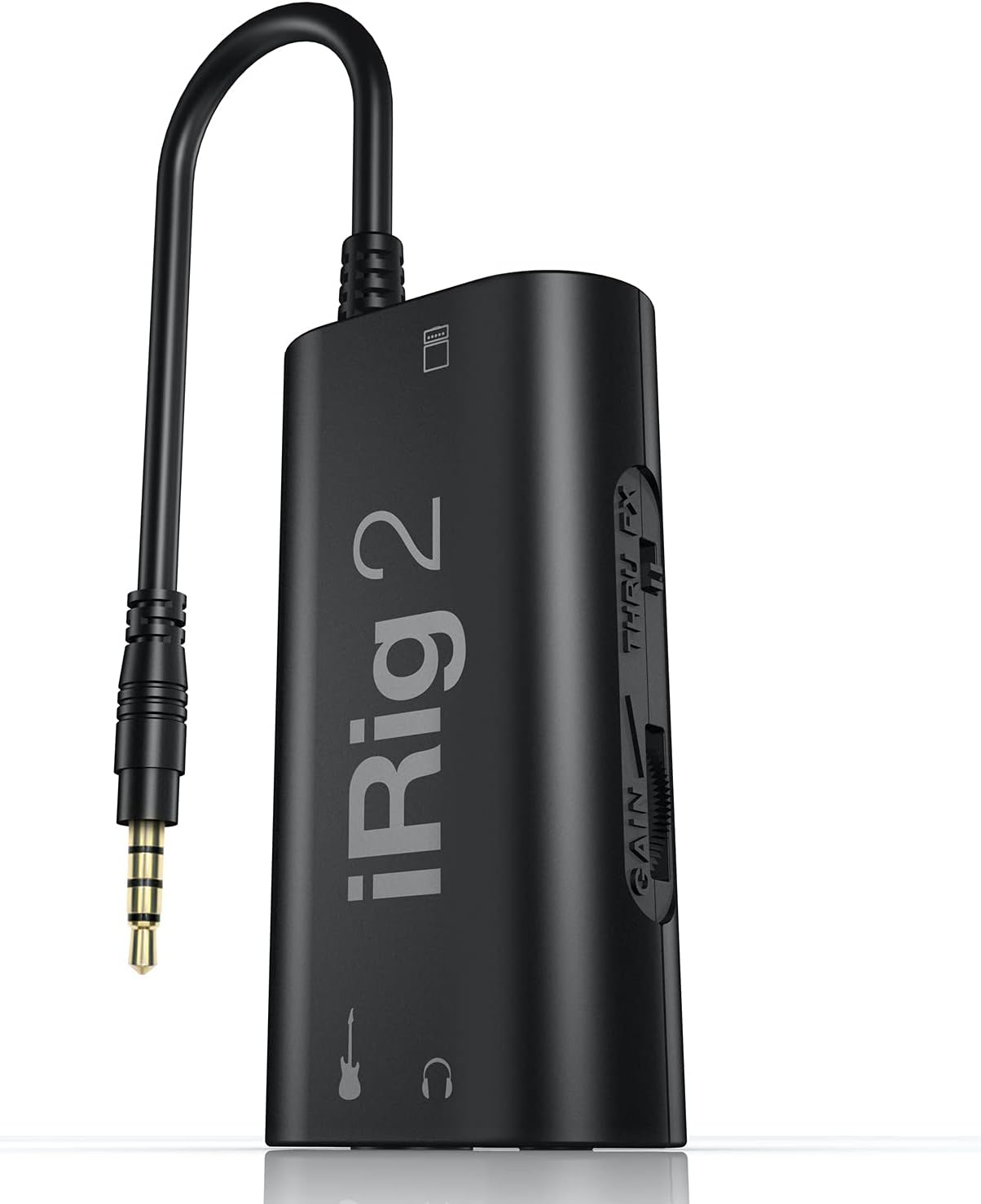
Figure 1: The iRig 2 portable guitar audio interface.
What's in the Box
Your iRig 2 package should contain the following items:
- Irig 2 Guitar Interface For Ipad/iphone/ipod & Android
Product Features and Controls
The iRig 2 offers several features designed for ease of use and versatility:
- Adjustable Gain Dial: Allows precise control over the input signal level from your instrument.
- 1/8" TRRS Output Connector: For direct connection to compatible iPhone, iPad, iPod touch, or Mac devices.
- 1/4" Amplifier Output Jack: Enables connection to an external amplifier or mixer, allowing the iRig 2 to be integrated into a live setup.
- 1/8" Headphone Output: For private monitoring of your audio.
- FX / Thru Switch: Selects between a processed signal (FX) from your device or a clean, analog "thru" signal directly to the amplifier output.
- Microphone Stand Velcro Slot: For convenient attachment to a microphone stand.

Figure 2: Labeled components of the iRig 2, including inputs, outputs, and controls.
Setup
Follow these steps to set up your iRig 2:
- Connect to Your Device: Plug the integrated 1/8" TRRS cable of the iRig 2 into the headphone/headset jack of your iPhone, iPad, iPod touch, or Mac.
- For newer iOS devices (iPhone 8 and later, recent iPads with USB-C): You will need an Apple-brand Lightning to 3.5mm Headphone Jack Adapter or a USB-C to 3.5mm Headphone Jack Adapter to ensure compatibility. Connect the iRig 2's TRRS cable to this adapter, then connect the adapter to your iOS device.
- Connect Your Instrument: Plug your guitar, bass, or other instrument into the 1/4" instrument input jack on the iRig 2.
- Connect Headphones or Amplifier (Optional):
- For private monitoring, connect your headphones to the 1/8" headphone output jack.
- To connect to an external amplifier or mixer, use a 1/4" instrument cable to connect the iRig 2's 1/4" amplifier output jack to your amplifier's input.
- Download Software: Download and install the AmpliTube CS app (free version available) or other compatible music applications from the App Store.

Figure 3: iRig 2 connected to an iPhone and a guitar, ready for use.

Figure 4: Detailed view of the iRig 2 connections, showing instrument and device inputs.
Operating
Once connected, you can begin using your iRig 2:
- Adjust Gain: Use the GAIN control knob on the side of the iRig 2 to adjust the input level from your instrument. Start with the gain low and gradually increase it until you achieve a strong signal without clipping (distortion). Most music apps will have an input level meter to help you set this correctly.
- Select Signal Path: Use the FX / THRU switch to choose your desired signal routing:
- FX: The signal from your instrument will be sent through your mobile device, processed by the app (e.g., AmpliTube), and then sent to the headphone and amplifier outputs. This is the mode for using virtual amplifiers and effects.
- THRU: The signal from your instrument will bypass the mobile device's processing and be sent directly to the 1/4" amplifier output. This allows you to use your mobile device as a tuner, recorder, or other utility while maintaining a pure analog signal path to your amplifier.
- Use with AmpliTube CS: Launch the AmpliTube CS app on your device. Within the app, you can select various virtual amplifiers, stompbox effects, and other processing tools to shape your sound. Experiment with different settings to find your desired tone.

Figure 5: The iRig 2 in use with an iPad running the AmpliTube application, showcasing various virtual effects.
Maintenance
To ensure the longevity and optimal performance of your iRig 2, follow these maintenance guidelines:
- Cleaning: Use a soft, dry cloth to wipe down the exterior of the iRig 2. Avoid using liquid cleaners or abrasive materials, as they may damage the device.
- Storage: Store the iRig 2 in a cool, dry place away from direct sunlight and extreme temperatures. When not in use, it is recommended to disconnect all cables to prevent strain on the ports.
- Cable Care: Handle the integrated TRRS cable and other connected cables with care. Avoid sharp bends or excessive pulling, which can damage internal wiring.
Troubleshooting
If you encounter issues with your iRig 2, refer to the following common problems and solutions:
| Problem | Possible Cause / Solution |
|---|---|
| No sound or very low sound. |
|
| Distorted or noisy sound. |
|
| App not recognizing iRig 2. |
|
Specifications
| Feature | Detail |
|---|---|
| Model Number | iRig 2 |
| Item Weight | 3.53 ounces |
| Product Dimensions | 6.25 x 5.5 x 1.75 inches |
| Country of Origin | Italy |
| Hardware Interface | 1/4-inch Audio, 3.5mm Audio |
| Connectivity Technology | 1/8 inch TRRS, 1/4 inch |
| Number of Channels | 1 |
| Operating System | iOS |
| Compatible Devices | iOS Devices Compatible with iPhone, iPad and iPod touch devices with 1/8" / 3.5mm jack standard headset input (onboard or via adaptor) compliant with the CTIA/AHJ wiring standard. Also compatible with the following devices using Lightning to 1/8" / 3.5 mm jack or USB-C to 1/8" / 3.5 mm jack adapters. Includes iPhone 8 through iPhone 16 series, iPod 7th gen, iPad 6th through 10th gen, iPad Mini 5th through 7th gen, iPad Air 3rd through 6th gen, iPad Pro 2nd through 7th gen. |
Warranty and Support
For detailed warranty information and technical support, please visit the official IK Multimedia website. You can find FAQs, support resources, and contact information there.
Official Website: www.ikmultimedia.com
Related documentsiRig 2


Ask a question about this manual
Ask about setup, troubleshooting, compatibility, parts, safety, or missing instructions. Manuals+ will review the question and use this page’s manual context to help answer it.