
D-Link DCS-934L
D-Link DCS-934L Day & Night Wi-Fi Camera User Manual
Model: DCS-934L
1. Overview
The D-Link DCS-934L Day & Night Wi-Fi Camera is designed to provide reliable surveillance for your home or small office. This camera offers high-quality video streaming to your mobile devices and features advanced capabilities for enhanced security and monitoring.
Key features include:
- Day & Night Vision: Equipped with built-in IR LEDs, the camera provides clear visibility up to 16 feet even in complete darkness.
- Motion Detection: Advanced motion sensing technology sends automatic push alert notifications to your device when movement is detected.
- Remote Viewing: Access live video feeds, control camera functions, and utilize 4x digital zoom through the free mydlink Lite app, available for iOS, Android, and Windows Phone devices.
- Flexible Connectivity: Supports both Wi-Fi and Ethernet connections for versatile placement options.
- Sound Detection: Alerts can also be triggered by detected sounds.
- Recording Capabilities: Capture snapshots and video clips directly to your mobile device.

Figure 1: D-Link DCS-934L Day & Night Wi-Fi Camera (Front View)
2. Package Contents
Ensure all items are present in your package:
- D-Link DCS-934L Day & Night Wi-Fi Camera
- Power Adapter
- Ethernet Cable
- Mounting Kit
- Quick Install Guide
3. Product Components
Familiarize yourself with the camera's physical components:
3.1 Front View
- IR LEDs: Infrared emitters for night vision.
- Light Sensor: Detects ambient light to automatically switch between day and night modes.
- Microphone: Captures audio from the camera's environment.
- Camera Lens: The primary optical component for video capture.
3.2 Back View
- Power Connector: For connecting the power adapter.
- Ethernet Port: For wired network connection.
- Power/Link LED: Indicates power status and network connectivity.
- Reset Button: Used to restore factory default settings.
- WPS Button: For easy Wi-Fi Protected Setup.
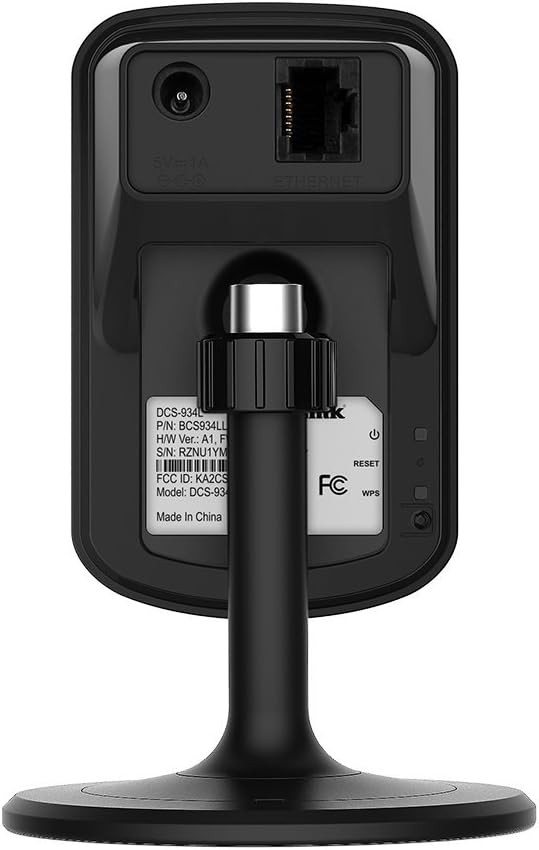
Figure 2: D-Link DCS-934L Day & Night Wi-Fi Camera (Back View with Ports)
4. Setup
4.1 Initial Setup
Before beginning, ensure you have a working internet connection and your Wi-Fi router is powered on.
- Power On: Connect the power adapter to the camera and plug it into a power outlet. Wait for the Power/Link LED to turn solid green.
- Network Connection:
- Wi-Fi (WPS): If your router supports WPS, press the WPS button on your router, then immediately press the WPS button on the camera. The LED will flash green during connection and turn solid green when connected.
- Wi-Fi (Manual): Download the mydlink Lite app from your device's app store. Follow the in-app instructions to connect the camera to your Wi-Fi network.
- Ethernet: Connect one end of the Ethernet cable to the camera's Ethernet port and the other end to an available LAN port on your router.
- mydlink Account: Create a new mydlink account or log in to an existing one through the mydlink Lite app or the mydlink web portal (www.mydlink.com).
- Add Camera: Follow the prompts in the app or web portal to add your DCS-934L camera to your mydlink account.

Figure 3: Remote viewing via mydlink app on mobile devices.
5. Operating the Camera
5.1 Live Viewing
Once your camera is set up and connected to your mydlink account, you can view live video from anywhere using the mydlink Lite app or the mydlink web portal. Simply open the app or log in to the portal and select your camera from the device list.
5.2 Motion and Sound Detection
The DCS-934L can alert you to activity. To configure detection settings:
- Access your camera settings via the mydlink Lite app or web portal.
- Navigate to the Motion Detection or Sound Detection section.
- Enable the desired detection type.
- Adjust sensitivity levels and define detection zones (for motion detection) as needed.
- Configure alert actions, such as push notifications to your mobile device or email alerts with snapshots.
5.3 Night Vision
The camera automatically switches to night vision mode in low-light conditions. The built-in IR LEDs illuminate the area, allowing for clear black-and-white video up to 16 feet. This feature can be manually toggled in the camera settings if desired.
5.4 Digital Zoom
While viewing live video, you can use the pinch-to-zoom gesture on your mobile device (or corresponding controls on the web portal) to digitally zoom up to 4x into the video feed.
6. Maintenance
6.1 Cleaning
To maintain optimal performance, periodically clean the camera lens with a soft, dry cloth. Avoid using harsh chemicals or abrasive materials.
6.2 Firmware Updates
D-Link regularly releases firmware updates to improve performance and add new features. Check for available updates through the mydlink Lite app or the mydlink web portal and follow the instructions to install them.
6.3 Resetting the Camera
If you encounter persistent issues or wish to reconfigure your camera, you can perform a factory reset:
- With the camera powered on, use a paperclip or thin object to press and hold the Reset Button on the back of the camera for approximately 10 seconds.
- Release the button when the Power/Link LED begins to flash red.
- The camera will restart with factory default settings. You will need to set it up again as a new device.
7. Troubleshooting
If you experience problems with your D-Link DCS-934L camera, refer to the following common issues and solutions:
- Camera not connecting to Wi-Fi: Ensure the camera is within range of your Wi-Fi router. Verify your Wi-Fi password is correct. Try using the WPS button method if your router supports it.
- No video feed: Check the camera's power connection and ensure the Power/Link LED is solid green. Verify your internet connection is active.
- Motion/Sound detection not triggering alerts: Review your detection settings in the mydlink app/portal. Adjust sensitivity levels and ensure alert notifications are enabled.
- Poor video quality: Ensure the camera lens is clean. Check your network bandwidth; a slow internet connection can affect streaming quality.
For more detailed troubleshooting or technical support, please visit the D-Link support website or consult the full product manual.
8. Specifications

Figure 4: Technical Specifications Overview
| Feature | Detail |
|---|---|
| Model Number | DCS-934L |
| Connectivity Technology | Wireless (Wi-Fi), Wired (Ethernet) |
| Special Features | Motion Sensor, Night Vision |
| Indoor/Outdoor Usage | Indoor, Outdoor (with appropriate protection) |
| Controller Type | Android, iOS |
| Mount Type | Wall Mount |
| Form Factor | Dome |
| Alert Type | Motion Only |
| Waterproof Rating | IP54 |
| Night Vision Range | 16 feet |
| Video Capture Format | MPEG-4 |
| Item Dimensions | 7 x 4 x 3 inches |
| Item Weight | 10.4 ounces |
9. Warranty and Support
For warranty information, technical support, or to download the latest drivers and firmware, please visit the official D-Link website or contact D-Link customer service. Keep your purchase receipt for warranty claims.
Related documentsDCS-934L


Ask a question about this manual
Ask about setup, troubleshooting, compatibility, parts, safety, or missing instructions. Manuals+ will review the question and use this page’s manual context to help answer it.