
Introduction
This manual provides essential instructions for the safe and efficient use of your EMTEC Mobile & Go 2-in-1 Flash Drive. This device offers a convenient solution for transferring and storing data between various devices, featuring both USB 3.0 and Micro-USB connectors.
Please read this manual thoroughly before using the product and retain it for future reference.
Safety Information
- Do not expose the device to extreme temperatures, direct sunlight, or high humidity.
- Avoid dropping or subjecting the device to strong impacts.
- Keep the device away from water and other liquids.
- Do not attempt to disassemble or modify the device. This will void the warranty.
- Ensure proper ejection of the device from your computer or mobile device before removal to prevent data loss.
Product Overview
The EMTEC Mobile & Go Flash Drive is designed for versatility, featuring two distinct connectors:
- USB 3.0 Connector: For high-speed data transfer with computers and other USB 3.0 compatible devices. It is also backwards compatible with USB 2.0 ports.
- Micro-USB Connector: For direct connection to compatible smartphones and tablets that support USB On-The-Go (OTG) functionality.

Image: The EMTEC Mobile & Go 2-in-1 Flash Drive, displaying its USB 3.0 connector on one end and its Micro-USB connector on the other. The device is compact and features a black casing with a red indicator dot.
The packaging illustrates the product's key features and compatibility:
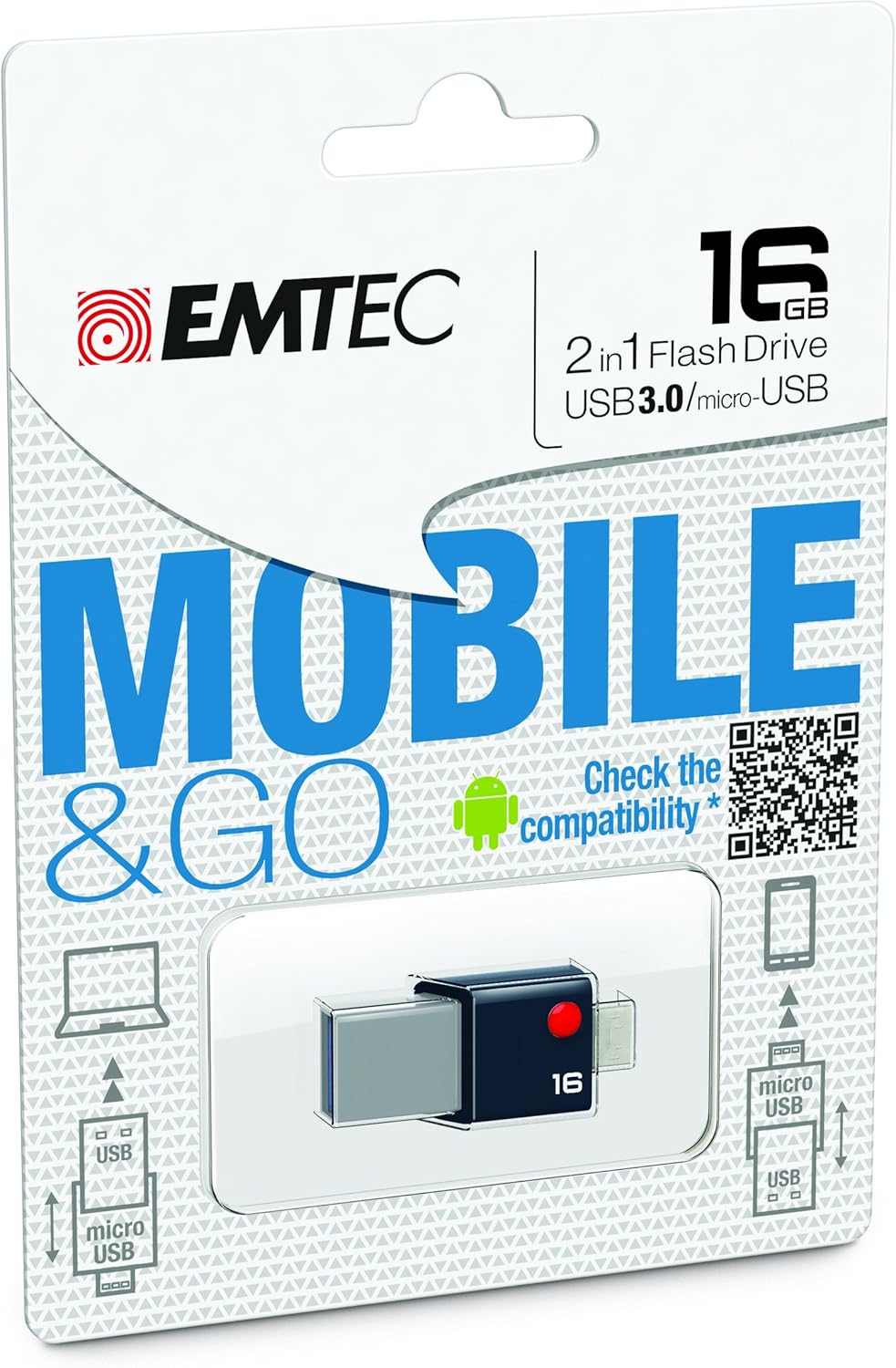
Image: Retail packaging for the EMTEC Mobile & Go 2-in-1 Flash Drive, highlighting its 16 GB capacity, USB 3.0, and Micro-USB features. The packaging also includes a QR code for compatibility checking.
Setup
Connecting to a Computer (USB 3.0)
- Locate an available USB port on your computer. For optimal performance, use a USB 3.0 port (often identified by a blue insert).
- Insert the USB 3.0 end of the flash drive firmly into the USB port.
- Your computer's operating system (Windows, macOS, Linux) should automatically detect the device. A new drive letter or icon will appear in your file explorer.
Connecting to a Mobile Device (Micro-USB)
- Ensure your smartphone or tablet supports USB On-The-Go (OTG) functionality. Not all devices are compatible.
- For compatibility information, refer to the official EMTEC OTG compatibility list: EMTEC OTG Compatibility List.
- Locate the Micro-USB port on your mobile device.
- Insert the Micro-USB end of the flash drive firmly into the mobile device's port.
- Your mobile device should detect the flash drive. You may receive a notification or find the drive listed in your device's storage settings or file manager application.
Operating Instructions
Transferring Files
- From Computer to Flash Drive: Open your computer's file explorer, navigate to the files you wish to transfer, and drag-and-drop them into the flash drive's folder.
- From Flash Drive to Computer: Open the flash drive's folder, select the desired files, and drag-and-drop them to a location on your computer.
- Between Mobile Device and Flash Drive: Use your mobile device's file manager application to copy or move files between the device's internal storage/SD card and the connected flash drive.
Using as Additional Storage
The EMTEC Mobile & Go Flash Drive can serve as an extension of your mobile device's storage, allowing you to store photos, videos, music, and documents directly on the drive, freeing up internal memory.
Maintenance
- Cleaning: Use a soft, dry, lint-free cloth to gently wipe the exterior of the flash drive. Do not use liquid cleaners or solvents.
- Storage: When not in use, store the flash drive in a cool, dry place, away from dust and direct sunlight.
- Safe Removal: Always safely eject the flash drive from your computer or mobile device before physically removing it.
- Windows: Right-click the drive icon in "This PC" or the taskbar icon, then select "Eject".
- macOS: Drag the drive icon to the Trash, or click the Eject button next to the drive in Finder.
- Android: Go to Storage settings, find the USB drive, and tap "Eject" or "Unmount".
Troubleshooting
- Problem: Flash drive not recognized by computer.
- Try a different USB port on your computer.
- Ensure the flash drive is fully inserted.
- Restart your computer.
- Check Device Manager (Windows) or System Information (macOS) to see if the device is listed.
- Problem: Flash drive not recognized by mobile device.
- Verify your mobile device supports USB OTG functionality. Refer to your device's manual or the EMTEC OTG Compatibility List.
- Ensure the Micro-USB end is fully inserted.
- Try restarting your mobile device.
- Some mobile devices require a file manager app to access external storage.
- Problem: Slow data transfer speeds.
- Ensure you are connected to a USB 3.0 port on your computer for optimal speeds. USB 2.0 ports will operate at slower speeds.
- Transferring many small files can be slower than transferring a few large files.
- Close other applications that might be using system resources.
Specifications
| Feature | Detail |
|---|---|
| Brand | Emtec |
| Model Number | ECMMD16GT203 |
| Memory Storage Capacity | 16 GB |
| Hardware Interface | USB 3.0, Micro-USB |
| Connectivity Technology | USB |
| Operating System Compatibility | Windows 8, 7, Vista, XP, Me, 2000 / Mac OS X / Linux 2.6x |
| Hardware Platform | PC, Mac |
| Product Dimensions (LxWxH) | 1.42 x 0.31 x 0.63 inches |
| Item Weight | 0.352 ounces |
| UPC | 846143005294 |
Warranty and Support
EMTEC products are designed and manufactured to the highest quality standards. For information regarding warranty coverage and technical support, please refer to the official EMTEC website or contact their customer service department.
You can visit the Emtec Store on Amazon for more product information.