
1. Introduction
The iCarsoft i906 is a professional multi-system diagnostic tool specifically designed for Volvo and Saab vehicles. It features a colorful TFT screen and unique diagnostic software, enabling users to read and clear diagnostic faults from various main systems, including SRS airbags, ABS Antilock Brakes, engine, and transmission modules. Additionally, it offers full OBDII capabilities for all OBDII/EOBD compliant vehicles manufactured from 2001 to 2012, allowing for reading of engine readings and related trouble codes (Check Engine Light).
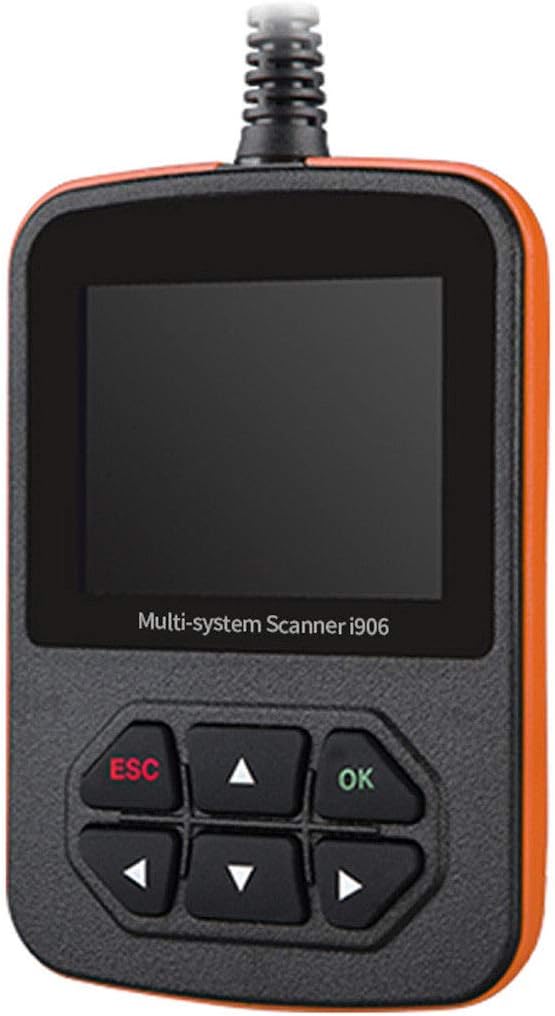
Figure 1.1: The iCarsoft i906 Multi-system Diagnostic Scanner.
2. Product Features
- Comprehensive System Coverage: Reads and clears trouble codes for full systems on Volvo/Saab vehicles, including engine, transmission, ABS, and airbag systems.
- Full OBD II/EOBD Capabilities: Supports ten modes of operation for full ECU diagnosis, including CANBUS, ISO9141, KWP2000, and J1850 protocols.
- Diagnostic Functions: Allows reading and clearing of Diagnostic Trouble Codes (DTCs) and viewing live data streams.
- Standard OBD II Functions: Includes I/M Readiness, Data Stream, Freeze Frame, O2 Sensor Test, Evap System Test, and the ability to turn off the Check Engine Light (MIL) for all OBD II/EOBD compliant vehicles.
- User-Friendly Interface: Features a large, easy-to-read 2.8-inch color display for intuitive operation.
- Lifetime Free Updates: Software updates are available for free via USB 2.0, ensuring compatibility with future vehicle models and diagnostic improvements.
- Multi-language Support: The device supports multiple languages for broader user accessibility.
3. Package Contents
Upon opening the package, please verify that all the following items are included:
- iCarsoft i906 Diagnostic Scanner Unit (Orange)
- 3-foot OBD II Cable
- USB Update Cable
- Nylon Carry Case
- Hardcopy User's Manual
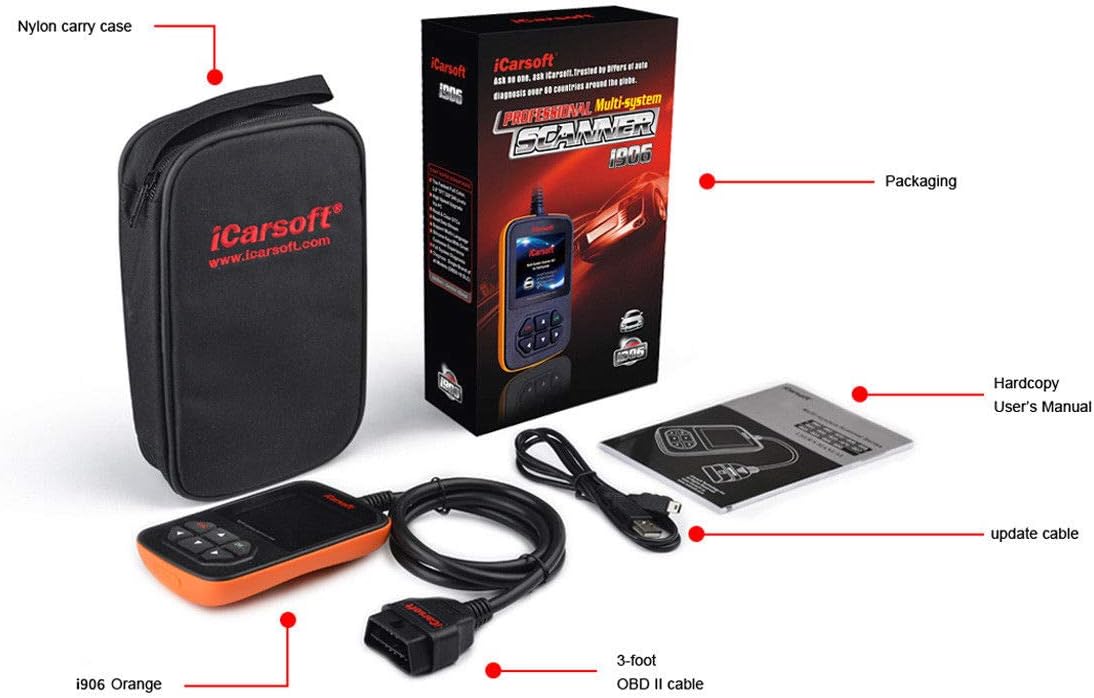
Figure 3.1: Contents of the iCarsoft i906 package, including the scanner, cables, case, and manual.
4. Device Overview
Familiarize yourself with the main components and controls of the iCarsoft i906 scanner:
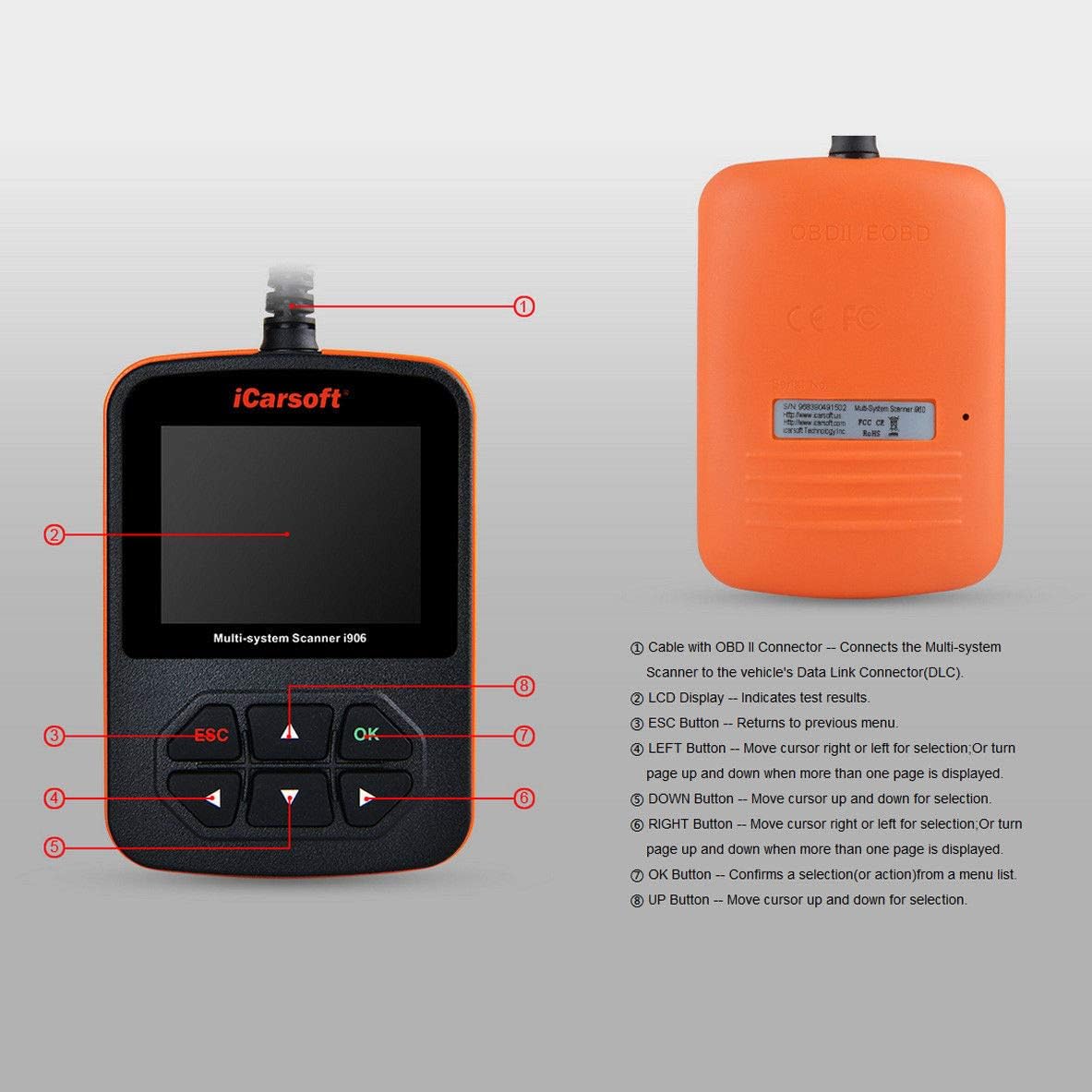
Figure 4.1: Front and back view of the iCarsoft i906 with key components labeled.
- Cable with OBD II Connector: Connects the Multi-system Scanner to the vehicle's Data Link Connector (DLC).
- LCD Display: Indicates test results and menu options.
- ESC Button: Returns to the previous menu or cancels an operation.
- LEFT Button: Moves cursor left or selects an option. Also used to turn page up and down when more than one page is displayed.
- DOWN Button: Moves cursor down or selects an option.
- RIGHT Button: Moves cursor right or selects an option. Also used to turn page up and down when more than one page is displayed.
- OK Button: Confirms a selection or action from a menu list.
- UP Button: Moves cursor up or selects an option.
5. Setup
5.1 Initial Setup
The iCarsoft i906 is a standalone unit that does not require batteries, as it draws power directly from the vehicle's OBD II port.
5.2 Connecting to Vehicle
- Locate the vehicle's Data Link Connector (DLC), typically found under the dashboard on the driver's side.
- Ensure the vehicle's ignition is in the "ON" position (engine can be off).
- Plug the OBD II cable from the i906 scanner into the vehicle's DLC. The device will automatically power on and boot up.
- Follow the on-screen instructions to begin scanning your vehicle.
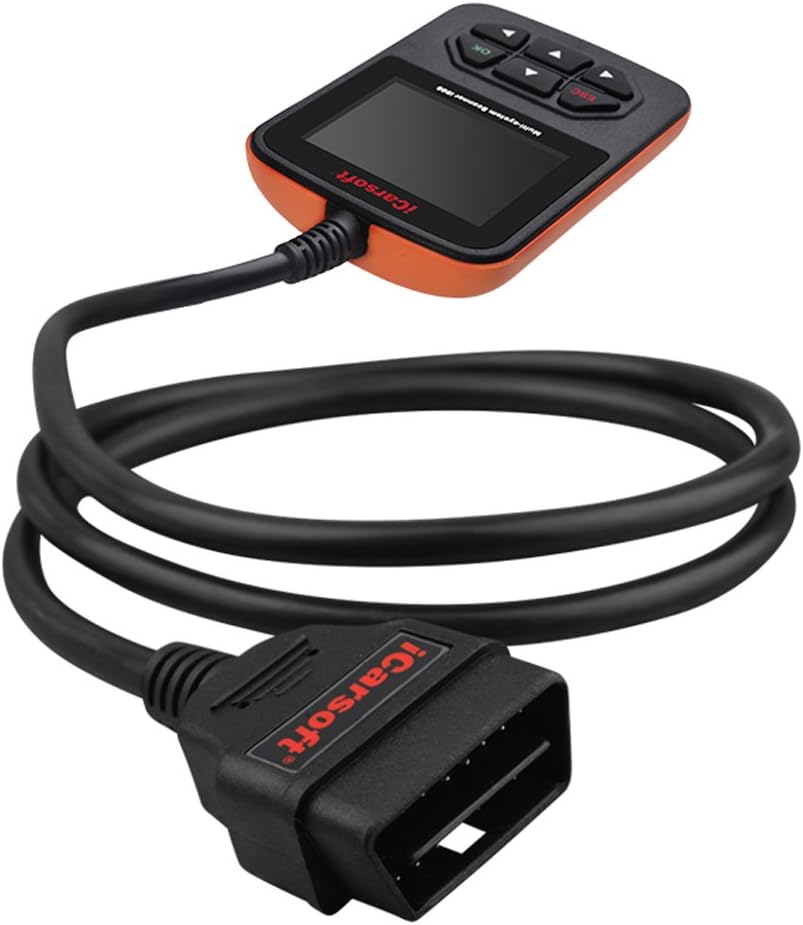
Figure 5.1: The iCarsoft i906 scanner connected to its OBD II cable, ready for vehicle connection.
5.3 Software Update
It is recommended to update the scanner's software regularly to ensure access to the latest vehicle data and diagnostic functions. iCarsoft provides lifetime free updates.
- Visit the official iCarsoft website to download the update tool and the latest software package.
- Connect the i906 scanner to your computer using the provided USB update cable.
- Run the update tool on your computer and follow the on-screen instructions to install the latest software onto your device.
6. Operating Instructions
6.1 Basic Navigation
Use the UP, DOWN, LEFT, and RIGHT arrow buttons to navigate through menus and select options. Press the OK button to confirm a selection, and the ESC button to go back to the previous screen.
6.2 Reading & Clearing DTCs (Diagnostic Trouble Codes)
- From the main menu, select "Diagnose" or "Scan".
- Choose the vehicle make (Volvo/Saab) and model if prompted.
- Select the system you wish to diagnose (e.g., Engine, ABS, SRS, Transmission).
- Choose "Read Codes" to view current and pending diagnostic trouble codes.
- To clear codes, select "Clear Codes" from the menu. Confirm the action when prompted. Note: Clearing codes will turn off the Check Engine Light (MIL) but will not fix the underlying issue. Ensure the problem is resolved before clearing codes to prevent them from reappearing.
6.3 Live Data Stream
The Live Data Stream function allows you to view real-time sensor data from the vehicle's ECU. This can be invaluable for diagnosing intermittent problems or verifying repairs.
- After selecting a system, choose "Live Data" or "Data Stream".
- Select the parameters you wish to monitor.
- The data will be displayed in numerical or graphical format, updating in real-time.

Figure 6.1: The iCarsoft i906 scanner being used to diagnose a vehicle.
6.4 OBD II Functions (for all OBD II/EOBD compliant vehicles)
For general OBD II diagnostics on any compatible vehicle (2001-2012 models), the i906 offers standard functions:
- I/M Readiness: Checks if the various emissions-related systems on the vehicle are operating correctly and are ready for inspection and maintenance testing.
- Freeze Frame Data: Displays a snapshot of operating conditions at the time an emissions-related fault occurred.
- O2 Sensor Test: Retrieves O2 sensor monitor test results for the most recently completed tests from the vehicle’s on-board computer.
- On-Board Monitor Test: Retrieves results for emission-related powertrain components and systems that are not continuously monitored.
- EVAP System Test: Initiates a leak test for the vehicle's evaporative emission system.
7. Maintenance
7.1 Cleaning
To maintain the scanner's performance and appearance, clean the device regularly with a soft, dry cloth. Avoid using abrasive cleaners or solvents that could damage the screen or casing.
7.2 Software Updates
As mentioned in the Setup section, iCarsoft provides lifetime free software updates for the i906. Regularly updating your device ensures it has the latest diagnostic capabilities and compatibility with new vehicle models or software revisions. Connect the device to a computer via USB and use the iCarsoft update tool to perform updates.
8. Troubleshooting
If you encounter issues while using your iCarsoft i906 scanner, consider the following common troubleshooting steps:
- Device Not Powering On: Ensure the OBD II cable is securely connected to both the scanner and the vehicle's DLC. Verify the vehicle's ignition is in the "ON" position. Check the vehicle's fuse for the OBD II port if necessary.
- Communication Error: This may occur if the scanner cannot establish communication with the vehicle's ECU. Check the cable connection, ensure the ignition is on, and verify the vehicle's compatibility with the i906 (specifically for Volvo/Saab systems or general OBD II for other makes).
- Codes Not Clearing: If codes reappear immediately after clearing, it indicates that the underlying fault has not been resolved. The scanner can only clear codes; it cannot fix mechanical or electrical issues. Address the root cause of the fault before attempting to clear codes again.
- Software Update Issues: Ensure you are using the correct update tool and software package from the official iCarsoft website. Verify your internet connection and USB cable integrity.
Legal Disclaimer: This diagnostic tool reads and clears error codes. It will only report errors and allow you to clear them. However, if your car has a physical problem identified by the tool, it will require a certified dealer or qualified mechanic to fix the problem.
9. Specifications
| Attribute | Detail |
|---|---|
| Brand | iCarsoft |
| Model Number | i906 |
| Item Weight | 1 pound |
| Product Dimensions (L x W x H) | 5.2 x 3.2 x 0.8 inches |
| Screen Size | 2.8 Inches |
| Voltage | 12 Volts |
| Supported Protocols | CANBUS, ISO9141, KWP2000, J1850 |
| Update Method | USB 2.0 |
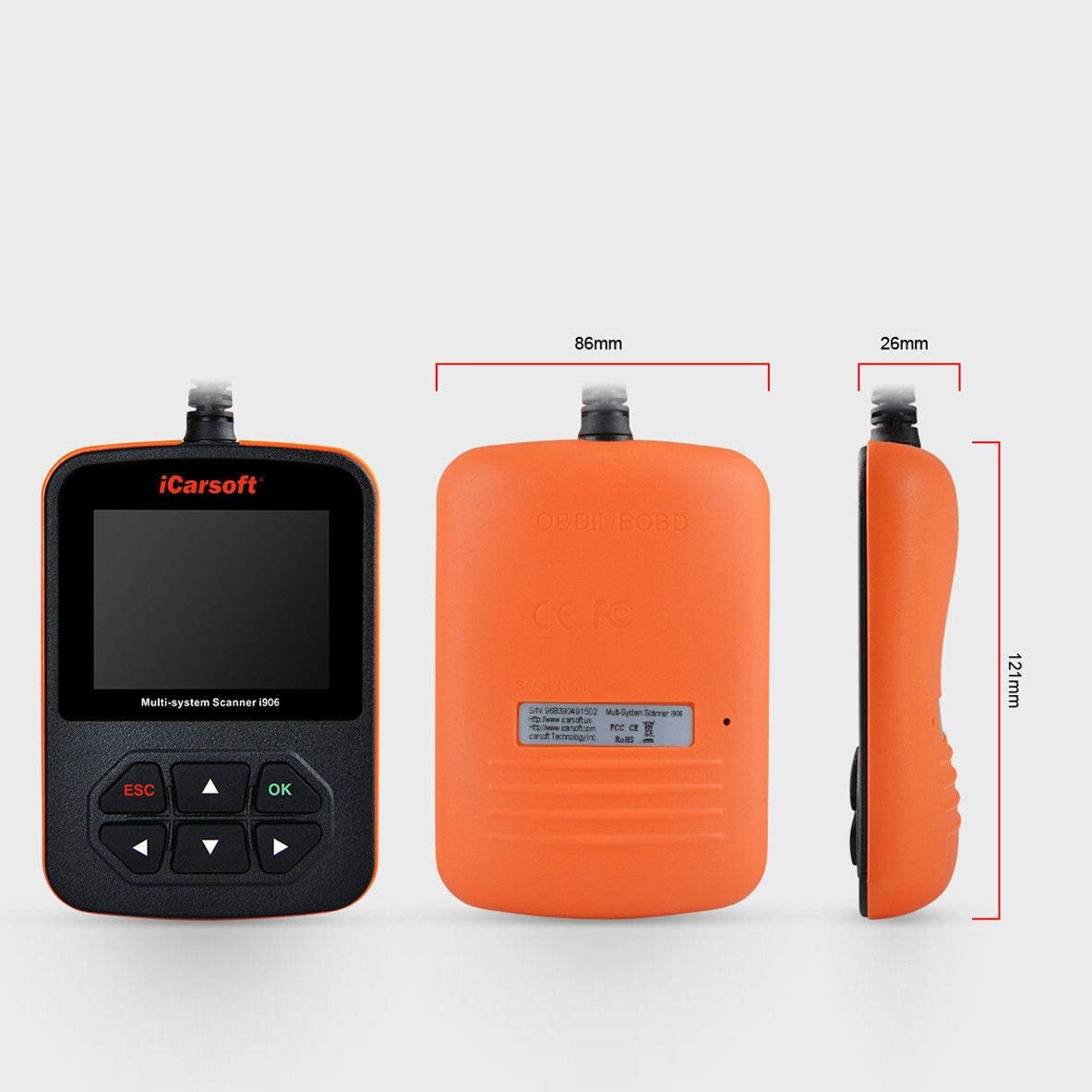
Figure 9.1: Dimensions of the iCarsoft i906 scanner.
10. Warranty and Support
10.1 Warranty Information
The iCarsoft i906 Diagnostic Scanner comes with a one-year warranty from the date of purchase. This warranty covers manufacturing defects and malfunctions under normal use. Please retain your proof of purchase for warranty claims.
10.2 Customer Support
For technical assistance, troubleshooting, or warranty inquiries, please contact iCarsoft customer support. Refer to the official iCarsoft website or the contact information provided in the product packaging for the most up-to-date support channels.
Website: www.icarsoft.com


