
Introduction
This manual provides essential information for the proper setup, operation, and maintenance of your Intermec CV31 Vehicle-Mount Computer. The CV31 is a robust, fixed-mount computer designed for demanding environments, including freezer forklift applications, featuring a heated display and 9-36V power input.
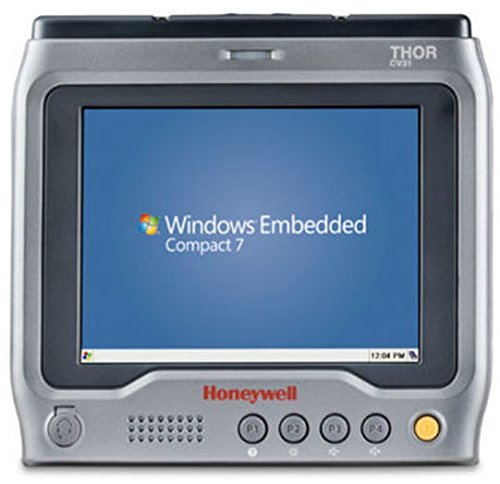
Image 1: Front view of the Intermec CV31 Vehicle-Mount Computer. The screen displays "Windows Embedded Compact 7". Below the screen, the "Honeywell" logo is visible, along with a speaker grille, four programmable function buttons (P1-P4), and a power button.
Setup
- Unpacking: Carefully remove the CV31 computer and all accessories from the packaging. Verify that all components are present according to the packing list.
- Mounting: Securely mount the CV31 to the desired vehicle or fixed location using appropriate mounting hardware (sold separately). Ensure the mounting location provides clear visibility and accessibility for the operator, while also protecting the device from excessive vibration or impact.
- Power Connection: Connect the power cable to the CV31's power input port. The device operates on a 9-36V DC power supply. Ensure the power source meets these specifications and is properly fused. For freezer environments, ensure the heated power connection is secure.
- Peripheral Connections: Connect any necessary peripherals such as barcode scanners, keyboards, or external antennas to the appropriate ports. Refer to the peripheral's manual for specific connection instructions.
- Initial Power On: Press the power button to turn on the device. The system will boot up, displaying the Windows Embedded Compact 7 operating system.
Operating Instructions
Basic Operation
- Power On/Off: Press the power button (typically located on the front panel) to turn the unit on. To turn off, press and hold the power button until the shutdown options appear, then select "Shut Down."
- Touchscreen Navigation: The CV31 features a resistive touchscreen. Use a finger or stylus to interact with the operating system and applications.
- Programmable Function Keys (P1-P4): The four programmable keys on the front panel can be configured for quick access to frequently used functions or applications. Refer to the system settings for customization options.
- Heated Display: The integrated heated display ensures optimal visibility and performance in cold environments, such as freezers. This feature activates automatically as needed.
Software and Applications
The CV31 runs on Windows Embedded Compact 7. Users can install and run compatible applications for data collection, inventory management, and other industrial tasks. Consult your IT department or system administrator for specific software deployment and usage guidelines.
Maintenance
- Cleaning: Regularly clean the display and exterior casing with a soft, damp cloth. Use a mild, non-abrasive cleaning solution if necessary. Avoid spraying liquids directly onto the device.
- Cable Inspection: Periodically inspect all cables (power, peripheral) for signs of wear, damage, or loose connections. Replace damaged cables immediately to prevent operational issues.
- Software Updates: Keep the operating system and installed applications updated to ensure optimal performance and security. Consult your system administrator for update procedures.
- Environmental Considerations: While designed for harsh environments, avoid exposing the CV31 to extreme temperatures outside its specified operating range or to direct water immersion.
Troubleshooting
| Problem | Possible Cause | Solution |
|---|---|---|
| Device does not power on. | No power, loose power cable, faulty power supply. |
|
| Touchscreen is unresponsive. | Calibration issue, software glitch, physical damage. |
|
| Applications are slow or freezing. | Too many applications running, low memory, outdated software. |
|
For issues not covered here, please consult your system administrator or Intermec technical support.
Specifications
| Model Number | CV31A1HPACCP0000 |
| Brand | Intermec |
| Type | Vehicle-Mount Computer, Fixed |
| Application Environment | Freezer Forklift |
| Power Input | 9-36V DC |
| Features | Heated Display, ICP License |
| Operating System | Windows Embedded Compact 7 (as shown in image) |
| Product Dimensions | 6.95 x 2.2 x 7.45 inches |
| Weight | 1 Pound |
| First Available | December 17, 2015 |


