
1. Introduction
This manual provides detailed instructions for the installation, operation, and maintenance of your SilverStone Strider Plus ST70F-PB 700W Power Supply. The Strider series is a versatile and proven line of power supply products known for their innovative features. The ST70F-PB model offers high efficiency with 80 PLUS Bronze certification, a compact design, a powerful single +12V rail, and a quiet 120mm fan. Its 100% modular cables provide flexibility for various system configurations, supporting current and future graphics card specifications. Please read this manual thoroughly before use to ensure proper and safe operation.
2. Safety Information
Always observe the following safety precautions to prevent injury and damage to your equipment:
- Electrical Hazard: Power supplies contain high voltage components. Do not open the power supply casing. There are no user-serviceable parts inside. Refer all servicing to qualified service personnel.
- Ventilation: Ensure adequate airflow around the power supply. Do not block ventilation openings. Overheating can lead to malfunction or fire.
- Moisture: Do not expose the power supply to water or excessive humidity. Operate in a dry environment.
- Power Source: Connect the power supply only to a grounded electrical outlet with the correct voltage and frequency as specified on the unit's label.
- Cable Management: Route cables carefully to avoid pinching, sharp bends, or interference with other components.
- Static Electricity: Discharge static electricity from your body before handling the power supply or other internal computer components. Use an anti-static wrist strap if available.
- Temperature: Operate the power supply within the specified temperature range (24/7 continuous power output with 40℃ operating temperature).
3. Package Contents
Verify that all items are present in the package before proceeding with installation:
- SilverStone Strider Plus ST70F-PB 700W Power Supply Unit
- Modular Cable Set (including ATX 20+4 pin, EPS/ATX 4+4 pin, PCI-E 6+2 pin, SATA, and Peripheral connectors)
- AC Power Cord
- Mounting Screws
- User Manual (this document)
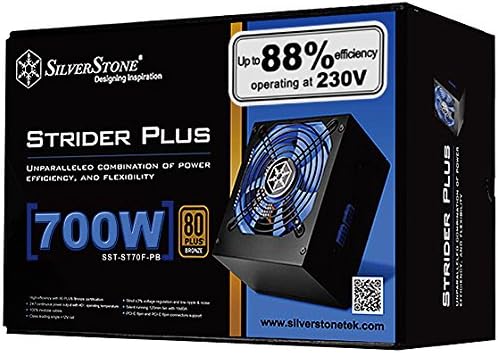
Image: Retail packaging for the SilverStone Strider Plus 700W Power Supply, showing the product name, wattage, and 80 PLUS Bronze certification.
4. Product Overview
4.1 Key Features
The SilverStone Strider Plus ST70F-PB Power Supply is designed with advanced features for reliable and efficient performance:
- High efficiency with 80 PLUS Bronze certification
- 24/7 continuous power output with 40℃ operating temperature
- 100% modular cables for improved cable management and airflow
- Class-leading single +12V rail for stable power delivery to demanding components
- Strict 3% voltage regulation and low ripple & noise for clean power
4.2 Components and Layout
Familiarize yourself with the main components of the power supply unit:

Image: Front view of the SilverStone Strider Plus 700W Power Supply, showcasing the large blue cooling fan and the modular cable connection ports on the side.
- Cooling Fan: A large 120mm fan (visible through the grille) provides efficient cooling for the internal components, ensuring stable operation and longevity.
- Modular Cable Ports: Located on the side of the unit, these ports allow you to connect only the necessary cables, reducing clutter and improving airflow within your PC case.
- AC Input Socket: Standard IEC C14 socket for connecting the AC power cord from your wall outlet.
- Power Switch: An on/off switch located next to the AC input socket for manually cutting power to the unit.

Image: Rear view of the SilverStone Strider Plus 700W Power Supply, highlighting the AC power input socket and the main power on/off switch.

Image: Close-up view of the modular cable connection panel on the SilverStone Strider Plus 700W Power Supply, showing various ports for different cable types (e.g., 24-pin ATX, CPU, PCIe, SATA).
5. Setup and Installation
Follow these steps to properly install your power supply unit into your computer system:
- Prepare Your System:
- Ensure your computer is completely powered off and unplugged from the wall outlet.
- Open your computer case to access the power supply mounting area.
- If replacing an old power supply, disconnect all cables from the old unit and remove it from the case.
- Mount the Power Supply:
- Carefully slide the SilverStone ST70F-PB power supply into the designated bay in your computer case.
- Align the screw holes on the power supply with those on the case.
- Secure the power supply using the provided mounting screws.
- Connect Modular Cables:
- Identify the necessary cables for your motherboard, CPU, graphics card(s), and storage devices.
- Connect the required modular cables to the corresponding ports on the power supply unit. Ensure a firm connection.
- Route the cables neatly through your case's cable management channels to improve airflow and aesthetics.
- Connect the other end of each cable to the appropriate component (e.g., 24-pin ATX to motherboard, 8-pin EPS to CPU, 6+2 pin PCIe to graphics card, SATA to SSD/HDD).
- Close Case and Connect Power:
- Once all internal connections are made, close your computer case.
- Connect the AC power cord to the power supply's AC input socket and then to a grounded wall outlet.
6. Operating Instructions
Operating your SilverStone Strider Plus ST70F-PB Power Supply is straightforward:
- Power On: After installation, ensure the power switch on the back of the power supply is in the "ON" (I) position.
- System Boot: Press the power button on your computer case. The power supply will provide stable power to all connected components, allowing your system to boot up.
- Normal Operation: The power supply is designed for 24/7 continuous operation within its specified temperature range. The internal fan will adjust its speed based on the load and temperature to maintain optimal cooling and quiet operation.
- Power Off: To shut down your system, use the operating system's shutdown function. For a complete power cut, switch the power supply's rear switch to the "OFF" (O) position and unplug the AC cord.
7. Maintenance
Regular maintenance helps ensure the longevity and optimal performance of your power supply:
- Dust Removal: Periodically clean dust from the power supply's fan grille and internal components (if accessible without opening the casing). Use compressed air to blow dust out of the unit. Always unplug the power supply from the wall outlet before cleaning.
- Cable Inspection: Occasionally inspect all connected modular cables for any signs of wear, damage, or loose connections.
- Environment: Ensure the computer operates in a clean, dry, and well-ventilated environment to prevent dust buildup and overheating.
8. Troubleshooting
If you encounter issues with your power supply, refer to the following common troubleshooting steps:
| Problem | Possible Cause | Solution |
|---|---|---|
| System does not power on. |
|
|
| System powers on but shuts down unexpectedly. |
|
|
| Loud fan noise from PSU. |
|
|
If the problem persists after trying these solutions, please contact SilverStone customer support for further assistance.
9. Specifications
Detailed technical specifications for the SilverStone Strider Plus ST70F-PB 700W Power Supply:
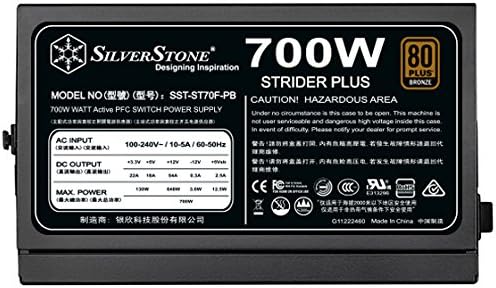
Image: Product label displaying detailed electrical specifications, model number (SST-ST70F-PB), and certifications for the SilverStone Strider Plus 700W Power Supply.
| Feature | Detail |
|---|---|
| Model Number | PS-ST70F-PB |
| Brand | SilverStone |
| Wattage | 700 Watts |
| Efficiency Certification | 80 PLUS Bronze |
| Form Factor | ATX12V / EPS12V |
| Modular Cables | 100% Fully Modular |
| PFC | Active PFC |
| +12V Rail | Single +12V Rail (54A) |
| Cooling Method | Air (120mm fan) |
| Operating Temperature | Up to 40℃ for 24/7 continuous output |
| Product Dimensions (L x W x H) | 12 x 8 x 4 inches (approx. 140mm depth) |
| Item Weight | 5.6 pounds |
| Connector Types | ATX, EPS, PCI Express, SATA |
| Date First Available | January 9, 2015 |
10. Warranty and Support
SilverStone Technology Co., Ltd. provides a limited warranty for its products. For specific warranty terms and conditions applicable to your region, please refer to the warranty card included with your product or visit the official SilverStone website.
For technical support, troubleshooting assistance beyond this manual, or warranty claims, please contact SilverStone customer service through their official website or the contact information provided with your product. You can also visit the SilverStone Store on Amazon for more information and product resources.